
1. Introduction
Thank you for choosing the Nureva NPSi-1 Home Theatre Projector. This manual provides essential information for the safe and efficient operation of your projector. Please read it thoroughly before use and retain it for future reference. The NPSi-1 is designed to deliver a high-quality viewing experience with Full HD 1080p resolution and versatile connectivity options.
2. Important Safety Information
- Electrical Safety: Always connect the projector to a grounded power outlet. Do not expose the projector to rain or moisture. Disconnect power during lightning storms or when unused for long periods.
- Heat and Ventilation: Ensure adequate ventilation around the projector. Do not block ventilation openings. Avoid placing the projector on soft surfaces that may block airflow.
- Lamp Safety: The projector lamp operates at high temperatures. Allow the projector to cool down before moving it or performing maintenance. Never look directly into the projector lens when the lamp is on, as it can cause eye damage.
- Handling: Handle the projector with care. Avoid dropping or subjecting it to strong impacts.
- Cleaning: Use a soft, dry cloth for cleaning. For the lens, use a lens cleaning cloth and solution specifically designed for optical surfaces.
3. Package Contents
Please check that all items are present and in good condition:
- Nureva NPSi-1 Projector
- Remote Control
- HDMI Cable
- Power Cord
- User Manual (this document)
4. Product Overview
4.1 Front and Top View

Figure 4.1: Top view of the Nureva NPSi-1 projector, showing the lens assembly on the left and the integrated control panel on the top surface. The control panel includes navigation buttons and indicator lights.

Figure 4.2: Front view of the Nureva NPSi-1 projector, highlighting the projection lens. This view shows the primary output component of the projector.
The top surface features an intuitive control panel for direct operation, including power, menu navigation, and input selection buttons. The front houses the projection lens, which can be adjusted for focus and zoom.
4.2 Rear Panel and Connectivity
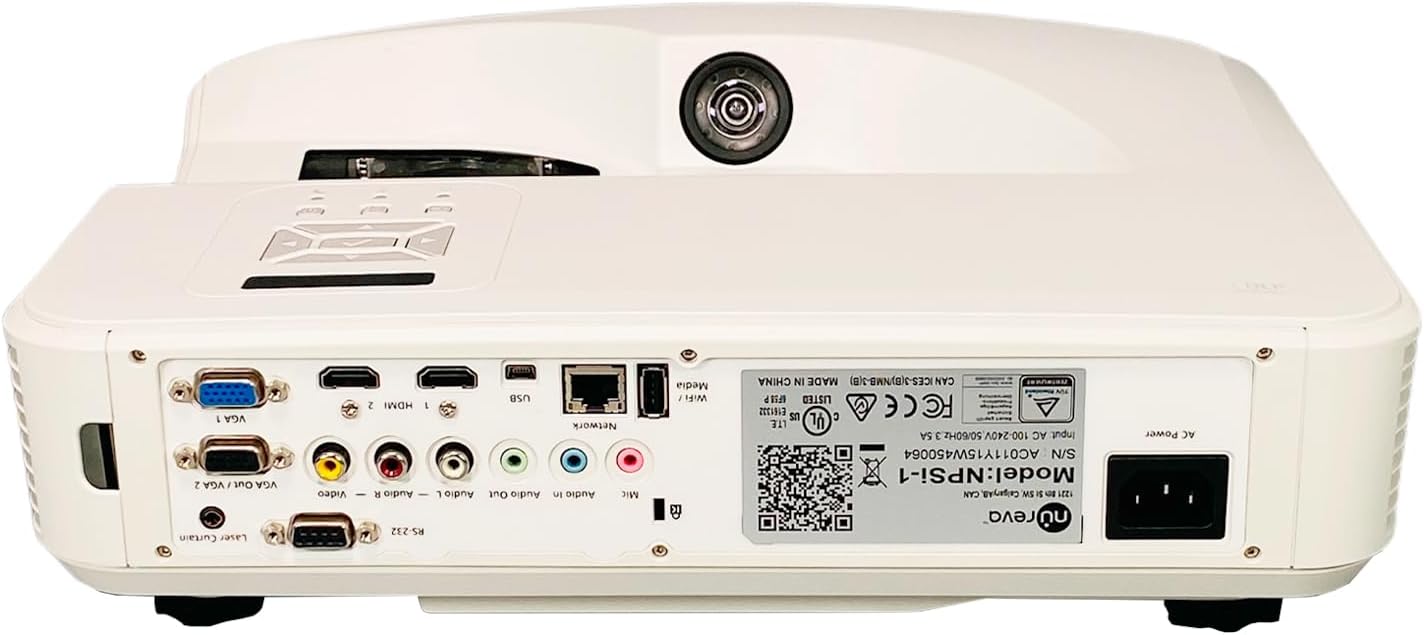
Figure 4.3: Rear panel of the Nureva NPSi-1 projector, displaying a comprehensive array of connectivity ports including HDMI, VGA, USB, audio inputs/outputs, and network connections.

Figure 4.4: Detailed close-up of the Nureva NPSi-1 projector's rear connectivity panel, showing individual ports such as VGA 1, HDMI 1, HDMI 2, USB, Network (RJ45), Audio In/Out, Composite Video, and RS-232.
The rear panel provides extensive connectivity options for various devices:
- HDMI 1 / HDMI 2: For connecting high-definition digital sources like Blu-ray players, gaming consoles, or computers.
- VGA 1 / VGA Out / VGA 2: For connecting computers or other analog video sources.
- USB: For media playback or firmware updates.
- Network (RJ45): For network control and monitoring.
- Audio In / Audio Out: For connecting external audio devices.
- Composite Video (RCA): For standard definition video sources.
- RS-232: For serial control.
- AC Power: For connecting the power cord.
4.3 Product Label

Figure 4.5: Close-up view of the product label on the Nureva NPSi-1 projector, showing the model number (NPSi-1), serial number (AC011Y15W450064), and input power requirements (AC 100-240V, 50/60Hz, 3.5A). This label also includes regulatory compliance marks.
The product label, typically located on the underside or rear of the projector, contains important information such as the model number, serial number, and electrical specifications. For support, please refer to the model number NPSi-1 and serial number AC011Y15W450064.
4.4 Side and Bottom Views

Figure 4.6: Side view of the Nureva NPSi-1 projector, showing the extensive ventilation grilles necessary for heat dissipation during operation.
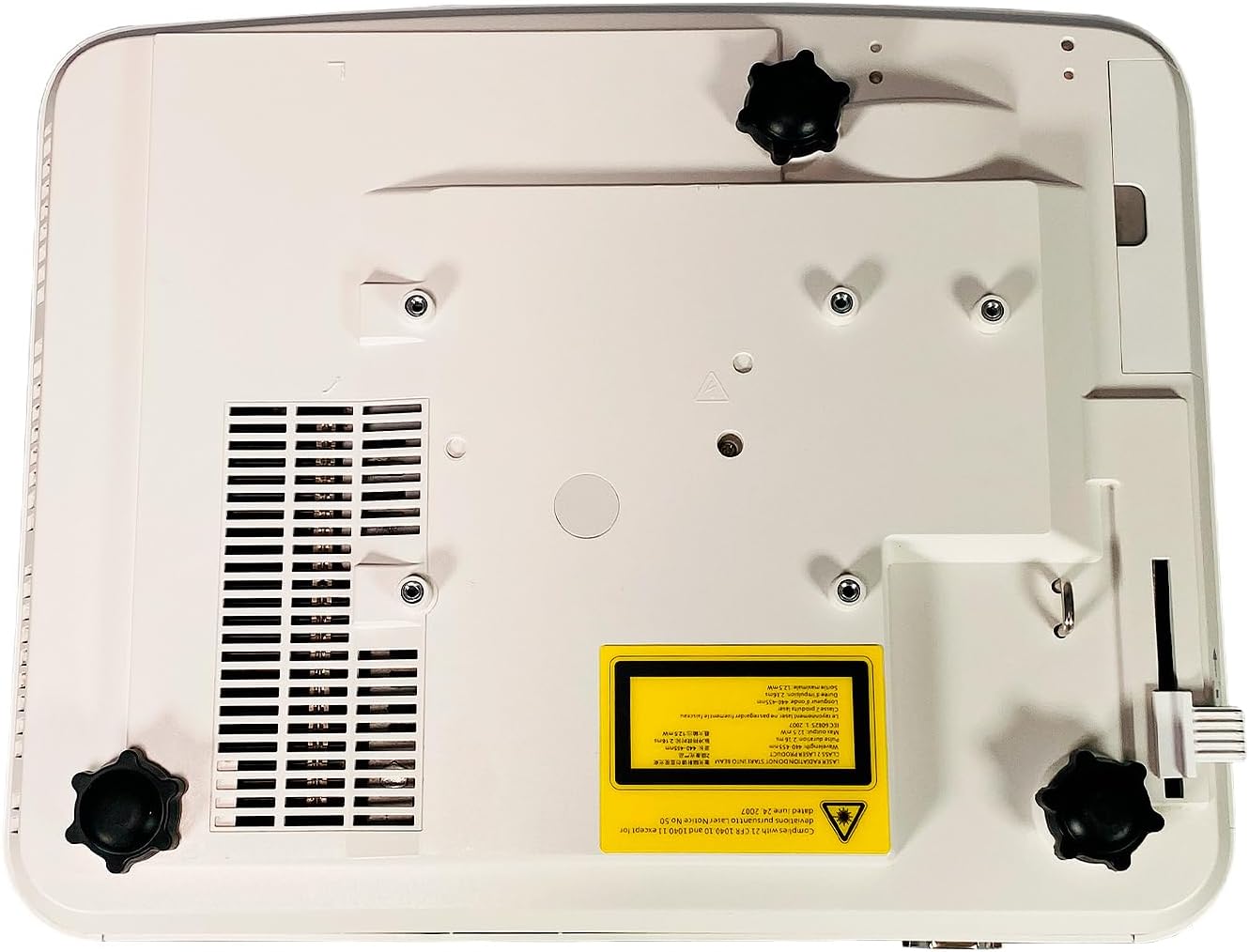
Figure 4.7: Bottom view of the Nureva NPSi-1 projector, featuring adjustable feet for leveling and stability, along with mounting points for ceiling installation.
The sides of the projector feature ventilation grilles to ensure proper airflow and prevent overheating. The bottom panel includes adjustable feet for precise leveling and mounting points for ceiling or rear projection setups.
5. Setup
5.1 Placement
Consider the following when placing your projector:
- Projection Surface: Project onto a flat, white, or light-colored surface for best results. A dedicated projector screen is recommended.
- Distance: Adjust the projector's distance from the screen to achieve the desired image size. Refer to the projection distance chart (not provided, consult product specifications for typical throw ratios).
- Angle: Position the projector as perpendicular to the screen as possible to minimize keystone distortion.
- Ventilation: Ensure at least 30 cm (12 inches) of clear space around the projector's ventilation openings.
- Mounting: The projector supports Table Top, Ceiling Projection, and Rear Projection. Use appropriate mounting hardware for ceiling installations.
5.2 Connecting Power
- Connect the supplied power cord to the AC Power inlet on the rear of the projector.
- Plug the other end of the power cord into a grounded electrical outlet.
5.3 Connecting Input Sources
Connect your video and audio sources to the appropriate ports on the rear panel (refer to Figure 4.3 and 4.4).
- HDMI: Use the provided HDMI cable to connect your source device (e.g., Blu-ray player, laptop) to either HDMI 1 or HDMI 2 port.
- VGA: Connect a computer to the VGA 1 or VGA 2 port using a VGA cable.
- USB: Insert a USB drive for media playback into the USB port.
- Audio: If using analog video inputs (VGA, Composite), connect separate audio cables to the Audio In ports. Use Audio Out to connect to external speakers.
6. Operating Instructions
6.1 Powering On/Off
- To power on, press the Power button on the projector's control panel or the remote control. The power indicator light will change.
- To power off, press the Power button again. A confirmation message may appear. Confirm to shut down. Allow the projector to cool down before unplugging.
6.2 Image Adjustment
- Focus Ring: Rotate the focus ring around the lens to sharpen the image.
- Zoom Ring: Rotate the zoom ring (if available) to adjust the image size without moving the projector.
- Keystone Correction: If the image appears trapezoidal, use the keystone correction function (usually found in the OSD menu or via dedicated buttons on the remote) to square the image.
- Projection Tilt: Use the adjustable feet on the bottom of the projector to fine-tune the vertical angle.
- Color Correction: Access the OSD menu to adjust color settings such as brightness, contrast, saturation, and color temperature.
6.3 Input Source Selection
Press the Source or Input button on the projector or remote control to cycle through available input sources (HDMI 1, HDMI 2, VGA 1, VGA 2, USB, Composite Video, etc.).
6.4 On-Screen Display (OSD) Menu
Press the Menu button on the projector or remote to access the OSD menu. Use the navigation buttons (up, down, left, right) to browse options and the OK or Enter button to select. Press Menu again or Exit to close the menu.
7. Maintenance
7.1 Cleaning the Projector
- Exterior: Wipe the projector casing with a soft, lint-free cloth. For stubborn marks, dampen the cloth slightly with water, then wipe dry. Avoid abrasive cleaners or solvents.
- Lens: Gently clean the lens with a professional lens cleaning cloth and lens cleaning fluid. Do not use abrasive materials or excessive force, as this can scratch the lens.
- Air Vents: Use a soft brush or a can of compressed air to remove dust from the air intake and exhaust vents. Ensure the projector is off and unplugged before cleaning vents.
7.2 Lamp Replacement
The projector lamp has a finite lifespan. When the lamp life indicator appears or the image brightness significantly decreases, the lamp may need replacement. Refer to the specific lamp replacement instructions provided with your replacement lamp or consult a qualified service technician. Always ensure the projector is unplugged and completely cooled down before attempting lamp replacement.
8. Troubleshooting
| Problem | Possible Cause | Solution |
|---|---|---|
| No image on screen |
|
|
| Image is blurry |
|
|
| Image is trapezoidal (keystone effect) |
|
|
| No audio |
|
|
9. Specifications
| Feature | Detail |
|---|---|
| Brand | Nureva |
| Model | NPSi-1 |
| Brightness | 3000 ANSI Lumens |
| Contrast Ratio | 1800:1 |
| Native Resolution | 1920x720 (Full HD 1080p compatible) |
| Connectivity Technology | HDMI, USB, VGA In (Dsub-15pin), Composite (RCA), RS232 (DB-9pin), USB B, Composite video, RS232C, RJ45, LAN |
| Special Features | Built-in Speakers, Ceiling Projection, Color Correction, HD Ready, Projection Tilt, Rear Projection, Table Top Projection, Portable |
| Recommended Uses | Home Cinema |
| Input Power | AC 100-240V, 50/60Hz, 3.5A |
10. Warranty and Support
For warranty information, technical support, or service inquiries, please refer to the documentation provided at the time of purchase or visit the official Nureva website. When contacting support, please have your model number (NPSi-1) and serial number (AC011Y15W450064) readily available.
You can find more information about Nureva products and support at www.nureva.com