
1. Introduction
This manual provides essential information for setting up, operating, maintaining, and troubleshooting your Dell OptiPlex 7000 7020 Micro PC. The OptiPlex 7020 Micro PC is a compact and powerful desktop solution designed for productivity.
Key Features:
- Compact Design: Micro PC form factor for space-saving deployment.
- High Performance: Equipped with an Intel Core i7 14th Gen i7-14700T processor and 16 GB DDR5 memory for efficient multitasking.
- Fast Storage: 256 GB SSD for quick boot times and application loading.
- Versatile Connectivity: Features native HDMI and DisplayPort, multiple USB ports, and wireless (802.11ax, Bluetooth) and wired (Ethernet) network options.
- Operating System: Pre-installed with Windows 11 Pro for enhanced productivity and security.
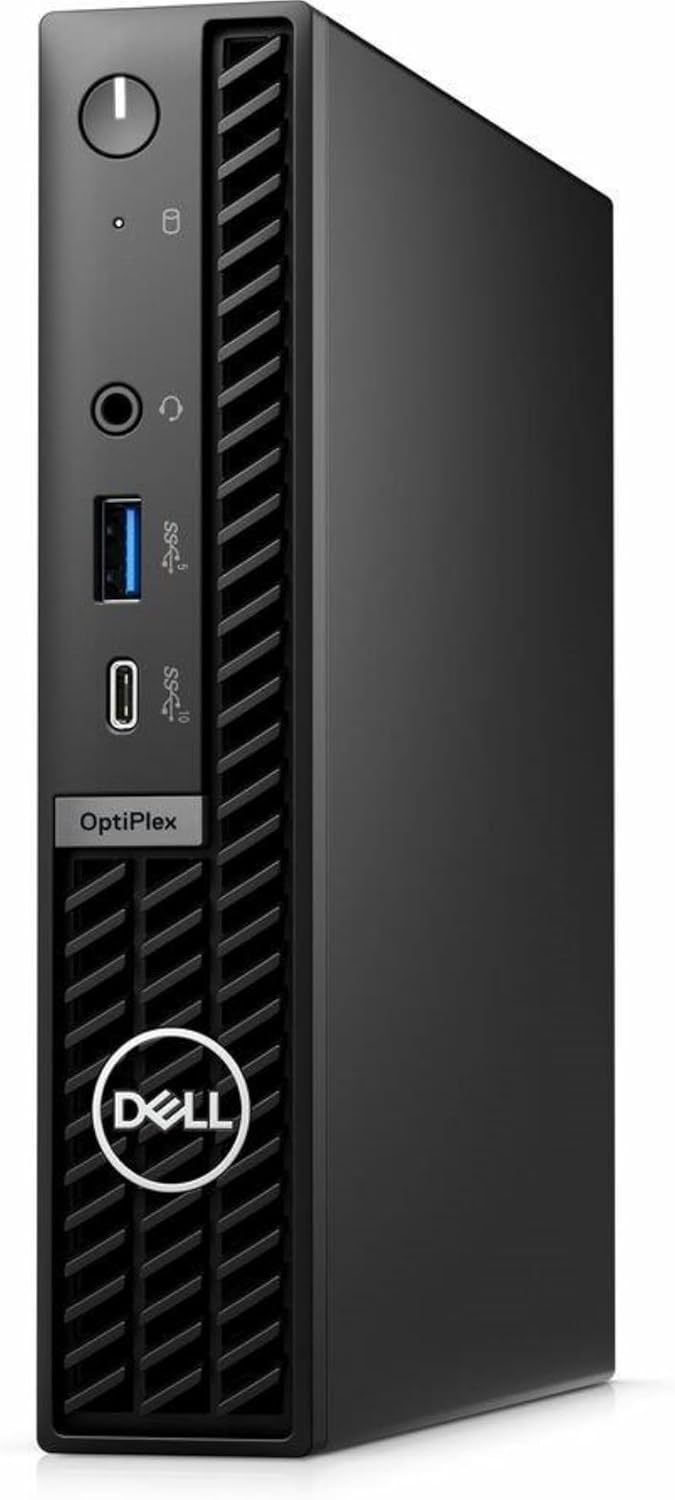
2. Package Contents
Verify that all items listed below are included in your product packaging. If any items are missing or damaged, contact your vendor or Dell support.
- Dell OptiPlex Micro (7020)
- Power Cord
- Safety/Environment and Regulatory Guide (English/French Multi-language)
- Mouse
- Keyboard
3. Setup
3.1 Connecting Peripherals
- Connect Monitor: Connect your monitor to the Micro PC using either the HDMI or DisplayPort. Ensure the monitor is also connected to a power source.
- Connect Keyboard and Mouse: Plug the USB keyboard and mouse into any available USB ports on the Micro PC.
- Connect Network (Optional): For a wired internet connection, connect an Ethernet cable from your router or modem to the Ethernet port on the Micro PC. For wireless, ensure your Wi-Fi network is available during initial setup.
- Connect Power: Connect the power cord to the Micro PC's power input, then plug the other end into a power outlet.
3.2 Initial Power On
Press the power button located on the front of the Micro PC. The system will boot up, and you will be guided through the Windows 11 Pro initial setup process.
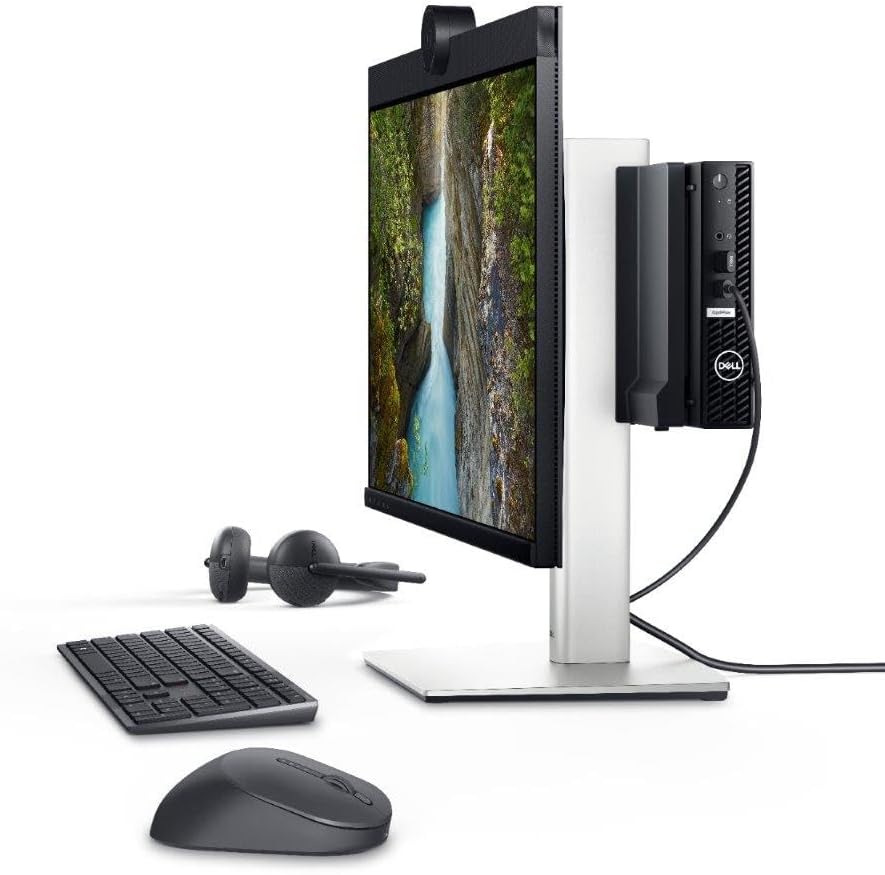
3.3 Mounting Options
The OptiPlex Micro PC offers versatile mounting options to optimize your workspace.

4. Operating
4.1 Power On/Off
- To Power On: Press the power button on the front panel.
- To Shut Down: Click the Start button in Windows, then select Power > Shut down.
- To Restart: Click the Start button in Windows, then select Power > Restart.
4.2 Connecting USB Devices
The Micro PC features multiple USB ports (USB 3.2 Gen 1 Type-A, USB 2.0 Type-A) for connecting external devices such as external hard drives, printers, or webcams. Simply plug the device into an available USB port.
4.3 Network Connectivity
- Wired Connection: If an Ethernet cable is connected, the system will automatically attempt to establish a wired network connection.
- Wireless Connection: To connect to a Wi-Fi network, click the network icon in the Windows taskbar, select your desired network, and enter the password if prompted.
5. Maintenance
5.1 Cleaning
- Exterior: Use a soft, lint-free cloth lightly dampened with water or a mild cleaning solution to clean the exterior surfaces. Avoid harsh chemicals.
- Ventilation: Ensure the ventilation openings are clear of dust and obstructions to prevent overheating. Use compressed air to gently clear dust from vents periodically.
5.2 Software Updates
Regularly update your Windows operating system and Dell drivers to ensure optimal performance, security, and compatibility. Windows updates can be managed through the Settings app, and Dell drivers can be found on the official Dell support website.
5.3 Data Backup
It is recommended to regularly back up your important data to an external drive or cloud storage to prevent data loss.
6. Troubleshooting
Common Issues and Solutions:
- No Power:
- Check if the power cord is securely connected to both the PC and the power outlet.
- Try a different power outlet. - No Display:
- Ensure the monitor is powered on and the video cable (HDMI/DisplayPort) is securely connected to both the PC and the monitor.
- Try connecting the monitor to a different video port on the PC if available. - No Internet Connection:
- For wired connections, check the Ethernet cable and router/modem status.
- For wireless connections, ensure Wi-Fi is enabled in Windows and you are connected to the correct network with the correct password. - System Slowdown:
- Close unnecessary applications.
- Check for and install any pending Windows updates.
- Run a disk cleanup and defragmentation (for HDDs, not typically needed for SSDs).
- Scan for malware or viruses.
For more detailed troubleshooting or persistent issues, refer to the Dell support website or contact Dell technical support.
7. Specifications
| Feature | Specification |
|---|---|
| Model | OptiPlex 7000 7020 Micro PC |
| Processor | Intel Core i7-14700T (1.3 GHz, 24 Cores) |
| RAM | 16 GB DDR5 (4800 MHz) |
| Storage | 256 GB SSD (M.2, Gen 4 support) |
| Graphics | Integrated Intel Graphics |
| Operating System | Windows 11 Pro |
| Video Output | 1x HDMI, 1x DisplayPort |
| Wireless Connectivity | 802.11ax Wi-Fi, Bluetooth |
| Wired Connectivity | Ethernet Port |
| USB Ports | Multiple USB 3.2 Gen 1 Type-A, USB 2.0 Type-A, Optional USB-Type C with Power Delivery |
| Dimensions (LxWxH) | 7 x 1.4 x 7.2 inches |
| Weight | 2.95 pounds |
8. Warranty and Support
8.1 Warranty Information
Your Dell OptiPlex 7000 7020 Micro PC comes with a standard limited hardware warranty. For specific terms and conditions, please refer to the warranty documentation included with your product or visit the official Dell website.
8.2 Technical Support
For technical assistance, driver downloads, or further product information, please visit the official Dell Support website. You will need your product's service tag to access specific support resources.
Dell Support Website: www.dell.com/support