
RICHCHIP RC100
RICHCHIP RC100 Advanced Bluetooth Wireless Microphone
User Instruction Manual
Introduction
Thank you for choosing the RICHCHIP RC100 Advanced Bluetooth Wireless Microphone. This device is designed to provide high-quality audio capture for various applications, including voice recording, online meetings, interviews, live streaming, and compatibility with devices like the GoPro HERO12. Featuring advanced Bluetooth technology and noise reduction capabilities, the RC100 offers a receiver-less, portable, and versatile audio solution. Please read this manual thoroughly to ensure proper use and optimal performance of your new microphone.

Image: The RICHCHIP RC100 Advanced Bluetooth Wireless Microphone, showcasing its sleek silver and black design with a clip for attachment.
What's in the Box
Upon opening the package, please verify that all the following items are included:
- RICHCHIP RC100 Bluetooth Microphone
- Protective Case
- Charging Cable and Adapter
- Microphone Windshield (Dead Cat)
- Complementary Leather Keychain Holder

Image: All included accessories for the RICHCHIP RC100 microphone, including the microphone, case, charging cable, windshield, and keychain holders.
Product Overview
The RICHCHIP RC100 is a compact and versatile microphone designed for ease of use and high-quality audio capture. It integrates three primary functions:
- Vocal Microphone: Optimized for clear voice capture in meetings, recordings, and live streams.
- Wireless Recording: Enables high-fidelity audio recording without the need for a separate receiver.
- Remote Shutter: Functions as a remote control for your device's camera, ideal for selfies and group photos.
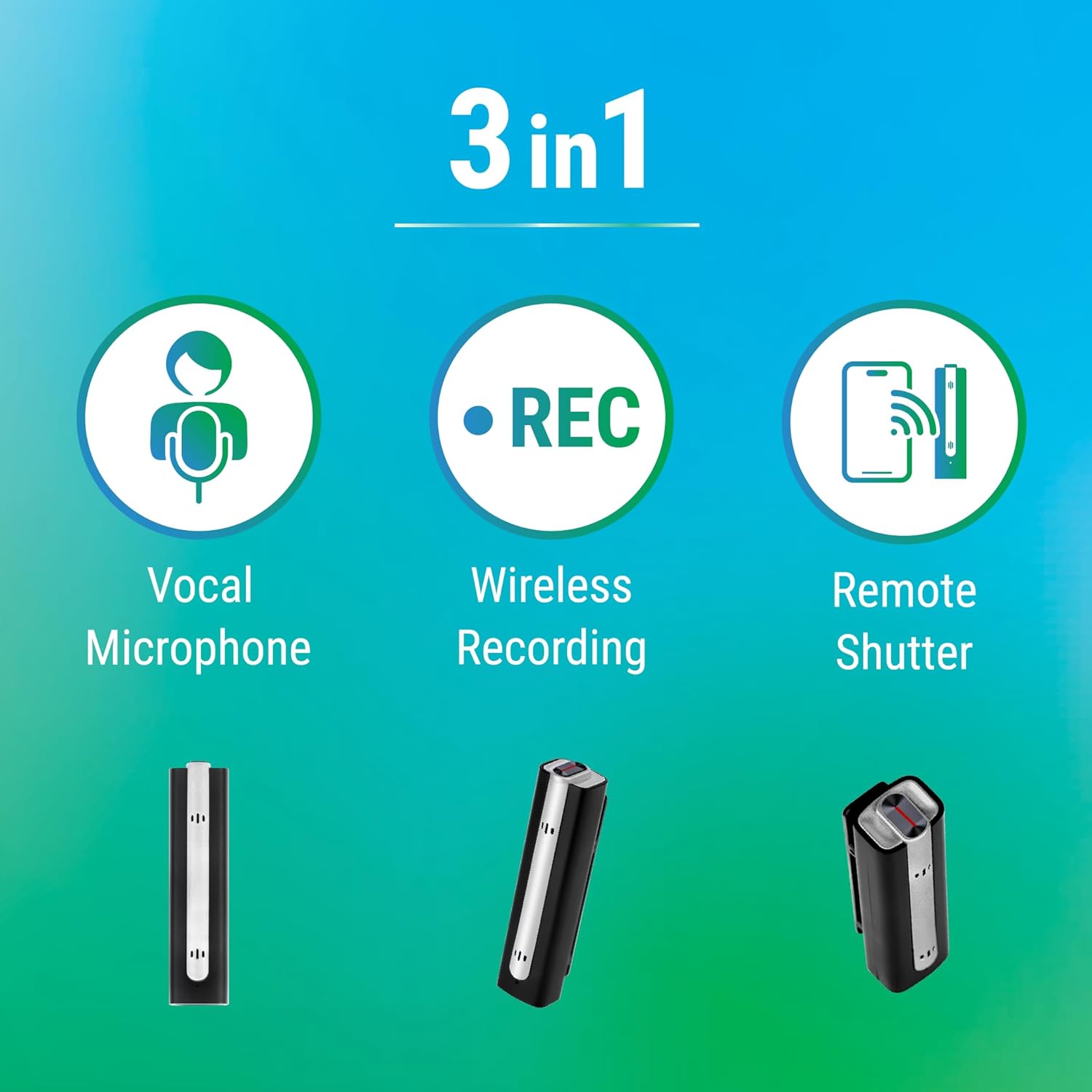
Image: A graphic illustrating the three main functions of the RICHCHIP RC100: Vocal Microphone, Wireless Recording, and Remote Shutter.
Setup Guide
1. Charging the Microphone
Before first use, ensure the microphone is fully charged. Connect the provided charging cable to the microphone's charging port and a suitable USB power source. The charging indicator light will show the charging status. A full charge typically takes approximately 1-2 hours.

Image: A graphic depicting a battery icon with a clock, symbolizing the microphone's long battery life and charging process.
2. Bluetooth Pairing
The RC100 microphone connects wirelessly via Bluetooth, eliminating the need for a separate receiver.
- Power On: Press and hold the power button for 3 seconds to turn the microphone on or off.
- Pairing Mode: The blue and red indicator lights on the microphone will flash alternatively, indicating it is in pairing mode.
- Connect on Device: On your smartphone, tablet, or compatible device, navigate to the Bluetooth settings.
- Select Devices: Look for and select both "RichChip" and "Air Shutter" in the list of available Bluetooth devices. Ensure both are connected.
- Confirmation: Once successfully paired, the blue light on the microphone will flash approximately every 6 seconds.

Image: A visual guide demonstrating the Bluetooth pairing process, showing the microphone in hand and a smartphone's Bluetooth settings screen with "RichChip" and "Air Shutter" connected.
3. App Installation (Optional)
For enhanced functionality, including encrypted audio recording and fine-tuning of settings, it is recommended to download the official RICHCHIP application. The app is available for both iOS and Android devices. Search for "RICHCHIP" in your device's app store.
Operating Instructions
1. Basic Operation
- Power On/Off: Press and hold the power button for 3 seconds to turn the microphone on or off.
- Wearing the Microphone: Clip the microphone securely to your clothing, ideally near your collar, to ensure optimal voice capture.

Image: A person wearing the RICHCHIP RC100 microphone clipped to their shirt collar, demonstrating proper placement for audio capture.
2. Voice Recording & Wireless Recording
Once paired, the RC100 acts as your device's external microphone. Open your preferred recording application (e.g., Apple Voice Memo, Samsung Voice Recording, or third-party apps) and begin recording. The microphone will automatically capture audio wirelessly.

Image: Two individuals engaged in a discussion, with one wearing the RICHCHIP RC100 microphone, illustrating its use for wireless recording in a professional setting.
3. Remote Shutter Function
The RC100 can also function as a remote shutter for your smartphone's camera. After pairing, open your camera application. Press the designated button on the microphone (refer to product diagram for exact button) to remotely trigger your device's camera shutter, allowing for convenient photo capture from a distance.

Image: Various scenarios demonstrating the versatility of the RICHCHIP RC100, including interviews, conference calls, photoshoots, and live streaming, highlighting its remote shutter capability for photography.
4. Noise Reduction
The RC100 features integrated noise reduction technology to minimize ambient interference and ensure clear audio. This feature is automatically active. For optimal performance, ensure the microphone is positioned correctly and consider using the included windshield in windy or noisy outdoor environments.

Image: A graphic illustrating the "High Quality Ambient Noise Reduction" feature, showing a waveform before and after noise reduction, with a person using the microphone in an outdoor setting.
5. Compatibility
The RICHCHIP RC100 is broadly compatible with various devices and applications:
- Devices: Smartphones (iOS/Android), Laptops, GoPro HERO12.
- Applications: Suitable for use with popular communication and recording platforms such as Zoom, Microsoft Teams, Skype, Slack, Instagram, Google Meet, YouTube, Facebook, and more.

Image: A graphic titled "Vast Compatibility" displaying various application logos (Zoom, Teams, Skype, Slack, Instagram, Google Meet, YouTube, Facebook) and images of people using the microphone with their devices.
Maintenance
To ensure the longevity and optimal performance of your RICHCHIP RC100 microphone, follow these maintenance guidelines:
- Cleaning: Gently wipe the microphone with a soft, dry cloth. Do not use liquid cleaners or abrasive materials.
- Storage: When not in use, store the microphone in its protective case to prevent dust and damage. Keep it in a cool, dry place away from direct sunlight and extreme temperatures.
- Battery Care: Avoid fully discharging the battery frequently. For long-term storage, charge the battery to about 50% to preserve its lifespan.
- Windshield: The included microphone windshield can be gently cleaned with mild soap and water if it becomes dirty. Ensure it is completely dry before reattaching.
Troubleshooting
If you encounter issues with your RICHCHIP RC100 microphone, please refer to the following common troubleshooting steps:
| Problem | Possible Cause | Solution |
|---|---|---|
| Microphone not pairing/connecting. | Microphone not in pairing mode; Bluetooth off on device; already paired to another device; interference. |
|
| Low audio volume or poor sound quality. | Incorrect microphone placement; app settings; environmental noise; microphone obstruction. |
|
| Remote shutter not working. | "Air Shutter" not paired; camera app not recognizing remote. |
|
| Battery not holding charge. | Faulty charging cable/adapter; battery degradation. |
|
Specifications
| Feature | Detail |
|---|---|
| Model Name | RC100 |
| Brand | RICHCHIP |
| Connectivity Technology | Bluetooth |
| Microphone Form Factor | Lavalier |
| Polar Pattern | Unidirectional |
| Special Feature | Bluetooth, Noise Cancelling |
| Compatible Devices | GoPro12 Hero, Smartphone (iOS/Android), Laptops |
| Color | Silver |
| Material | Plastic |
| Power Source | Battery Powered (1 Lithium Ion battery included) |
| Product Dimensions (L x W x H) | 2.4 x 0.65 x 0.59 inches (6.1 x 1.65 x 1.5 cm) |
| Item Weight | 0.704 ounces (0.02 Kilograms) |
| UPC | 197644833108 |
Warranty and Support
RICHCHIP is committed to providing excellent customer service. While Bluetooth products may have specific operational nuances, our professional team is available to assist you with any difficulties encountered during use. For any questions regarding after-sales service, please reach out to us through the official Amazon channels. We will endeavor to respond and resolve your inquiries promptly.
For more information and support, please visit the official RICHCHIP Store on Amazon: