
HP 588K9B#687
HP DeskJet 2820e All-in-One Printer User Manual
Your comprehensive guide to setting up, operating, and maintaining your HP DeskJet 2820e printer.
1. Introduction
The HP DeskJet 2820e is a versatile all-in-one printer designed for home use, offering reliable print, scan, and copy functionalities. This compact and wireless device provides an effortless printing experience, supported by easy setup and robust Wi-Fi connectivity. This manual will guide you through every step, from initial setup to advanced features and troubleshooting.
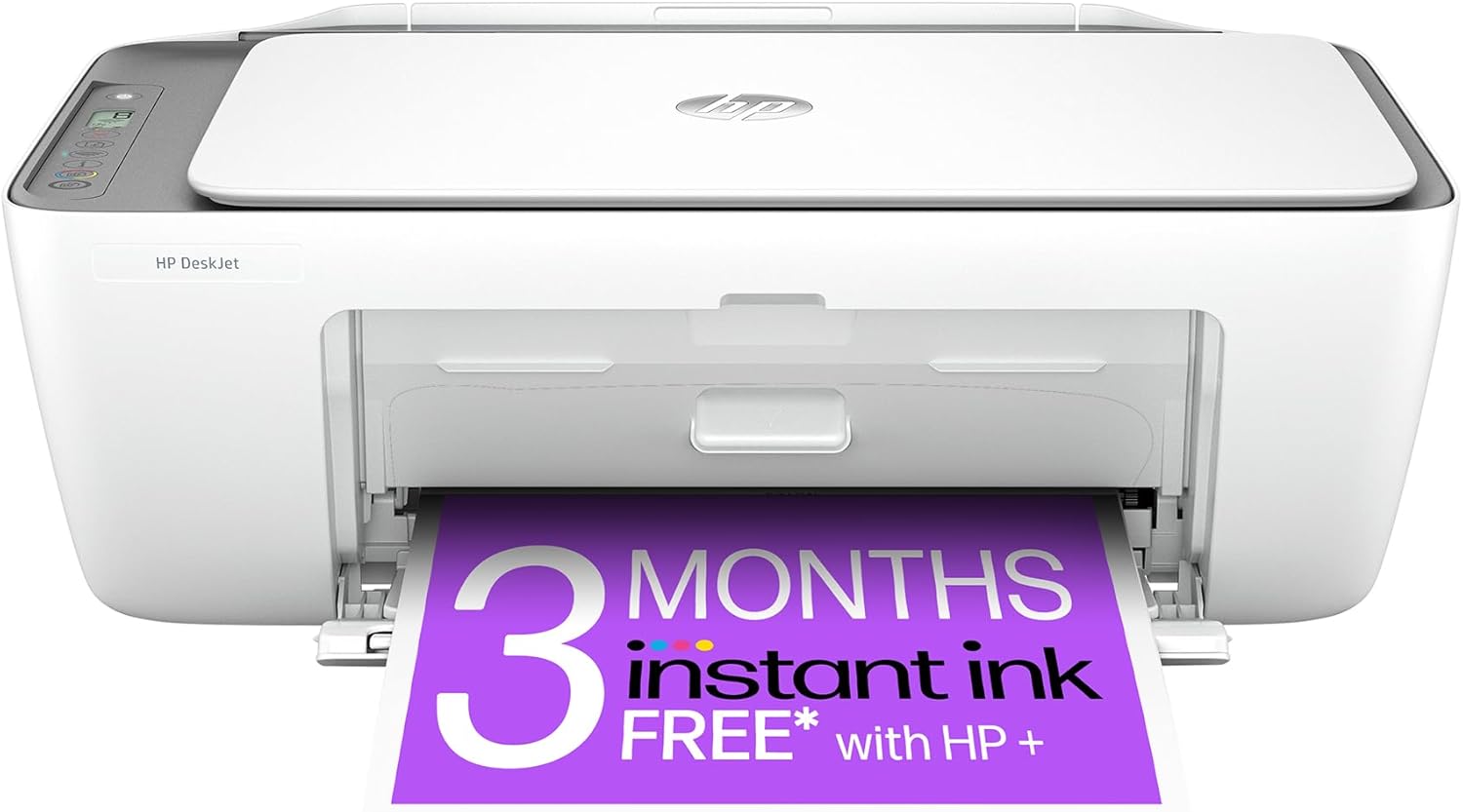
Figure 1.1: HP DeskJet 2820e All-in-One Printer, front view.
2. What's in the Box
Upon unboxing your HP DeskJet 2820e, ensure all the following components are present:
- HP DeskJet 2820e All-in-One Printer
- HP 305 setup black cartridge
- HP 305 setup tri-colour cartridge
- Regulatory flyer
- Setup guide
- Reference guide
- Power cord
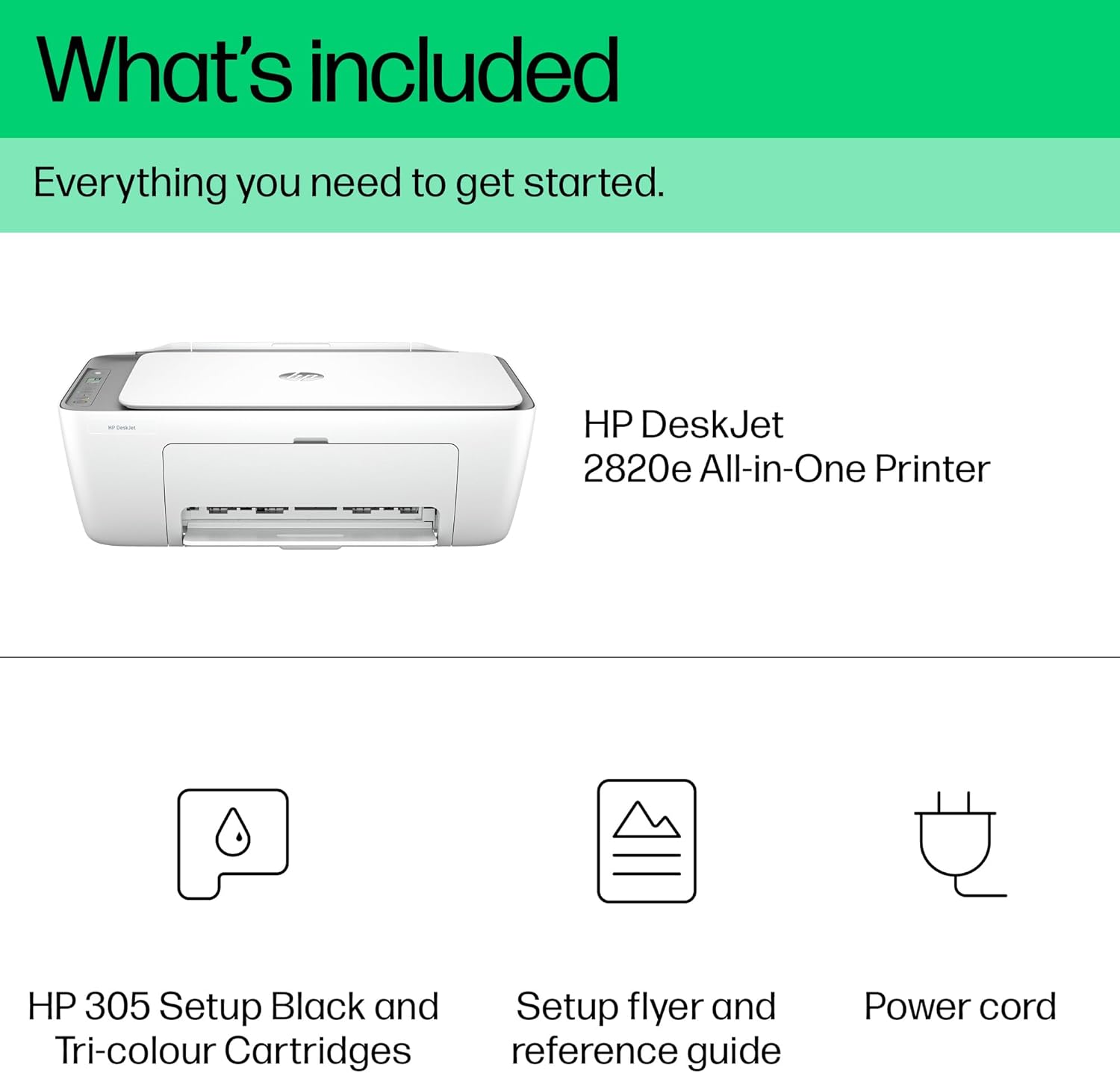
Figure 2.1: Included components with the HP DeskJet 2820e printer.
3. Setup Guide
Setting up your HP DeskJet 2820e is a straightforward process, primarily guided by the HP Smart app. Follow these steps for a quick and easy installation:
- Unpack the Printer: Remove all packaging materials, tapes, and protective films from the printer.
- Connect Power: Plug the power cord into the printer and then into a wall outlet. The printer will power on automatically.
- Install Ink Cartridges: Open the ink cartridge access door. Wait for the carriage to stop moving. Insert the HP 305 black and tri-colour cartridges into their respective slots until they click into place. Close the access door.
- Load Paper: Extend the input tray and load plain A4 paper. Adjust the paper guides to fit the paper snugly.
- Install HP Smart App: On your smartphone or computer, download and install the HP Smart app from your device's app store or hpsmart.com.
- Follow App Instructions: Open the HP Smart app and follow the on-screen prompts to connect your printer to your Wi-Fi network and complete the setup. The app will guide you through the wireless connection and driver installation.
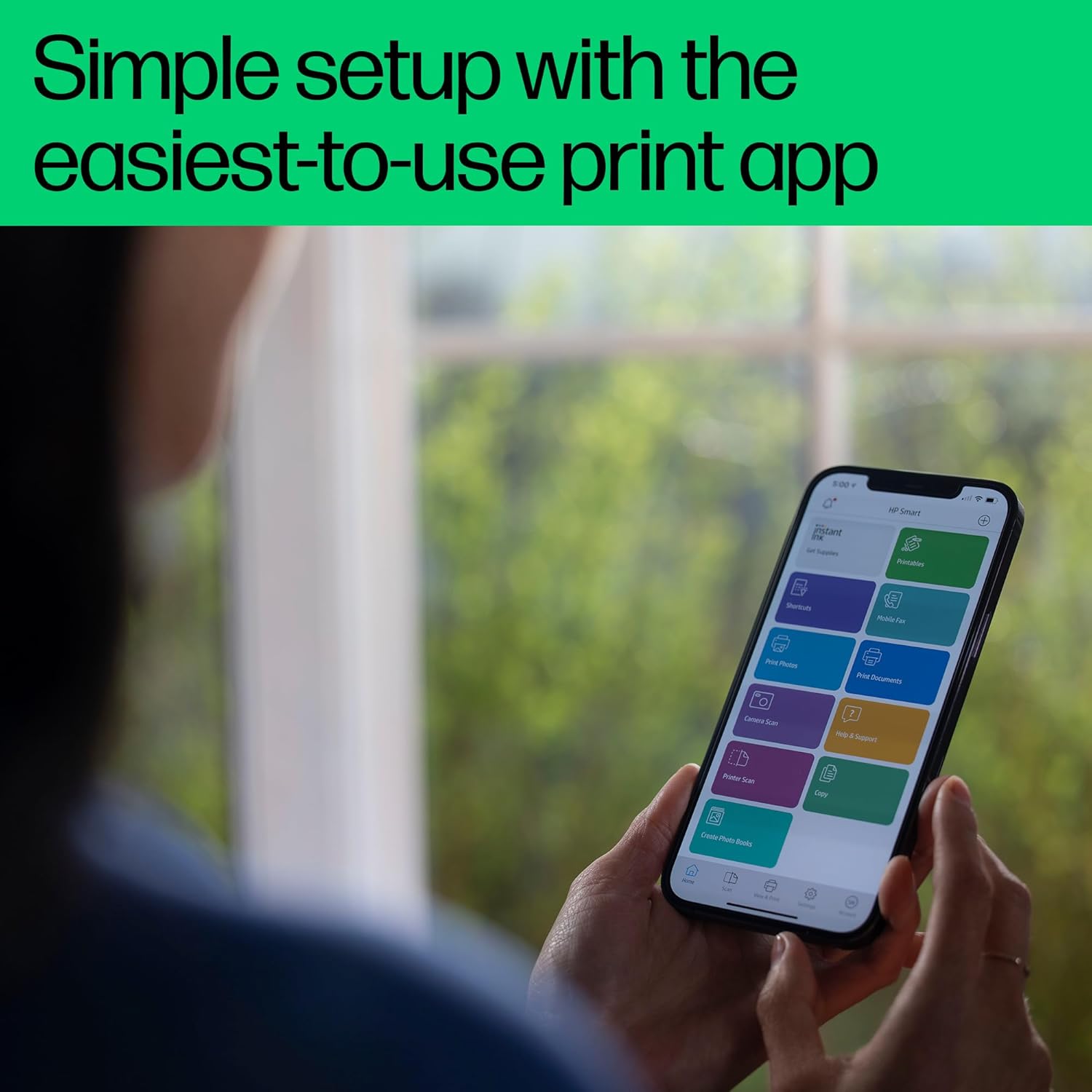
Figure 3.1: Simple setup using the HP Smart app on a mobile device.
Video 3.1: HP DeskJet 2800 series Product overview. This video provides a visual guide to the printer's features and basic setup.
Video 3.2: HP DeskJet 2820e 360-degree spin video. This video offers a comprehensive view of the printer from all angles, highlighting its design and ports.
4. Operating the Printer
The HP DeskJet 2820e allows you to print, scan, and copy with ease. Most operations can be managed directly from the HP Smart app or the printer's control panel.
4.1. Printing Documents and Photos
To print, ensure the printer is connected to your device via Wi-Fi. Open the document or photo you wish to print, select the print option, choose your HP DeskJet 2820e, and adjust settings as needed. The printer supports black and white printing at 7.5 pages per minute (ppm) and color printing at 5.5 ppm.
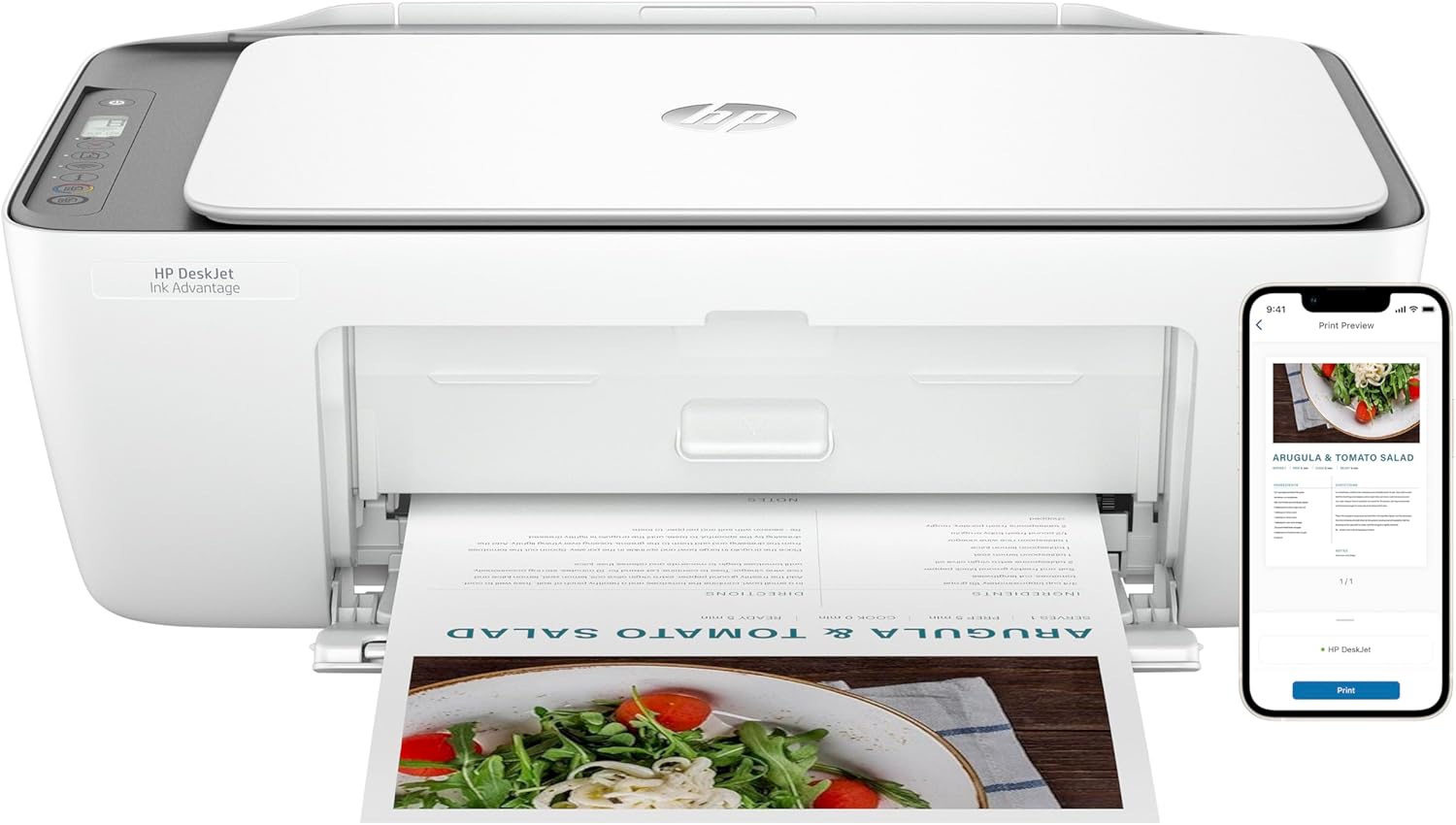
Figure 4.1: Printing a document wirelessly from a smartphone using the HP Smart app.
4.2. Scanning Documents
Place the document face-down on the scanner glass. Open the HP Smart app on your device, select the scan option, and follow the prompts to scan your document. You can save it to various formats or send it directly to email.
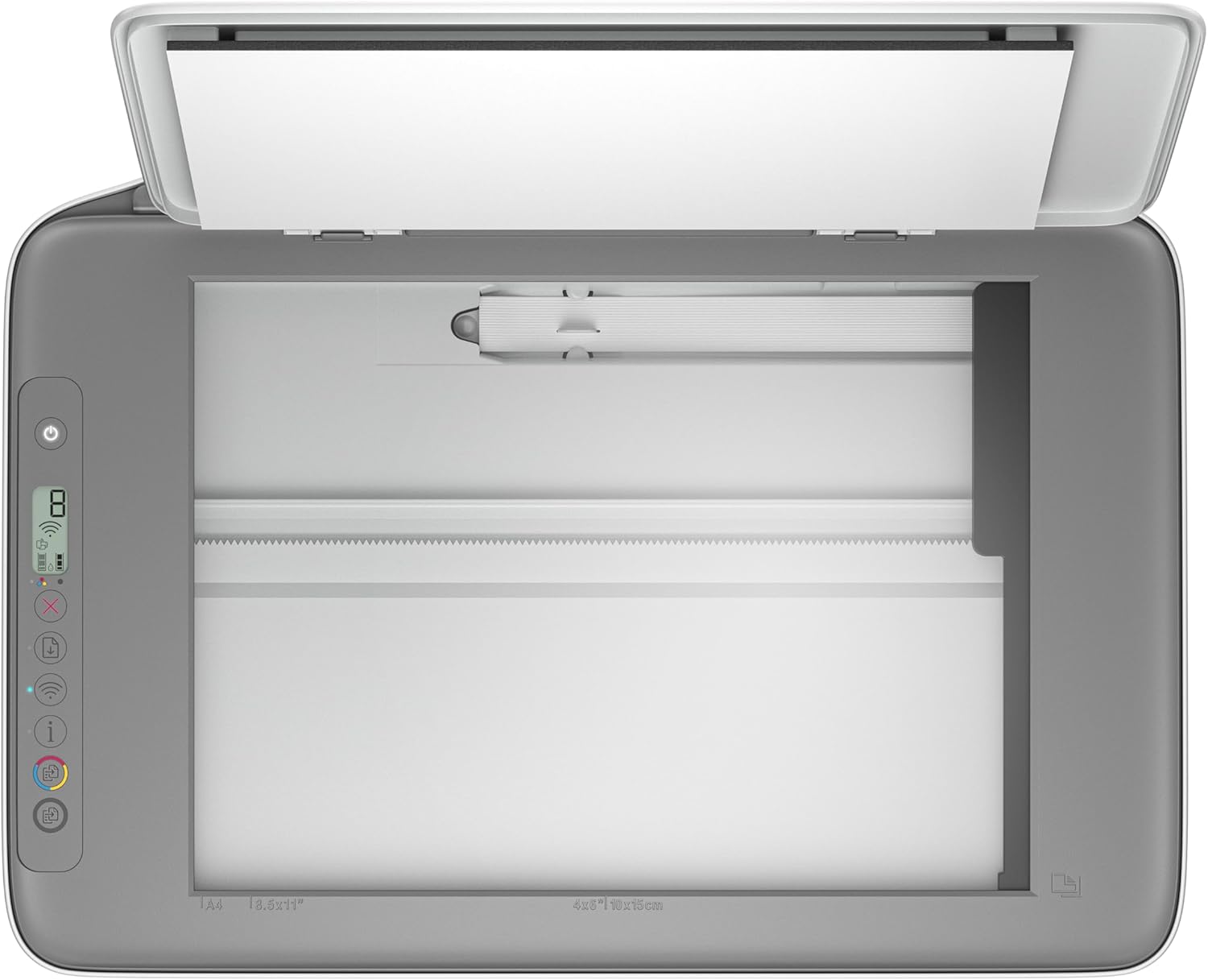
Figure 4.2: Top view of the HP DeskJet 2820e, showing the flatbed scanner.
4.3. Copying Documents
Place the document on the scanner glass. Use the control panel buttons on the printer to select the number of copies and initiate the copy process. The printer will automatically print the copy.
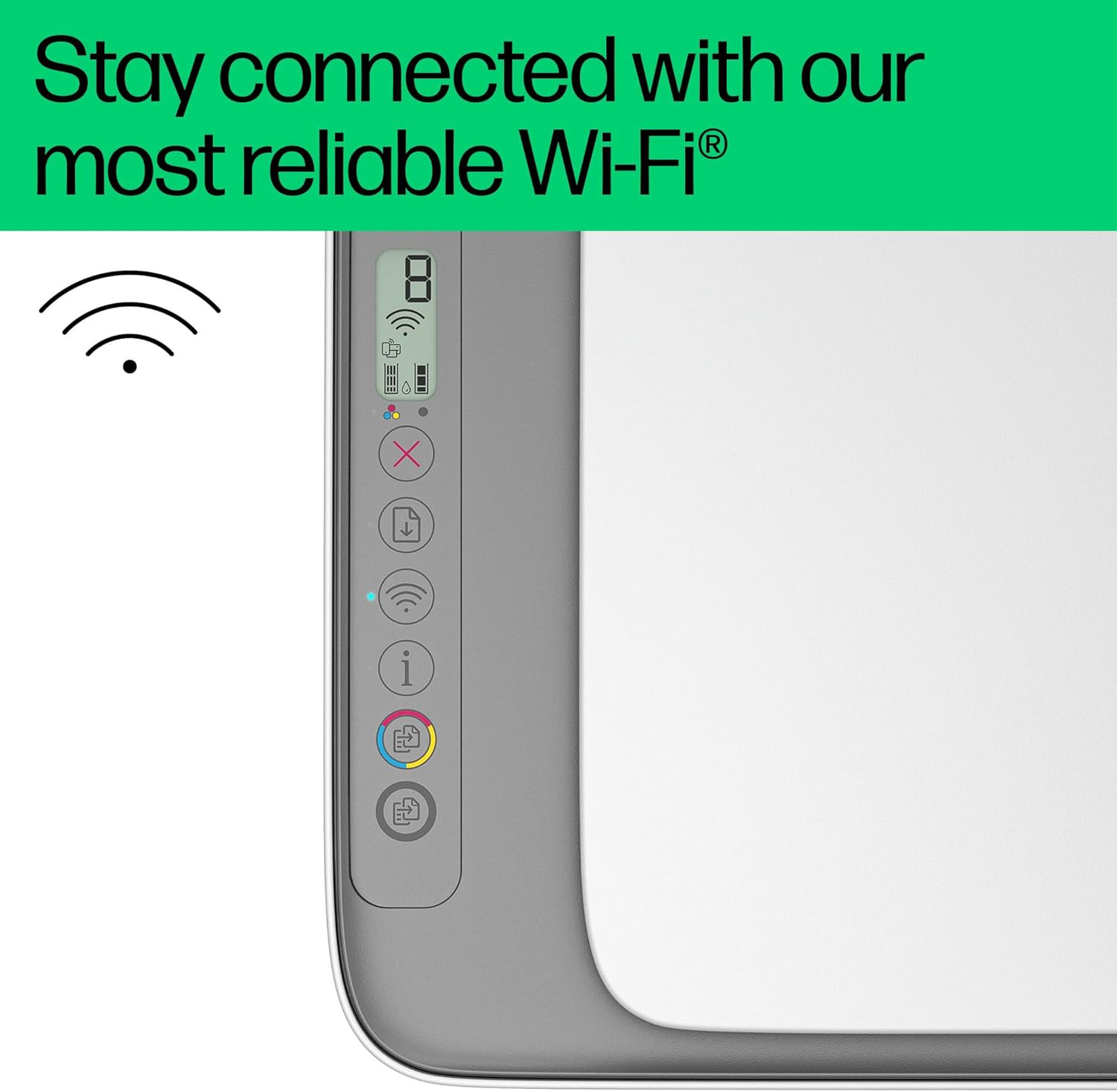
Figure 4.3: Close-up of the HP DeskJet 2820e control panel with Wi-Fi indicator.
5. Maintenance
Regular maintenance ensures optimal performance and longevity of your HP DeskJet 2820e printer.
5.1. Ink Cartridge Management
The HP DeskJet 2820e uses HP 305 ink cartridges. You can monitor ink levels through the HP Smart app. HP offers an Instant Ink service that automatically delivers ink to your door when you're running low, potentially saving up to 70% on ink costs. You can manage or cancel your Instant Ink plan anytime.

Figure 5.1: Information regarding the HP Instant Ink service.
Video 5.1: HP Instant Ink 2023 overview. This video explains how the Instant Ink service works to ensure you never run out of ink.
5.2. Cleaning the Printer
Periodically wipe the exterior of the printer with a soft, lint-free cloth. For the scanner glass, use a glass cleaner applied to the cloth (not directly to the glass) to avoid streaks. Refer to the HP Smart app or HP support website for detailed cleaning procedures for internal components if necessary.
5.3. Environmental Responsibility
The HP DeskJet 2820e is constructed with at least 60% recycled plastic, demonstrating HP's commitment to sustainability. For every page you print, HP contributes to forest restoration efforts.

Figure 5.2: HP's commitment to using recycled plastic in product manufacturing.
6. Troubleshooting
If you encounter issues with your printer, try the following common troubleshooting steps:
- Connectivity Issues: If the printer loses Wi-Fi connection, ensure your router is working correctly. The printer is designed to automatically reconnect. If not, restart both your printer and router. You can also use the HP Smart app to diagnose and resolve network problems.
- Printer Offline: If your computer or device shows the printer as offline, try restarting the printer. Ensure it's connected to the same network as your device. Check the printer's control panel for any error indicators.
- Paper Jams: If a paper jam occurs, carefully open all access doors and remove any jammed paper. Ensure paper is loaded correctly and not overfilled in the input tray.
- Print Quality Issues: If prints are faded, streaky, or incorrect colors, check ink levels in the HP Smart app. You may need to clean the printheads or align the cartridges through the printer maintenance options in the app.
- HP Smart App Problems: If the app is not functioning correctly, ensure it is updated to the latest version. Try restarting the app or reinstalling it if issues persist.
For more detailed troubleshooting, refer to the HP Smart app's help section or the HP support website.
7. Specifications
Key technical specifications for the HP DeskJet 2820e All-in-One Printer:
| Feature | Specification |
|---|---|
| Product Dimensions | 3.04D x 4.25W x 1.54H metres |
| Printer Media Size Maximum | 8.5 x 11 inch (A4) |
| Max Input Sheet Capacity | 50 sheets |
| Scanner Type | Flatbed |
| Maximum Colour Print Resolution | 4800 x 1200 dpi (approximately) |
| Maximum Black and White Print Resolution | 720x720 dpi |
| Connectivity Technology | Bluetooth, Wi-Fi |
| Printing Technology | Inkjet |
| Maximum Print Speed (Colour) | 5.5 ppm |
| Maximum Print Speed (Monochrome) | 7.5 ppm |
| Item Weight | 3.42 kg |
| Dual-sided Printing | No |
8. Warranty and Support
Your HP DeskJet 2820e All-in-One Printer comes with a Limited Warranty. For specific warranty terms and conditions, please refer to the documentation included with your product or visit the official HP support website.
For further assistance, technical support, or to access drivers and software updates, please visit the HP Support website or utilize the help features within the HP Smart app.
Ask a question about this manual
Ask about setup, troubleshooting, compatibility, parts, safety, or missing instructions. Manuals+ will review the question and use this page’s manual context to help answer it.