
Introduction
This manual provides detailed instructions for the setup, operation, maintenance, and troubleshooting of your Nillkin Keyboard Case. Please read this manual thoroughly before using the product to ensure optimal performance and longevity.
The Nillkin Keyboard Case is designed to enhance the functionality and protection of your Samsung Galaxy Tab S9 Plus or S10 Plus 12.4-inch tablet, offering a comfortable typing experience with a backlit keyboard and a precise trackpad.
Product Compatibility
This keyboard case is specifically designed for the following Samsung Galaxy Tab models:
- Samsung Galaxy Tab S9+ Plus 12.4 inch
- Samsung Galaxy Tab S10+ Plus 12.4 inch
Please verify your tablet model before use. This product does not include the S Pen.

Figure 1: Compatibility overview for Samsung Galaxy Tab S9 Plus and S10 Plus 12.4-inch tablets.
Setup Guide
1. What's in the Box
- Nillkin Keyboard Case
- USB Cable
- User Manual (this document)
2. Initial Charging
Before first use, fully charge the keyboard. Connect the provided USB cable to the charging port on the keyboard and a suitable power source. A full charge typically takes 2-3 hours.
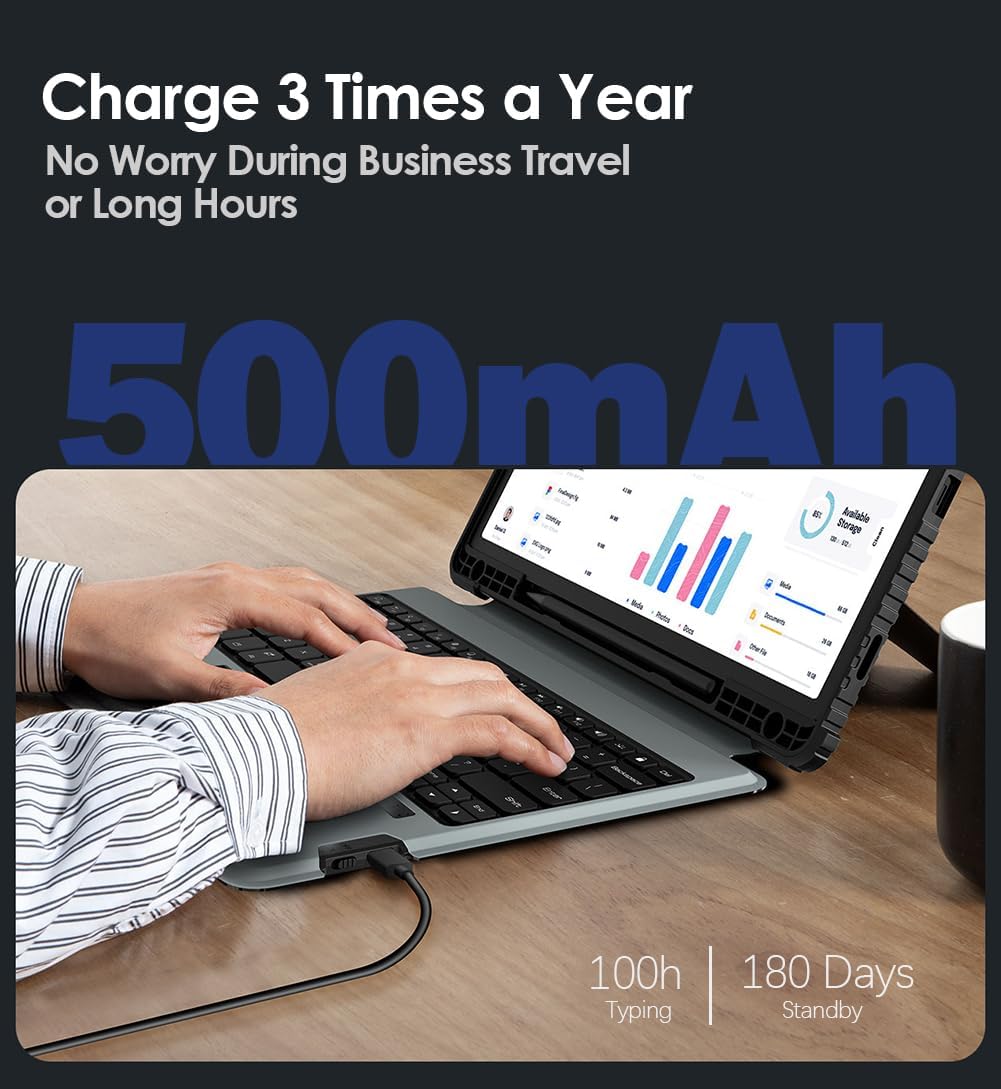
Figure 2: Charging the keyboard via USB cable.
3. Attaching Your Tablet
- Carefully align your Samsung Galaxy Tab S9 Plus or S10 Plus with the case.
- Gently press the tablet into the protective frame of the case until it is securely seated. Ensure all corners and edges are properly enclosed.
- The keyboard component can be magnetically attached to the case, allowing for a laptop-like setup or detached for tablet-only use.

Figure 3: Assembled Nillkin keyboard case with tablet and detachable keyboard.
4. Bluetooth Pairing
- Turn on the keyboard using the power switch, usually located on the side of the keyboard.
- On your Samsung Galaxy Tab, go to Settings > Connected devices > Bluetooth.
- Enable Bluetooth and search for available devices.
- Select the keyboard (it may appear as "Nillkin Keyboard" or similar) from the list of available devices.
- Follow any on-screen prompts to complete the pairing process. Once paired, the keyboard will automatically connect to your tablet when both are powered on and within range.
Operating Instructions
Keyboard Features
- Backlit Keyboard: The keyboard features 7 vibrant backlight colors and 3 adjustable brightness levels. Use the dedicated backlight key (often a lightbulb icon or Fn + a specific key) to cycle through colors and brightness settings.
- Scissor Structure Keys: Provides a comfortable and quiet typing experience.
- AndroidOS Function Keys: A dedicated row of function keys allows for quick control of your tablet's features, such as volume, media playback, and screen brightness.

Figure 4: Detachable keyboard with backlit keys and AndroidOS function row.
Magic Trackpad
The built-in high-sensitive trackpad supports multi-touch gestures for seamless navigation, scrolling, and swiping. It incorporates anti-mistouch technology to prevent accidental inputs while typing.

Figure 5: Magic Trackpad for precise control and multi-touch gestures.
Adjustable Viewing Angles
The integrated kickstand allows for flexible adjustment of viewing angles, accommodating various activities such as typing, watching videos, or browsing. The detachable keyboard provides versatility, allowing you to use the tablet independently when typing is not required.

Figure 6: Multiple viewing angles and detachable keyboard functionality.
Comprehensive Protection Features
- Durable Construction: The case combines a thickened TPU border with a hard PC back panel for robust protection against drops and impacts.
- S Pen Holder: A dedicated slot is provided for secure storage of your S Pen.
- Sliding Camera Cover: An exclusive sliding cover protects your tablet's camera lenses from scratches and ensures privacy when not in use.

Figure 7: Protective features including corner reinforcement and sliding camera cover.
Battery Management
The keyboard features an extended battery life with a 500mAh capacity. After a 2-3 hour charge, it can provide up to 100 hours of non-backlight typing or 14 hours with backlight enabled. The standby time is approximately 180 days. The auto sleep/wake function helps conserve energy by putting the keyboard into sleep mode when not in use and waking it up instantly when needed.

Figure 8: Battery performance details.
Care and Maintenance
- Cleaning: Use a soft, dry cloth to wipe down the case and keyboard. For stubborn smudges, a slightly damp cloth with mild soap can be used, ensuring no liquid enters the keyboard or tablet ports.
- Avoid Extreme Conditions: Do not expose the product to extreme temperatures, direct sunlight for prolonged periods, or high humidity.
- Handle with Care: While designed for durability, avoid unnecessary drops or impacts.
- Storage: When not in use for extended periods, store the keyboard case in a cool, dry place.
Troubleshooting
Keyboard Not Connecting via Bluetooth
- Ensure the keyboard is powered on and fully charged.
- Verify Bluetooth is enabled on your tablet.
- Try unpairing and re-pairing the keyboard from your tablet's Bluetooth settings.
- Restart both your tablet and the keyboard.
Backlight Not Working or Adjusting
- Ensure the keyboard has sufficient battery charge.
- Press the backlight key (or Fn + appropriate key) to cycle through modes and brightness levels.
Trackpad Unresponsive or Inaccurate
- Ensure your fingers are clean and dry when using the trackpad.
- Check for any debris on the trackpad surface.
- Restart the keyboard and tablet.
Product Specifications
| Feature | Detail |
|---|---|
| Brand | Nillkin |
| Model Number | Galaxy Tab S9 Plus (Compatible with S10 Plus) |
| Compatible Devices | Samsung Galaxy Tab S9+ Plus 12.4 inch, Samsung Galaxy Tab S10+ Plus 12.4 inch |
| Connectivity Technology | Bluetooth |
| Keyboard Description | Multi Functional, Scissor Structure Keys |
| Special Features | Backlit (7 colors, 3 brightness levels), Magic Trackpad, S Pen Holder, Slide Camera Cover |
| Color | Black |
| Material | Metal, Polycarbonate, Thermoplastic Polyurethanes |
| Item Weight | 2.38 pounds |
| Battery Type | 1 Lithium Ion battery (included) |
| Battery Life (Typing) | 100h (non-backlight), 14h (backlight) |
| Standby Time | 180 days |
Warranty and Support
Nillkin provides comprehensive support for its products:
- Warranty: A 1-year warranty is provided from the date of purchase. This covers manufacturing defects and ensures a replacement service even if the return window has passed.
- Lifetime Support: Nillkin offers lifetime technical support to ensure a great product usage experience.
- Customer Service: For any questions or assistance, you are welcome to contact Nillkin customer service through the listing or order page.
For more information, you can visit the official Nillkin Store: Nillkin Store on Amazon.