
1. Introduction
This manual provides comprehensive instructions for the ZARMST 256GB Multi-Port Flash Drive. It covers device setup, operation, file management, and troubleshooting to ensure optimal performance and data security across various devices, including iPhone, iPad, and PC.

Image 1.1: The ZARMST 256GB Multi-Port Flash Drive shown connected to an iPhone, illustrating its compact design and direct connectivity.
2. Product Overview and Features
The ZARMST Multi-Port Flash Drive is designed for versatile data storage and transfer. Key features include:
- Expanded Storage: Provides 256GB of additional storage capacity, allowing users to transfer large files such as photos and videos from iOS devices and PCs.
- Multi-Port Connectivity: Features connectors compatible with iPhone/iPad (Lightning), USB-A for computers, and Micro USB for Android devices, ensuring broad compatibility.
- Data Security: Includes advanced security features such as fingerprint and password protection to safeguard stored data from unauthorized access.
- High-Speed Transfer: Offers fast data transfer rates, with up to 80MB/s write and 40MB/s read speeds, facilitating quick file transfers.
- Multifunctional App: Utilizes the "EASYFLASH PRO" app for effortless file management, including viewing, accessing, backing up photos, videos, and contacts.
- Direct Capture: Allows users to take photos and videos directly onto the flash drive, saving device storage space.
- Social Media Sharing: Enables one-click sharing of photos and videos from the drive to social media platforms.

Image 2.1: Visual representation of the flash drive's multi-port design, highlighting its compatibility with various device types including iOS, standard USB, Micro USB, and Type C (via adapter, if applicable).
3. Setup
3.1 App Installation (EASYFLASH PRO)
To utilize the full functionality of the ZARMST Flash Drive with your iOS device, download the dedicated "EASYFLASH PRO" application from the App Store. The app facilitates file management, transfer, and security features.
- Connect the flash drive to your iPhone or iPad.
- A prompt to download the "EASYFLASH PRO" app may appear. If not, manually search for "EASYFLASH PRO" in the App Store.
- Download and install the application.
- Launch the app and grant necessary permissions for storage access.
Video 3.1: An official ZARMST video demonstrating the process of downloading the "LUV-Share" app (likely an older name for EASYFLASH PRO) and connecting the flash drive to an iPhone for initial setup.

Image 3.1: The multifunctional app interface, displaying various options for managing files, including video playback, photo shooting, file encryption, and contact backup.
3.2 Connecting to iPhone/iPad
The flash drive features a Lightning connector for direct connection to compatible iPhone and iPad models. Simply plug the Lightning end of the flash drive into your device's charging port.
3.3 Connecting to PC
For computers, slide the connector to reveal the standard USB-A plug. Insert this into an available USB port on your desktop or laptop computer. The device should be recognized automatically by your operating system.
4. Operating Instructions
4.1 File Transfer (Photos/Videos)
To transfer files from your iOS device to the flash drive:
- Connect the flash drive and open the "EASYFLASH PRO" app.
- Navigate to the "External Storage" section within the app.
- Select the option to copy photos/videos from your device's library.
- Choose the desired photos or videos and initiate the transfer.
4.2 File Management and Playback
The "EASYFLASH PRO" app allows you to view, access, and manage files stored on the flash drive. You can browse through pictures, documents, and play videos or music directly from the drive without transferring them back to your device.

Image 4.1: The flash drive supports a wide range of file formats for pictures, videos, music, and documents, as detailed in the accompanying table.
4.3 Security Features
Protect your sensitive data using the built-in security features:
- Password Protection: Within the "EASYFLASH PRO" app, you can set a password for individual files or folders on the flash drive.
- Fingerprint ID: For compatible devices, fingerprint authentication can be enabled for quick and secure access to protected files.
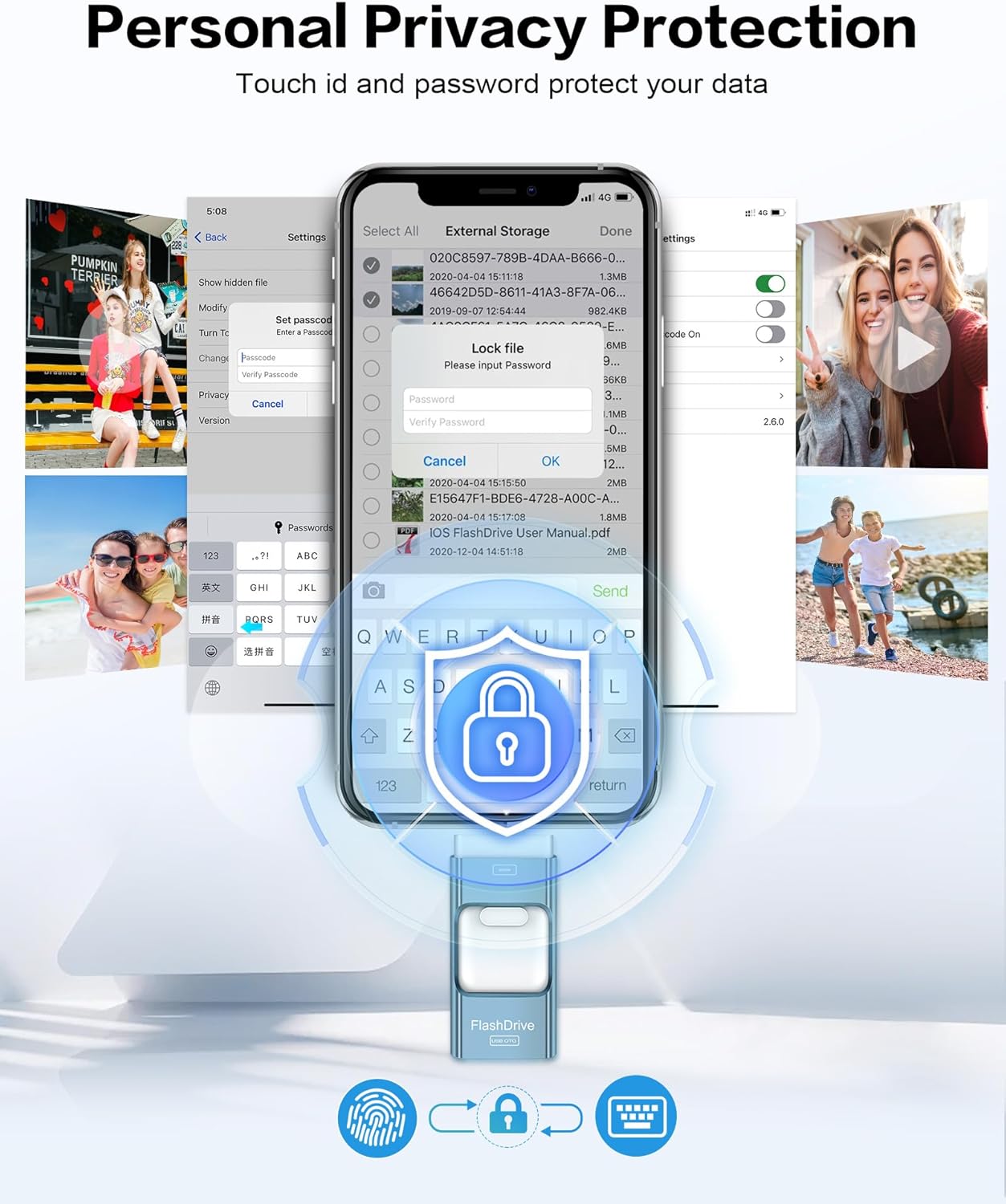
Image 4.2: The app's interface for personal privacy protection, demonstrating how to set a password for files to prevent unauthorized access.
4.4 Direct Photo/Video Capture
Save space on your device by capturing photos and videos directly to the flash drive:
- With the flash drive connected, open the "EASYFLASH PRO" app.
- Select the "Take Photo" or "Take Video" option within the app.
- Captured media will be saved directly to the external storage.

Image 4.3: The flash drive enables direct saving of photos and videos taken with your device, bypassing internal storage.
4.5 Social Media Sharing
Share your memories directly from the flash drive:
- Access your photos/videos on the flash drive via the app.
- Select the desired media and use the sharing options to post directly to social media platforms like Instagram or Twitter.

Image 4.4: One-click sharing functionality allows users to easily post content from the flash drive to various social media platforms.
5. Maintenance
5.1 Understanding Storage Capacity
Please note that the actual displayed capacity on your device may be slightly lower than the nominal capacity (e.g., 256GB). This is due to the difference in how storage manufacturers (1GB = 1,000MB) and operating systems (1GB = 1,024MB) calculate storage. This is a standard practice and does not indicate a defect in the product.
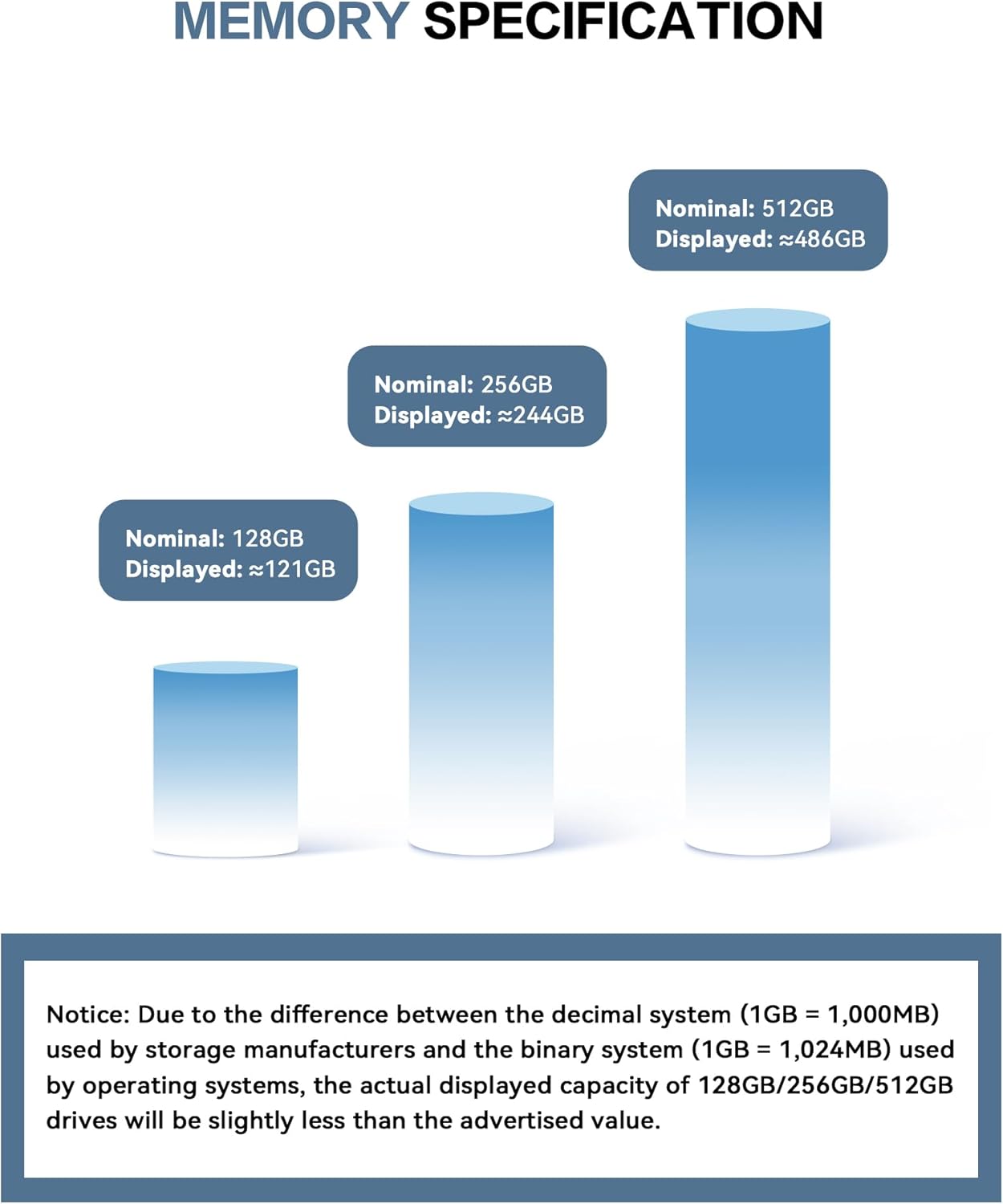
Image 5.1: Explanation of nominal vs. displayed memory capacity, showing how 256GB nominal capacity typically displays as approximately 244GB.
6. Troubleshooting
- Device Not Recognized: Ensure the flash drive is fully inserted into the correct port. For iOS devices, confirm the "EASYFLASH PRO" app is installed and running. For PCs, check your computer's device manager.
- Slow Transfer Speeds: Ensure you are using a USB 3.0 port for optimal speeds on compatible computers. Transfer speeds can vary based on file size and system resources.
- App Issues: If the app is not functioning correctly, try restarting the app or your device. Ensure the app is updated to the latest version.
- Data Corruption: Always safely eject the flash drive from your computer before removing it. Avoid disconnecting the drive during file transfers.
7. Specifications
| Feature | Detail |
|---|---|
| Brand | ZARMST |
| Model | 256GB |
| Memory Storage Capacity | 256 GB |
| Flash Memory Type | USB |
| Connectivity Technology | USB |
| Hardware Connectivity Technology | USB Type A, USB Type C (via adapter) |
| Read Speed | Up to 80 Megabytes Per Second |
| Write Speed | Up to 40 MB/s |
| Special Feature | Compact, Lightweight |
| Item Weight | 1.13 ounces |
| Package Dimensions | 4.25 x 3.7 x 0.67 inches |

Image 7.1: High-speed transmission capabilities of the flash drive, detailing read and write speeds for both USB 3.0 and USB 2.0 connections.
8. Warranty and Support
ZARMST is committed to customer satisfaction. If you encounter any issues with your flash drive, please contact our customer service team. We aim to provide prompt assistance and resolve any problems within 24 hours.
For support, please visit the ZARMST Store on Amazon or refer to the contact information provided with your product packaging.