
1. Introduction
This manual provides detailed instructions for the installation, operation, and maintenance of your Biorunn Android Car Stereo. Please read this manual thoroughly before using the product to ensure proper function and safety. This device is designed for specific Nissan Xtrail, Qashqai, and Rogue models manufactured between 2014 and 2018.
2. Safety Information
- Professional Installation Recommended: Due to the complexity of car electrical systems, professional installation is highly recommended to prevent damage to the unit or your vehicle.
- Vehicle Compatibility: Ensure this unit is compatible with your specific vehicle model and year. If unsure, consult with a professional or the manufacturer.
- Driving Safety: Do not operate the device in a way that distracts you from driving. Always prioritize road safety.
- Power Supply: Connect the unit only to a 12V DC power supply with a negative ground.
- Avoid Moisture: Do not expose the unit to water or excessive moisture.
3. Package Contents
Verify that all items listed below are included in your package:

Various accessories included with the car stereo, such as power cables, RCA cables, reversing camera, 4G antenna, microphone, GPS antenna, USB plugs, and a Canbus box.
- Main Head Unit (10.1 Inch Display)
- Power Cable
- RCA Cable
- Reversing Camera (if included in package)
- 4G Antenna
- Microphone (MIC)
- GPS Antenna
- USB Plugs (x2)
- Canbus Box (if required for your vehicle model)
4. Setup and Installation
Before beginning installation, ensure your vehicle's ignition is off and the battery is disconnected. It is crucial to verify compatibility with your vehicle's center console. If you are unsure, please provide a picture of your car's center console to the manufacturer or a professional installer for confirmation.
4.1 Installation Overview
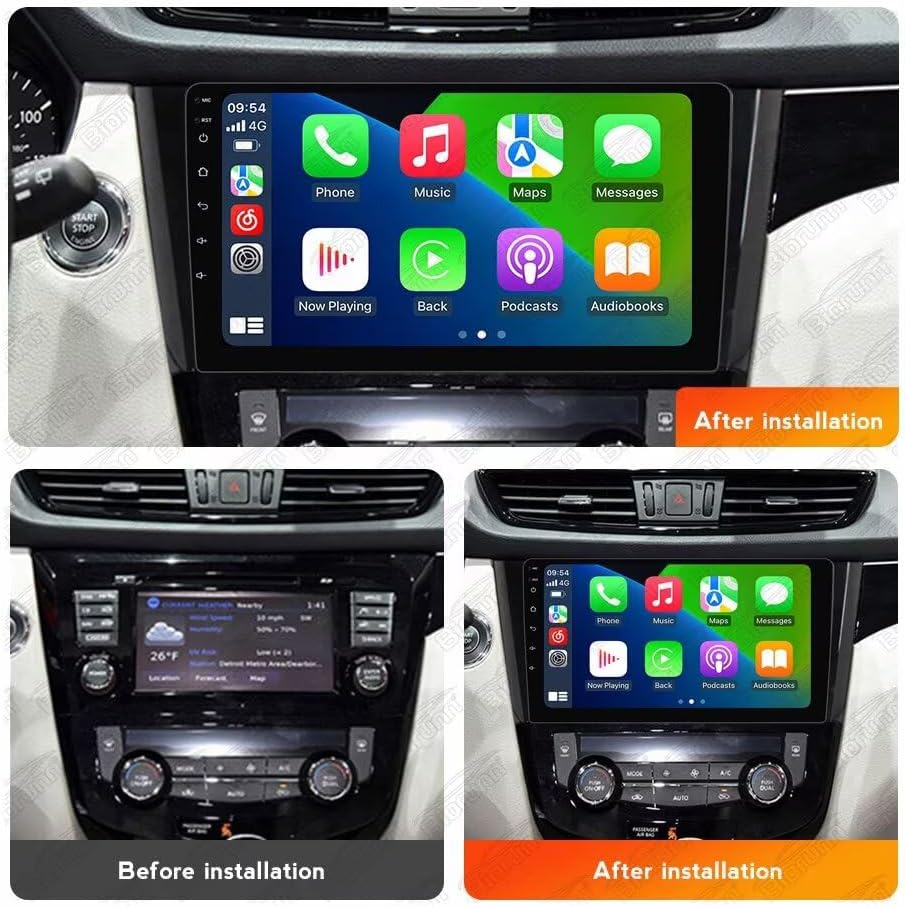
Visual comparison of the car's dashboard before and after the installation of the Biorunn Android Car Stereo, demonstrating the integrated appearance.
4.2 Wiring Connections
- Power Connection: Connect the main power harness to the vehicle's wiring. Ensure correct connections for constant 12V, accessory 12V, and ground.
- Speaker Connections: Connect the speaker wires to the corresponding vehicle speaker wires. Pay attention to positive and negative terminals.
- GPS Antenna: Mount the GPS antenna in a location with a clear view of the sky, typically on the dashboard or under the windshield.
- 4G Antenna: Connect the 4G antenna for cellular data connectivity.
- USB Connections: Route the USB cables to an accessible location, such as the glove compartment or center console.
- Reversing Camera: If installing a reversing camera, connect its video input to the designated RCA input on the head unit and its power to the reverse light circuit.
- Canbus Box: If your vehicle requires a Canbus decoder for steering wheel controls or other vehicle data, connect it as per the specific wiring diagram.
- Microphone: Connect the external microphone for improved call quality.
After all connections are made, carefully reassemble the dashboard components. Reconnect the vehicle battery and test the unit's functionality.
5. Operating Instructions
5.1 Basic Operation
- Power On/Off: The unit typically powers on with the vehicle's ignition. Press and hold the power button (if available) for manual control.
- Touch Screen: The 10.1-inch IPS capacitive multi-touch screen allows for intuitive operation. Tap, swipe, and pinch to navigate menus and applications.
- Volume Control: Adjust volume using the on-screen controls or steering wheel controls.
5.2 Wireless CarPlay and Android Auto
The unit supports both wireless and wired CarPlay (for iOS devices) and Android Auto (for Android devices), allowing seamless integration of your smartphone's features.

Connection steps for Wireless CarPlay (iOS) and Wireless Android Auto (Android) via Bluetooth and the 'Car Link' application. Wired connection via USB is also an option.
Connection Steps:
- Connect Bluetooth: On your smartphone, enable Bluetooth and pair it with the car stereo.
- Open Car Link: On the car stereo, open the "Car Link" application.
- Wait for Connection: The system will attempt to connect to your phone. Follow any on-screen prompts on both devices.
- Wired Connection (Optional): Alternatively, connect your smartphone directly to one of the USB ports using a compatible USB cable.
5.3 GPS Navigation
The unit features a built-in global positioning system (GPS) for intelligent navigation. It supports various map applications and can display real-time traffic conditions for accurate positioning.
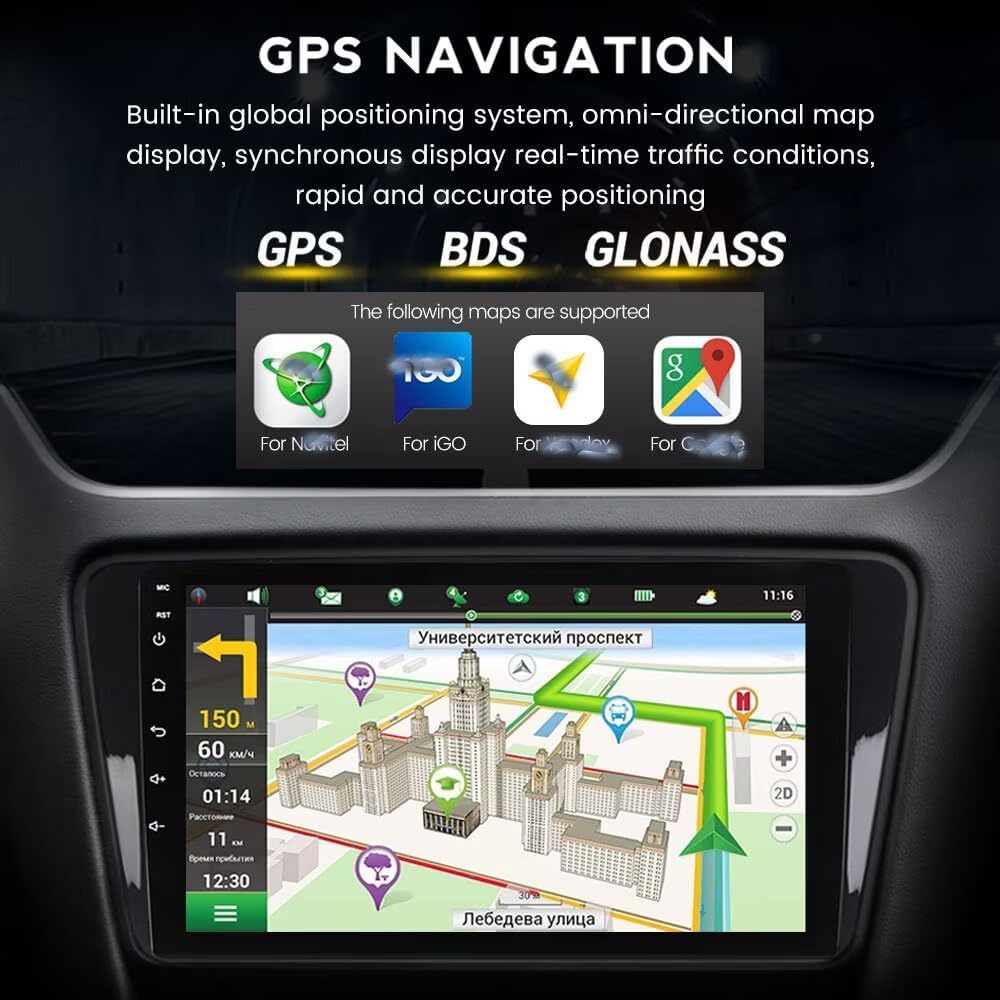
The GPS navigation interface displaying a map, route information, and supported satellite systems (GPS, BDS, GLONASS) and map applications.
5.4 FM/AM RDS Radio
The integrated radio supports FM and AM bands with RDS (Radio Data System) functionality. You can search for stations automatically or manually.

The FM/AM RDS radio interface, showing current frequency and preset station list.
Radio Operation:
- Automatic Search: Use the auto-search function to scan and save available stations.
- Manual Search: Tune to specific frequencies manually.
- Preset Stations: Save your favorite stations for quick access. The unit supports 18 preset stations.
5.5 Bluetooth Function
Bluetooth 5.0 enables hands-free calling, phone book download, and music streaming from your paired smartphone.

Illustration of the Bluetooth function, highlighting hands-free calling, music streaming, and contact synchronization. Emphasizes safe driving practices.
Bluetooth Features:
- Hands-Free Calling: Make and receive calls directly from the stereo.
- Phone Book Download: Sync your phone's contacts for easy dialing.
- Bluetooth Music Streaming: Play audio from your phone wirelessly.
- Caller ID: Display incoming caller names.
5.6 Wi-Fi Connectivity
The unit supports 5GHz Wi-Fi (802.11 b/g/n) for fast internet access, low latency, wide coverage, and stable connection.

Illustration of 5GHz Wi-Fi support, indicating the antenna connection and benefits such as fast transmission and stable connectivity.
5.7 Additional Features
- Steering Wheel Control: The unit supports original steering wheel remote control for convenient operation.
- Split Screen: Utilize the split-screen function to run two applications simultaneously.
- 4G LTE Support: For models with 4G LTE capability, insert a SIM card for independent internet access.
- Built-in DSP Processor: Enhances audio quality and customization.
- Multimedia Playback: Supports various audio (MP3, WMA, AAC, RM, FALC), video (MPEG-1/2/4, H264, H263, VC1, RV, RMVB, DivX, VP8, AVS Stream), and photo (JPG/BMP/JEPG/GIF/PNG) formats.
- ADAS DVR Support: Compatible with ADAS DVR anti-collision warning driving recorders (DVR not included).
- OBD II Support: Compatible with OBD II diagnostic tools (OBD II not included).
- TPMS Support: Compatible with TPMS (Tire Pressure Monitoring System) (TPMS not included).
- Multi-Language Support: Supports English, German, French, Spanish, Italian, Portuguese, Russian, Dutch, Polish, Japanese, Simplified & Traditional Chinese, Arabic, etc.
6. Maintenance
- Screen Cleaning: Use a soft, lint-free cloth to clean the screen. For stubborn marks, lightly dampen the cloth with water or a screen-safe cleaner. Avoid harsh chemicals.
- General Cleaning: Wipe the unit's exterior with a dry, soft cloth.
- Software Updates: Periodically check for software updates from the manufacturer to ensure optimal performance and access to new features.
- Cooling Fan: The unit is equipped with a powerful cooling fan to maintain stable operation in various temperatures. Ensure the fan vents are not obstructed.

Rear view of the car stereo, showing the powerful cooling fan designed for stable operation.
7. Troubleshooting
If you encounter issues, refer to the following common problems and solutions:
| Problem | Possible Cause | Solution |
|---|---|---|
| No Power | Incorrect wiring, blown fuse, vehicle battery issue. | Check power connections (12V constant, accessory, ground). Inspect vehicle fuses. Ensure battery is charged. |
| No Sound | Speaker wiring issue, volume too low, mute activated. | Verify speaker connections. Increase volume. Check if mute is active. |
| GPS Not Working / Inaccurate | GPS antenna not connected, poor antenna placement, software issue. | Ensure GPS antenna is securely connected and has a clear view of the sky. Restart the unit. Check map software settings. |
| Bluetooth Not Connecting | Bluetooth off on phone/unit, incorrect pairing, interference. | Ensure Bluetooth is enabled on both devices. Delete previous pairings and re-pair. Move closer to the unit. |
| CarPlay/Android Auto Not Launching | Incorrect connection steps, incompatible phone, app issues. | Follow connection steps carefully (Bluetooth then Car Link, or USB). Ensure phone OS is compatible. Update phone apps. |
| Touch Screen Unresponsive | Software glitch, physical damage. | Restart the unit. If issue persists, contact support. |
If the problem persists after trying these solutions, please contact Biorunn customer support.
8. Specifications
| Feature | Description |
|---|---|
| Operating System | Android |
| Processor | 8-Core |
| Screen Size | 10.1 Inches |
| RAM | 4GB |
| ROM (Internal Storage) | 32GB |
| Resolution | 1280 x 720, IPS Screen |
| Bluetooth | Bluetooth 5.0 |
| DSP Processor | Built-in |
| CarPlay / Android Auto | Built-in, Wireless & Wired Support |
| Split Screen | Supported |
| 4G LTE | Supported |
| Wi-Fi | 5GHz (802.11 b/g/n) |
| GPS Navigation | Built-in Global Positioning System (GPS, BDS, GLONASS) |
| Radio | FM/AM RDS, 18 preset stations |
| Steering Wheel Control | Supported |
| USB Sockets | USB1; USB2 |
| Audio Formats | MP3, WMA, AAC, RM, FALC, etc. |
| Video Formats | MPEG-1/2/4, H264, H263, VC1, RV, RMVB, DivX, Sorenson SparK, Spark, VP8, AVS Stream |
| Photo Formats | JPG/BMP/JEPG/GIF/PNG |
| Compatible Devices | Smartphone, Speaker |
| Control Method | Touch |
| Manufacturer | Shenzhen Rongnan International Electronics Co., Ltd. |
9. Warranty
This Biorunn Car Stereo comes with a 1-year warranty from the date of purchase. The warranty covers manufacturing defects and malfunctions under normal use. Please retain your proof of purchase for warranty claims. The warranty does not cover damage caused by improper installation, misuse, accidents, or unauthorized modifications.
10. Support
For technical assistance, troubleshooting beyond this manual, or warranty inquiries, please contact Biorunn customer support. Refer to the contact information provided with your purchase or visit the official Biorunn website for support resources.
Online Resources:
- Biorunn Official Store: Visit Biorunn Store on Amazon