
JY JUWEATHY V910M26/V8339A2HM
XP600 Carriage Board Single Head Driver Board User Manual
Model: V910M26/V8339A2HM
Brand: JY JUWEATHY
Product Overview
This manual provides essential information for the installation, operation, and maintenance of the XP600 Carriage Board Single Head Driver Board (Model: V910M26/V8339A2HM) for UV Senyang Printers. This board is a critical component responsible for controlling the print head's functions, ensuring precise ink delivery and stable printing performance.

Figure 1: Front view of the XP600 Carriage Board, showing various integrated circuits, connectors, and capacitors. This is the main component for controlling the print head.
Setup and Installation
Proper installation is crucial for the functionality and longevity of the driver board. Always ensure the printer is powered off and disconnected from the main power supply before beginning any installation or maintenance procedures.
Safety Precautions:
- Power Off: Disconnect the printer from the power source.
- Static Electricity: Wear an anti-static wrist strap or frequently touch a grounded metal object to discharge static electricity before handling the board. Static discharge can damage electronic components.
- Handle with Care: Hold the board by its edges, avoiding contact with components and connectors.
- Tooling: Use appropriate, non-magnetic tools for installation.
Installation Steps:
- Access Printer Interior: Carefully open the printer casing to access the existing carriage board. Refer to your printer's specific service manual for detailed instructions on accessing internal components.
- Disconnect Cables: Gently disconnect all cables connected to the old carriage board. Note the orientation and connection points for reassembly. It is recommended to take photos before disconnecting.
- Remove Old Board: Unscrew and carefully remove the old carriage board from its mounting points.
- Install New Board: Align the new XP600 Carriage Board (V910M26/V8339A2HM) with the mounting points. Secure it with the appropriate screws, ensuring it is firmly seated.
- Reconnect Cables: Reconnect all cables to their corresponding ports on the new board. Ensure all connections are secure and correctly oriented. Pay close attention to ribbon cables, ensuring they are inserted straight and fully.
- Close Casing: Carefully close the printer casing.
- Power On: Reconnect the printer to the power source and power it on.
- Driver/Firmware Check: Verify that the printer recognizes the new board. It may be necessary to update or reinstall printer drivers or firmware. Consult your printer's software documentation.

Figure 2: Angled view of the XP600 Carriage Board, highlighting the various connection ports and the main processor. Proper connection of all cables is essential for correct operation.
Operating Principles
The XP600 Carriage Board acts as the central control unit for the print head within your UV Senyang Printer. It processes commands from the printer's main control board and translates them into precise movements and ink firing sequences for the print head.
- Print Head Control: Manages the electrical signals sent to the print head nozzles for accurate ink droplet ejection.
- Carriage Movement: Coordinates with the printer's motor system to control the precise back-and-forth movement of the print head carriage across the printing media.
- Sensor Integration: Receives feedback from various sensors (e.g., encoder strips, paper sensors) to ensure accurate positioning and error detection.
- Data Processing: Handles the high-speed data transfer required for complex print jobs, ensuring timely and accurate execution of printing tasks.

Figure 3: A close-up view of the main processor chip on the XP600 Carriage Board, labeled "XP600 单头DC V910M26/V8339A2HM". This chip is central to the board's data processing and control functions.
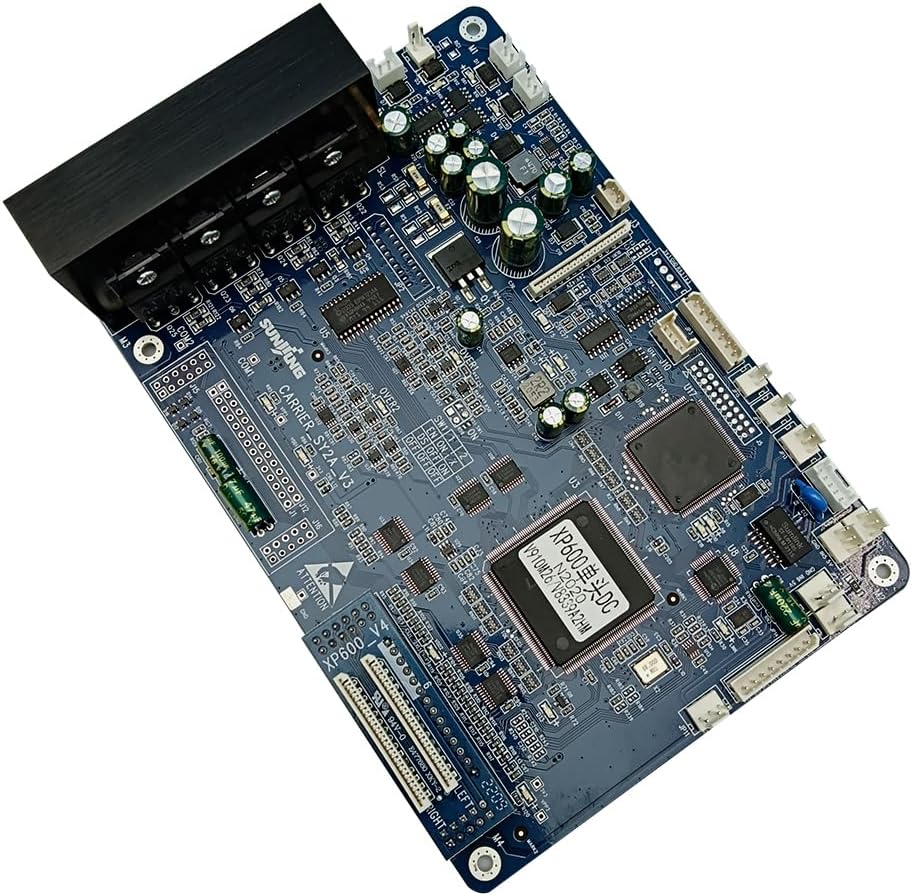
Figure 4: An additional angled view of the XP600 Carriage Board, providing a comprehensive look at its layout and various connection points, crucial for understanding its operational integration.
Maintenance
The XP600 Carriage Board is designed for durability, but proper handling and a clean environment can extend its lifespan and ensure optimal performance.
- Keep Clean: Ensure the printer's internal environment is free from dust, ink residue, and other debris. Dust accumulation on electronic components can lead to overheating or short circuits.
- Avoid Moisture: Keep the board and printer away from liquids and high humidity. Moisture can cause corrosion and damage to electronic circuits.
- Gentle Handling: When performing any internal printer maintenance, always handle the board gently. Avoid bending or applying excessive force to components or connectors.
- Regular Inspection: Periodically inspect the board for any visible signs of damage, loose connections, or unusual discoloration (which might indicate overheating).

Figure 5: Detailed view of various electronic components on the XP600 Carriage Board, including capacitors and integrated circuits. Keeping these components free from dust and debris is important for board longevity.
Troubleshooting
If you encounter issues after installing or during the operation of the XP600 Carriage Board, consider the following common troubleshooting steps:
- No Power/Printer Not Responding:
- Verify all power connections to the printer and the board are secure.
- Ensure the printer's main power supply is functioning correctly.
- Print Head Not Moving/Incorrect Movement:
- Check all ribbon cables and motor connections to the carriage board. Ensure they are fully seated and not damaged.
- Inspect the encoder strip for cleanliness and proper installation.
- Printing Errors/Poor Print Quality:
- Confirm that the correct printer drivers are installed and up to date.
- Check for any error codes displayed by the printer and consult your printer's manual for their meaning.
- Ensure the print head itself is clean and not clogged.
- Board Not Recognized:
- Re-check all cable connections, especially data cables.
- Try reinstalling printer drivers or updating firmware.
If issues persist after performing these steps, it is recommended to consult a qualified printer technician or contact the manufacturer's support.

Figure 6: Rear view of the XP600 Carriage Board, showing the solder points and traces. This side should also be kept clean and free from damage.
Specifications
| Feature | Detail |
|---|---|
| Product Name | XP600 Carriage Board Single Head Driver Board |
| Model Number | V910M26/V8339A2HM |
| Brand | JY JUWEATHY |
| Compatible Devices | UV Senyang Printers (specifically those using XP600 print heads) |
| Package Dimensions | 8.66 x 5.91 x 5.12 inches |
| Item Weight | 1.32 pounds |
| Main Power Connector Type | 24-Pin |
| Memory Slots Available | 2 |
| System Bus Standard Supported | SATA 2 |
| Total SATA Ports | 1 |
Warranty and Support
For information regarding product warranty, technical support, or service, please refer to the official documentation provided with your purchase or contact JY JUWEATHY directly through their official channels. Keep your purchase receipt as proof of purchase for warranty claims.
Ask a question about this manual
Ask about setup, troubleshooting, compatibility, parts, safety, or missing instructions. Manuals+ will review the question and use this page’s manual context to help answer it.