
Dzxiaso 5dbf178e-4682-46e8-970d-3ce1934da96a
Dzxiaso QLED Touch Screen Stereo Replacement for Dodge RAM (2002-2006) User Manual
Model: 5dbf178e-4682-46e8-970d-3ce1934da96a
1. Introduction
This manual provides detailed instructions for the installation, operation, and maintenance of your Dzxiaso QLED Touch Screen Stereo Replacement, designed specifically for Dodge RAM models manufactured between 2002 and 2006. Please read this manual thoroughly before installation and use to ensure proper function and safety.

Image 1.1: Dzxiaso QLED Touch Screen Stereo Replacement with CarPlay interface.
2. Safety Information
Observe the following safety precautions to prevent damage to the unit, vehicle, or personal injury:
- Ensure the vehicle's ignition is off and the battery is disconnected before beginning installation.
- Consult a professional installer if you are unsure about any part of the installation process.
- Do not operate the unit in a manner that distracts you from driving.
- Avoid exposing the unit to extreme temperatures, moisture, or direct sunlight for extended periods.
3. Package Contents
Verify that all items listed below are included in your package:
- Android Car Stereo Unit (QLED Touch Screen)
- Dash Frame Kit (specific for Dodge RAM 2002-2006)
- Wiring Harness
- CANBUS Box
- GPS Module
- Radio Antenna Adapter
- USB Cables (4-pin and 6-pin)
- Rear View Camera (with cable)
- RCA Cable Set
- Installation Instructions (this manual)

Image 3.1: Complete package contents.

Image 3.2: USB cables included in the package.
4. Installation Guide
This section outlines the steps for installing the Dzxiaso QLED Touch Screen Stereo Replacement in your Dodge RAM (2002-2006). Basic tools such as pry tools and screwdrivers are required. Disconnect the vehicle battery before starting.
4.1. Removing the Factory Radio
- Carefully use a pry tool to remove the trim panels surrounding the factory radio.
- Unscrew the mounting bolts securing the factory radio.
- Gently pull out the factory radio and disconnect all wiring harnesses and antenna cables.
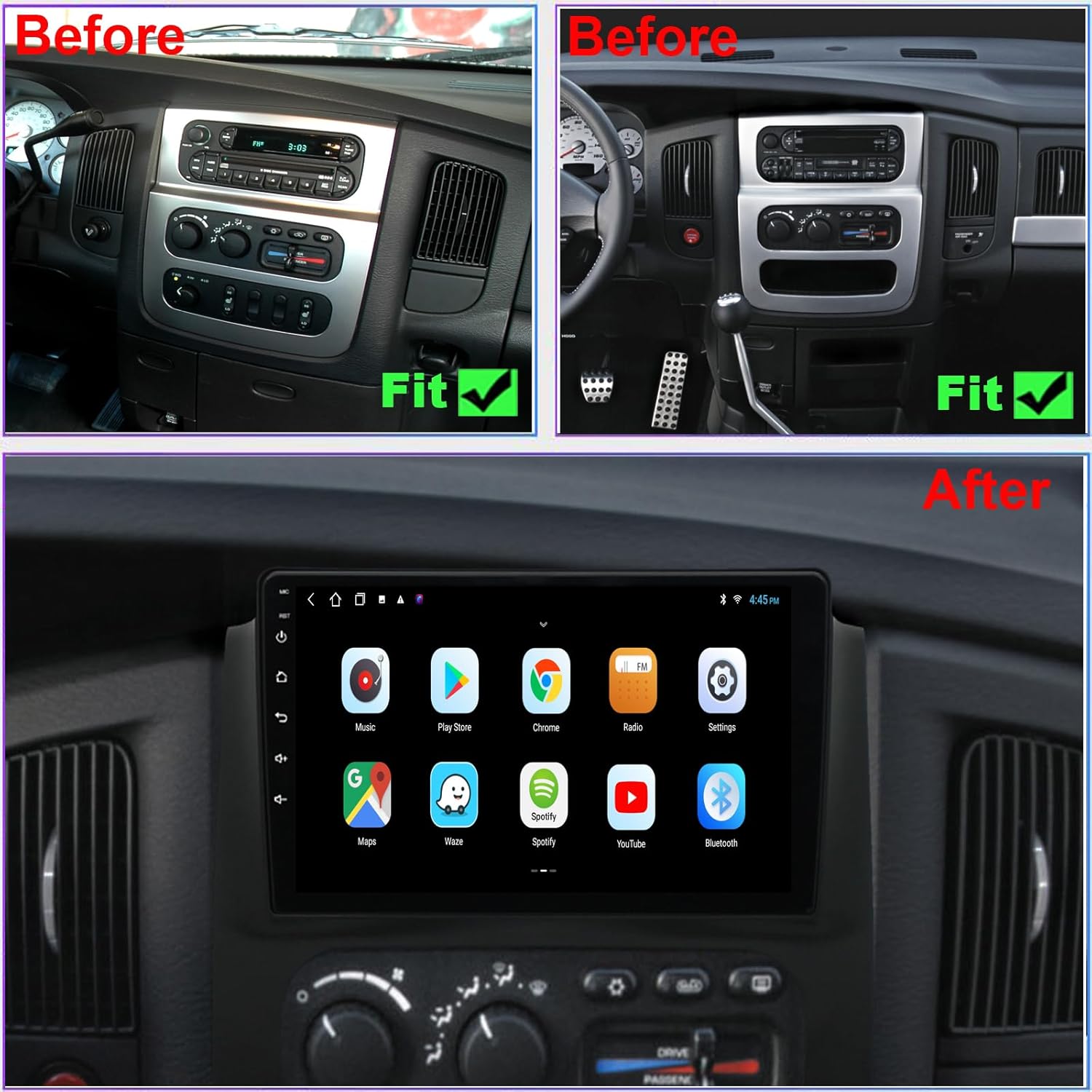
Image 4.1: Before and After installation view.
4.2. Wiring Connections
Connect the provided wiring harness, CANBUS box, and other cables to the new stereo unit and the vehicle's existing wiring. Ensure all connections are secure.
- Connect the main power cable harness to the stereo and the vehicle's power connector.
- Integrate the CANBUS box as per the wiring diagram to retain steering wheel controls and other vehicle data.
- Connect the GPS module and position it in a location with a clear view of the sky (e.g., under the dashboard, near the windshield).
- Attach the radio antenna adapter.
- Connect the USB cables for external devices.
- If installing the rear view camera, route its cable from the stereo to the rear of the vehicle and connect it to the camera.

Image 4.2: Wiring diagram for the stereo unit.

Image 4.3: Example of a wiring harness connection.
4.3. Mounting the New Stereo
- Carefully slide the new stereo unit with its dash frame into the dashboard opening.
- Secure the unit using the appropriate screws or mounting clips.
- Reattach any removed trim panels, ensuring they snap securely into place.
5. Operating Instructions
This section covers the basic functions and advanced features of your Dzxiaso QLED Touch Screen Stereo.
5.1. Basic Functions
- Power On/Off: Press and hold the power button on the unit or use the vehicle's ignition.
- Volume Control: Adjust using the on-screen controls or retained steering wheel controls.
- Navigation: Tap the "Maps" or "Navigation" icon to access the GPS functionality.
- Radio: Select the "FM Radio" application to tune into radio stations.
- Bluetooth: Access the Bluetooth settings to pair your smartphone for hands-free calling and audio streaming.
5.2. Wireless CarPlay and Wired Android Auto
The unit supports both wireless Apple CarPlay and wired Android Auto for seamless smartphone integration.
- For Wireless CarPlay:
- Ensure Bluetooth and Wi-Fi are enabled on your iPhone.
- On the stereo, go to the CarPlay application.
- Pair your iPhone via Bluetooth. Once paired, CarPlay should automatically activate wirelessly.
- For Wired Android Auto:
- Connect your Android phone to one of the stereo's USB ports using a high-quality USB cable.
- Follow the on-screen prompts on both your phone and the stereo to initiate Android Auto.
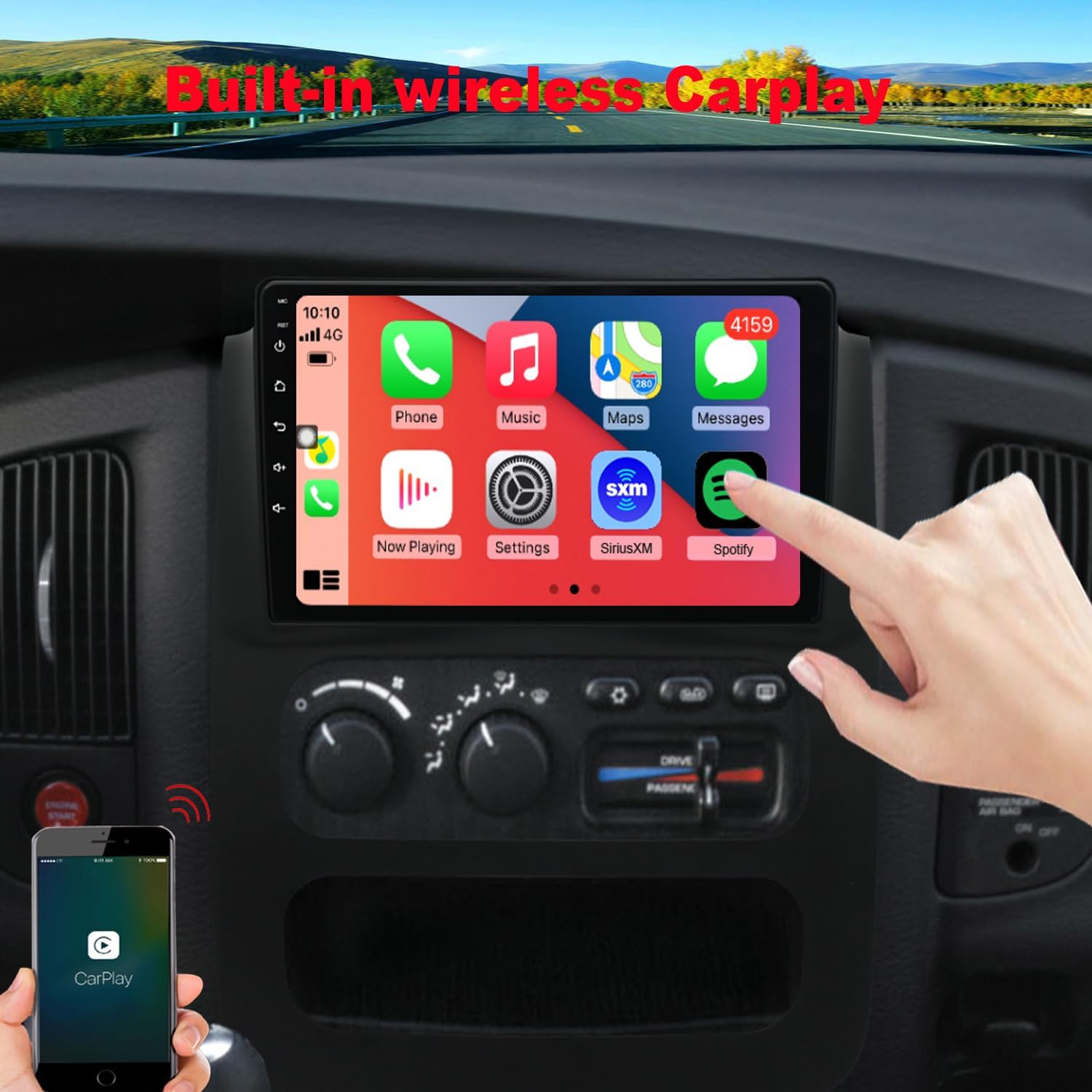
Image 5.1: Wireless CarPlay in operation.

Image 5.2: Android Auto and CarPlay features with navigation.
5.3. Rear View Camera
When the vehicle is shifted into reverse, the stereo will automatically display the feed from the connected rear view camera.

Image 5.3: Rear view camera display.
5.4. Audio Settings (DSP Equalizer)
Customize your audio experience using the built-in Digital Sound Processor (DSP) equalizer.

Image 5.4: DSP Equalizer adjustment interface.

Image 5.5: Speaker delay adjustment for sound staging.
6. Maintenance
To ensure the longevity and optimal performance of your stereo unit:
- Clean the screen with a soft, lint-free cloth. Avoid abrasive cleaners.
- Keep the unit free from dust and debris.
- Periodically check wiring connections for looseness.
- Ensure software updates are installed when available to improve performance and add features.
7. Troubleshooting
| Problem | Possible Cause | Solution |
|---|---|---|
| No power to the unit. | Loose power connection, blown fuse, incorrect wiring. | Check all power connections. Inspect vehicle fuses and the unit's fuse. Verify wiring according to the diagram. |
| No sound output. | Volume too low, mute activated, incorrect speaker wiring, CANBUS issue. | Increase volume. Check if mute is active. Verify speaker connections. Ensure CANBUS is correctly installed and configured. |
| CarPlay/Android Auto not connecting. | Bluetooth/Wi-Fi off (CarPlay), faulty USB cable (Android Auto), phone compatibility. | Ensure phone's Bluetooth/Wi-Fi is on. Try a different USB cable. Check phone compatibility and update phone OS. |
| Steering wheel controls not working. | CANBUS not connected or configured correctly. | Verify CANBUS box connection and settings in the stereo's menu. |
| Rear view camera not displaying. | Camera not connected, faulty camera, incorrect trigger wire connection. | Check camera cable connection. Ensure the reverse trigger wire is correctly connected to the vehicle's reverse light signal. |
If problems persist, contact customer support for assistance.
8. Specifications
| Feature | Detail |
|---|---|
| Model Number | 5dbf178e-4682-46e8-970d-3ce1934da96a |
| Compatible Vehicles | Dodge RAM 2002, 2003, 2004, 2005, 2006 |
| Display Type | QLED Touch Screen |
| Screen Diagonal | 9 inches / 23 cm |
| Operating System | Android (with 2GB RAM, 32GB ROM) |
| Connectivity | Bluetooth, USB, Wi-Fi |
| Special Features | Wireless Apple CarPlay, Wired Android Auto, Built-In Bluetooth, Built-In Wi-Fi, Lane Assist, FM Radio, GPS Module, Rear View Camera Support, DSP Equalizer |
| Audio Output Mode | Stereo |
| Surround Sound Configuration | 4.0 |
| Color | Black |
| Item Weight | 4.36 pounds |
| Package Dimensions | 16.22 x 12.76 x 5.79 inches |

Image 8.1: QLED (IPS) screen quality comparison.
9. Warranty and Support
Dzxiaso provides technical support for this product. If you encounter any issues or have questions, please contact the technical support team. They are available 24/7 to assist you.
For warranty information, please refer to the documentation included with your purchase or contact Dzxiaso customer service directly.
Contact Information: Refer to your purchase receipt or the official Dzxiaso website for the most current contact details.
Ask a question about this manual
Ask about setup, troubleshooting, compatibility, parts, safety, or missing instructions. Manuals+ will review the question and use this page’s manual context to help answer it.