
1. Introduction
Thank you for choosing the ACEMAGICIAN AM07 Mini PC. This compact and powerful computer is designed for various tasks, from office work and multimedia entertainment to light gaming. This manual provides essential information for setting up, operating, and maintaining your device to ensure optimal performance and longevity. Please read this manual thoroughly before using your Mini PC.
2. Package Contents
Carefully unpack your ACEMAGICIAN AM07 Mini PC and verify that all items listed below are included:
- 1 x ACEMAGICIAN AM07 Mini PC
- 1 x Power Adapter
- 1 x User Manual / Documentation
If any items are missing or damaged, please contact your retailer or ACEMAGICIAN customer support immediately.
3. Product Overview
The ACEMAGICIAN AM07 Mini PC features an AMD Ryzen 5 5500U processor, 16GB DDR4 RAM, and a 512GB SSD, offering robust performance in a small form factor. It supports 4K UHD output and includes modern connectivity options like WiFi 5 and Bluetooth 4.2.

Figure 3.1: Overview of the ACEMAGICIAN AM07 Mini PC's core components and features, including the AMD Ryzen 5 5500U processor, 16GB DDR4 RAM, 512GB SSD, WiFi 5, Bluetooth 4.2, and integrated cooling system.
3.1 Processor Details
The AM07 is powered by an AMD Ryzen 5 5500U processor, featuring 6 cores and 12 threads, with a base frequency of 2.1 GHz and a turbo frequency up to 4.0 GHz. This 7nm lithography processor ensures efficient and powerful performance for various applications.

Figure 3.2: Close-up of the AMD Ryzen 5 5500U processor, highlighting its key specifications for performance.
3.2 Connectivity
The Mini PC supports ultra-fast wireless connectivity with WiFi 5 (dual-band 2.4GHz and 5.0GHz) and Bluetooth 4.2, ensuring stable and high-speed connections for your network and peripherals.

Figure 3.3: The AM07 Mini PC demonstrating its wireless capabilities, including WiFi 5 and Bluetooth 4.2, for seamless connectivity.
3.3 Storage and Memory
Equipped with 16GB of dual-channel DDR4 RAM (2x8GB) and a 512GB M.2 2280 SSD, the AM07 provides fast data access and multitasking. The storage can be expanded up to 2TB by adding an additional hard drive.

Figure 3.4: Illustration of the AM07 Mini PC's internal storage and memory configuration, highlighting its expandability.
3.4 Display Capabilities
The Mini PC supports a triple 4K display setup (HDMI+DP+Type-C), allowing you to connect up to three monitors simultaneously for enhanced productivity and an immersive visual experience.

Figure 3.5: The AM07 Mini PC configured with a triple monitor setup, showcasing its advanced display output options.
3.5 Port Layout
The AM07 Mini PC offers a comprehensive set of ports for connecting various peripherals and devices:
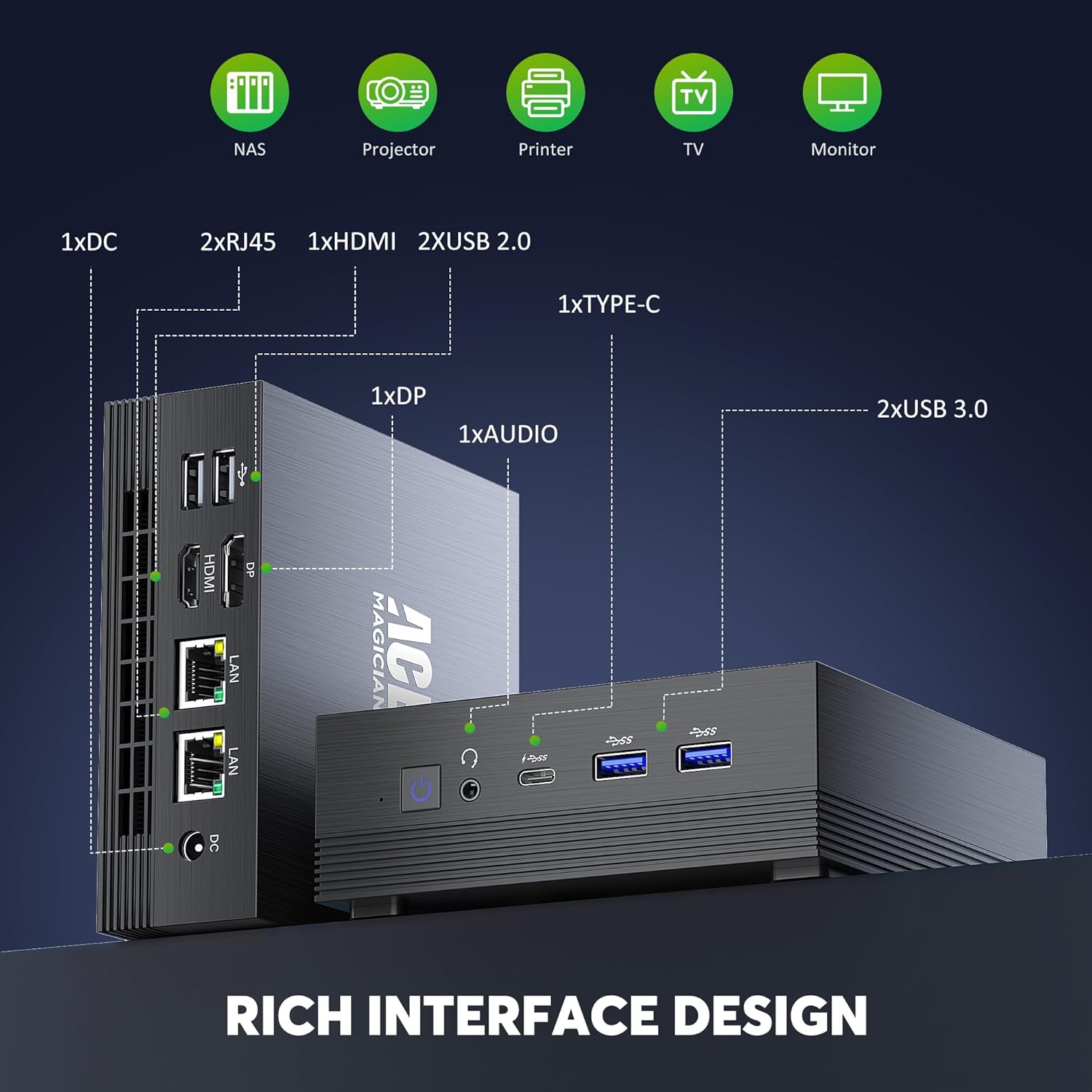
Figure 3.6: Detailed diagram of the AM07 Mini PC's front and rear ports, illustrating its connectivity options.
- Front Ports: 2 x USB 3.0, 1 x Type-C, 1 x Audio Jack (Headphone/Microphone Combo), Power Button
- Rear Ports: 1 x DC Power Input, 2 x RJ45 (Gigabit LAN), 1 x HDMI, 1 x DisplayPort (DP), 2 x USB 2.0
4. Setup Guide
Follow these steps to set up your ACEMAGICIAN AM07 Mini PC:
- Connect Peripherals: Connect your monitor(s) to the HDMI, DisplayPort, or Type-C ports. Connect your keyboard and mouse to the available USB ports.
- Connect Power: Plug the power adapter into the DC input port on the Mini PC, then plug the adapter into a power outlet.
- Power On: Press the power button located on the front of the Mini PC. The power indicator light will illuminate.
- Initial Windows Setup: Upon first boot, follow the on-screen instructions to complete the Windows 11 Pro setup, including language, region, network connection, and user account creation.
5. Operating Instructions
5.1 Network Connection
- Wi-Fi: During Windows setup or via the Windows Settings, select your Wi-Fi network and enter the password.
- Ethernet: Connect an Ethernet cable from your router or modem to one of the RJ45 ports on the Mini PC. The connection will be established automatically.
5.2 Bluetooth Devices
To connect Bluetooth devices (e.g., keyboard, mouse, headphones):
- Ensure the Bluetooth device is in pairing mode.
- On your Mini PC, go to Settings > Bluetooth & devices > Add device.
- Select Bluetooth and choose your device from the list to pair.
5.3 Multiple Displays
To configure multiple displays:
- Connect your monitors to the available HDMI, DisplayPort, or Type-C ports.
- Right-click on the desktop and select Display settings.
- Windows will detect the connected monitors. You can arrange them, set their resolution, and choose display modes (e.g., Extend, Duplicate) from this menu.
6. Maintenance
6.1 Cleaning
Regularly clean the exterior of the Mini PC with a soft, dry cloth. For dust accumulation in vents, use compressed air. Ensure the device is powered off and unplugged before cleaning.
6.2 Software Updates
Keep your Windows operating system and drivers updated to ensure optimal performance and security. Windows Update can be accessed via Settings > Windows Update.
6.3 Storage Expansion
The ACEMAGICIAN AM07 Mini PC supports storage expansion up to 2TB. Refer to the detailed instructions provided by ACEMAGICIAN for safely installing an additional 2.5-inch SATA SSD/HDD or upgrading the M.2 SSD.
7. Troubleshooting
If you encounter issues with your Mini PC, refer to the following common solutions:
- No Power: Ensure the power adapter is securely connected to both the Mini PC and a working power outlet. Try a different outlet.
- No Display: Verify that the monitor is powered on and correctly connected to the Mini PC. Try a different display cable or monitor. Ensure the correct input source is selected on your monitor.
- No Network Connection: For Wi-Fi, check your router and ensure the Wi-Fi password is correct. For Ethernet, ensure the cable is properly connected and your router is functioning.
- Slow Performance: Close unnecessary applications. Check for background processes in Task Manager. Ensure sufficient free storage space.
- Peripheral Not Detected: Ensure USB or Bluetooth devices are properly connected or paired. Try a different port or re-pair the Bluetooth device.
For persistent issues, consult the ACEMAGICIAN support website or contact customer service.
8. Specifications
Below are the technical specifications for the ACEMAGICIAN AM07 Mini PC:
| Feature | Specification |
|---|---|
| Brand | ACEMAGICIAN |
| Model Number | AM07 |
| Operating System | Windows 11 Pro |
| Processor Brand | AMD |
| Processor Type | Ryzen 5 5500U |
| Processor Speed | 4 GHz (Max Turbo) |
| Number of Cores | 6 |
| RAM | 16 GB DDR4 |
| Maximum Memory | 64 GB |
| Hard Drive Size | 512 GB SSD (Expandable to 2 TB) |
| Hard Drive Technology | SSD |
| Graphics Chipset Brand | AMD |
| GPU | AMD Radeon Vega 7 |
| Graphics Card RAM | 16 MB (Shared) |
| Wireless Technology Type | Bluetooth 4.2, WiFi 5 (2.4G + 5G) |
| Hardware Interface | Ethernet, HDMI, DisplayPort, USB 2.0, USB 3.0, Type-C |
| Number of HDMI Ports | 1 |
| Number of USB 2.0 Ports | 2 |
| Product Dimensions (L x W x H) | 12.9 x 13.7 x 5.5 cm |
| Item Weight | 870 grams |
| Max Display Resolution | 3840 x 2160 (4K UHD) |
9. Warranty and Support
ACEMAGICIAN products come with a standard warranty. For detailed warranty terms and conditions, please refer to the warranty card included with your product or visit the official ACEMAGICIAN website. If you require technical assistance or have questions not covered in this manual, please contact ACEMAGICIAN customer support through their official channels. When contacting support, please have your product model (AM07) and purchase information ready.