
QDZ 903-TF
QDZ Portable Bluetooth CD Player User Manual
Model: 903-TF
1. Introduction
Thank you for choosing the QDZ Portable Bluetooth CD Player. This device is designed to provide high-quality audio playback for your CD collection, offering versatile connectivity options for both personal and car use. With its compact design, rechargeable battery, and anti-skip protection, you can enjoy your favorite music anywhere.

Figure 1.1: The QDZ Portable Bluetooth CD Player and its accessories, including earphones, AUX cable, and USB-C charging cable.
2. What's in the Box
Please check the package contents to ensure all items are present:
- CD Player x1
- Audio cable x1
- Earphone x1
- USB to Type-C Charging Cable x1
- User Manual x1
3. Product Overview
Familiarize yourself with the various parts and controls of your QDZ Portable Bluetooth CD Player.

Figure 3.1: Front and side view of the CD player highlighting its buttons and ports.
Controls and Ports:
- EQ Mode/FM Transmission Button: Press to cycle through sound effects (BBS, Pop, Jazz, Rock, Classical). Long press to activate/deactivate FM transmission.
- Play Mode/Bluetooth Connection Button: Press to change playback modes (e.g., repeat, shuffle). Long press to activate/deactivate Bluetooth pairing.
- Previous Song/Fast Rewind Button: Press to go to the previous track. Long press to fast rewind.
- Play/Pause Button: Press to play or pause playback.
- Next Song/Fast Forward Button: Press to go to the next track. Long press to fast forward.
- Turn On/Turn Off Button: Long press to power the device on or off.
- Volume Adjustment: Rotary knob to increase or decrease volume.
- Earphone/Aux Jack: 3.5mm port for headphones or AUX cable connection.
- Type-C Port: For charging the device.
- Reset Hole: Use a thin pin to reset the device if it becomes unresponsive.

Figure 3.2: The CD player features touch-sensitive buttons with a backlight for easy operation in various lighting conditions.
4. Key Features
- Wide Compatibility: Supports CD, MP3, CD-RW, CD-R disc formats and WMA, MP3, CD-DA audio formats. (Note: DVD is not supported).

Figure 4.1: Visual representation of supported disc types (CD, MP3, CD-R, CD-RW) and audio formats (CD-DA, MP3, WMA), along with available sound effects (BBS, Pop, Jazz, Rock, Classic).
- Versatile Connectivity:
- Bluetooth 5.0: Connect wirelessly to Bluetooth speakers or headphones for a seamless audio experience.
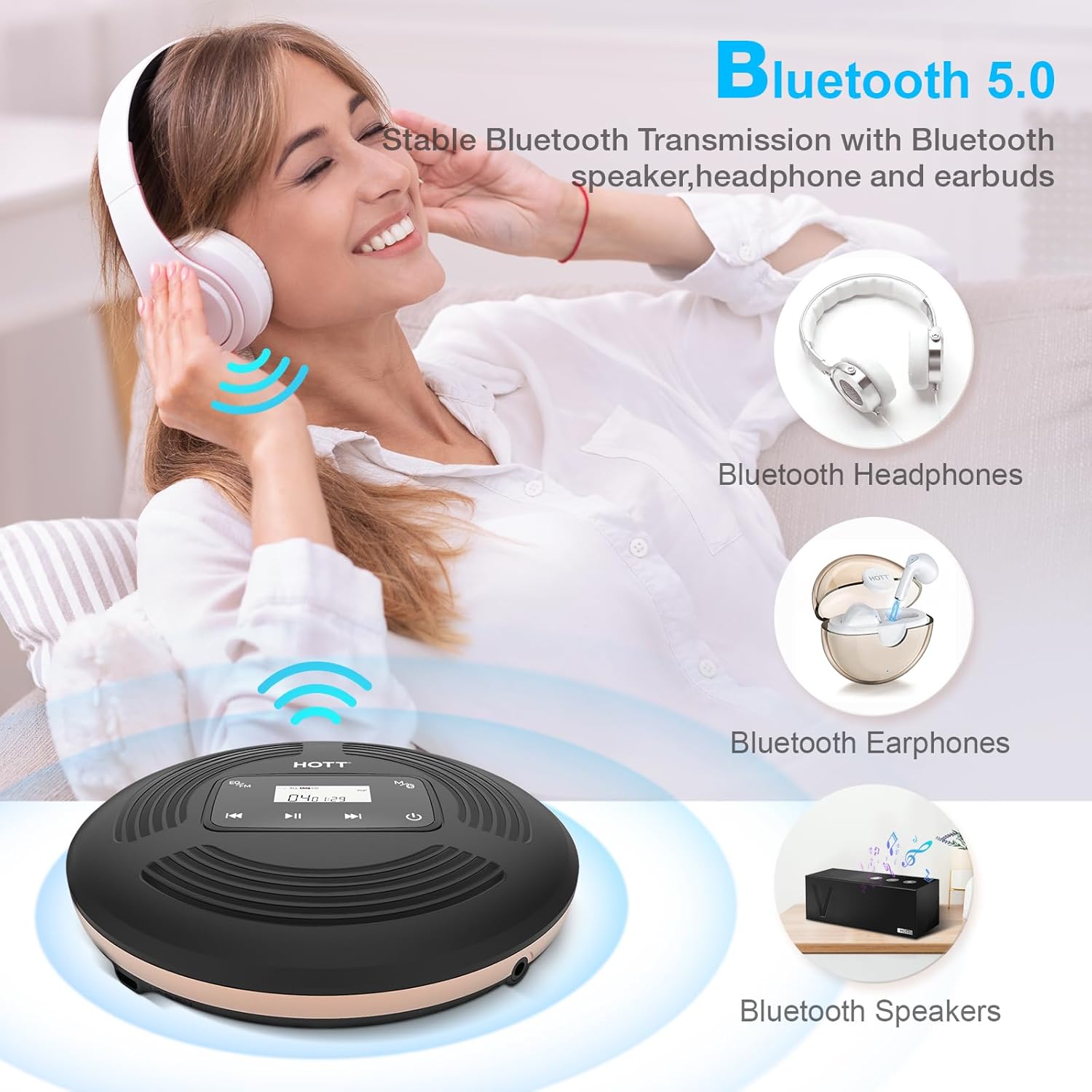
Figure 4.2: The CD player wirelessly connecting to Bluetooth headphones and speakers via Bluetooth 5.0.
- FM Transmitter: Broadcast your CD audio to your car's FM radio. Supports five fixed FM frequency points for easy setup.
- AUX Cable: Connect to car audio systems or other devices via the included 3.5mm AUX cable. (Note: Only works with a 3.5mm AUX port, USB port is NOT supportable for audio input).

Figure 4.3: Illustrates connecting the CD player to a car's audio system using either the built-in FM transmitter or a 3.5mm AUX cable.
- Bluetooth 5.0: Connect wirelessly to Bluetooth speakers or headphones for a seamless audio experience.
- Anti-Skip Protection (ASP): Ensures uninterrupted playback even during movement or minor shocks, ideal for portable use.
- Last Memory Function: Remembers the last played track and resumes playback from where you left off, even after powering off.

Figure 4.4: Demonstrates the Last Memory feature, showing the player resuming from the last played position after being turned off and on.
- Rechargeable Battery: Built-in 1800mAh lithium battery provides over 10 hours of playback on a 3-4 hour charge. Conveniently charges via Type-C USB cable.

Figure 4.5: Various charging options for the built-in lithium battery, including USB charger, power bank, car charger, and computer.
- Portable Design: Lightweight and compact (5.59 x 5.59 x 1.1 inches, 15.8 ounces) for easy carrying.

Figure 4.6: The compact size and light weight of the portable CD player, making it easy to carry in a bag.
5. Setup
5.1 Charging the Device
Before first use, fully charge the CD player. The built-in 1800mAh lithium battery takes approximately 3-4 hours to fully charge.
- Connect the included USB to Type-C Charging Cable to the Type-C port (9) on the CD player.
- Plug the other end of the USB cable into a compatible USB power source (e.g., USB charger, power bank, car charger, computer USB port).
- The charging indicator light will illuminate during charging and turn off when fully charged.

Figure 5.1: The CD player connected to a wall adapter for charging via its Type-C port.
5.2 Inserting a CD
- Gently slide the "OPEN" switch (if present, otherwise lift the lid) to open the CD compartment.
- Place the CD onto the spindle with the label side facing up.
- Press the CD gently until it clicks into place.
- Close the CD compartment lid firmly until it latches.
6. Operating Instructions
6.1 Basic CD Playback
- Long press the Power button (6) to turn on the CD player.
- Insert a CD as described in Section 5.2. The player will automatically start reading the disc.
- Press the Play/Pause button (4) to start or pause playback.
- Use the Next Song (5) or Previous Song (3) buttons to skip tracks.
- Long press the Next Song (5) or Previous Song (3) buttons for fast forward or rewind.
- Adjust the volume using the Volume Adjustment knob (7).
- To turn off the player, long press the Power button (6).
6.2 Sound Effects (EQ) and Play Modes
- Sound Effects: Press the EQ Mode button (1) repeatedly to cycle through available sound effects: BBS, Pop, Jazz, Rock, Classical.
- Play Modes: Press the Play Mode button (2) repeatedly to select different playback modes, such as single track repeat, all tracks repeat, random play, etc.
6.3 Connecting via Bluetooth
You can connect your CD player wirelessly to Bluetooth headphones or speakers.
- Turn on the CD player and your Bluetooth device (headphones/speaker).
- Long press the Bluetooth Connection button (2) on the CD player for a few seconds. The Bluetooth icon on the screen will start flashing, indicating pairing mode.
- The CD player will automatically search for and pair with nearby Bluetooth devices. Once connected, the Bluetooth icon will stop flashing and remain solid.
- To turn off Bluetooth, long press the Bluetooth Connection button (2) again.

Figure 6.1: Step-by-step guide for pairing the CD player with external Bluetooth devices.
6.4 Using FM Transmission (for Car Audio)
The FM transmitter allows you to play CD audio through your car's FM radio.
- Turn on the CD player and your car's FM radio.
- Long press the EQ Mode/FM Transmission button (1) on the CD player to activate FM transmission.
- Press the Play/Pause button (4) to cycle through the five fixed FM frequency points (87.5MHz, 88.1MHz, 89.1MHz, 90.5MHz, 95.5MHz).
- Tune your car's FM radio to the same frequency displayed on the CD player's screen.
- Once the frequencies match, your CD audio will play through your car speakers.
- To turn off FM transmission, long press the EQ Mode/FM Transmission button (1) again.

Figure 6.2: Instructions for connecting the CD player to a car's audio system via AUX cable or FM transmission, showing the FM frequency adjustment.
6.5 Connecting via AUX Cable
For a wired connection to car audio or other devices, use the included 3.5mm AUX cable.
- Connect one end of the 3.5mm AUX cable to the Earphone/Aux Jack (8) on the CD player.
- Connect the other end of the AUX cable to the AUX input port on your car stereo or external speaker.
- Ensure your car stereo or external speaker is set to AUX input mode.
- Play your CD as usual; audio will be routed through the connected device.
7. Maintenance
- Cleaning the Device: Use a soft, dry cloth to clean the exterior of the CD player. Do not use abrasive cleaners or solvents.
- Cleaning the CD Lens: If playback issues occur, the CD lens may need cleaning. Use a specialized CD lens cleaning kit. Do not touch the lens directly with your fingers.
- Battery Care: To prolong battery life, avoid fully discharging the battery frequently. Charge the device regularly, even if not in use for extended periods. Store in a cool, dry place.
- Storage: When not in use, store the CD player in a clean, dust-free environment. Avoid extreme temperatures and direct sunlight.
- Handling CDs: Always handle CDs by their edges. Keep them clean and free from scratches to ensure optimal playback quality.
8. Troubleshooting
| Problem | Possible Cause | Solution |
|---|---|---|
| CD does not play or skips. | CD is dirty, scratched, or inserted incorrectly. Lens is dirty. | Clean the CD with a soft cloth. Ensure the CD is inserted correctly. Clean the CD lens with a specialized cleaning kit. Try a different CD. |
| No sound. | Volume is too low. Headphones/speakers not connected properly. Bluetooth not paired. AUX/FM not set up correctly. | Increase volume. Check headphone/speaker connection. Re-pair Bluetooth device. Verify AUX cable connection and input mode, or FM frequency. |
| Bluetooth not connecting. | CD player not in pairing mode. Bluetooth device too far or not in pairing mode. Interference. | Long press Bluetooth button on CD player until icon flashes. Ensure Bluetooth device is in pairing mode and close to the player. Turn off other Bluetooth devices. |
| FM transmission not working. | Car radio not tuned to correct frequency. FM transmission not activated. | Ensure FM transmission is active on CD player. Tune car radio to one of the five fixed frequencies (87.5, 88.1, 89.1, 90.5, 95.5 MHz). |
| Device does not power on. | Battery is depleted. Device is frozen. | Charge the device fully. If unresponsive, use a thin pin to press the Reset Hole (10). |
9. Specifications
| Feature | Detail |
|---|---|
| Brand | QDZ |
| Model Name | 903TF |
| Item Model Number | 903-TF |
| Product Dimensions | 5.59 x 5.59 x 1.1 inches |
| Item Weight | 15.8 ounces |
| Batteries | 1 Lithium Ion battery required (included) |
| Connectivity Technology | Bluetooth |
| Special Feature | Portable, Shockproof |
| Compatible Disc Formats | CD, MP3, CD-RW, CD-R |
| Compatible Audio Formats | WMA, MP3, CD-DA |
| Sound Effects | BBS, Pop, Jazz, Rock, Classical |
| Battery Life | More than 10 hours (after 3-4 hours full charge) |
10. Warranty and Support
Your QDZ Portable Bluetooth CD Player comes with a standard manufacturer's warranty. For detailed warranty information, please refer to the warranty card included in your package or contact our customer support.
If you encounter any issues or have questions regarding your product, please do not hesitate to contact our dedicated support team. We are committed to providing prompt and thorough assistance.
Contact information can typically be found on the product packaging, the warranty card, or the official QDZ website.
Ask a question about this manual
Ask about setup, troubleshooting, compatibility, parts, safety, or missing instructions. Manuals+ will review the question and use this page’s manual context to help answer it.