Introduction
Thank you for choosing the Goshyda 48MP Digital Camera. This compact and easy-to-use camera is designed to capture high-quality photos and videos, featuring a 48-megapixel sensor, 16x digital zoom, and 1080P video recording. This manual provides essential information for setting up, operating, and maintaining your camera to ensure optimal performance.
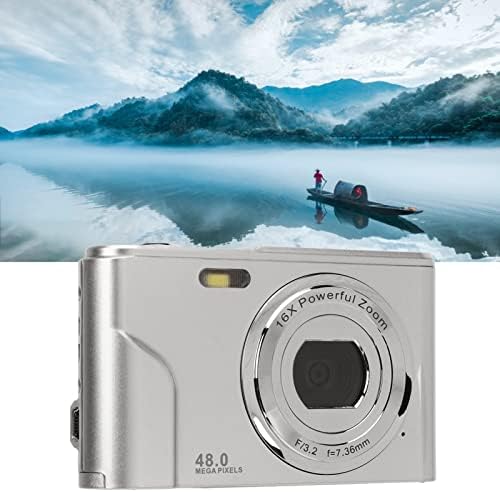
Image: The Goshyda 48MP Digital Camera is designed for portability, fitting easily into a pocket.
What's in the Box
Please check the package contents to ensure all items are present:
- Digital Camera
- Instruction Manual
- Charging Plug
- Charging Cable
- Storage Bag
- Wrist Strap
- Cleaning Cloth
- Battery
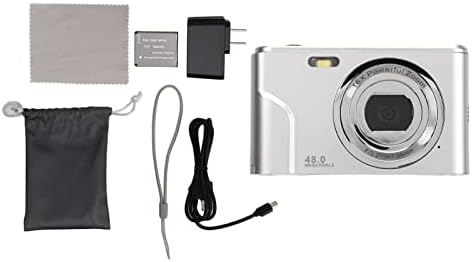
Image: All items included in the Goshyda 48MP Digital Camera package.
Setup
1. Battery Installation
- Locate the battery compartment cover on the bottom of the camera.
- Slide the cover latch to open the compartment.
- Insert the provided battery, ensuring the correct orientation as indicated inside the compartment.
- Close the battery compartment cover until it clicks securely into place.
2. SD Card Installation
- Open the battery compartment cover. The SD card slot is typically located next to the battery.
- Insert a compatible SD card (not included) into the slot with the metal contacts facing the correct direction, usually towards the front of the camera.
- Gently push the SD card until it clicks into place.
- Close the battery compartment cover.

Image: The battery and SD card compartment located on the bottom of the camera.
3. Charging the Battery
- Connect the charging cable to the camera's charging port (usually on the side).
- Connect the other end of the charging cable to the charging plug.
- Plug the charging plug into a standard wall outlet.
- The camera's indicator light will typically show charging status. Refer to the camera display for full charge indication.
Note: Ensure the charging cable and plug are correctly matched to the camera's port. If the charger entrance does not match, please contact customer support.
Operating the Camera
Camera Layout and Controls
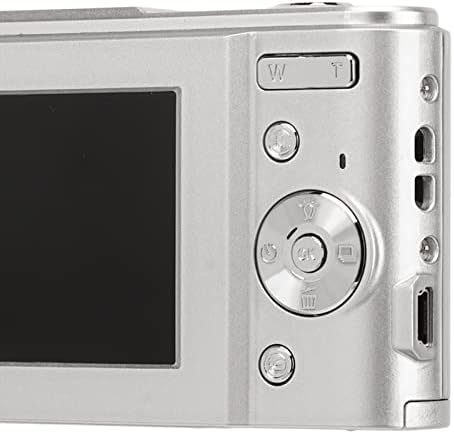
Image: Rear view of the camera with its 2.4-inch display and control buttons.
- Power Button: Located on the top or side, press to turn the camera on/off.
- Shutter Button: Press halfway to focus, fully to take a picture.
- Zoom Lever (W/T): Adjusts the 16x digital zoom. 'W' for wide, 'T' for telephoto.
- 2.4-inch Display: View your shots and navigate menus.
- Directional Pad/OK Button: Used for menu navigation and selection.
- Menu Button: Access camera settings.
- Playback Button: View captured photos and videos.
Taking Photos
- Turn on the camera by pressing the Power button.
- Frame your shot using the 2.4-inch display.
- Use the zoom lever (W/T) to adjust the 16x digital zoom as needed.
- The camera features auto focus and auto beauty functions. It will automatically adjust settings for optimal image quality.
- Press the Shutter button halfway to focus, then press fully to capture the 48-megapixel photo.
Recording Videos
- Turn on the camera.
- Switch to video mode (if applicable, usually via a dedicated button or menu option).
- Press the Shutter button to start recording 1080P video.
- Press the Shutter button again to stop recording.
The camera supports electronic stabilization to help reduce blur during video recording.
Maintenance
Cleaning the Camera
- Use the provided cleaning cloth to gently wipe the camera body and display.
- For the lens, use a specialized lens cleaning solution and cloth to avoid scratches.
- Do not use harsh chemicals or abrasive materials.
Battery Care
- Charge the battery fully before first use.
- Avoid exposing the battery to extreme temperatures.
- If the camera will not be used for an extended period, remove the battery.
Storage
- Store the camera in the provided storage bag to protect it from dust and scratches.
- Keep the camera in a cool, dry place away from direct sunlight and moisture.
Troubleshooting
| Problem | Possible Cause / Solution |
|---|---|
| Camera does not turn on. | Battery may be depleted or incorrectly inserted. Ensure battery is charged and properly seated. |
| Cannot take photos/videos. | SD card may be full, locked, or not inserted. Check SD card status and free up space if necessary. |
| Images are blurry. | Ensure proper lighting. Hold the camera steady. Clean the lens if dirty. |
| Charging issue (charger port mismatch). | Verify the charging cable and plug are compatible with the camera's port. If issues persist, contact customer support. |
Specifications
| Feature | Detail |
|---|---|
| Model Name | GOSHYDAgit436xswc-13 |
| Brand | Goshyda |
| Photo Resolution | 48 Megapixels |
| Video Resolution | 1080P |
| Optical Zoom | 16x (Digital) |
| Display | 2.4 inch |
| Image Stabilization | Digital |
| Photo Sensor Technology | CMOS |
| Supported File Format | JPEG |
| Maximum Focal Length | 7.36 Millimeters |
| Item Weight | 8.4 ounces |
Warranty and Support
For warranty information or technical support, please refer to the documentation provided with your purchase or contact Goshyda customer service. Keep your purchase receipt for warranty claims.
You can visit the Goshyda store for more information: Goshyda Store