
1. Introduction
This manual provides comprehensive instructions for the assembly, operation, and maintenance of your EUREKA ERGONOMIC Standing Desk. Designed for versatility, this desk features an electric height adjustment system, a wing-shaped desktop, convertible shelves with LED lighting, and an adjustable keyboard tray, making it suitable for various uses including gaming, music production, and office work. Please read this manual thoroughly before use to ensure proper function and safety.

Image: The EUREKA ERGONOMIC Standing Desk, showcasing its maple finish, wing-shaped design, keyboard tray, and integrated shelves with a monitor and accessories.
2. Safety Information
To ensure safe operation and prevent damage, please adhere to the following safety guidelines:
- Weight Limit: Do not exceed the maximum weight capacity of 220 lbs (100 kg) on the desktop. Overloading can cause instability and damage to the lifting mechanism.
- Assembly: Ensure all components are correctly assembled and tightened according to the provided assembly instructions. Improper assembly can lead to structural failure.
- Clearance: When adjusting the desk height, ensure there are no obstructions above or below the desk that could interfere with its movement. Keep hands and objects clear of moving parts.
- Anti-Collision System: The desk is equipped with an anti-collision system. While this feature helps prevent accidents, always exercise caution and supervise desk movement.
- Power Supply: Use only the provided power adapter and ensure it is connected to a grounded outlet. Avoid placing liquids near electrical components.
- Children and Pets: Keep children and pets away from the desk during height adjustments to prevent injury.
3. Key Features
The EUREKA ERGONOMIC Standing Desk is designed with several innovative features to enhance your workspace:
3.1 Electric Height Adjustment System
Equipped with an advanced dual-motor system, the desk offers smooth, quiet, and rapid height adjustments. The height can be adjusted from 29 inches to 48 inches, accommodating various user preferences for sitting or standing. The control panel allows for quick response and includes memory presets for up to four frequently used heights. A built-in HALL SENSOR and AI CONTROL enable smart anti-collision technology, stopping the desk instantly upon detecting obstacles.

Image: Illustration of the desk's electric height adjustment range, from a minimum of 29 1/2 inches to a maximum of 48 1/16 inches.

Image: Close-up of the desk's control panel, featuring a digital display, up/down arrows, memory/lock button, and four customizable preset height buttons.
3.2 Ergonomic Wing-shaped Desktop
The 72-inch wing-shaped desktop provides an ergonomic design that offers flexible room for abdomen and arms, enhancing comfort during extended periods of work or gaming. This shape also makes it easier to reach and access items on the desk. The desktop surface is made of smooth carbon fiber texture, providing water and heat resistance for durability.
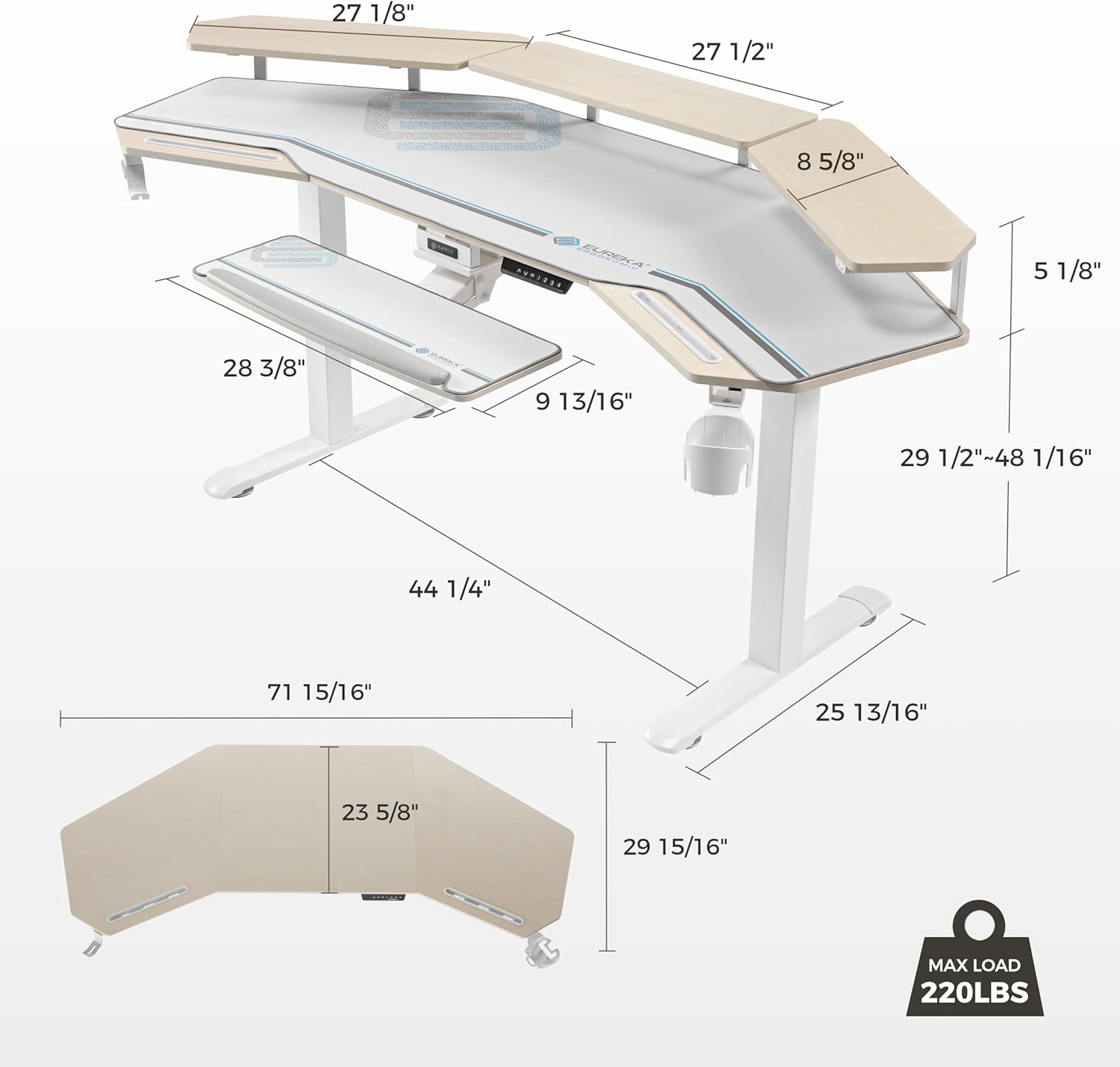
Image: Detailed diagram showing the dimensions of the desk, including the wing-shaped desktop and keyboard tray, along with the maximum load capacity of 220 lbs.
3.3 360° Height Adjustable Keyboard Tray
The included wing-shaped keyboard tray offers extensive adjustability for optimal comfort. It can be rotated 360° horizontally and tilted 15° vertically, allowing you to find the most comfortable position for your hands and wrists. The tray is also retractable for easy storage when not in use and comes with a soft, full-desk mouse pad with a non-slip rubber base.

Image: A composite image illustrating the keyboard tray's height adjustment, retraction, 360° rotation, and angle adjustment capabilities.
3.4 Convertible Shelves with LED Lights
The desk features three convertible shelves that can be installed in three different ways: as desktop mount monitor shelves in the middle, as storage/display shelves on the left and right for 1-2 monitors, or by the side to support 3-4 widescreen monitors. These shelves include built-in LED lights with 6 RGB colors and 1 white light, controlled by an integrated light controller to switch between different lighting moods.

Image: Two examples of shelf setup: Way 1 shows the middle shelf for a single monitor, and Way 2 shows left and right shelves for multiple monitors or storage.

Image: The desk's LED lighting system, demonstrating the ability to switch between single colors and a 6-color RGB mode, illuminating the underside of the shelves.
3.5 Additional Functional Elements
The desk integrates several convenient features:
- Dual Slots: Dedicated slots for tablets and mobile phones, ideal for multi-tasking.
- Cable Management System: Includes socket holders under the desk to keep cables organized and out of sight.
- Headphone Hangers: Double rotatable headphone hangers for easy access and storage.
- Cup Holder: A rotatable cup holder to keep beverages secure and within reach.

Image: A composite image detailing the desk's integrated features: dual slots for devices, a dual socket holder for cable management, a rotatable cup holder, and rotatable headphone hangers.
4. Setup and Assembly
Your EUREKA ERGONOMIC Standing Desk requires assembly. A detailed user manual with step-by-step instructions and diagrams is included in Package 1 with the desktop. It is recommended that assembly be performed by at least one person. All necessary assembly tools are included.
4.1 Unpacking and Inspection
- Carefully unpack all components from the two packages. Note that packages may arrive separately.
- Verify that all parts listed in the included manual's parts list are present and undamaged. Contact customer support immediately if any parts are missing or damaged.

Image: An illustration indicating that the product is shipped in two separate boxes, which may not arrive simultaneously.
4.2 General Assembly Steps
While specific steps are detailed in your physical manual, the general assembly process involves:
- Attaching the desk legs to the desktop.
- Mounting the control box and motor components.
- Assembling and attaching the convertible shelves.
- Installing the keyboard tray and its adjustable mechanism.
- Connecting all electrical components and managing cables using the provided ties and holders.
- Attaching accessories such as headphone hangers and cup holder.
Ensure all screws are securely fastened but do not overtighten. Follow the sequence provided in the manual for optimal stability and function.
5. Operating Instructions
5.1 Adjusting Desk Height
- Manual Adjustment: Use the 'Up' (▲) and 'Down' (▼) buttons on the control panel to raise or lower the desk to your desired height. The current height will be displayed on the digital screen.
- Preset Heights: The desk allows you to save up to four preferred heights. To set a preset:
- Adjust the desk to the desired height.
- Press the 'M' (Memory) button, then immediately press one of the numbered preset buttons (1, 2, 3, or 4). The height is now saved to that button.
5.2 Using the Keyboard Tray
- Height Adjustment: The keyboard tray can be adjusted vertically. Refer to the specific mechanism on your tray for locking and unlocking the height.
- Retraction: Pull the tray forward to extend it for use, and push it back under the desk for storage.
- Rotation: The tray can rotate 360 degrees horizontally. Gently turn the tray to your preferred angle.
- Angle Adjustment: The tray can tilt up to 15 degrees vertically. Use the adjustment mechanism to set the desired tilt angle for ergonomic comfort.
5.3 Controlling LED Lights
- The LED lights are located under the convertible shelves.
- Use the integrated light controller (typically a button or set of buttons on the underside of the shelf) to cycle through the 6 RGB colors and 1 white light option.
5.4 Anti-Collision Function
The desk's anti-collision system is designed to prevent damage by automatically stopping movement if an obstruction is detected during height adjustment. If the desk encounters an obstacle, it will stop and slightly retract. Remove the obstruction before attempting to adjust the height again.
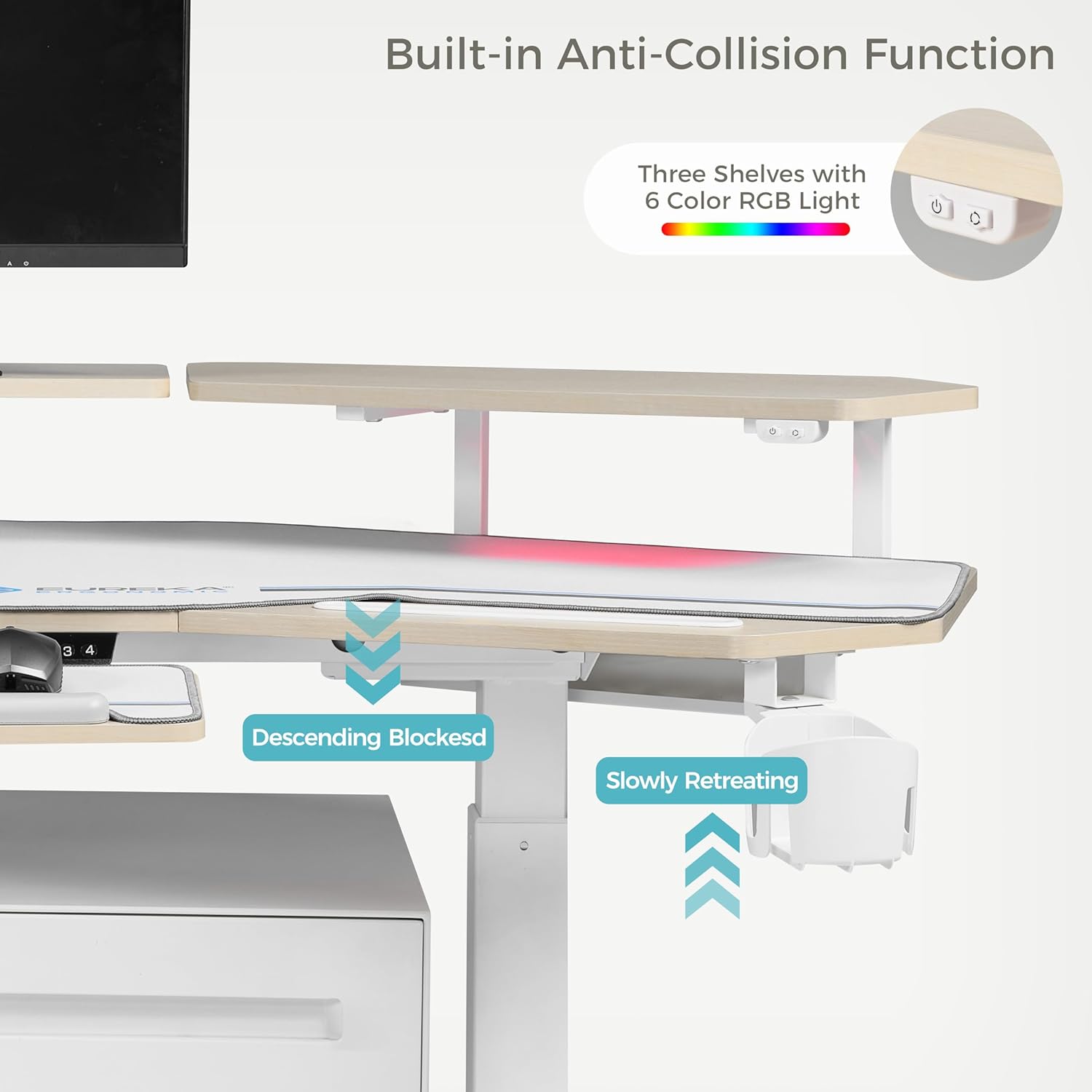
Image: The desk's anti-collision feature in action, showing it stopping and slightly retreating upon encountering an obstacle during descent.
6. Maintenance
Regular maintenance will help prolong the life and appearance of your EUREKA ERGONOMIC Standing Desk:
- Cleaning: Wipe the desk surfaces with a damp cloth. Avoid using harsh chemicals or abrasive cleaners, as these can damage the finish.
- Motor Care: The dual motors are designed for long-term use. Avoid continuous operation for extended periods without rest. If the motor feels hot or makes unusual noises, discontinue use and allow it to cool.
- Cable Management: Periodically check the cable management system to ensure cables are securely tucked away and not interfering with desk movement.
- Fasteners: Occasionally check all screws and fasteners to ensure they remain tight. Retighten if necessary, but do not overtighten.
7. Troubleshooting
If you encounter issues with your standing desk, refer to the following common problems and solutions:
- Desk Not Moving:
- Check if the power cord is securely plugged into both the desk and the wall outlet.
- Ensure there are no obstructions preventing movement. The anti-collision system may have activated.
- If the control panel display is off, check the power connection.
- Uneven Movement or Noise:
- Verify that the desk is not overloaded beyond its 220 lbs capacity.
- Check that all assembly screws are tightened.
- Ensure the desk is placed on a level surface.
- Preset Heights Not Working:
- Re-program the preset heights by following the instructions in Section 5.1.
- LED Lights Not Functioning:
- Check the connection of the LED light strips to the control module.
- Ensure the light controller buttons are functioning correctly.
If the problem persists after attempting these solutions, please contact EUREKA ERGONOMIC customer support for assistance.
8. Product Specifications
| Feature | Specification |
|---|---|
| Brand | EUREKA ERGONOMIC |
| Model Number | ERK-ES71-MW |
| Product Dimensions (D x W x H) | 30"D x 72"W x 35"H |
| Color | Maple |
| Style | Studio, Music, Streaming, Gaming |
| Base Material | Alloy Steel (Legs), Rubber (Base) |
| Top Material Type | Engineered Wood |
| Special Feature | Adjustable Height, LED Lights, Keyboard Tray |
| Minimum Height | 29 Inches |
| Maximum Height | 48 Inches |
| Maximum Weight Recommendation | 220 Pounds |
| Lifting Mechanism | Electric Dual Motor |
| Required Assembly | Yes |
| Recommended Number of People for Assembly | 1 |
| Included Components | Keyboard Tray, Cable Management System, Dual Slots, Double Headphone Hangers, Cup Holder |
9. Warranty and Support
The EUREKA ERGONOMIC Standing Desk comes with a 1-Year Limited Service Warranty. This warranty covers defects in materials and workmanship under normal use. For specific terms and conditions, please refer to the warranty information included with your product packaging.
For any questions, technical support, or warranty claims, please contact our local customer support team. Contact information can typically be found on the EUREKA ERGONOMIC official website or within your product documentation.