
NetumScan 180-USB
NetumScan 180-USB Bluetooth Pet Microchip Reader Instruction Manual
Model: 180-USB
Introduction
This manual provides detailed instructions for the safe and efficient operation of your NetumScan 180-USB Bluetooth Pet Microchip Reader. Please read this manual thoroughly before using the device to ensure proper functionality and to prevent damage.
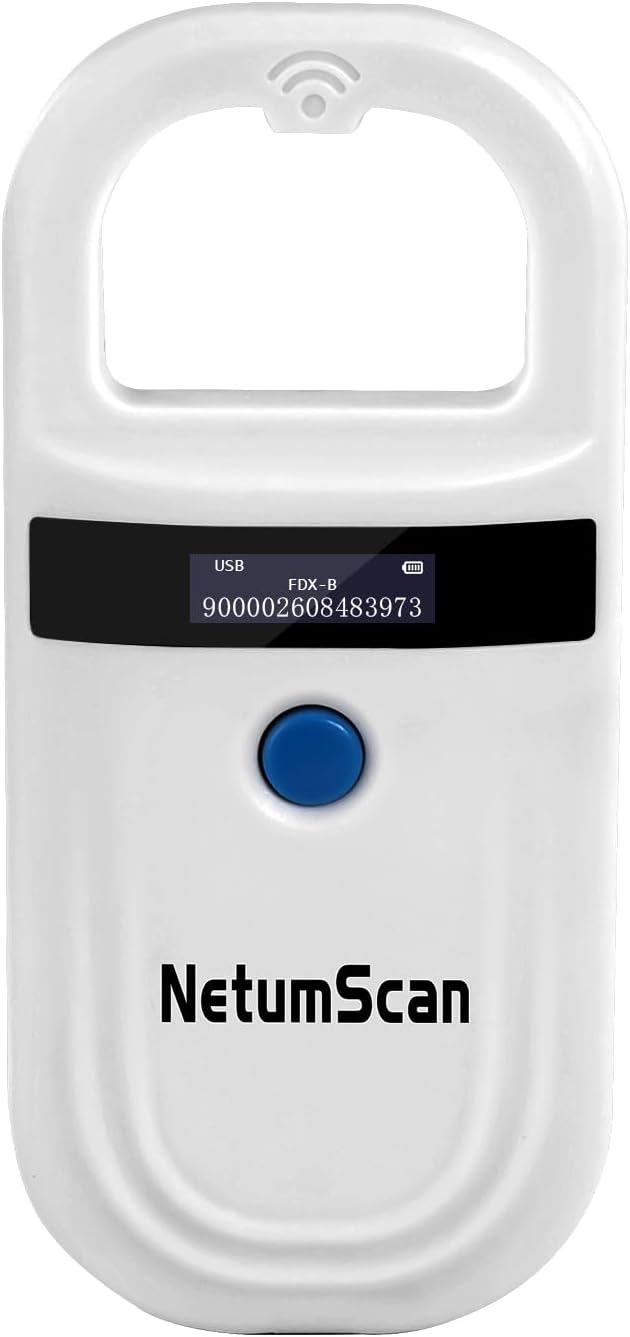
Image: The NetumScan 180-USB Pet Microchip Reader, a white handheld device with an OLED display and a blue button.
Safety Information
- Keep the device away from water and excessive moisture.
- Do not attempt to disassemble or repair the device yourself. Refer to qualified service personnel.
- Use only the provided charging cable and adapter.
- Avoid dropping the device or subjecting it to strong impacts.
- Dispose of batteries and electronic components according to local regulations.
Package Contents
Verify that all items are present in the package:
- NetumScan 180-USB Pet Microchip Reader
- USB Charging Cable
- User Manual (this document)
Product Features
- Multi-Protocol Support: Compatible with ISO 11784/11785, FDX-B, and ID64 RFID microchips. Note: Does not support FDX-A protocol or AVID microchips.
- Extended Read Range: Capable of reading tags from 0-20 cm distance for efficient scanning.
- Data Storage: Stores up to 256 tag identification numbers.
- OLED Display: High-brightness screen ensures readability even in direct sunlight.
- Rechargeable Battery: Integrated lithium battery, rechargeable via USB, with an automatic shutdown feature after 180 seconds of inactivity.
- Portable Design: Compact and lightweight (approximately 6.61 x 3.46 x 0.59 inches, 90g) for easy handling and transport.

Image: The NetumScan 180-USB scanner shown with images of puppies, a cow, and a sheep, illustrating its multi-protocol support for various animal tags (EMID, FDX-B ISO11784/85).

Image: A visual representation of the NetumScan 180-USB's compact size (135mm/6in x 53mm/2.3in) and light weight (shown as 46g/1.6oz), demonstrating its portability by showing it fitting into a pocket.
Setup
1. Charging the Device
Before first use, fully charge the device. Connect the provided USB charging cable to the scanner's USB port and the other end to a standard USB power source (e.g., computer USB port, USB wall adapter).
- The OLED display will indicate charging status.
- A full charge typically takes less than 2 hours.
2. Powering On/Off
- To power on: Press the blue button briefly. The device will boot up and display "NetumScan".
- To power off: Press and hold the blue button for 3 seconds. The device will shut down.
- Automatic shutdown: If no tags are scanned for 180 seconds, the device will automatically power off to conserve battery.
Operating Instructions
1. Scanning a Microchip
- Ensure the device is powered on.
- Position the scanner close to the animal's microchip implantation site. The typical range is 0-20 cm.
- Press the blue button once to initiate a scan.
- If a microchip is detected, its ID number will be displayed on the OLED screen. The device will emit an audible beep.
- The read response time is typically less than 100ms.

Image: A hand holding the NetumScan 180-USB scanner near a cat and a dog, demonstrating the device's ability to identify microchips from a distance using upgraded RFID technology.

Image: The NetumScan 180-USB scanner being used on a small white dog, with a close-up of the OLED display showing a microchip ID number, highlighting its readability in sunlight.

Image: A hand holding the NetumScan 180-USB scanner near a cow's ear tag, illustrating quick identification and improved work efficiency with a read response time of less than 100ms.
2. Viewing Stored Data
The device can store up to 256 tag records. To access stored data, navigate through the device's menu using the blue button (refer to the on-screen prompts for specific navigation). The OLED display will show the stored microchip IDs.
3. Connecting to a Computer and Data Transfer
Historical data stored on the device can be uploaded to a computer via USB or Bluetooth connection.
- USB Connection: Connect the scanner to your computer using the provided USB cable. The device will appear as a storage device, allowing you to transfer the saved tag information.
- Bluetooth Connection (HID/SPP): The scanner supports Bluetooth HID/SPP for wireless data transfer. Refer to your computer's Bluetooth settings for pairing instructions. Once paired, the scanner can transmit data directly to compatible software.

Image: The NetumScan 180-USB scanner wirelessly connected to a laptop via Bluetooth and also shown with a USB cable for wired connection, indicating that historical data can be uploaded to a computer using both methods.

Image: A visual representation of the NetumScan 180-USB's ability to save up to 256 tags and upload this data to a laptop, with various animals pictured to represent the scope of use.
Maintenance
- Cleaning: Wipe the device with a soft, dry cloth. Do not use abrasive cleaners or solvents.
- Battery Care: To prolong battery life, avoid fully discharging the battery frequently. Charge the device regularly, even if not in constant use.
- Storage: Store the device in a cool, dry place away from direct sunlight and extreme temperatures.
Troubleshooting
| Problem | Possible Cause | Solution |
|---|---|---|
| Device does not power on. | Low battery or device is off. | Charge the device. Press and hold the blue button for 3 seconds to power on. |
| "No Tag" displayed. | Microchip is out of range, not present, or incompatible. | Ensure the scanner is within 0-20 cm of the microchip. Verify the microchip is ISO 11784/11785 FDX-B or ID64 compatible. (Does not support FDX-A or AVID). |
| Cannot transfer data to computer. | Incorrect cable connection, Bluetooth not paired, or driver issue. | Check USB cable connection. Ensure Bluetooth is enabled and paired correctly on your computer. Try a different USB port or restart the computer. |
| OLED display is dim or unreadable. | Low battery or environmental conditions. | Charge the device. The display is designed for sunlight readability, but extreme glare may still affect visibility. |
Specifications
| Feature | Detail |
|---|---|
| Model Number | 180-USB |
| Dimensions | 6.61 x 3.46 x 0.59 inches (16.8 x 8.8 x 1.5 cm) |
| Item Weight | 3.52 ounces (approx. 99.79g) |
| Material | Plastic |
| Battery | 1 Lithium Ion battery (included) |
| Supported Protocols | ISO 11784/11785, FDX-B, ID64 RFID |
| Read Range | 0-20 cm |
| Data Storage | Up to 256 tag records |
| Display | OLED |
| Connectivity | USB, Bluetooth (HID/SPP) |
Warranty and Support
NetumScan products are designed for reliability and performance. For warranty information, technical support, or service inquiries, please refer to the contact information provided with your purchase or visit the official NetumScan website.
Please retain your proof of purchase for warranty claims.
Ask a question about this manual
Ask about setup, troubleshooting, compatibility, parts, safety, or missing instructions. Manuals+ will review the question and use this page’s manual context to help answer it.