
PHILIPS NeoPix 100
Philips NeoPix 100 Mini Projector User Manual
Model: NeoPix 100
Introduction
This manual provides comprehensive instructions for the setup, operation, and maintenance of your Philips NeoPix 100 Mini Projector. Designed for ease of use and versatility, the NeoPix 100 offers a brilliant viewing experience up to 65 inches with dynamic stereo sound. It supports various connectivity options including HDMI, VGA, USB-A, USB-C, and 3.5mm jack, and features a built-in media player. Advanced LED light source ensures vibrant colors and a long lifespan.
Key features include:
- TRUE HD 720p: Enjoy entertainment with 720p HD resolution.
- WI-FI SCREEN MIRRORING: Project your phone or laptop screen via 2.4 or 5Ghz high-speed Wi-Fi. (Note: Wi-Fi screen mirroring does not work with protected content like Netflix or Amazon Prime).
- EASY CONNECTION: Connect devices via HDMI, including laptops, TV boxes, and streaming dongles.
- MULTIMEDIA PLAYER: Play videos, images, and songs directly from a USB stick or hard drive.
What's in the Box
Upon unboxing your Philips NeoPix 100, please ensure all the following items are present:
- Philips NeoPix 100 Projector
- User Manual
- Electrical cord
- Remote Control
- Quick start guide with Warranty card
- AC Adapter
- Batteries (for remote control)
Product Overview

Figure 1: Angled view of the Philips NeoPix 100 projector, highlighting the lens and various input/output ports.

Figure 2: Top view of the projector, displaying the integrated control panel and focus/keystone adjustment wheels.

Figure 3: Close-up of the rear panel, showing AV, Micro SD, HDMI1, HDMI2, USB, and DC IN ports.
Setup
1. Placement
Position the projector on a stable, flat surface. For optimal viewing, ensure the projector is placed directly in front of the projection surface (screen or wall). The recommended projection distance will vary based on desired screen size, with a maximum screen size of 65 inches.
2. Power Connection
- Connect the supplied AC adapter to the "DC IN" port on the projector.
- Plug the other end of the AC adapter into a power outlet.
- Press the power button on the projector or remote control to turn on the device.
3. Focus and Keystone Correction
- Focus: Rotate the focus wheel located near the lens until the projected image appears sharp and clear.
- Keystone Correction: If the projected image appears trapezoidal (wider at the top or bottom), adjust the keystone correction wheel to square the image.
4. Connecting Devices
The NeoPix 100 offers multiple connectivity options:
- HDMI: Connect laptops, gaming consoles, TV boxes, or streaming dongles (e.g., Amazon Fire TV Dongle, Android TV dongle) to the HDMI1 or HDMI2 ports.
- VGA: Connect older computers or devices using the VGA port.
- USB-A: Insert a USB stick or external hard drive for multimedia playback.
- USB-C: (If applicable, check specific model for USB-C video input support) Connect compatible devices.
- 3.5mm Audio Jack: Connect external speakers or headphones for enhanced audio.
- Micro SD: Insert a Micro SD card for multimedia playback.
5. Wi-Fi Screen Mirroring
To mirror your smartphone or laptop screen wirelessly:
- Ensure your projector and device are connected to the same Wi-Fi network (2.4GHz or 5GHz).
- Select the "Screen Mirroring" option from the projector's main menu.
- Follow the on-screen instructions to connect your device. For iOS devices, use AirPlay; for Android, use Miracast or similar casting features.
- Note: Due to copyright protection, screen mirroring may not work with certain streaming services like Netflix or Amazon Prime Video.
Operating Instructions
1. Power On/Off
- To power on, press the power button on the projector or the remote control.
- To power off, press the power button again. The projector will enter standby mode.
2. Input Source Selection
Use the "Source" button on the remote control or the projector's control panel to cycle through available input sources (HDMI1, HDMI2, VGA, USB, Micro SD, AV, Screen Mirroring).
3. Multimedia Playback
When a USB drive or Micro SD card is inserted, the projector's built-in media player will allow you to browse and play compatible files:
- Navigate through folders and files using the directional buttons on the remote or control panel.
- Press "OK" to select and play a file.
- Supported formats include MP4, RMVB, AVI, RM, MKV for video; MP3, WMA, OGG, AAC, FLAC, APE, WAV for audio; BMP, PNG, JPEG for images.
4. Audio Output
The NeoPix 100 features built-in Hi-Fi stereo speakers. For private listening or connecting to external audio systems, use the 3.5mm audio jack.
Maintenance
1. Cleaning the Lens
Gently wipe the projector lens with a soft, lint-free cloth specifically designed for optical surfaces. Do not use abrasive cleaners or solvents.
2. Ventilation
Ensure the projector's ventilation openings are not blocked to prevent overheating. Do not place the projector on soft surfaces that may obstruct airflow.
3. Storage
When not in use for extended periods, store the projector in a cool, dry place, away from direct sunlight and excessive dust. It is recommended to use the original packaging for storage.
Troubleshooting
| Problem | Possible Cause | Solution |
|---|---|---|
| No image projected |
|
|
| Image is blurry |
|
|
| Image is trapezoidal |
|
|
| No sound |
|
|
| Wi-Fi Screen Mirroring not working with certain apps |
|
|
Specifications
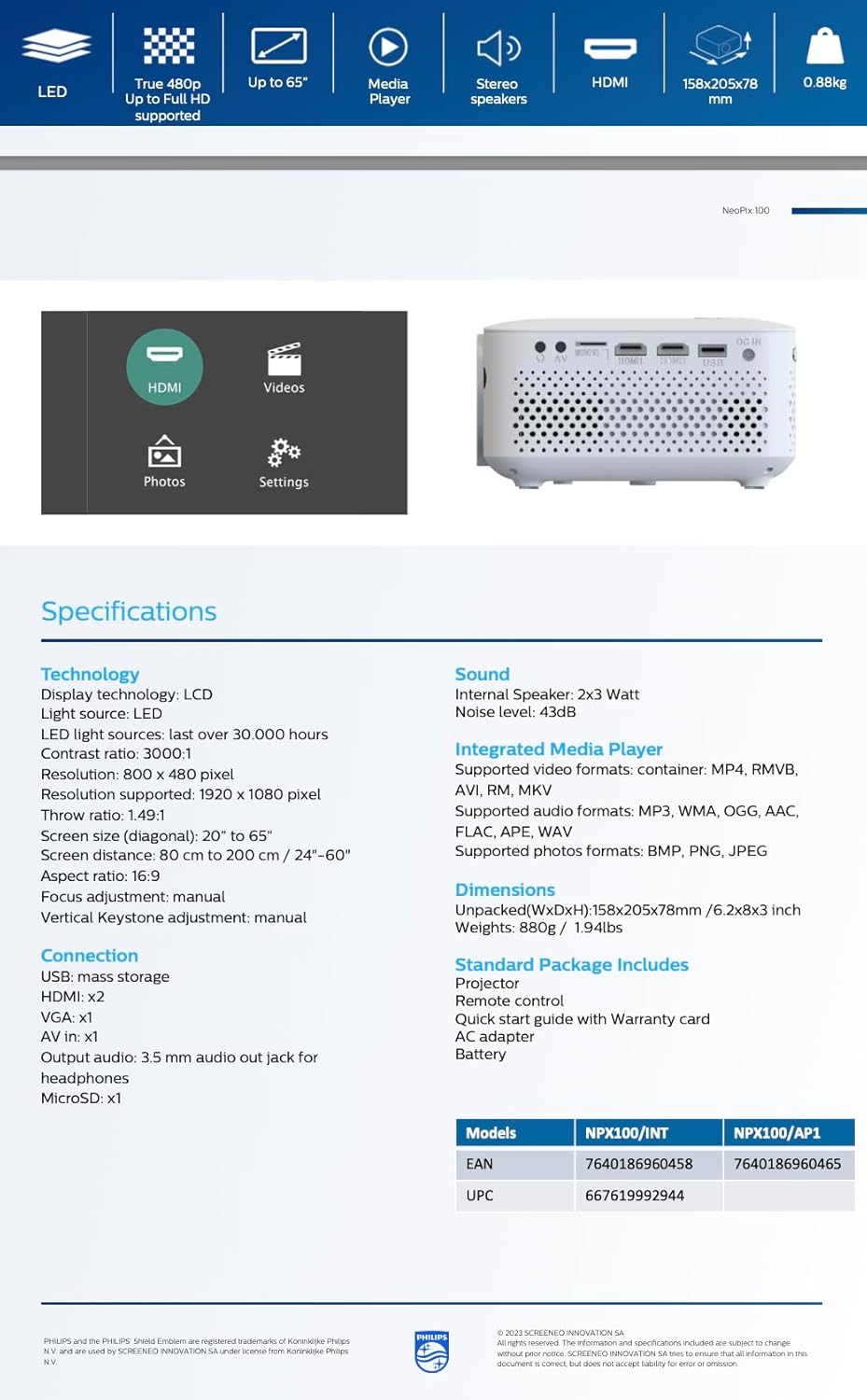
Figure 4: Official specifications overview for the NeoPix 100.
| Feature | Detail |
|---|---|
| Product Dimensions | 6.69 x 5.91 x 4.72 inches (170 x 150 x 120 mm) |
| Item Weight | 2.2 pounds (0.88 kg) |
| Display Technology | LCD |
| Light Source | LED (Lifespan up to 30,000 hours) |
| Native Resolution | 800 x 480 pixels |
| Supported Resolution | Up to 1920 x 1080 pixels (Full HD) |
| Contrast Ratio | 3000:1 |
| Screen Size (Diagonal) | 20" to 65" |
| Screen Distance | 80 cm to 200 cm (24"-60") |
| Aspect Ratio | 16:9 |
| Focus Adjustment | Manual |
| Vertical Keystone Adjustment | Manual |
| Connectivity | HDMI (x2), VGA, USB (x1), AV In (3.5mm jack), Micro SD (x1), USB mass storage |
| Audio Output | 3.5mm audio out jack for headphones |
| Internal Speaker | 2x3 Watt |
| Noise Level | 43dB |
| Supported Video Formats | MP4, RMVB, AVI, RM, MKV |
| Supported Audio Formats | MP3, WMA, OGG, AAC, FLAC, APE, WAV |
| Supported Photo Formats | BMP, PNG, JPEG |
Warranty and Support
Your Philips NeoPix 100 projector comes with a warranty card included in the package. Please refer to this card for detailed information regarding warranty terms and conditions.
For technical support, troubleshooting beyond this manual, or warranty claims, please contact Philips customer service. Contact information can typically be found on the Philips official website or on the warranty card provided with your product.
Keep your purchase receipt and warranty card in a safe place as proof of purchase may be required for service.
Ask a question about this manual
Ask about setup, troubleshooting, compatibility, parts, safety, or missing instructions. Manuals+ will review the question and use this page’s manual context to help answer it.