1. Important Safety Information
Please read all safety instructions carefully before using the television. Keep this manual for future reference.
- Do not block ventilation openings. Ensure adequate space around the TV for proper airflow.
- Do not place the TV near heat sources such as radiators, heat registers, stoves, or other apparatus (including amplifiers) that produce heat.
- Protect the power cord from being walked on or pinched, particularly at plugs, convenience receptacles, and the point where they exit from the apparatus.
- Only use attachments/accessories specified by the manufacturer.
- Unplug this apparatus during lightning storms or when unused for long periods of time.
- Refer all servicing to qualified service personnel. Servicing is required when the apparatus has been damaged in any way, such as power-supply cord or plug is damaged, liquid has been spilled or objects have fallen into the apparatus, the apparatus has been exposed to rain or moisture, does not operate normally, or has been dropped.
2. Product Overview
The Aiwa AV43FHDX1 is a 43-inch Full HD Smart TV designed for an immersive viewing experience. It features a bezel-less display, built-in apps, Dolby Audio, and Aiwa Signature Sound.
2.1. Front View

Figure 2.1: Front view of the Aiwa Smart TV, showcasing its sleek bezel-less design and vibrant display.
2.2. Rear View and Connectivity Ports

Figure 2.2: Rear view of the Aiwa Smart TV, highlighting the VESA mounting points and general layout of the port area.

Figure 2.3: Detailed view of the digital and network connectivity options, including two HDMI ports, Optical Out for audio, RF In for antenna/cable, Earphone jack, and an RJ45 Ethernet port.

Figure 2.4: Detailed view of the analog and USB connectivity options, featuring two USB ports for media playback and an AV input for legacy devices.
2.3. Smart Remote Control

Figure 2.5: The Aiwa Smart Remote Control, designed for intuitive navigation and featuring dedicated hotkeys for quick access to popular streaming services like YouTube and Prime Video.
The remote control allows you to navigate the TV's interface, adjust settings, and access smart features. It includes dedicated buttons for power, volume, channel, input source, and quick access to popular applications.
2.4. Product Dimensions

Figure 2.6: Diagram illustrating the physical dimensions of the Aiwa 43-inch Smart TV, including height, width, and depth with and without the stand.
3. Setup Guide
3.1. Unboxing and Initial Inspection
- Carefully remove the TV and all accessories from the packaging.
- Check for any physical damage to the TV or accessories. If any damage is found, contact customer support immediately.
- Verify all included components: 1N LED TV, 4N Screw, 1N Remote Control, 2N Batteries (AAA), 1N User Manual with Warranty Card, 1N Set Table Stand, 1N Wallmount.
3.2. Stand Installation / Wall Mounting
You can either install the included table stand or use a compatible wall mount (included).
3.2.1. Table Stand Installation
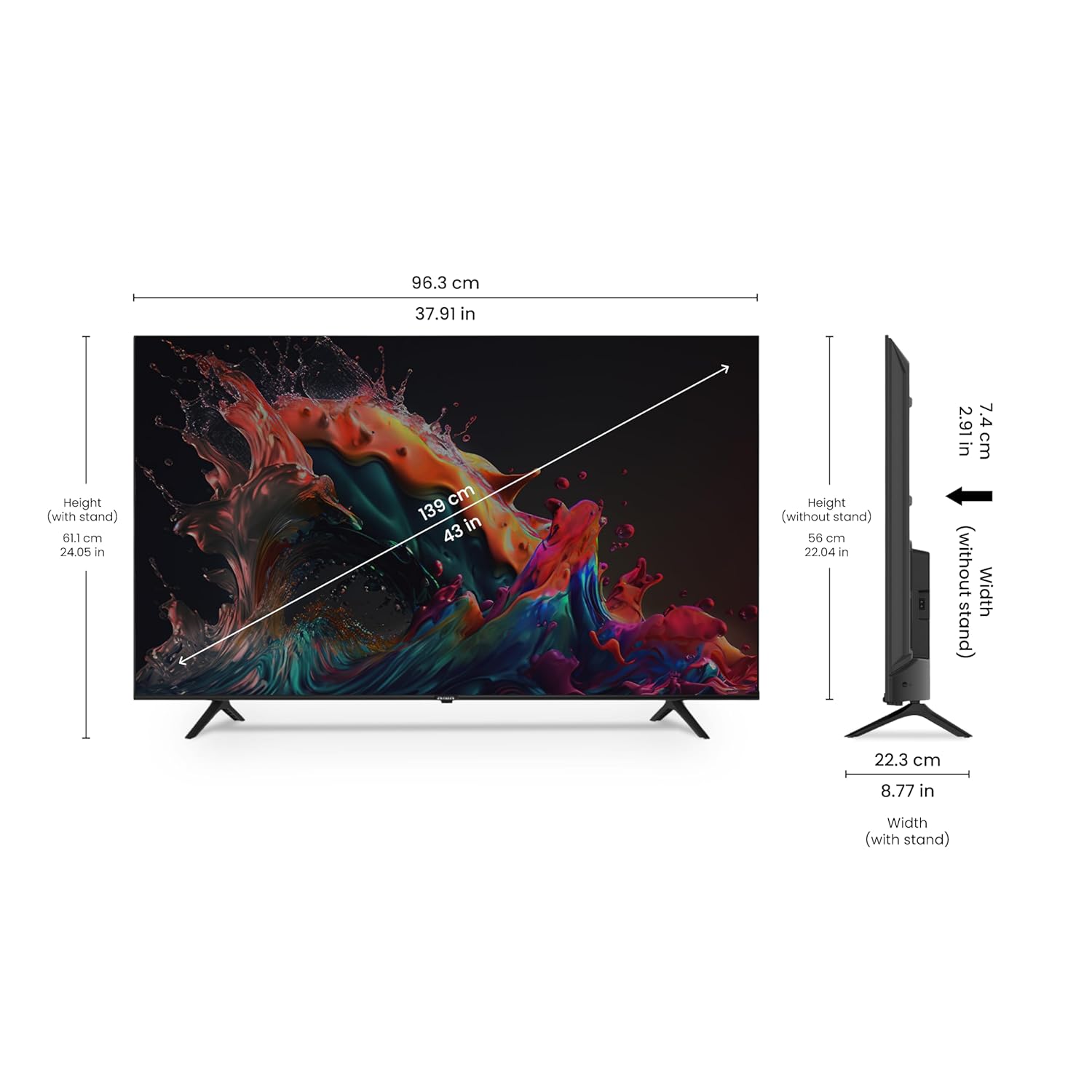
Figure 3.1: The Aiwa Smart TV securely placed on its table stand, ready for use.
- Place the TV face down on a soft, flat surface to prevent screen damage.
- Align the table stand with the screw holes on the bottom of the TV.
- Secure the stand using the provided screws.
3.2.2. Wall Mounting
For wall mounting, refer to the instructions provided with your wall mount kit. Ensure the wall mount is suitable for the TV's weight and size. Professional installation is recommended for wall mounting.
3.3. Connecting External Devices
Connect your devices to the appropriate ports on the TV's rear panel as shown in Figures 2.3 and 2.4.
- HDMI Ports (HDMI-1, HDMI-2): For connecting set-top boxes, gaming consoles, Blu-ray players, etc.
- USB Ports (USB-1, USB-2): For connecting USB storage devices to play media files.
- RJ45 (Ethernet) Port: For wired internet connection.
- RF IN: For connecting an antenna or cable TV.
- Optical Out: For connecting to a soundbar or home theater system with optical input.
- Earphone: For connecting headphones.
- AV In: For connecting older devices with composite video and stereo audio outputs.
3.4. Powering On
- Insert the provided AAA batteries into the remote control, observing polarity.
- Connect the TV's power cord to a power outlet.
- Press the Power button on the remote control or on the TV itself to turn it on.
- Follow the on-screen instructions for initial setup, including language selection, network connection, and channel scanning.
4. Operating Instructions
4.1. Basic TV Functions
- Power On/Off: Use the Power button on the remote.
- Volume Control: Use the VOL +/- buttons to adjust volume.
- Channel Selection: Use the CH +/- buttons to change channels.
- Input Source: Press the Source button to select between HDMI, AV, TV, and Media Player inputs.
- Navigation: Use the directional arrows and OK button to navigate menus.
4.2. Smart TV Features (Coolita 2.1)
Your Aiwa Smart TV runs on the Coolita 2.1 operating system, offering a range of smart functionalities.
- Built-in Apps: Access pre-installed applications such as YouTube, Zee5, SonyLiv, Erosnow, and more.
- Screen Cast: Mirror content from your smartphone or tablet to the TV using the built-in screen casting feature (CC Cast screen Mirroring).
- Browser Access: Browse the internet directly on your TV.
- Online Games: Enjoy a selection of over 300 online games.
- Hotkeys: Use the dedicated hotkeys on the remote for quick access to YouTube and Prime Video.
4.3. Audio and Video Settings
Customize your viewing and listening experience through the TV's settings menu.
- Sound Modes: Select from various sound modes like User, Standard, Vivid, Sport, Movie, Music, News, and Auto to optimize audio for different content types. The TV features Dolby Audio and Aiwa Signature Sound for high-fidelity audio.
- Picture Modes: Adjust brightness, contrast, color, and sharpness. The TV supports 16.7 Million Colours and Super Brightness.
- Viewing Angle: Enjoy consistent picture quality from a wide 178-degree viewing angle.
5. Maintenance
5.1. Cleaning the TV
- Always unplug the TV before cleaning.
- Use a soft, dry cloth to wipe the screen and cabinet. For stubborn marks, use a slightly damp cloth with a mild, non-abrasive cleaner specifically designed for electronics.
- Do not spray cleaner directly onto the screen. Apply it to the cloth first.
- Avoid using abrasive cloths, waxes, or solvents.
5.2. Software Updates
The TV supports Auto Air Updates. Ensure your TV is connected to the internet to receive the latest software enhancements and bug fixes. You can usually check for updates manually through the TV's settings menu.
6. Troubleshooting
If you encounter issues with your TV, refer to the following common problems and solutions before contacting support.
| Problem | Possible Cause / Solution |
|---|---|
| No Power | Ensure the power cord is securely plugged into the TV and the wall outlet. Check if the outlet is working. |
| No Picture / Black Screen | Check the input source (HDMI, AV, etc.) is correctly selected. Ensure external devices are powered on and connected properly. |
| No Sound | Check volume level. Ensure Mute is not activated. Verify audio cables are connected correctly. If using external speakers, check their power and connections. |
| Cannot Connect to Wi-Fi | Ensure Wi-Fi is enabled on the TV. Check your router is working and within range. Re-enter Wi-Fi password. Try restarting the TV and router. |
| Remote Control Not Working | Check and replace batteries. Ensure there are no obstructions between the remote and the TV's IR sensor. |
| Apps Not Loading / Slow Performance | Check internet connection speed. Try restarting the TV. Clear app cache if available in settings. |
If the problem persists after trying these solutions, please contact Aiwa customer support.
7. Product Specifications
| Feature | Specification |
|---|---|
| Brand | Aiwa |
| Model Name | AV43FHDX1 |
| Screen Size | 43 Inches (108 cm) |
| Display Technology | LED |
| Resolution | 1920 x 1080 (Full HD) |
| Refresh Rate | 60 Hz |
| Viewing Angle | 178 Degrees |
| Operating System | Linux (Coolita 2.1) |
| RAM Memory | 512 MB |
| Storage Capacity | 4 GB |
| Sound Output | 20 Watts (Dolby, Aiwa Signature Sound) |
| Connectivity | 2 HDMI ports, 2 USB ports, Wifi Direct, Ethernet |
| Power Consumption (On-mode) | 150 Watts |
| Product Dimensions (LxWxH) | 10 x 16.7 x 64 cm |
| Item Weight | 6.3 kg |
| Included Components | TV, Screws, Remote, Batteries (AAA), User Manual with Warranty Card, Table Stand, Wallmount |
8. Warranty and Support
Your Aiwa TV comes with a manufacturer's warranty. Please refer to the warranty card included in the box for detailed terms and conditions.
8.1. Customer Support
For any queries, technical assistance, or service requests, please contact Aiwa customer support:
- Contact Number: 1800-120-5619
- Email: getintouch@aiwaindia.com
- Manufacturer: AIWA INDIA SALES & SERVICES PRIVATE LIMITED
- Address: 2E/26, Jhandewalan Extn, New Delhi -110055, India
Installation and service are available across 19000+ pincodes in India.