
Meentek TVIP 605 SE
Meentek TVIP 605 SE IPTV Linux Set-Top Box User Manual
Model: TVIP 605 SE | Brand: Meentek
Welcome
Thank you for choosing the Meentek TVIP 605 SE IPTV Linux Set-Top Box. This device is designed to provide a fast and stable IPTV playback experience with its quad-core processor and optimized Linux operating system. This manual will guide you through the setup, operation, and maintenance of your new set-top box.
Important Safety Instructions
- Power Supply: Use only the power adapter supplied with the device. Ensure the power outlet matches the voltage requirements.
- Ventilation: Do not block any ventilation openings. Place the device on a stable, flat surface to ensure proper airflow.
- Water and Moisture: Do not expose the device to rain, moisture, dripping, or splashing. Keep it away from liquids.
- Heat: Do not place the device near heat sources such as radiators, heat registers, stoves, or other apparatus (including amplifiers) that produce heat.
- Cleaning: Unplug the device from the power outlet before cleaning. Use a dry, soft cloth. Do not use liquid or aerosol cleaners.
- Servicing: Do not attempt to service this product yourself. Refer all servicing to qualified service personnel.
Package Contents
Verify that all items are present in the package:
- TVIP 605 SE Set-Top Box
- Remote Control
- Power Adapter
- HDMI Cable (may vary by region)
- User Manual (this document)

Image: The TVIP 605 SE set-top box, its remote control, and the product packaging.
Device Overview
The TVIP 605 SE features various ports for connectivity. Familiarize yourself with the layout:
- HDMI Port: Connects to your television for video and audio output.
- AV Port: For older televisions using composite video and stereo audio.
- Ethernet Port: For a wired internet connection.
- USB Ports (x2): For connecting external storage devices or other USB accessories.
- MicroSD Card Slot: For expanding storage.
- Ext. IR Port: For an external IR receiver (if using).
- Power Input: Connects to the supplied power adapter.
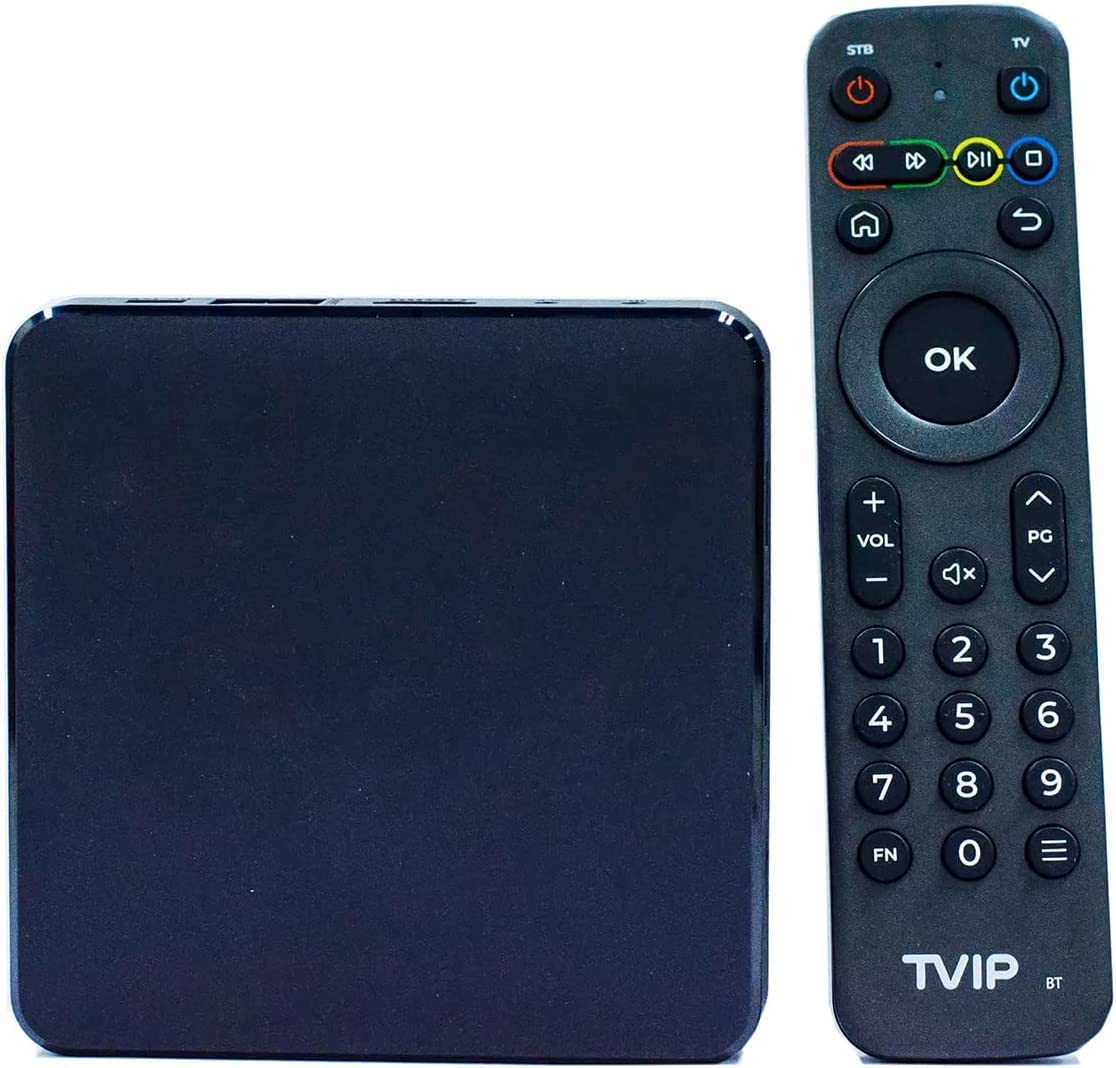
Image: The TVIP 605 SE set-top box and its remote control, showing the compact design.
Setup
1. Connecting the Device
- Connect to TV: Connect one end of the HDMI cable to the HDMI port on the TVIP 605 SE and the other end to an available HDMI input on your television. Note the HDMI input number (e.g., HDMI 1, HDMI 2).
- Connect to Network:
- Wired (Ethernet): Connect an Ethernet cable from your router or modem to the Ethernet port on the TVIP 605 SE.
- Wireless (Wi-Fi): The device supports Wi-Fi 802.11 (b/g/n/ac) 2.4/5 GHz. You will configure this during initial setup.
- Connect Power: Plug the supplied power adapter into the DC IN port on the TVIP 605 SE, then plug the adapter into a wall outlet.
- Power On: Turn on your television and select the correct HDMI input. The TVIP 605 SE should power on automatically.
2. Initial Configuration
Upon first boot, you will be guided through the initial setup process:
- Language Selection: Choose your preferred language from the on-screen options.
- Network Setup:
- If using Ethernet, the connection should be established automatically.
- If using Wi-Fi, select your network from the list, enter the password, and connect.
- Time Zone: Set your local time zone.
- Portal Configuration: Follow the on-screen instructions to configure your IPTV portal settings. This typically involves entering a server URL provided by your IPTV service provider.
Operating Instructions
1. Remote Control Functions
The remote control allows you to navigate the interface and control playback. Key buttons include:
- Power (STB/TV): Turns the set-top box or TV on/off.
- OK: Confirms selections or opens content.
- Navigation Arrows: Move cursor up, down, left, or right.
- Back/Return: Returns to the previous screen or menu.
- Home: Returns to the main menu.
- Volume (+/-): Adjusts audio volume.
- Mute: Mutes or unmutes audio.
- Channel Up/Down (PG +/-): Changes channels or scrolls through pages.
- Playback Controls (Play, Pause, Stop, Rewind, Fast Forward): Controls media playback.
- Numeric Keypad (0-9): For direct channel entry or text input.
2. Navigating the Interface
Use the navigation arrows and the OK button on your remote to browse through menus, select applications, and access content. The Home button will always take you back to the main screen.
3. IPTV Playback
Once your IPTV portal is configured, you can access live TV channels, video-on-demand, and other services provided by your IPTV provider. Select the desired content using the remote control and press OK to start playback.
4. Media Playback (USB)
To play media from a USB drive:
- Insert a USB storage device into one of the USB ports on the TVIP 605 SE.
- Navigate to the media player application or file browser on the device.
- Select your USB device and browse for the desired media file (e.g., video, audio, image).
- Press OK to play the selected file. Supported formats include MPEG-TS, MP4, MKV, AVI, MOV, FLV, OGG for video, and MPEG/MP3/MPA, AAC, WMA, OGG, WAV, FLAC, APE for audio.
Maintenance
1. Cleaning
To clean the device, first unplug it from the power outlet. Use a soft, dry, lint-free cloth to wipe the exterior surfaces. Do not use abrasive cleaners, waxes, or solvents.
2. Software Updates
The TVIP 605 SE may receive software updates to improve performance and add new features. It is recommended to keep your device's software up to date. Check for updates through the device's settings menu, usually found under "System" or "About Device." Follow the on-screen prompts to download and install any available updates.
Troubleshooting
If you encounter issues with your TVIP 605 SE, refer to the following common problems and solutions:
| Problem | Possible Cause | Solution |
|---|---|---|
| No Power | Power adapter not connected; power outlet not working. | Ensure the power adapter is securely connected to the device and a working power outlet. Try a different outlet. |
| No Picture/Sound on TV | Incorrect HDMI input selected; loose HDMI cable; TV is off. | Verify your TV is on the correct HDMI input. Check HDMI cable connections. Ensure TV is powered on. |
| Network Connection Issues | Loose Ethernet cable; incorrect Wi-Fi password; router/modem issue. | For wired: Check Ethernet cable. For Wi-Fi: Re-enter password, ensure correct network. Restart your router/modem. |
| Remote Control Not Responding | Dead batteries; obstructed IR sensor. | Replace batteries in the remote. Ensure no obstructions between the remote and the device's IR sensor. |
| IPTV Content Not Loading | Network issue; incorrect portal settings; IPTV service provider issue. | Check network connection. Verify IPTV portal URL and credentials. Contact your IPTV service provider if the issue persists. |
Specifications
| Feature | Detail |
|---|---|
| Model | TVIP 605 SE |
| Chipset | Amlogic S905X2 quad core 1.8 GHz |
| Video Resolution | 3840×2160 (HDR) |
| 3D Graphics | OpenGL ES 3.2 |
| Memory (RAM) | 1 GB |
| Flash Storage | 8 GB |
| Operating System | Linux |
| Interfaces | HDMI, AV, Ethernet, 2xUSB, MicroSD Card, ext.IR |
| Wireless Connectivity | WiFi 802.11 (b/g/n/ac) 2.4/5 GHz, Bluetooth |
| Video Codecs | H.265(10 bit), VP9, H.264, MPEG4 ASP, Xvid, MPEG2, MJPEG 2160p 60fps |
| Audio Codecs | MPEG/MP3/MPA, AAC, WMA, OGG, WAV, FLAC, APE |
| Special Features | USB Recording (DVR) |
| Dimensions | Approximately 4 x 4 x 1 inches |
| Weight | Approximately 1 pound |
Warranty and Support
Meentek products are designed for reliability and performance. This product comes with a standard manufacturer's warranty. Please refer to the warranty card included in your package or contact your retailer for specific warranty terms and conditions.
For technical support or further assistance, please contact your product vendor or refer to the official Meentek support channels. Keep your purchase receipt and model number (TVIP 605 SE) handy when seeking support.
Ask a question about this manual
Ask about setup, troubleshooting, compatibility, parts, safety, or missing instructions. Manuals+ will review the question and use this page’s manual context to help answer it.