
Morpheus 360 HS6500SBT
Morpheus 360 Advantage Stereo Wireless Headset User Manual
Model: HS6500SBT | Brand: Morpheus 360
Introduction
This manual provides detailed instructions for the setup, operation, and maintenance of your Morpheus 360 Advantage Stereo Wireless Headset. Designed for seamless communication and audio, this headset features Bluetooth 5.3 connectivity, a detachable noise-cancelling boom microphone, and comfortable protein leather ear cushions, making it ideal for both work and gaming environments.

The Morpheus 360 Advantage Stereo Wireless Headset, showcasing its design and included USB-A and USB-C dongles for versatile connectivity.
Key Features:
- Seamless Multi-Device Connection: Bluetooth 5.3 technology allows connection to multiple devices, facilitating easy switching between phone calls and video conferences.
- Wear All Day Comfort: Lightweight design with protein leather ear cushions and memory foam for extended wear.
- Noise-Free Communication: Detachable noise-cancelling boom microphone with 120-degree rotation filters background noise for clear calls.
- Universal Compatibility: Complies with UC standard, ensuring seamless operation with communication software like Zoom, Skype, and MS Teams.
- Integrated Controls: Built-in call and volume controls for convenient management.
Package Contents
Verify that all items are present in your package:
- Morpheus 360 Advantage Stereo Wireless Headset
- Detachable Boom Microphone
- USB-A Receiver-Dongle
- USB-C Adapter (for USB-A dongle)
- USB Charging Cable (USB-A to USB-C)
- User Manual (this document)
Product Overview
Familiarize yourself with the components of your headset:

Left earcup with microphone port and control buttons.
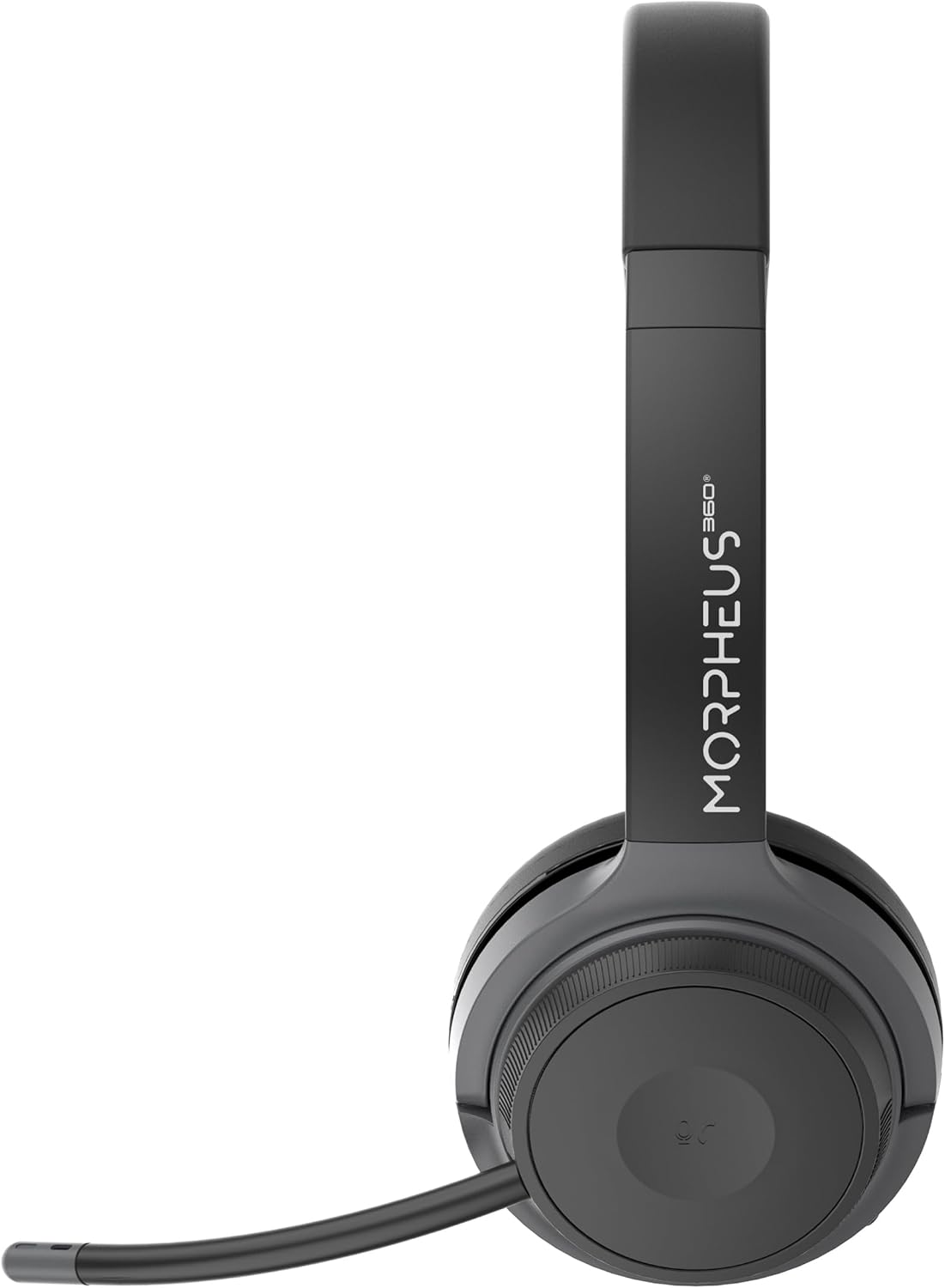
Right earcup featuring the volume control dial and USB-C charging port.
- Headband: Adjustable for comfortable fit.
- Ear Cushions: Soft protein leather with memory foam for comfort.
- Microphone Port: Located on the left earcup for attaching the boom microphone.
- Power/Pairing Button: Controls power and initiates Bluetooth pairing.
- Volume Control Dial: Located on the right earcup, allows for precise volume adjustments.
- USB-C Charging Port: For charging the headset battery.
- Media Control Buttons: Play/Pause, Next/Previous Track (functionality may vary by device).
- Call Control Button: Answer/End/Reject calls.
Setup
1. Charging the Headset
Before first use, fully charge the headset. A full charge takes approximately 2 hours.
- Connect the USB charging cable to the USB-C port on the headset.
- Connect the other end of the cable to a USB power source (e.g., computer USB port, wall adapter).
- The LED indicator will show charging status (refer to LED indicator section for details).
2. Attaching the Boom Microphone
The boom microphone is detachable and can be inserted into the microphone port on the left earcup. Ensure it clicks securely into place. The microphone can be rotated 120 degrees for optimal positioning.
3. Connecting to Devices
Your headset offers two primary connection methods: Bluetooth and 2.4GHz Wireless (via USB dongle).
Bluetooth Connection:
- Ensure the headset is charged and powered off.
- Press and hold the Power/Pairing button until the LED indicator flashes blue and red, indicating pairing mode.
- On your device (smartphone, tablet, laptop), enable Bluetooth and search for new devices.
- Select "Morpheus 360 Advantage" from the list of available devices.
- Once connected, the LED indicator will show a solid blue light.

The headset supports Bluetooth 5.3 for stable connections and Universal Communication (UC) standards for broad compatibility.
2.4GHz Wireless Connection (via USB Dongle):
This method is ideal for devices without Bluetooth or for a more stable connection, particularly with PCs and Macs.
- Plug the USB-A receiver-dongle into an available USB-A port on your computer. If your computer only has USB-C ports, use the included USB-A to USB-C adapter.
- Power on the headset. It should automatically connect to the dongle.
- The LED indicator on both the headset and dongle will show a solid blue light when connected.
- Ensure the Morpheus 360 headset is selected as the default audio input and output device in your computer's sound settings.
Operating Instructions
Power On/Off:
- Power On: Press and hold the Power/Pairing button for approximately 3 seconds until the LED indicator lights up.
- Power Off: Press and hold the Power/Pairing button for approximately 5 seconds until the LED indicator turns off.
Volume Control:
Rotate the volume control dial on the right earcup:
- Rotate clockwise to increase volume.
- Rotate counter-clockwise to decrease volume.
Call Management:
- Answer Call: Press the Call Control button once.
- End Call: Press the Call Control button once during a call.
- Reject Call: Press and hold the Call Control button for 2 seconds.

The headset provides comfortable wear for extended periods, ideal for calls and online meetings.
Media Playback:
- Play/Pause: Press the Play/Pause button once.
- Next Track: Press the Next Track button once.
- Previous Track: Press the Previous Track button once.
Microphone Usage:
- Mute/Unmute: Use the dedicated mute button on the microphone boom or the headset controls (if available).
- Positioning: Adjust the 120-degree rotatable boom microphone for optimal voice pickup, ensuring it is close to your mouth.
Maintenance
Cleaning:
- Wipe the headset with a soft, dry, lint-free cloth.
- For ear cushions, use a slightly damp cloth with mild soap if necessary, then wipe dry immediately.
- Do not use abrasive cleaners, alcohol, or chemical solvents.
Storage:
- Store the headset in a cool, dry place away from direct sunlight and extreme temperatures.
- Avoid placing heavy objects on the headset.
Battery Care:
- Charge the headset regularly, even if not in frequent use, to maintain battery health.
- Avoid fully discharging the battery frequently.
Troubleshooting
| Problem | Possible Cause | Solution |
|---|---|---|
| Headset does not power on. | Low battery. | Charge the headset fully. |
| Cannot connect via Bluetooth. | Headset not in pairing mode; Device Bluetooth off; Out of range. | Ensure headset is in pairing mode (flashing blue/red). Turn device Bluetooth on. Move headset closer to device (within 10 meters). |
| No sound or poor sound quality. | Volume too low; Incorrect audio output selected; Headset not connected properly. | Increase headset and device volume. Select "Morpheus 360 Advantage" as audio output. Reconnect headset. |
| Microphone not working. | Microphone muted; Not properly attached; Incorrect input device selected. | Unmute microphone. Ensure microphone is securely attached. Select "Morpheus 360 Advantage" as audio input in device settings. |
| Intermittent connection. | Interference; Out of range; Low battery. | Move away from other wireless devices. Stay within 10 meters of connected device. Charge headset. |
Specifications
| Feature | Detail |
|---|---|
| Model Name | HS6500SBT |
| Connectivity Technology | Wireless (Bluetooth 5.3, 2.4GHz via USB Dongle) |
| Bluetooth Version | 5.3 |
| Bluetooth Range | Up to 10 meters (33 feet) |
| Battery Life | Up to 30 Hours (Talk/Playtime) |
| Charging Time | Approximately 2 Hours |
| Noise Control | Passive Noise Cancellation |
| Microphone | Detachable Noise Cancelling Boom Microphone (120-degree rotation) |
| Ear Placement | Over Ear |
| Material | Faux Leather (Protein Leather Ear Cushions) |
| Compatible Devices | Laptops, Desktops, Tablets, Telephones, Smartphones, Communication Software (UC Standard) |
| Product Dimensions | 8.75 x 3 x 8.5 inches |
| Item Weight | 9.6 ounces |
| Impedance | 30 Ohm |
| UPC | 856816008538 |
Warranty Information
Morpheus 360 products are designed and manufactured to the highest quality standards. For detailed warranty information, including terms, conditions, and registration, please refer to the official Morpheus 360 website or the warranty card included with your product.
Please retain your proof of purchase for warranty claims.
Support
For further assistance, technical support, or frequently asked questions, please visit the official Morpheus 360 support website:
You may also find helpful resources and contact information on the product's Amazon listing page.
Ask a question about this manual
Ask about setup, troubleshooting, compatibility, parts, safety, or missing instructions. Manuals+ will review the question and use this page’s manual context to help answer it.