
1. Introduction
This manual provides comprehensive instructions for the setup, operation, maintenance, and troubleshooting of your Fantily Intel NUC 11 Pro Mini PC, model NUC11PAHI7. This compact and powerful device is designed for various applications, from business and home use to digital signage and smart retail.

Image: Overview banner for the Intel NUC 11 Pro, highlighting its high-performance and artistic design.
2. Safety Information
Please read all safety instructions carefully before using the device. Failure to follow these instructions may result in electric shock, fire, or damage to the product.
- Do not expose the device to rain, moisture, or extreme temperatures.
- Ensure proper ventilation to prevent overheating.
- Use only the power adapter provided with the device.
- Avoid placing heavy objects on the device.
- Do not attempt to disassemble or repair the device yourself. Contact qualified service personnel for assistance.
3. What's in the Box
Verify that all components are present upon unpacking:
- Intel NUC 11 Pro Mini PC (NUC11PAHI7)
- Power Adapter
- Mounting Bracket
- User Manual (this document)
Note: The product specifications indicated "Water Cooling" in the 'whats_in_the_box' list, which is highly unusual for a NUC and likely an error in the source data. This item has been omitted from the list above to maintain accuracy for a mini PC of this type.
4. Product Overview
The Intel NUC 11 Pro Mini PC is a compact computing solution featuring an 11th Gen Intel Core i7-1165G7 processor and Intel Iris Xe Graphics. It comes pre-installed with Windows 11 Pro.
4.1 Front and Rear Panels

Image: A perspective view showing the front and rear panels of the Intel NUC 11 Pro Mini PC, highlighting its compact size and various ports.

Image: A detailed diagram illustrating the various ports and connectors on the Intel NUC 11 Pro Mini PC, including USB, HDMI, Thunderbolt, Ethernet, and audio jacks.
- Front Panel: Power Button, 3.5mm Stereo Headset Jack, USB 3.1 Gen2 Port, Thunderbolt™ 3 Port.
- Rear Panel: 19VDC Input, Mini DisplayPort 1.4, 2x USB 3.1 Gen2 Ports, HDMI 2.0b, Intel® I225-v 10/100/1000/2500 Mbps Ethernet port, Thunderbolt™ 3 Port.
- Side Panel: SDXC slot with UHS-II support.
5. Setup Instructions
5.1 Connecting Peripherals
- Connect your monitor(s) to the HDMI 2.0b, Mini DisplayPort 1.4, or Thunderbolt™ 3 ports. The device supports up to four 4K displays.
- Connect your keyboard and mouse to the available USB 3.1 Gen2 ports.
- For wired network access, connect an Ethernet cable to the Intel® I225-v port.
- For audio, connect headphones or speakers to the 3.5mm stereo headset jack.

Image: Illustration of the Intel NUC 11 Pro connected to four 4K displays, demonstrating its multi-screen capability via HDMI and Mini DisplayPort.
5.2 Powering On
- Connect the power adapter to the 19VDC input port on the rear of the Mini PC.
- Plug the power adapter into a wall outlet.
- Press the power button on the front panel to turn on the device.
5.3 Initial Operating System Setup
Upon first boot, the Windows 11 Pro operating system will guide you through the initial setup process. Follow the on-screen prompts to configure language, region, network settings, and user accounts.
5.4 Mounting Options
The Intel NUC 11 Pro includes a mounting bracket for flexible placement, allowing you to save desktop space.
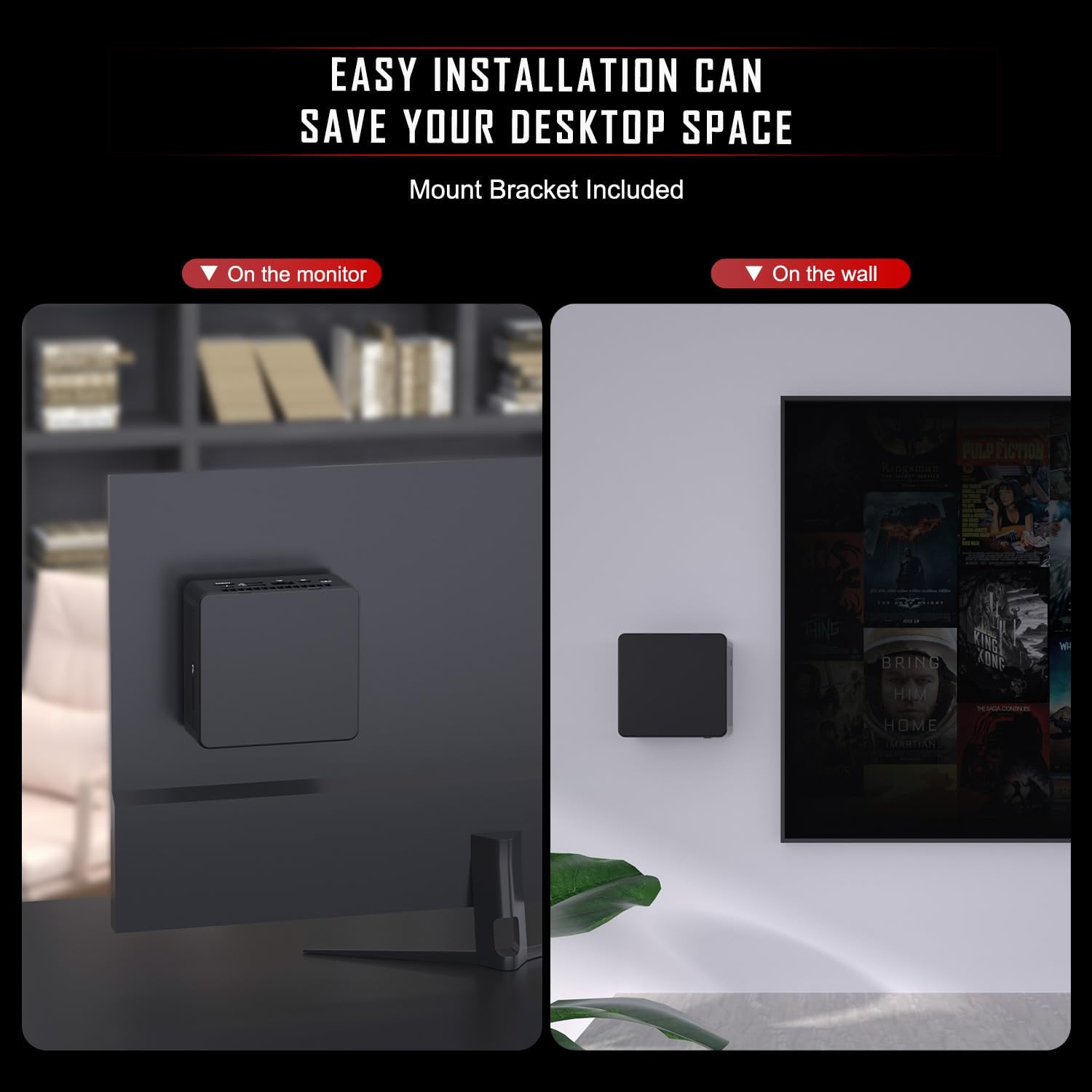
Image: Visual representation of the Intel NUC 11 Pro Mini PC mounted on the back of a monitor and on a wall, illustrating space-saving installation options.
- On the Monitor: Attach the mounting bracket to the VESA mounts on the back of your monitor, then secure the Mini PC to the bracket.
- On the Wall: Secure the mounting bracket to a wall using appropriate screws, then attach the Mini PC.
6. Operating Instructions
6.1 Basic Usage
Once powered on and Windows 11 Pro is configured, you can use the Mini PC like any standard desktop computer. Launch applications, browse the internet, and manage files using your connected peripherals.

Image: A marketing graphic for the Mini PC, highlighting its 11th Gen Intel Core i7-1165G7 CPU, Intel Iris Xe Graphics, 1TB DDR4-3200, 32GB NVMe SSD, and Windows 11 Pro operating system.
6.2 Wireless Connectivity
The Mini PC supports Wi-Fi 6.0 and Bluetooth 5.2 for wireless connections.

Image: A desktop setup featuring the Intel NUC 11 Pro, emphasizing its stable and strong wireless connection capabilities with Wi-Fi 6 and Bluetooth 5.2.
- Wi-Fi: Access network settings in Windows 11 Pro to connect to available Wi-Fi networks.
- Bluetooth: Pair Bluetooth devices such as keyboards, mice, or headphones through the Bluetooth settings in Windows 11 Pro.
6.3 Storage Expansion
The device comes with a 1TB PCIe x4 SSD and 32GB DDR4 RAM. Storage can be expanded further:

Image: A graphic illustrating a RAM module, indicating that the 16GB dual-SO-DIMM DDR4-3200 1.2V memory can be expanded up to 64GB (not included).
- RAM: Supports up to 64GB DDR4 SO-DIMM (not included).
- SSD: Additional storage can be added via an M.2 SATA SSD or a 2.5-inch SATA SSD with a capacity of up to 2TB (not included).
Consult a qualified technician for hardware upgrades to avoid voiding your warranty.
7. Maintenance
7.1 Cleaning
- Use a soft, dry cloth to clean the exterior of the Mini PC.
- For dust accumulation in vents, use compressed air. Ensure the device is powered off before cleaning.
- Do not use liquid cleaners or solvents.
7.2 Software Updates
Regularly update your Windows 11 Pro operating system and device drivers to ensure optimal performance and security. Access Windows Update through the Settings menu.

Image: An exploded view of the Intel NUC 11 Pro Mini PC, showcasing its integrated copper cooling system designed for long-lasting, stable cooling performance and low power consumption.
8. Troubleshooting
| Problem | Possible Cause | Solution |
|---|---|---|
| No power | Power adapter not connected or faulty. | Ensure power adapter is securely connected to the device and a working power outlet. Test with another outlet if possible. |
| No display | Monitor not connected, incorrect input source, or faulty cable. | Check monitor cable connections (HDMI, DisplayPort, Thunderbolt). Ensure monitor is on and set to the correct input source. Try a different cable or monitor. |
| No internet connection (Wi-Fi) | Wi-Fi disabled, incorrect password, or router issue. | Verify Wi-Fi is enabled in Windows settings. Re-enter Wi-Fi password. Restart your router. |
| Slow performance | Too many applications running, insufficient RAM, or outdated drivers. | Close unnecessary applications. Check Task Manager for resource-intensive processes. Update Windows and drivers. Consider RAM upgrade if frequently experiencing slowdowns. |
9. Technical Specifications

Image: A table summarizing the key specifications of the Intel NUC 11 Pro, including processor, graphics, memory, storage, operating system, and other features.
| Feature | Detail |
|---|---|
| Model | NUC11PAHI7 (NUC11PAQ Series) |
| Processor | 11th Generation Intel Core i7-1165G7 (2.8-4.7 GHz, 4 Cores, 8 Threads, 12 MB Cache) |
| Graphics | Intel Iris Xe Graphics (up to 1.3 GHz) |
| RAM | 32 GB DDR4 SO-DIMM (Expandable up to 64 GB) |
| Storage | 1 TB PCIe x4 SSD (Supports additional M.2 SATA SSD or 2.5-inch SATA SSD up to 2TB) |
| Operating System | Windows 11 Pro |
| Video Output | HDMI 2.0b, Mini DisplayPort 1.4, 2x Thunderbolt™ 3 (supports 4K quad display) |
| USB Ports | 1x USB 2.0, 4x USB 3.0 (Gen2) |
| Networking | Intel® I225-v 2.5 Gigabit Ethernet, Wi-Fi 6.0, Bluetooth 5.2 |
| Audio | 3.5mm Stereo Headset Jack |
| Dimensions (LxWxH) | 4.6 x 4.2 x 2 inches |
| Weight | 3.1 pounds |
| Power Input | 19VDC |
| Supported OS | Windows 11, Windows 11 Pro, Linux, OS |

Image: Displays the Intel NUC 11 Pro Mini PC alongside monitors showing Linux, Windows 11 Pro, and Ubuntu logos, indicating compatibility with multiple operating systems.
10. Warranty and Support
10.1 Warranty Information
The Fantily Intel NUC 11 Pro Mini PC comes with a comprehensive three-year warranty. This warranty covers defects in materials and workmanship under normal use.
- The warranty period begins from the date of purchase.
- Proof of purchase is required for all warranty claims.
- The warranty does not cover damage caused by misuse, accidents, unauthorized modifications, or natural disasters.
- For upgraded RAM/SSD configurations, a three-year original warranty is provided by Fantily.
10.2 Customer Support
For technical assistance, warranty claims, or any inquiries regarding your product, please contact Fantily customer support. Refer to the product packaging or the official Fantily website for contact details.
We are committed to providing excellent service and support to ensure your satisfaction.


