
Introduction
Thank you for choosing the Hodozzy Android 13 Car Stereo. This 7-inch IPS touchscreen unit is designed to enhance your driving experience with advanced features such as wireless Carplay, Android Auto, GPS navigation, Bluetooth connectivity, and a powerful 8-core processor with 2GB RAM and 64GB ROM. This manual provides detailed instructions for installation, operation, maintenance, and troubleshooting to ensure optimal performance and longevity of your device.
Product Features
- Android 13 Operating System: Equipped with an 8-core processor, 2GB RAM, and 64GB ROM for smooth and responsive operation.
- 7-inch IPS Touchscreen: High-resolution 1280x720 display with vibrant colors, offering 51 customizable UI interfaces and 17 wallpaper options.
- Wireless Carplay & Android Auto: Seamlessly integrate your smartphone for navigation, calls, messages, and music via wireless or USB connection.
- GPS Navigation: Built-in GPS module with pre-installed offline maps. Supports online maps via Wi-Fi/Hotspot connection.
- Wi-Fi & Hotspot Connectivity: Access online content, download apps from the Play Store, and use real-time navigation.
- Bluetooth 5.0: Supports hands-free calling, Bluetooth music streaming, and automatic phonebook loading.
- FM/RDS Radio: Wide frequency range (FM87.50-108.0MH) with RDS for enhanced radio information.
- 36-Band DSP Equalizer: Customize your audio experience with a personalized Hi-Fi sound effect.
- Mirror Link: Display your phone's screen directly on the car stereo for both Apple and Android devices.
- Split-Screen Function: Run two applications simultaneously on the 7-inch screen.
- Steering Wheel Control Support: Compatible with original car steering wheel controls for safe operation.
- Rear Camera Input: Includes an AHD rear camera for reverse assistance with HD view, night vision, and wide-angle capabilities.
- Multiple Connectivity Options: 2 USB inputs, AUX audio input, TF card connection, Dash CAM input, DAB+ and OBD support.
Packaging List and Components
Before installation, please verify that all components listed below are included in your package. If any items are missing or damaged, please contact customer support.

This image displays the dimensions of the Hodozzy car stereo (178mm width, 102mm height, 70mm depth) and a comprehensive list of included accessories. These include the power cable, RCA cable, rear camera cable, GPS antenna, USB cable, various accessories, user manual, rear camera, microphone, and an additional power cable.
Included Components:
- Hodozzy Android 13 Car Stereo Unit
- Power Cable
- RCA Cable
- Rear Camera Cable
- GPS Antenna
- USB Cable (x2)
- Rear Camera (AHD)
- External Microphone
- Mounting Accessories
- User Manual (this document)
Setup and Installation
Installation of the Hodozzy car stereo requires basic automotive electrical knowledge. If you are unsure, it is recommended to seek professional assistance. The unit has a universal double DIN size of 178x100 mm, suitable for most car central consoles.
Wiring Connections:
- Power Cable: Connect the main power harness to your vehicle's wiring. Ensure correct connections for constant power (B+), accessory power (ACC), and ground (GND).
- RCA Input/Output: Use the RCA cables for connecting external amplifiers, subwoofers, or other audio/video devices.
- Reversing Camera Input: Connect the included AHD rear camera to this input for automatic display when reversing.
- USB Cables: Connect the two USB cables for media playback, smartphone charging, or connecting USB devices.
- GPS Antenna: Mount the GPS antenna in a location with a clear view of the sky for optimal signal reception.
- Radio Antenna: Connect your vehicle's FM/AM antenna to the radio antenna input.
- External Microphone: Plug in the external microphone for improved call quality during hands-free Bluetooth conversations.
- Steering Wheel Control Wires: Connect the KEY1 and KEY2 wires to your vehicle's steering wheel control wires. Refer to your vehicle's wiring diagram.
After all connections are made, secure the unit in the dashboard using the provided mounting accessories.
Operating Instructions
Initial Setup:
Upon first power-on, the system will boot to the Android home screen. You can customize the interface by selecting from 51 UI options and 17 wallpapers.
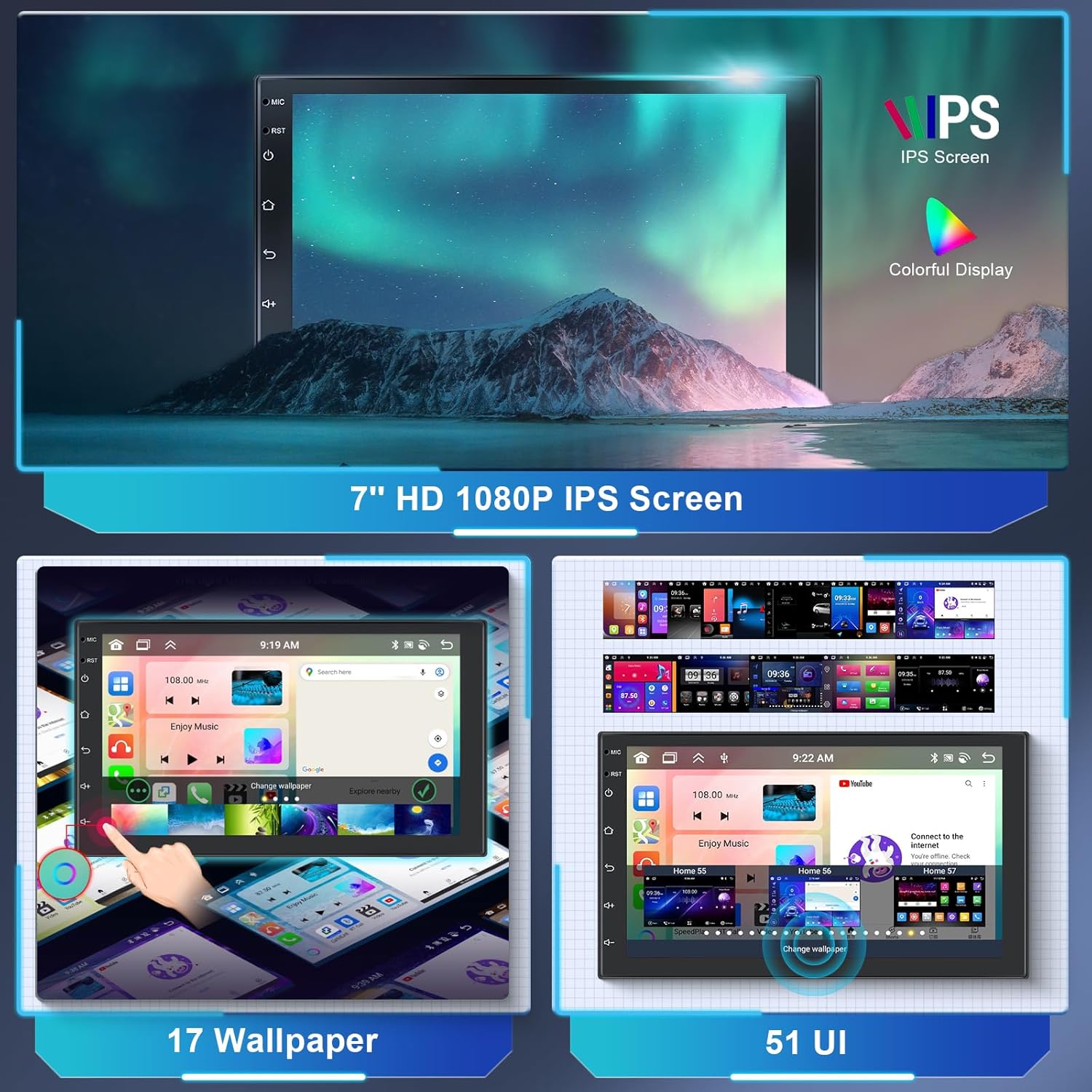
This image illustrates the vibrant 7-inch HD 1080P IPS screen of the Hodozzy car stereo, highlighting the availability of 17 different wallpaper options and 51 distinct user interface (UI) designs for personalization.
Wireless Carplay & Android Auto:
This unit supports both wireless and wired connections for Apple Carplay and Android Auto.
- Wireless Connection: Enable Bluetooth and Wi-Fi on your smartphone. On the car stereo, open the "CarbitLink" or similar app. Follow the on-screen prompts to pair your phone via Bluetooth. Once paired, the system will automatically connect to Carplay or Android Auto via Wi-Fi.
- USB Connection: Connect your smartphone to one of the USB ports using a certified USB cable. The system should automatically detect and launch Carplay or Android Auto.

This image demonstrates the seamless integration of Carplay and Android Auto, as well as Apple Mirror Link and Android Mirror Link, on the Hodozzy car stereo, showing how smartphone interfaces are displayed on the unit's screen.
GPS Navigation:
The unit comes with pre-installed offline maps. To use online maps or download additional map data, connect the unit to Wi-Fi or a mobile hotspot.
- Offline Maps: Access the pre-installed navigation app and select "Offline Maps" to use downloaded map data without an internet connection.
- Online Maps: Connect to Wi-Fi (Settings > Network & Internet > Wi-Fi) or enable your phone's hotspot. Open your preferred navigation app (e.g., Google Maps) for real-time traffic and map updates.

This image highlights the core specifications of the Hodozzy car stereo, including its Android 13 operating system, 2GB RAM, 64GB ROM, 8-core processor, and integrated GPS navigation with Wi-Fi connectivity.
Bluetooth Functions:
Pair your phone via Bluetooth for hands-free calls and audio streaming.
- Go to "Bluetooth" in the main menu.
- Enable Bluetooth on your phone and search for available devices.
- Select "Hodozzy" (or similar name) from the list and confirm pairing.
- Once connected, you can make/receive calls and play music from your phone through the car stereo.

This image illustrates the Bluetooth hands-free calling interface, allowing users to manage calls directly from the car stereo. It also shows the DSP (Digital Sound Processor) equalizer adjustment screen, enabling fine-tuning of audio output for a personalized sound experience.
FM/RDS Radio:
Access the "Radio" app to listen to FM stations.
- Use the scan function to find available stations.
- Save your favorite stations as presets.
- RDS (Radio Data System) provides additional information like station name and song title where available.

This image shows the FM radio interface of the Hodozzy car stereo, featuring RDS (Radio Data System) for displaying station information. It also highlights the compatibility with steering wheel controls, allowing for convenient and safe operation of the unit while driving.
Steering Wheel Control:
To configure steering wheel controls, go to "Settings" > "Steering Wheel Control" (or similar). Follow the on-screen instructions to map your vehicle's steering wheel buttons to the corresponding functions on the stereo.
Reverse Assistance:
When the vehicle is put into reverse gear, the display will automatically switch to the rear camera view. Ensure the rear camera is properly installed and connected.

This image demonstrates the "Reverse Assistance" feature, showing the car stereo display automatically switching to the rear camera view when the vehicle is in reverse. The image also highlights the capabilities of the included AHD camera, such as HD view, night vision, waterproof design, and wide-angle perspective, aiding in safer parking and maneuvering.
Maintenance
- Cleaning the Screen: Use a soft, lint-free cloth to gently wipe the touchscreen. For stubborn smudges, slightly dampen the cloth with water or a screen cleaner designed for electronics. Avoid abrasive materials or harsh chemicals.
- Software Updates: Periodically check for software updates through the system settings (if available) or the manufacturer's website to ensure optimal performance and access to new features.
- Environmental Conditions: Avoid exposing the unit to extreme temperatures, direct sunlight for prolonged periods, or excessive moisture.
Troubleshooting
| Problem | Possible Cause | Solution |
|---|---|---|
| Unit does not power on. | Incorrect wiring; Blown fuse; Vehicle battery issue. | Check power cable connections (B+, ACC, GND). Inspect vehicle fuses. Ensure battery has sufficient charge. |
| No sound or distorted audio. | Speaker wires incorrectly connected; Volume too low; Mute function active; External amplifier setting. | Verify speaker wire connections. Increase volume. Check if mute is enabled. If using an external amplifier, ensure it is selected in the unit's audio settings. |
| Touchscreen unresponsive or erratic. | Software glitch; Screen calibration needed; Physical damage. | Restart the unit. Perform screen calibration if available in settings. If persistent, contact support. |
| GPS signal weak or inaccurate. | GPS antenna placement; Obstructions; Software issue. | Ensure GPS antenna has a clear view of the sky. Check antenna connection. Update navigation app or maps. |
| Bluetooth connection issues. | Phone not discoverable; Incorrect pairing; Interference. | Ensure phone's Bluetooth is on and discoverable. Delete previous pairings and re-pair. Move phone closer to the unit. |
| Rear camera not displaying. | Camera not connected; Reverse trigger wire issue; Camera malfunction. | Check rear camera cable connection. Verify the reverse trigger wire is correctly connected to the vehicle's reverse light signal. Test camera if possible. |
Specifications
| Feature | Specification |
|---|---|
| Brand | Hodozzy |
| Model Name | 7 Zoll |
| Operating System | Android 13 |
| Processor | 8-Core |
| RAM | 2GB |
| ROM (Internal Storage) | 64GB |
| Screen Size | 7 Inches |
| Screen Type | IPS Touchscreen |
| Screen Resolution | 1280x720 |
| Special Features | Android Auto, Apple CarPlay, DSP, Mirror Link, Split Screen |
| Connectivity Technology | Bluetooth, Wi-Fi, USB |
| GPS | Built-in GPS Module, Offline Map Support |
| Radio | FM/RDS (87.50-108.0MH) |
| Audio Output Mode | Stereo |
| Included Components | Rear Camera, Power Cables, RCA Cables, USB Cables, GPS Antenna, Microphone |
| Item Weight | 1.13 Kilograms |
Warranty and Support
Hodozzy is committed to providing excellent customer service and support for your product.

This image outlines Hodozzy's commitment to customer support, detailing an 18-hour response time, a 60-day return policy, a 2-year exchange program, and lifetime support. It also provides the official customer support email address: hodozzyofficial@163.com.
- Customer Response Time: We aim to respond to all inquiries within 18 hours.
- Return Policy: Enjoy a 60-day return period for your peace of mind.
- Exchange Program: A 2-year exchange policy is available for eligible products.
- Lifetime Support: Hodozzy provides lifetime technical support for its products.
- Contact Support: For any questions, technical assistance, or warranty claims, please contact us via email at hodozzyofficial@163.com.