
Somfy 1811081
Somfy Telis 16 RTS Remote Control User Manual
Model: 1811081 | Brand: Somfy
1. Introduction
The Somfy Telis 16 RTS remote is an advanced multi-channel handheld device designed for convenient control of up to 16 individual or grouped motorized applications, such as blinds, screens, and awnings. It features an intuitive on-screen display and a "my" button for personalized favorite positions.
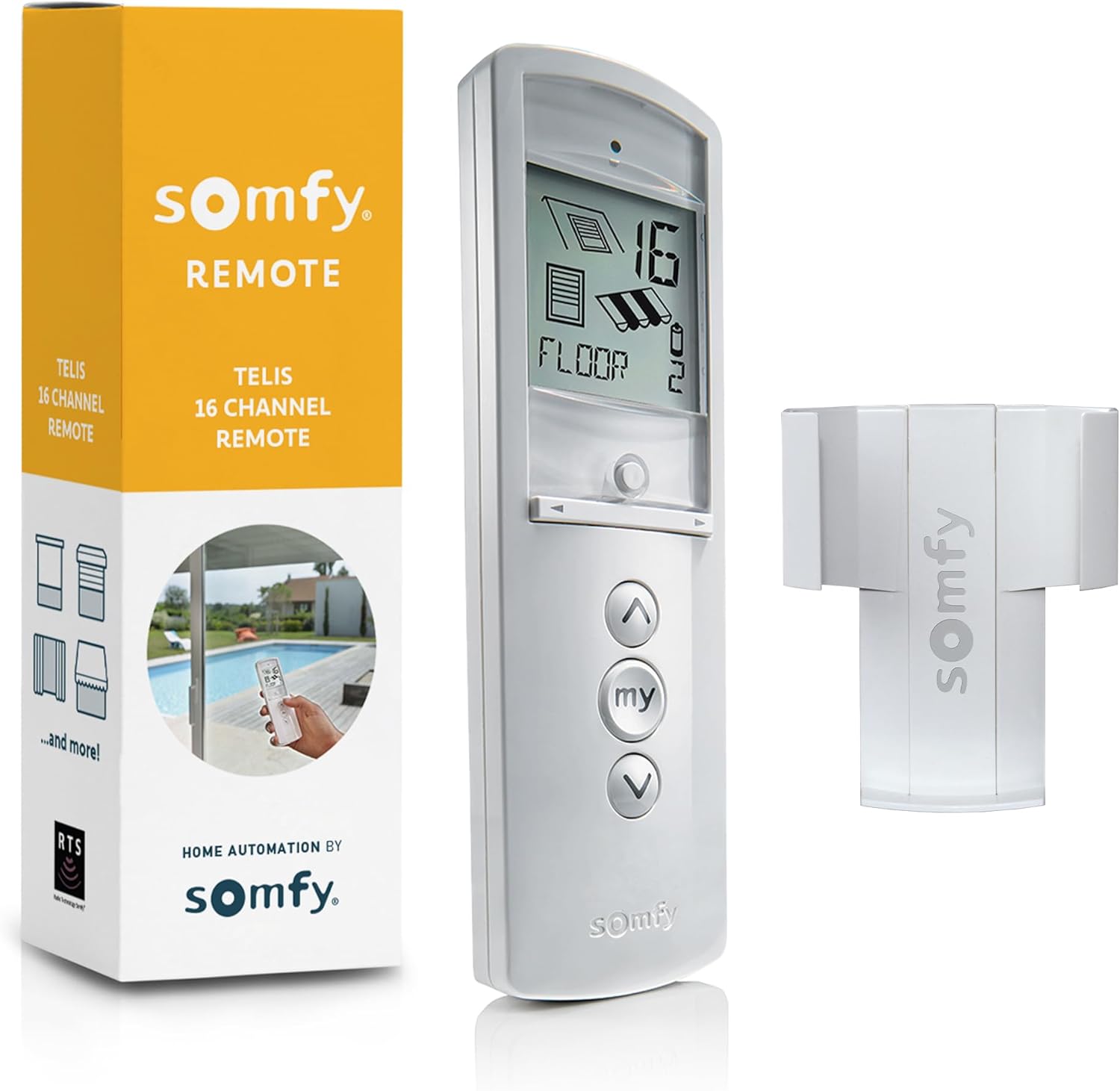
Image: The Somfy Telis 16 RTS remote control shown alongside its product packaging, highlighting its sleek design and branding.
2. What's in the Box
- Somfy Telis 16 RTS Remote Control (Model: 1811081)
- Wall Clip for mounting
- Mounting Hardware (screws and wall anchors)
- 1 CR2 Battery (pre-installed or included separately)
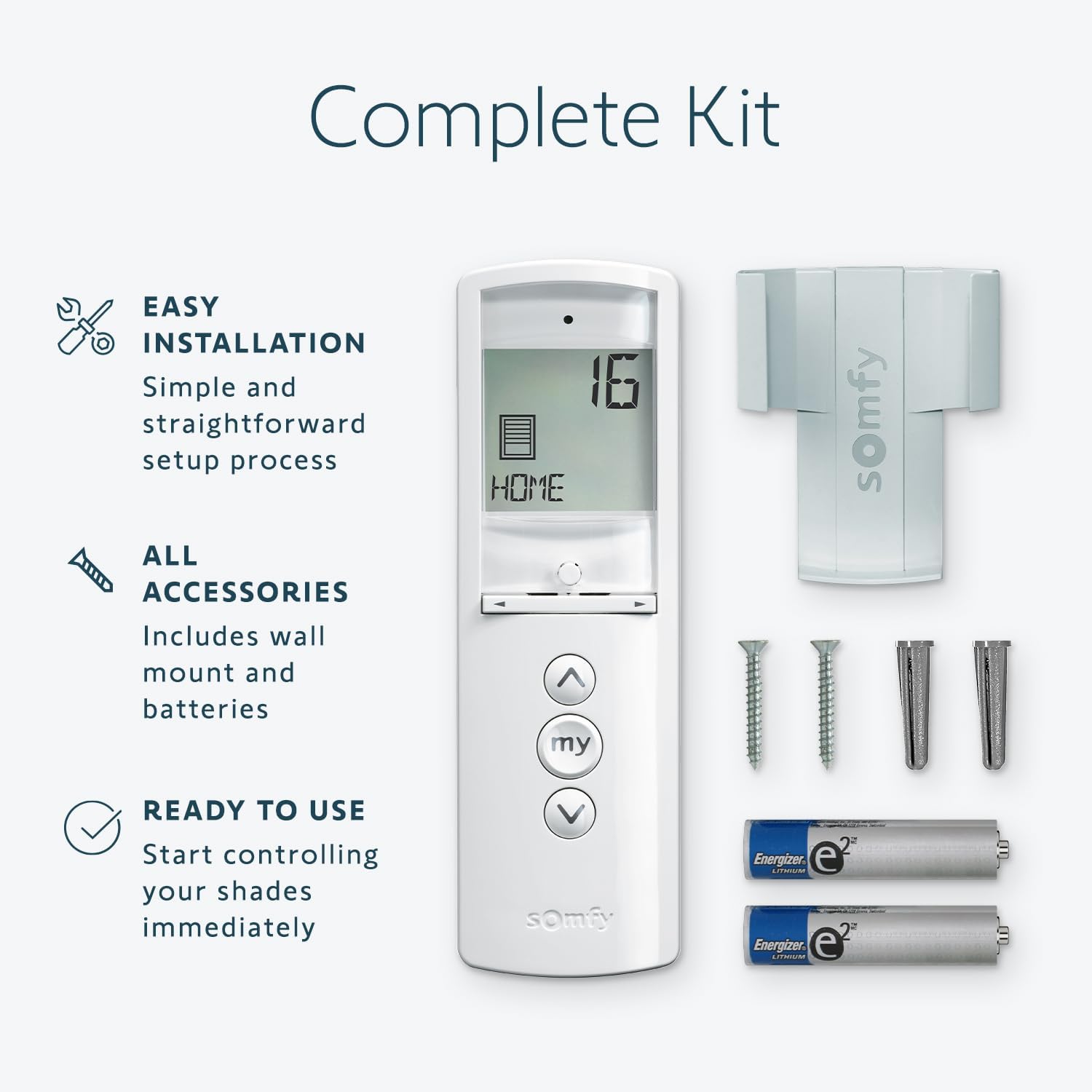
Image: A clear view of all items included in the product package: the remote, wall clip, mounting screws, and batteries.
3. Setup and Installation
3.1. Battery Installation
The Somfy Telis 16 RTS remote requires one CR2 battery. Ensure the battery is correctly inserted according to the polarity markings inside the battery compartment. The battery compartment is located on the back of the remote.

Image: An illustration showing the battery compartment of the remote control with batteries being inserted.
3.2. Mounting the Wall Clip
The included wall clip allows for convenient storage and access to your remote. Choose a suitable location near your motorized applications. Use the provided mounting hardware (screws and wall anchors) to securely attach the wall clip to the wall. Once installed, the remote can be easily slid into the clip for storage.

Image: The Somfy Telis 16 RTS remote securely placed in its wall-mounted clip, demonstrating easy access.
3.3. Pairing with Somfy RTS Motors
Refer to the specific instructions for your Somfy RTS motor for detailed pairing procedures. Generally, this involves putting the motor into programming mode and then pressing the programming button on the back of the Telis 16 remote. The remote's display will guide you through channel assignment.

Image: A diagram illustrating the layout of the Somfy Telis 16 RTS remote, pointing out the programming button on the back.
4. Operating Instructions
4.1. Remote Overview
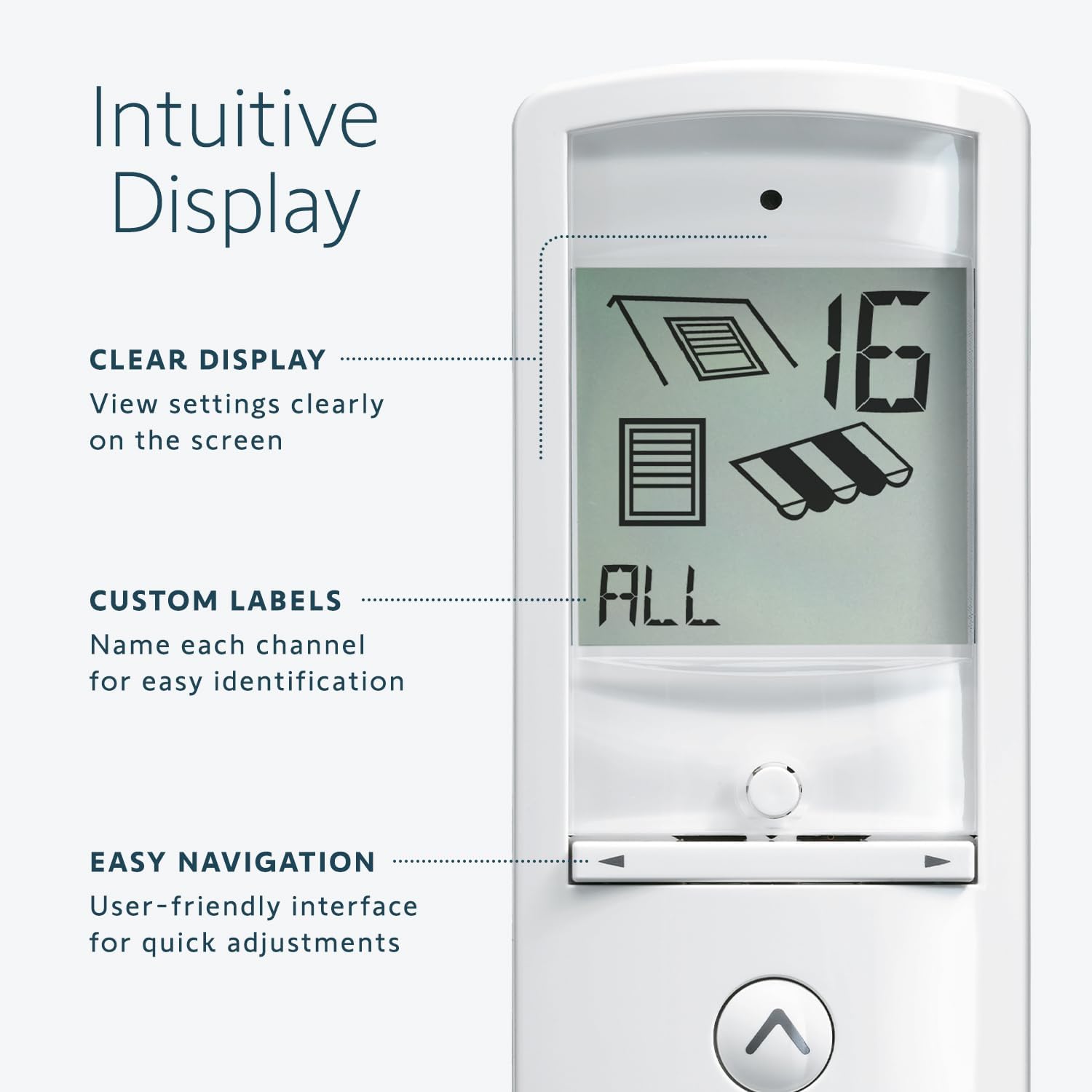
Image: A detailed view of the Somfy Telis 16 RTS remote's LCD screen, showing channel numbers and icons for different applications.
- On-Screen Display: Shows the current channel number and an icon representing the type of application (e.g., blinds, awnings).
- Channel Navigation Buttons: Use the left and right arrow buttons below the screen to cycle through the 16 available channels.
- UP Button (▲): Moves the motorized application upwards or opens it.
- DOWN Button (▼): Moves the motorized application downwards or closes it.
- "my" Button: This central button allows you to stop the movement of an application or recall a pre-programmed favorite position.

Image: The remote's display cycling through various channel icons, such as "SCREEN", "ROOF", and "ALL", indicating different types of controlled devices.
4.2. Controlling Applications
- Select Channel: Use the channel navigation buttons to select the desired channel (1-16) or the "ALL" channel to control all paired devices simultaneously.
- Open/Up: Press the ▲ button to open or raise the selected application.
- Close/Down: Press the ▼ button to close or lower the selected application.
- Stop/My Position: Press the "my" button during movement to stop the application at its current position. Pressing "my" when the application is stopped will move it to its pre-programmed favorite position.

Image: A person holding the Somfy Telis 16 RTS remote, demonstrating its use to control window blinds in a home setting.
4.3. Setting a "my" Favorite Position
- Move your application to the desired favorite position using the UP or DOWN buttons.
- Once at the desired position, press and hold the "my" button until the application jogs (moves slightly) to confirm the setting.
- To clear a "my" position, move the application to the "my" position, then press and hold the "my" button until it jogs again.

Image: A close-up view of the prominent "my" button on the remote, central to its personalized control features.
5. Features and Benefits
Centralized Home Automation
Control up to 16 individual or grouped motorized applications, providing ultimate convenience in managing your home's blinds, screens, and awnings from a single device.
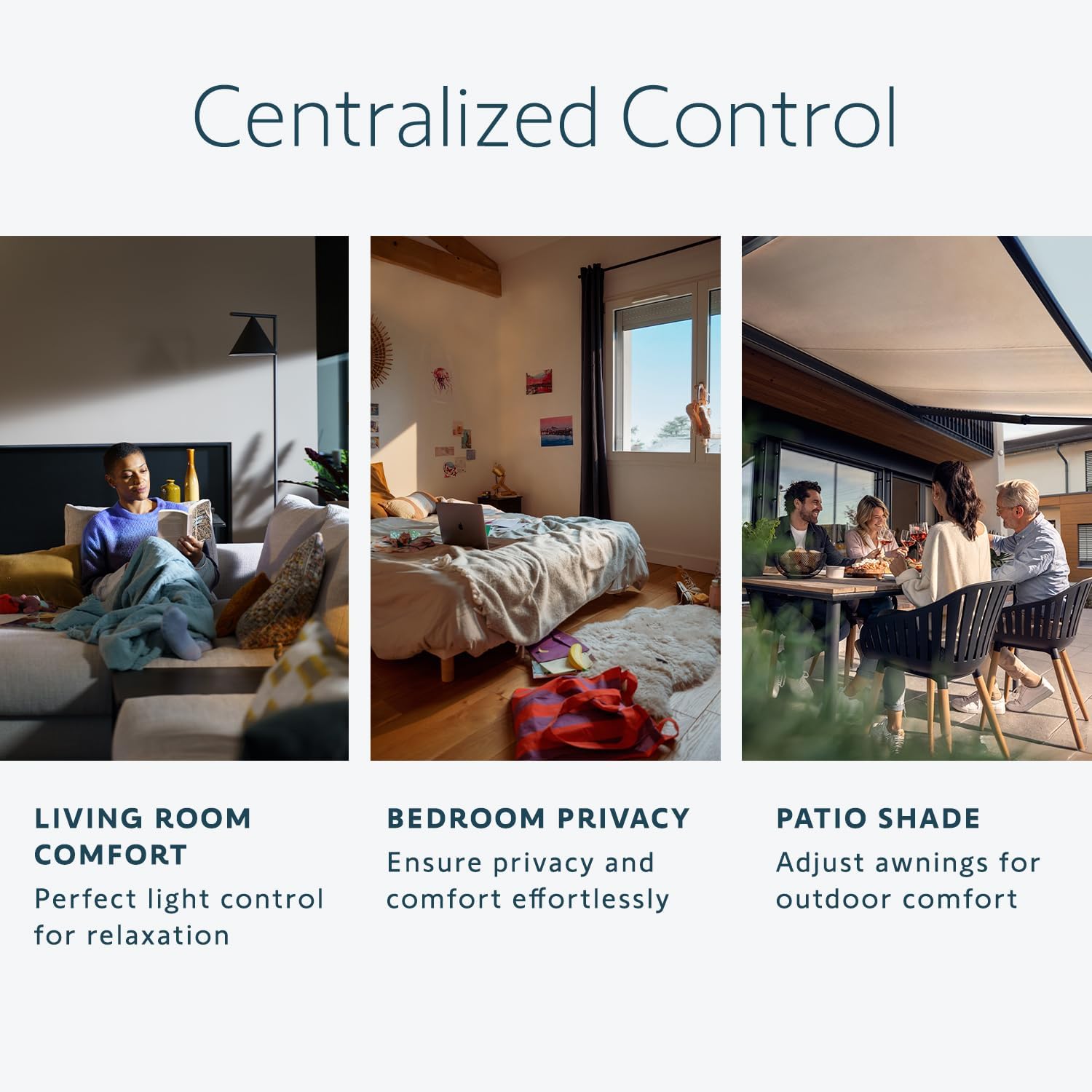
Image: A composite image showing various home settings (living room, bedroom, patio) where the remote can centrally control light and privacy.
Personalized Experience
Tailor your home environment to your preferences using the "my" button to set and instantly access favorite positions for any device. The option to name each group and assign unique icons enhances personalization.

Image: A hand holding the remote, illustrating the ease of customizing settings and accessing favorite positions with the "my" button.
Comfortable & Effortless Operation
Designed with a rounded shape for a comfortable grip and a large, clear LCD screen for easy navigation. Manage your home's automated features all in one place.

Image: The remote resting on a modern table, showcasing its sleek and ergonomic design.
Sleek Design
The modern Pure finish adds a sophisticated touch to any home decor. Its sleek design is not only functional but also aesthetically pleasing, making it a stylish addition to your living space.

Image: The remote positioned in a contemporary room, emphasizing its modern aesthetic and seamless integration with decor.
6. Maintenance
- Cleaning: Wipe the remote with a soft, dry cloth. Do not use abrasive cleaners or solvents.
- Battery Replacement: Replace the CR2 battery when the low battery indicator appears on the display or if the remote's range decreases. Ensure proper disposal of old batteries according to local regulations.
- Storage: When not in use for extended periods, store the remote in a cool, dry place, ideally removed from direct sunlight.
7. Troubleshooting
| Problem | Possible Cause | Solution |
|---|---|---|
| Remote not responding | Low or dead battery; Remote out of range; Motor not paired. | Replace battery; Move closer to the motor; Re-pair the remote with the motor (refer to motor's manual). |
| Motor responds erratically | Interference; Weak signal. | Ensure no large metal objects or other strong radio frequency devices are between the remote and motor. |
| "my" position not setting/recalling | Incorrect procedure; Motor limit settings. | Ensure you hold the "my" button until the motor jogs. Check motor's manual for limit setting adjustments. |
8. Specifications
- Model Number: 1811081
- Brand: Somfy
- Color: Pure White
- Max Number of Supported Devices: 16 (individual or grouped channels)
- Compatible Devices: Somfy RTS Motors
- Battery Type: 1 x CR2 (included)
- Item Weight: 5.9 ounces
- Package Dimensions: 6.69 x 2.24 x 1.93 inches
- Manufacturer: Somfy
- Country of Origin: France
9. Warranty and Support
For warranty information and technical support, please refer to the official Somfy website or contact Somfy customer service directly. Keep your purchase receipt as proof of purchase for warranty claims.
Somfy Official Website: www.somfy.com