
1. Introduction
This manual provides essential instructions for the proper setup, operation, and maintenance of your Ning Xiang USB-Square PLC Programming Cable. Please read this manual thoroughly before using the product to ensure safe and efficient operation.
2. Product Overview
The Ning Xiang USB-Square PLC Programming Cable is designed to facilitate communication between a computer and a Programmable Logic Controller (PLC) or a display touch panel. It features gold-plated interfaces for reliable signal transmission and a 3-meter length for flexible connectivity.
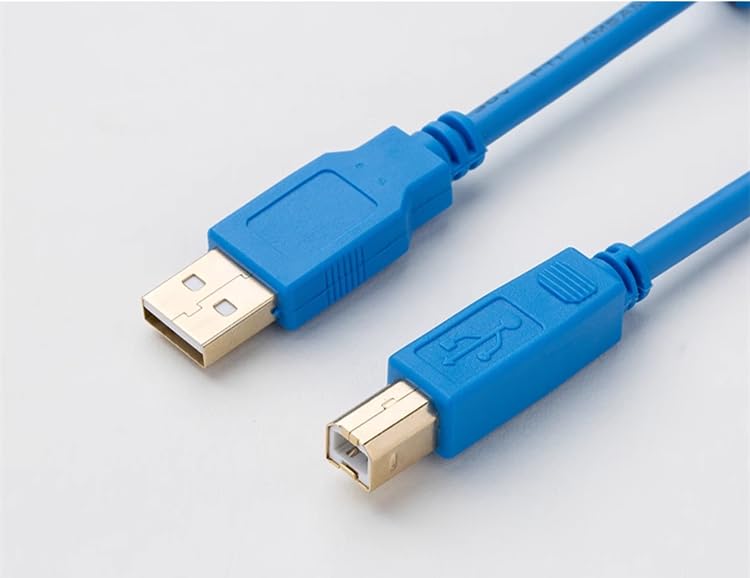
Figure 2.1: Overview of the USB-Square PLC Programming Cable, showing USB-A and USB-B connectors.
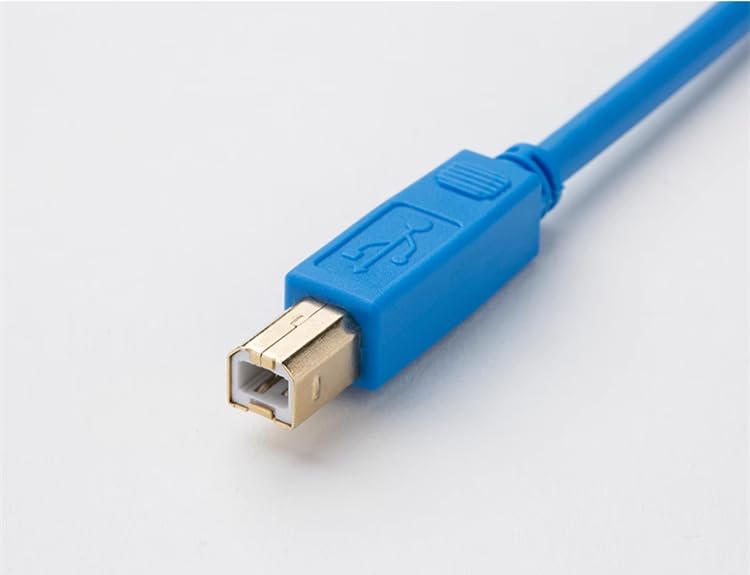
Figure 2.2: Close-up of the gold-plated USB-B (Square Type) connector.
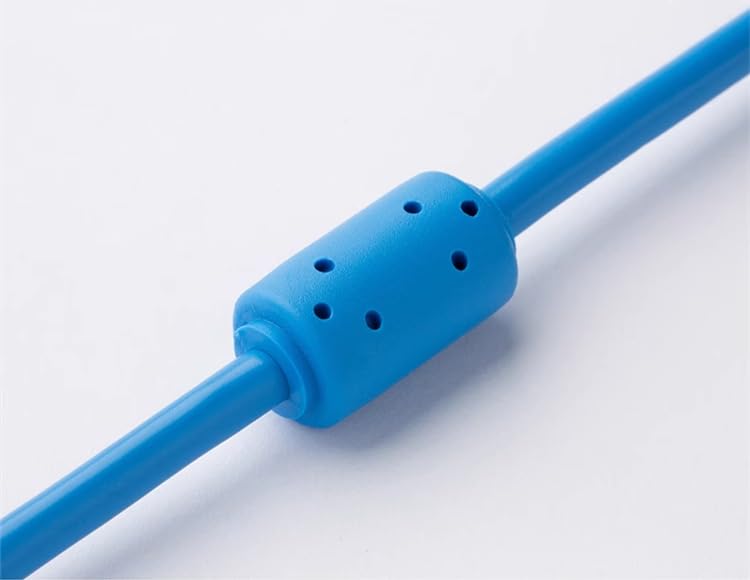
Figure 2.3: Ferrite bead on the cable for interference reduction.
3. Setup Instructions
- Identify Connectors: Locate the standard USB-A connector (rectangular) and the USB-B (square type) connector on the cable.
- Connect to Computer: Insert the USB-A connector into an available USB port on your computer.
- Connect to Device: Insert the USB-B (square type) connector into the corresponding port on your PLC or display touch panel. Ensure a firm connection.
- Driver Installation: Your operating system may automatically install necessary drivers. If not, you may need to obtain and install specific drivers from the PLC or device manufacturer's website. Refer to your PLC/device documentation for driver requirements.
4. Operating Instructions
Once the cable is physically connected and any required drivers are installed, the cable acts as a data link between your computer and the target device (PLC or display touch panel).
- Software Usage: Use the programming software or communication utility provided by your PLC or display touch panel manufacturer to initiate data transfer, programming, or monitoring.
- Port Selection: Within your software, select the correct COM port or USB device corresponding to the connected cable. This is typically found in the software's communication settings.
- Data Transfer: Follow the specific instructions of your device's software for uploading programs, downloading configurations, or monitoring real-time data.
5. Maintenance
Proper care will extend the life of your programming cable.
- Storage: Store the cable in a clean, dry environment away from extreme temperatures and direct sunlight. Avoid tightly coiling or kinking the cable.
- Cleaning: Use a soft, dry cloth to clean the cable and connectors. Do not use liquid cleaners or solvents.
- Handling: Always grasp the connector housing when plugging or unplugging the cable. Avoid pulling directly on the cable itself.
6. Troubleshooting
If you encounter issues with your programming cable, consider the following:
- Cable Not Recognized:
- Ensure both ends of the cable are securely connected.
- Try a different USB port on your computer.
- Verify that the necessary drivers are installed correctly. Check your computer's Device Manager.
- Restart your computer and the connected device.
- Communication Errors:
- Confirm that the correct COM port or USB device is selected in your programming software.
- Check the communication settings (e.g., baud rate, parity, data bits, stop bits) in your software to match the device's requirements.
- Ensure the PLC or device is powered on and in a communication-ready state.
- Inspect the cable for any visible damage.
- Intermittent Connection:
- Avoid placing the cable near strong electromagnetic interference sources.
- Ensure the cable is not excessively bent or strained.
7. Specifications
| Feature | Specification |
|---|---|
| Model | USB-Square |
| Brand | Ning Xiang |
| Cable Type | USB |
| Connector Type (Computer Side) | USB-A |
| Connector Type (Device Side) | USB-B (Square Type) |
| Interface | Gold-plated |
| Cable Length | 3 meters |
| UPC | 701063543120 |
| ASIN | B0CDPRRFBJ |
8. Warranty and Support
For specific warranty information and customer support, please refer to the retailer where the product was purchased or visit the official Ning Xiang website. Keep your purchase receipt as proof of purchase.


