
MAGIC-REFINER M71
MAGIC-REFINER M71 75% CNC Aluminum Alloy Custom Wireless Gaming Keyboard User Manual
Model: M71
Introduction
Thank you for choosing the MAGIC-REFINER M71 75% CNC Aluminum Alloy Custom Wireless Gaming Keyboard. This manual provides detailed instructions for setting up, operating, and maintaining your new keyboard. Please read this manual thoroughly before use to ensure optimal performance and longevity of your device.

Image: The MAGIC-REFINER M71 keyboard in blue, showcasing its compact 75% layout and aluminum alloy construction.
Product Features
- 75% Layout (71 Keys): A compact design that saves desk space while retaining essential keys.
- CNC Aluminum Alloy Body: Constructed from national standard 6063 aluminum alloy for durability, corrosion resistance, and a premium feel. Weighs approximately 2.9 pounds.
- Triple Mode Wireless Connectivity: Supports Bluetooth 5.0, 2.4G wireless, and wired USB-C connections. Easily switch between up to 3 different wireless devices.
- Gasket Structure & Poron Foam: Features a gasket-mounted design with 3 layers of Poron foam, anti-static IXPE under-axis pad, and PET sound-optimized pads for a quieter, softer, and more cushioned typing experience.
- Hot-Swappable TTC Socket: Allows for easy replacement of 3-pin or 5-pin mechanical switches without soldering. Compatible with most major switch brands (Cherry MX, Kailh, Gateron, Akko, Glorious, etc.). Comes with customized linear white switches.
- Dynamic RGB Backlighting: 16.8 million customizable chroma backlight effects with double-sided RGB lighting. Custom software available for personalized lighting and macros.
- High-Quality PBT Keycaps: Durable, wear-resistant, and heat-resistant PBT keycaps provide clear, uniform backlighting and a comfortable typing surface.
- 4600mAh Large Battery: High-capacity rechargeable battery provides up to 15 days of continuous use in low-power wireless mode. Compatible with Windows and Mac systems.

Image: An overview of the M71 keyboard highlighting its key features such as all-aluminum alloy body, CNC machining, three modes connection, appearance anodizing, gasket structure, 4600mAh battery, RGB backlight, and satellite switch.
Package Contents
Please check the package for the following items:
- MAGIC-REFINER M71 Keyboard (Blue)
- USB-C Cable
- Keycap Puller
- Switch Puller
- Additional Keycaps (as specified by manufacturer)
- User Manual (this document)
Setup
Connectivity Modes
The M71 keyboard supports three connection modes: Wired, 2.4G Wireless, and Bluetooth.

Image: Diagram illustrating the three connection modes: Bluetooth, 2.4GHz Wireless, and Type-C Wired, with connection points on the keyboard.
1. Wired Mode (USB-C)
- Connect the included USB-C cable to the keyboard's USB-C port.
- Connect the other end of the USB-C cable to an available USB port on your computer.
- The keyboard will automatically be recognized and ready for use.
2. 2.4G Wireless Mode
- Locate the 2.4G USB receiver, usually stored in a compartment on the keyboard.
- Plug the 2.4G USB receiver into an available USB port on your computer.
- Switch the keyboard's mode selector to 2.4G mode. The keyboard should connect automatically.
3. Bluetooth Mode
- Switch the keyboard's mode selector to Bluetooth mode.
- On your computer or device, open Bluetooth settings and search for new devices.
- Select "MAGIC-REFINER M71" (or similar name) from the list of available devices to pair.
- The keyboard can store up to 3 Bluetooth profiles, allowing quick switching between devices. Refer to the keyboard's function key combinations for switching between paired Bluetooth devices (e.g., Fn + 1/2/3).
Operating Instructions
Function Keys and Shortcuts
The M71 keyboard utilizes the Fn key for various shortcuts and multimedia controls. Specific combinations may vary slightly, but common functions include:
- Fn + F1-F12: Multimedia controls (Play/Pause, Volume Up/Down, Mute, etc.)
- Fn + 1/2/3: Switch between Bluetooth paired devices.
- Fn + Backlight Key: Change RGB lighting modes.
- Fn + Arrow Keys: Adjust backlight brightness and speed.
- Fn + Alt(R): Check battery level in wireless mode.
- Fn + Enter: (If numbers are not working, as per user review) This combination might reset or enable certain functions.
RGB Backlighting
The keyboard features dynamic RGB backlighting with multiple effects. Use the designated function key combinations (e.g., Fn + specific key) to cycle through lighting modes, adjust brightness, and change animation speed. Custom software is available for more advanced customization, including per-key lighting and macro creation.
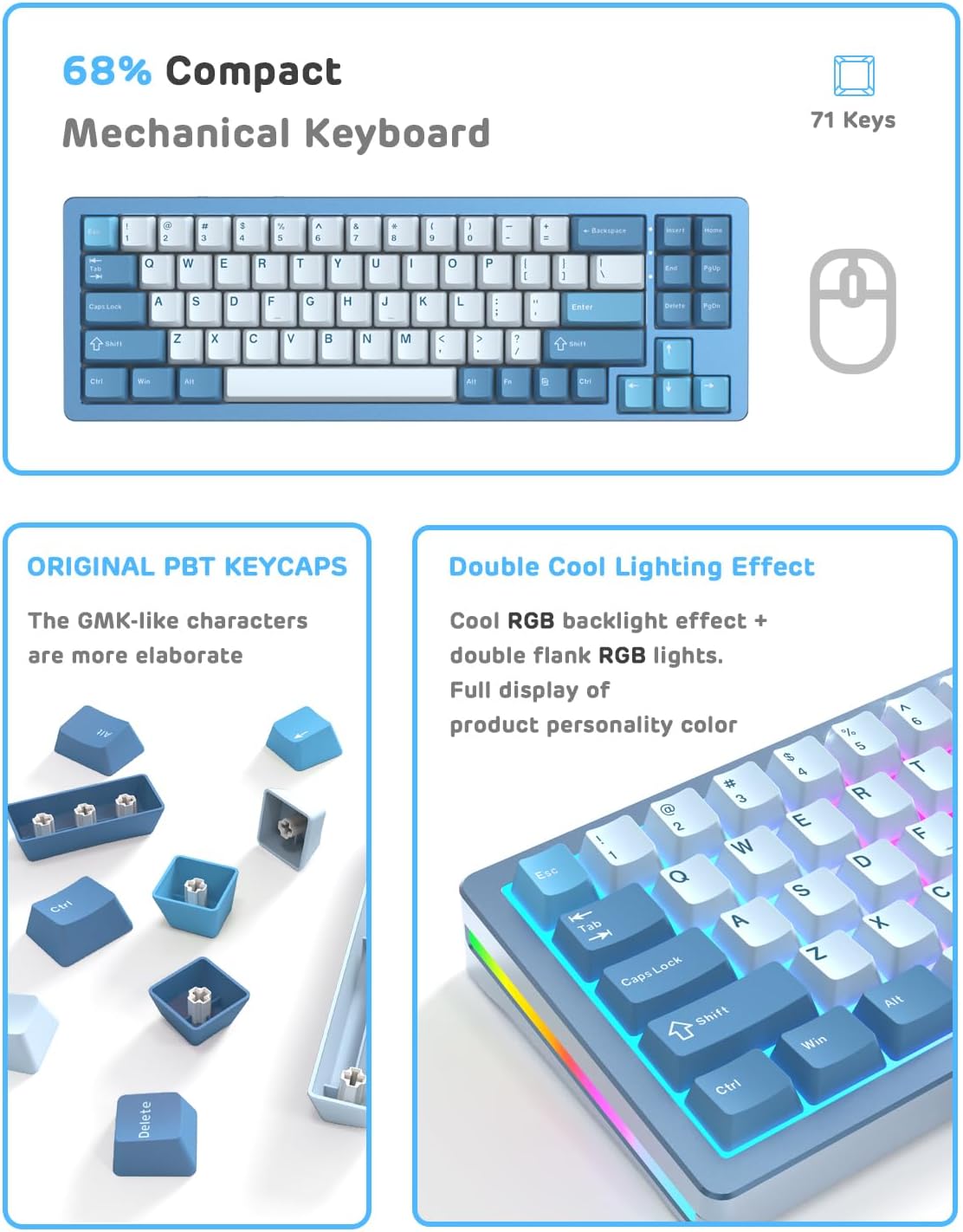
Image: The M71 keyboard showcasing its RGB lighting effects along the sides and under the keys, with a close-up of the PBT keycaps.
Battery Management
The M71 keyboard is equipped with a 4600mAh battery. To check the battery level in wireless mode, press Fn + Alt(R). The keyboard's indicator lights or specific key backlights will show the approximate charge level (e.g., 10%-100%).

Image: A visual guide demonstrating how to check the battery level by pressing Fn + Alt(R), with indicators showing battery percentages from 25% to 100%.
When the battery is low, the keyboard's indicators will signal the need for charging. Connect the USB-C cable to charge the keyboard. The keyboard can be used while charging.
Maintenance
Cleaning the Keyboard
- Disconnect the keyboard from your computer before cleaning.
- Use a soft, lint-free cloth slightly dampened with water or a mild cleaning solution to wipe the keycaps and chassis.
- For dust and debris between keys, use compressed air.
- Avoid using harsh chemicals, abrasive cleaners, or excessive moisture.
Replacing Switches and Keycaps
The M71 keyboard is hot-swappable, allowing you to change switches and keycaps easily.

Image: A close-up view of the M71 keyboard's hot-swappable sockets with switches removed, showing the White Jade linear switches and satellite switches.
- Keycap Removal: Use the included keycap puller to gently pull keycaps straight up.
- Switch Removal: Use the included switch puller to grasp the switch firmly and pull it straight up. Ensure the switch is fully disengaged from the PCB.
- Switch Installation: Align the pins of the new switch with the holes on the PCB. Gently push the switch down until it clicks into place. Do not force it to avoid bending pins.
- Keycap Installation: Align the keycap with the switch stem and press down firmly until it is seated.
Troubleshooting
| Problem | Possible Solution |
|---|---|
| Keyboard not responding in wireless mode. |
|
| RGB lighting not working or stuck. |
|
| Certain keys not registering. |
|
| Keyboard disconnects frequently. |
|
Specifications
| Feature | Detail |
|---|---|
| Model | M71 |
| Keyboard Layout | 75% (71 Keys) |
| Connectivity | Bluetooth 5.0, 2.4G Wireless, USB-C Wired |
| Keyboard Material | National standard 6063 Aluminum Alloy |
| Switch Type | Hot-swappable TTC Socket (compatible with 3/5-pin switches), Customized Linear White Switches included |
| Keycap Material | PBT |
| Backlighting | RGB (16.8 million colors, customizable effects) |
| Battery Capacity | 4600mAh |
| Battery Life (Wireless) | Up to 15 days (low-power mode) |
| Product Dimensions | 13.8 x 4.5 x 1.18 inches (35.05 x 11.43 x 2.99 cm) |
| Item Weight | 2.9 pounds (1.3 kg) |
| Compatible Systems | PC (Windows, Mac) |
Warranty and Support
For warranty information and technical support, please refer to the official MAGIC-REFINER website or contact their customer service directly. Keep your purchase receipt for warranty claims.
Manufacturer: MAGIC-REFINER
ASIN: B0CDPMVZKQ
Date First Available: August 4, 2023
Ask a question about this manual
Ask about setup, troubleshooting, compatibility, parts, safety, or missing instructions. Manuals+ will review the question and use this page’s manual context to help answer it.