
Philips 55OLED807/98
Philips 55OLED807/98 OLED 4K UHD Android TV User Manual
Model: 55OLED807/98
1. Important Safety Information
Before operating your television, please read all safety instructions carefully. Keep this manual for future reference.
- Power Source: Connect the TV only to the specified power supply.
- Ventilation: Ensure adequate ventilation around the TV. Do not block ventilation openings.
- Water and Moisture: Do not expose the TV to rain or moisture. Do not place objects filled with liquids on the TV.
- Cleaning: Unplug the TV before cleaning. Use a soft, dry cloth. Avoid liquid cleaners.
- Servicing: Do not attempt to service the TV yourself. Refer all servicing to qualified service personnel.
2. Setup
2.1 Unpacking
Carefully remove the TV and all accessories from the packaging. Retain the packaging materials for potential future transport or servicing.
2.2 Stand Installation
The Philips 55OLED807/98 includes a table top stand for stable placement. Follow these steps to attach the stand:
- Place the TV face down on a soft, flat surface to prevent screen damage.
- Align the stand with the mounting holes on the bottom of the TV.
- Secure the stand using the provided screws. Ensure all screws are tightened firmly.
Alternatively, the TV supports VESA wall mounting. Refer to a qualified installer for wall mount installation.
2.3 Connecting Peripherals
Connect your external devices to the TV using the appropriate ports. Refer to the image below for port locations.

Figure 2.3.1: Rear panel of the Philips 55OLED807/98 TV, displaying HDMI, USB, Ethernet, and other connectivity ports for external devices.
- HDMI: For high-definition audio and video devices like Blu-ray players, game consoles, and set-top boxes. The TV features multiple HDMI ports.
- USB: For connecting USB storage devices to play media files or for service updates. The TV has 3 USB ports.
- Ethernet (LAN): For a wired internet connection.
- Antenna/Cable: For connecting an antenna or cable TV signal.
- Audio Output: Digital audio output for connecting to sound systems.
The TV also supports wireless connectivity via Wi-Fi and Bluetooth for network access and connecting compatible accessories.
2.4 Power Connection
After connecting all necessary peripherals, plug the power cord into the TV's power inlet and then into a wall outlet. The TV is now ready for initial setup.
3. Operating the TV
3.1 Remote Control
The TV comes with a remote control for easy navigation and control. Insert the two AAA batteries (included) into the remote control, ensuring correct polarity.

Figure 3.1.1: The Philips TV remote control, featuring dedicated buttons for power, volume, channel selection, input source, and quick access to streaming services like Netflix and YouTube.
- Power Button: Turns the TV on or off.
- Volume +/-: Adjusts the sound level.
- Channel +/-: Changes TV channels.
- Navigation Buttons: Used to move through menus and select options.
- Source Button: Selects input sources (HDMI, USB, etc.).
- Smart App Buttons: Direct access to popular streaming services.
3.2 Initial Setup and Android TV
Upon first power-on, the TV will guide you through the initial setup process. This includes selecting your language, connecting to a Wi-Fi network, and signing in with your Google account to access Android TV features.
3.3 Ambilight Feature
The Philips 55OLED807/98 features 4-sided Ambilight. LED lights on all four sides of the TV project colors onto the wall behind, dynamically matching the on-screen content or music. This enhances the viewing experience by creating an immersive glow. You can customize Ambilight settings in the TV menu.
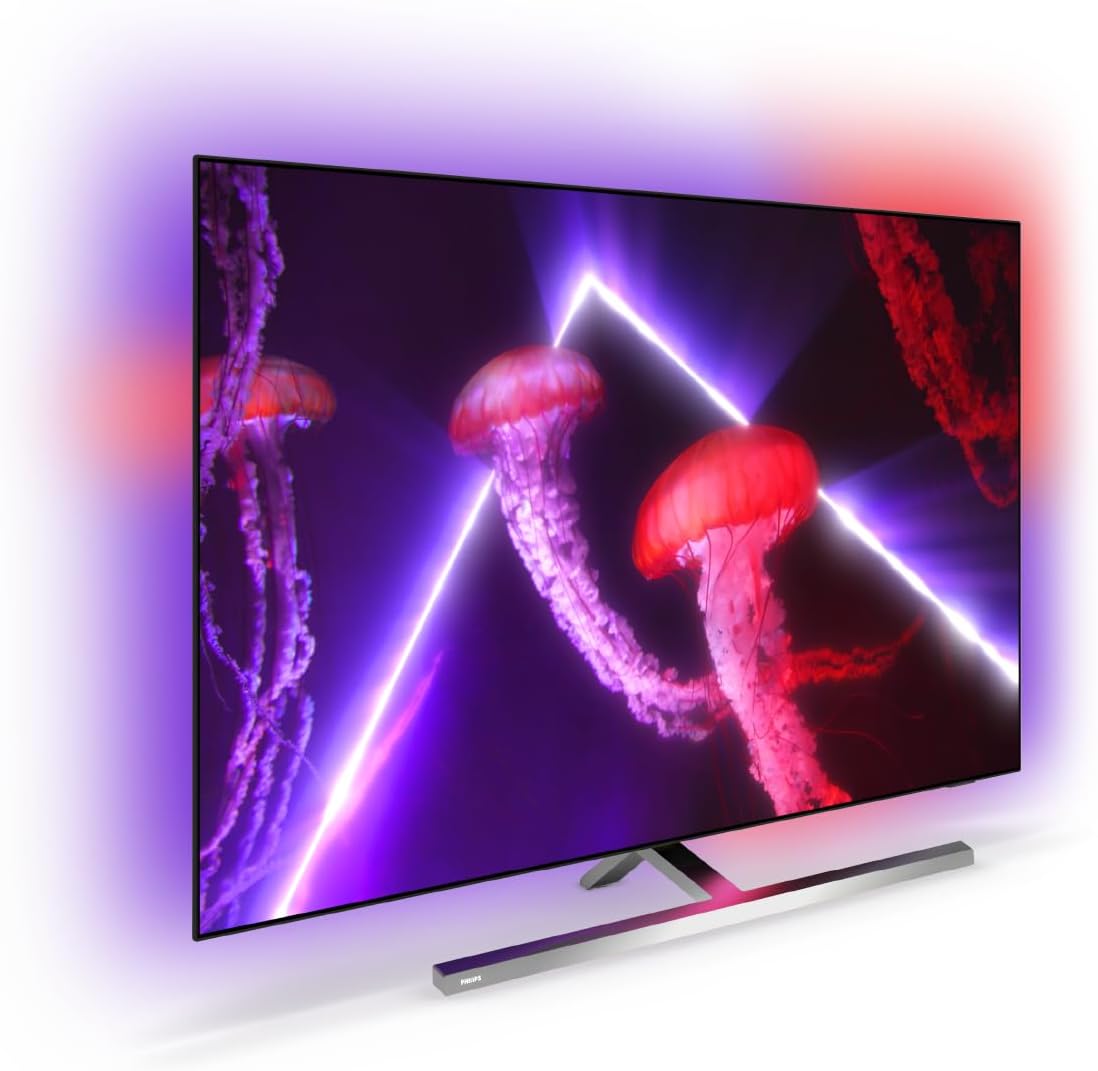
Figure 3.3.1: The Philips 55OLED807/98 OLED TV showcasing its 4-sided Ambilight feature, which projects dynamic colors onto the surrounding wall, enhancing immersion.
3.4 Picture and Sound Settings
Access the TV settings menu to adjust picture and sound preferences.
- P5 AI Perfect Picture Engine: This advanced processor optimizes picture quality for lifelike detail, contrast, color, and motion.
- Dolby Vision: Provides enhanced HDR (High Dynamic Range) for superior brightness, contrast, and color accuracy in compatible content.
- Dolby Atmos: Delivers immersive, multi-dimensional audio that flows around you.
3.5 Gaming Features
The TV is optimized for gaming with features designed to provide a smooth and responsive experience:
- 120Hz Refresh Rate: Ensures smooth motion for fast-paced games.
- Ultra-low Latency: Minimizes input lag for responsive gameplay.
- G-sync, VRR, Freesync: Support for Variable Refresh Rate technologies to prevent screen tearing and stuttering.
3.6 Voice Control
The TV supports voice control through the Google Assistant and works with Alexa. Use your voice to search for content, control playback, adjust settings, and more.
4. Maintenance
4.1 Cleaning the TV
- Always unplug the TV before cleaning.
- Use a soft, lint-free cloth to gently wipe the screen and TV body.
- For stubborn marks, lightly dampen the cloth with water or a specialized screen cleaner (ensure it's safe for OLED screens) and wipe gently. Do not spray liquids directly onto the TV.
- Avoid using abrasive cleaners, alcohol, or benzene, as these can damage the TV's finish.
4.2 Software Updates
Ensure your TV's software is up to date for optimal performance and access to the latest features. The TV can typically update automatically when connected to the internet, or you can manually check for updates in the settings menu.
5. Troubleshooting
If you encounter issues with your TV, refer to the following common troubleshooting steps:
- No Power: Ensure the power cord is securely plugged into both the TV and the wall outlet. Try a different outlet.
- No Picture/Sound: Check the input source. Ensure all cables (HDMI, antenna) are correctly connected. Restart connected devices.
- Remote Control Not Working: Check the batteries and ensure they are inserted correctly. Point the remote directly at the TV's IR sensor.
- Network Connection Issues: Verify your Wi-Fi password. Restart your router. If using a wired connection, ensure the Ethernet cable is properly connected.
- Picture Quality Issues: Adjust picture settings (brightness, contrast, color). Ensure the content source is high quality.
If the problem persists, consult the Philips support website or contact customer service.
6. Specifications
Key technical specifications for the Philips 55OLED807/98 OLED 4K UHD Android TV:
| Feature | Specification |
|---|---|
| Brand | Philips |
| Model | 55OLED807/98 |
| Display Technology | OLED |
| Screen Size | 55 Inches (139 cm) |
| Resolution | 3840 x 2160 Pixels (4K UHD) |
| Refresh Rate | 120 Hz |
| Aspect Ratio | 16:9 |
| Processor | P5 AI Perfect Picture Engine |
| Ambilight | 4-sided Ambilight |
| HDR Support | Dolby Vision, Major HDR formats |
| Audio Technology | Dolby Atmos, DTS Play-Fi |
| Operating System | Android TV |
| Voice Control | Google Assistant, Works with Alexa |
| Connectivity | Bluetooth, Ethernet, HDMI (multiple), USB (3 total), Wi-Fi |
| Gaming Features | Ultra-low latency, 120Hz, G-sync, VRR, Freesync |
| Mounting Type | Table Mount (stand included), VESA Wall Mount compatible |
| Dimensions (Product) | 23.6D x 122.5W x 77.1H cm |
| Package Dimensions | 140 x 86 x 16 cm |
| Weight (Package) | 27 kg |
| Included Components | TV, 2 x AAA Batteries, Legal and safety brochure, Power cord, Quick start guide, Remote Control, Table top stand |
6.1 Energy Efficiency
The Philips 55OLED807/98 TV is designed with energy efficiency in mind. Refer to the energy label for details:

Figure 6.1.1: Energy Efficiency Rating for the Philips 55OLED807/98 OLED Television. It indicates a 'Good' rating with an estimated annual energy cost of $61 and consumption of 227 kWh, based on 27¢/kWh and 5 hours daily usage.
7. Warranty and Support
For warranty information, please refer to the warranty card or legal and safety brochure included with your product. Philips provides customer support for technical assistance and service inquiries.
- Online Support: Visit the official Philips support website for FAQs, software downloads, and contact information.
- Customer Service: Contact Philips customer service for direct assistance.
Ask a question about this manual
Ask about setup, troubleshooting, compatibility, parts, safety, or missing instructions. Manuals+ will review the question and use this page’s manual context to help answer it.