
1. Introduction
This manual provides essential information for the proper use and care of your Sekonda Connect Smart Watch 40mm, Model 406-23. Please read these instructions carefully before using your device to ensure optimal performance and longevity.
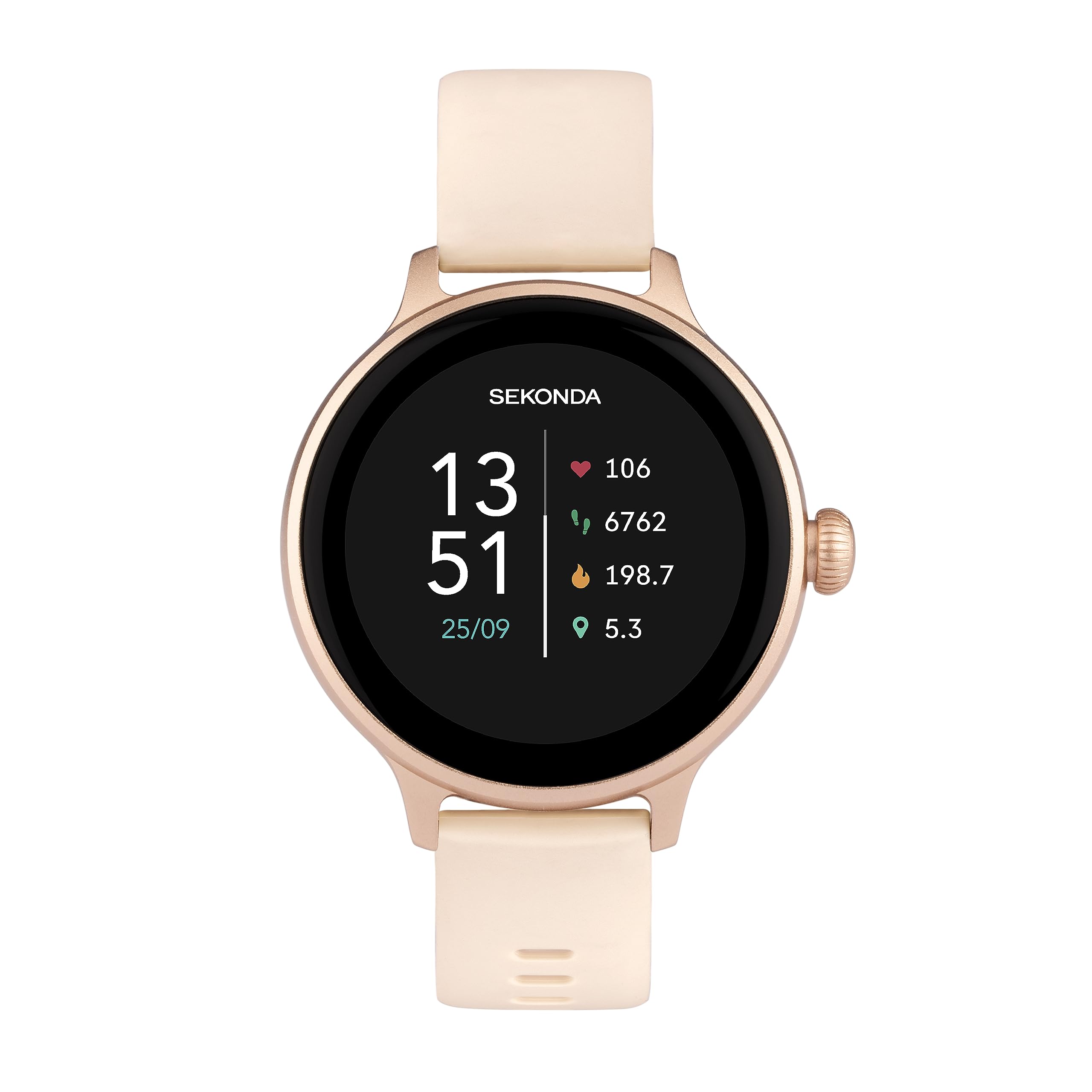
Image: Front view of the Sekonda Connect Smart Watch, showing the digital display with time, heart rate, steps, calories, and distance.
The Sekonda Connect Smart Watch is designed to assist you in monitoring your daily activities, health metrics, and staying connected. It features a 1.1-inch AMOLED display, various sports modes, health tracking capabilities, and smart notifications.
2. Setup
2.1 Unboxing and Initial Charge
Upon opening the package, ensure all components are present:
- Sekonda Connect Smart Watch
- Standard USB Connect charging cable with magnetic connection
Before first use, fully charge your smartwatch. Connect the magnetic charging cable to the charging points on the back of the watch and plug the USB end into a compatible power source. A full charge typically takes approximately 2 hours.
2.2 App Download and Pairing
To unlock the full functionality of your Sekonda Connect Smart Watch, you must download and pair it with the HitFit Pro application on your smartphone.
- Search for "HitFit Pro" in your smartphone's app store (Apple App Store for iOS or Google Play Store for Android).
- Alternatively, scan the QR code provided in the watch's packaging to directly access the app download page.
- Install the "HitFit Pro" app.
- Ensure your smartphone's Bluetooth is enabled.
- Open the HitFit Pro app and follow the on-screen instructions to create an account and pair your Sekonda Connect Smart Watch. The watch is compatible with Android version 7.0 and Apple iOS version 12.0 and above.

Image: A smartphone screen showing the prompt to download the Sekonda Smart App, with icons for the Apple App Store and Google Play Store.
3. Operating the Watch
3.1 Basic Navigation
The Sekonda Connect Smart Watch features a fully interactive 1.1-inch AMOLED display and a side crown for navigation.
- Swipe Up/Down: Scroll through menus and notifications.
- Swipe Left/Right: Access quick-view widgets such as activity data, heart rate, and weather.
- Tap: Select an item or confirm an action.
- Press Side Crown: Return to the home screen or wake the display.

Image: A hand with painted nails gently touching the screen of the Sekonda Connect Smart Watch, demonstrating interaction with the display.
3.2 Customizing the Display
Personalize your watch face through the HitFit Pro app:
- Choose from over 100 preset designs available for download.
- Add your own image to the dial for a personalized look.
- Enable or disable the 'always on' display feature via settings.
- Set a password lock for enhanced security.
3.3 Smart Notifications and Calls
Once paired with your smartphone, the watch can display message notifications and allow you to manage calls:
- Receive alerts for incoming messages and app notifications directly on your wrist.
- Make and receive calls from your smartwatch.
- Set up to 10 frequently used contacts for quick dialing.
3.4 Music Control and Weather
Control music playback on your smartphone and view weather forecasts directly from your watch:
- Skip, play, and pause music tracks.
- View current weather conditions and forecasts.
4. Features Overview
4.1 Daily Activity and Sports Functions
The watch tracks your daily movement and supports various sports activities:
- Activity Tracking: Counts steps, distance covered, and calories burned.
- Sports Modes: Features 14 sports modes including walking, running, Pilates, cycling, dance, rowing, and tennis.

Image: Close-up of the smartwatch display, highlighting heart rate (106 bpm), steps (6762), and calories burned (198.7).
4.2 Health Monitoring
Monitor key health metrics directly from your wrist:
- Heart Rate Monitor: Tracks your heart rate throughout the day.
- Blood Oxygen Monitor: Measures your blood oxygen levels.
- Sleep Monitor: Analyzes your sleep patterns and quality.
4.3 Reminders and Tools
The watch includes various reminders and utility tools:
- Reminders: Sedentary, hydration, and female care reminders.
- Tools: Calendar, calculator, alarm, stopwatch, timer, and guided breathing exercises.
- Languages: Supports 17 different languages.
5. Maintenance
5.1 Cleaning Your Smart Watch
To maintain the appearance and functionality of your watch:
- Wipe the screen and strap regularly with a soft, damp cloth.
- Avoid using harsh chemicals or abrasive materials.
- Ensure the charging contacts are clean and dry before charging.
5.2 Water Resistance (IP67)
The Sekonda Connect Smart Watch has an IP67 water resistance rating. This means it is protected against dust ingress and can withstand immersion in water up to 1 meter for up to 30 minutes. It is suitable for everyday use and activities like hand washing or light rain. However, it is not recommended for swimming, showering, or diving, as prolonged exposure to water pressure or hot water may compromise its seals.
5.3 Battery Care
The watch features a Lithium Polymer battery with a life of up to 10 days, depending on usage. To prolong battery life:
- Avoid extreme temperatures.
- Charge the watch before the battery is completely depleted.
- Use only the provided magnetic charging cable.
5.4 Strap Care
The pink silicone strap is designed for comfort and durability. To clean, wipe with a damp cloth. If you wish to change the strap, gently detach it from the watch body. Refer to the image below for the side view of the watch, which may assist in understanding strap attachment points.

Image: Side view of the Sekonda Connect Smart Watch, highlighting the rotating crown and the connection point for the silicone strap.
6. Troubleshooting
If you encounter issues with your Sekonda Connect Smart Watch, refer to the following common solutions:
- Watch not turning on: Ensure the watch is fully charged. Connect it to the charging cable and a power source for at least 30 minutes.
- Unable to pair with phone: Check that Bluetooth is enabled on your phone and the watch. Ensure the HitFit Pro app is open and attempting to connect. Restart both your phone and the watch.
- Notifications not appearing: Verify that notification permissions are granted to the HitFit Pro app in your phone's settings. Also, check the app's settings to ensure notifications are enabled for desired applications.
- Inaccurate activity data: Ensure the watch is worn snugly on your wrist. Calibrate your personal information (height, weight, age) in the HitFit Pro app for more accurate readings.
- Weather not updating: Confirm that the HitFit Pro app has location permissions enabled on your phone and that your phone has an active internet connection.
- Charging issues: Ensure the magnetic charging cable is securely attached to the watch's charging points and that the USB port is functional. Clean the charging contacts on both the watch and the cable.
For persistent issues, consult the support section of the HitFit Pro app or contact Sekonda customer support.
7. Specifications
| Feature | Detail |
|---|---|
| Model Name | Connect Smart Watch |
| Item Model Number | 406-23 |
| Brand | Sekonda |
| Screen Size | 40 Millimetres (1.1 inch AMOLED) |
| Shape | Round |
| Battery Type | 1 Lithium Polymer (included) |
| Battery Life | Up to 10 days |
| Connectivity Technology | USB, Bluetooth |
| Wireless Communication Standard | Bluetooth |
| GPS | No GPS |
| Water Resistance Rating | IP67 |
| Operating System Compatibility | Android 7.0+, Apple iOS 12.0+ |
| Special Features | Calendaring, Calorie Track, Notifications, Heart Rate Monitor, Blood Oxygen Monitor, Sleep Monitor |
| Package Dimensions | 18.9 x 7.5 x 2.9 cm; 110 g |
| Manufacturer | Sekonda |
8. Warranty and Support
8.1 Warranty Information
Your Sekonda Connect Smart Watch comes with a 2-year guarantee from the date of purchase. This warranty covers manufacturing defects under normal use. Please retain your proof of purchase for any warranty claims.
8.2 Customer Support
For further assistance, technical support, or warranty inquiries, please refer to the support section within the HitFit Pro application or visit the official Sekonda website for contact information.