
1. Introduction
This manual provides instructions for the installation, operation, maintenance, and troubleshooting of the Kyocera DP-7160 Duplex Scanning and Copying Document Processor (DSDP). The DP-7160 is designed to enhance the functionality of compatible Kyocera TASKalfa Multi-Function Printers (MFPs), specifically the TASKalfa 2554ci and TASKalfa 3554ci models, by enabling efficient duplex scanning and copying of documents.
Please read this manual thoroughly before using the document processor to ensure correct and safe operation.
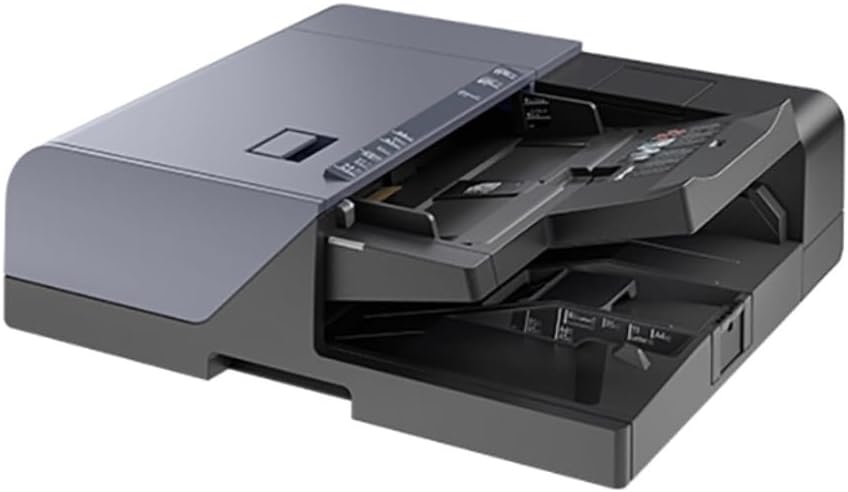
Figure 1: The Kyocera DP-7160 Document Processor. This image shows the top-loading automatic document feeder (ADF) with its input and output trays extended, ready for document processing. The unit is dark gray and black, designed to sit atop a compatible Kyocera TASKalfa MFP.
2. What's in the Box
Upon unpacking, verify that the following items are included:
- Kyocera DP-7160 Document Processor Unit
- Installation Guide (may be separate or integrated)
- Any necessary connection cables or fasteners (refer to installation guide for specifics)
If any items are missing or damaged, please contact your vendor or Kyocera support immediately.
3. Setup and Installation
The Kyocera DP-7160 is an accessory designed to integrate with specific Kyocera TASKalfa MFPs. Installation typically involves placing the unit on top of the main printer and securing it, followed by connecting any required cables.
- Unpack the Unit: Carefully remove the DP-7160 from its packaging. Retain all packaging materials for future transport or service.
- Positioning: Place the DP-7160 securely on the designated area of your compatible Kyocera TASKalfa 2554ci or 3554ci printer. Ensure it is aligned correctly.
- Connections: Connect any necessary data or power cables between the document processor and the main MFP as instructed in the accompanying installation guide.
- Power On: Once securely installed and connected, power on the main MFP. The system should detect the newly installed document processor.
- Driver/Software Configuration: Depending on your operating system and network setup, you may need to update printer drivers or configure settings on the MFP's control panel to recognize and utilize the DP-7160's features. Refer to your main MFP's user manual for detailed software configuration.
Important: Always refer to the detailed installation instructions provided with your specific Kyocera TASKalfa MFP and the DP-7160 for precise steps and safety precautions.
4. Operating Instructions
The DP-7160 facilitates automatic feeding of documents for scanning and copying. All operations are initiated and controlled via the main Kyocera TASKalfa MFP's control panel.
4.1 Loading Documents
- Prepare Documents: Ensure documents are free of staples, paper clips, tears, or wrinkles. Fan the stack to prevent misfeeds.
- Open Document Feeder: Lift the document feeder cover if necessary.
- Load Paper: Place the stack of documents face up into the document feeder tray. The maximum capacity is 320 sheets.
- Adjust Guides: Slide the paper guides to fit the width of your documents snugly, without bending them.
- Supported Paper Sizes: The DP-7160 supports paper sizes from 5.5 x 8.5 inches to 11 x 17 inches (A3).
- Supported Paper Weights:
- Simplex: 13 lb. Bond – 120 lb. Index
- Duplex: 16 lb. Bond – 120 lb. Index
4.2 Performing Duplex Scanning or Copying
- Load Documents: Follow the steps in section 4.1 to load your documents into the feeder.
- Access MFP Control Panel: Go to the control panel of your Kyocera TASKalfa 2554ci or 3554ci.
- Select Function: Choose either "Copy" or "Scan" from the main menu.
- Configure Settings:
- Select "Duplex" or "2-sided" scanning/copying.
- Adjust other settings such as resolution, color mode (color or black), destination (for scanning), and number of copies (for copying).
- Confirm that the paper source is set to the "Document Processor" or "ADF".
- Start Operation: Press the "Start" button on the MFP control panel. The document processor will automatically feed and process the documents.
For detailed instructions on specific scanning or copying features, refer to the user manual of your Kyocera TASKalfa MFP.
5. Maintenance
Regular maintenance ensures optimal performance and extends the lifespan of your DP-7160.
5.1 Cleaning the Document Processor
Dust and paper residue can accumulate on the rollers and scanning glass, affecting scan quality and causing paper jams.
- Power Off: Always turn off the main MFP and disconnect it from the power source before cleaning.
- Clean Rollers: Gently wipe the paper feed rollers with a lint-free cloth lightly dampened with water or a mild, non-abrasive cleaner. Allow to dry completely.
- Clean Scanning Glass: Open the document feeder cover and carefully clean the glass strip(s) with a soft, lint-free cloth and a non-abrasive glass cleaner. Avoid spraying cleaner directly onto the glass; apply it to the cloth first.
- Exterior Cleaning: Wipe the exterior surfaces with a soft, dry cloth.
5.2 Clearing Paper Jams
If a paper jam occurs, the MFP's control panel will typically display an error message and provide instructions. Follow these general steps:
- Power Off: Turn off the main MFP.
- Locate Jam: Open the document feeder cover and any other access panels as indicated by the MFP's display or the DP-7160's design.
- Remove Paper: Carefully pull the jammed paper in the direction of the paper path. Avoid tearing the paper, as small pieces can cause further issues.
- Close Covers: Close all covers and panels securely.
- Power On: Turn the MFP back on.
If jams persist, ensure documents are loaded correctly and are within supported specifications.
6. Troubleshooting
This section addresses common issues you might encounter with the DP-7160.
- Document Processor Not Recognized:
- Ensure the DP-7160 is correctly installed and all connections to the MFP are secure.
- Restart the main MFP.
- Check the MFP's system settings to confirm the document processor is enabled.
- Paper Jams Occur Frequently:
- Verify that documents are loaded correctly and are within the specified paper size and weight limits.
- Clean the paper feed rollers as described in the Maintenance section.
- Ensure documents are not stapled, clipped, or wrinkled.
- Poor Scan/Copy Quality (Streaks, Blurs):
- Clean the scanning glass strip(s) and rollers.
- Check the original documents for marks or dirt.
- Adjust scan/copy settings on the MFP control panel (e.g., resolution, density).
- Documents Not Feeding:
- Ensure documents are loaded correctly and the paper guides are adjusted.
- Check for any obstructions in the paper path.
- Clean the paper feed rollers.
If the issue persists after attempting these troubleshooting steps, contact Kyocera technical support or your service provider.
7. Specifications
| Feature | Detail |
|---|---|
| Type | Duplex Scanning and Copying Document Processor (DSDP) |
| Model Number | DP-7160 |
| Part Number | 1203TC6US0 |
| Compatible Devices | Kyocera TASKalfa 2554ci, TASKalfa 3554ci |
| Paper Capacity | 320 sheets |
| Supported Paper Sizes | 5.5 x 8.5 inches to 11 x 17 inches (A3) |
| Paper Weight (Simplex) | 13 lb. Bond – 120 lb. Index |
| Paper Weight (Duplex) | 16 lb. Bond – 120 lb. Index |
| Product Dimensions (HxWxD) | 7.3 x 21.2 x 23.6 inches |
| Item Weight | 48.5 pounds |
| Dual-sided printing/scanning | Yes (Automatic Duplex) |
8. Warranty and Support
8.1 Warranty Information
The Kyocera DP-7160 Document Processor comes with a limited warranty. Specific terms and conditions of the warranty, including duration and coverage, are provided with the product documentation or can be obtained from your authorized Kyocera dealer or Kyocera's official website. Please retain your proof of purchase for warranty claims.
8.2 Technical Support
For technical assistance, troubleshooting beyond this manual, or service requests, please contact your authorized Kyocera dealer or visit the official Kyocera support website. Have your product model number (DP-7160) and serial number ready when contacting support.
Kyocera Website: www.kyoceradocumentsolutions.com