
1. Product Overview
The Wokyo Portable Mini Projector (Model CA164965161) is a compact and lightweight device designed for displaying media from various sources. Its small form factor allows for easy portability, making it suitable for home cinema, outdoor viewing, or business presentations.
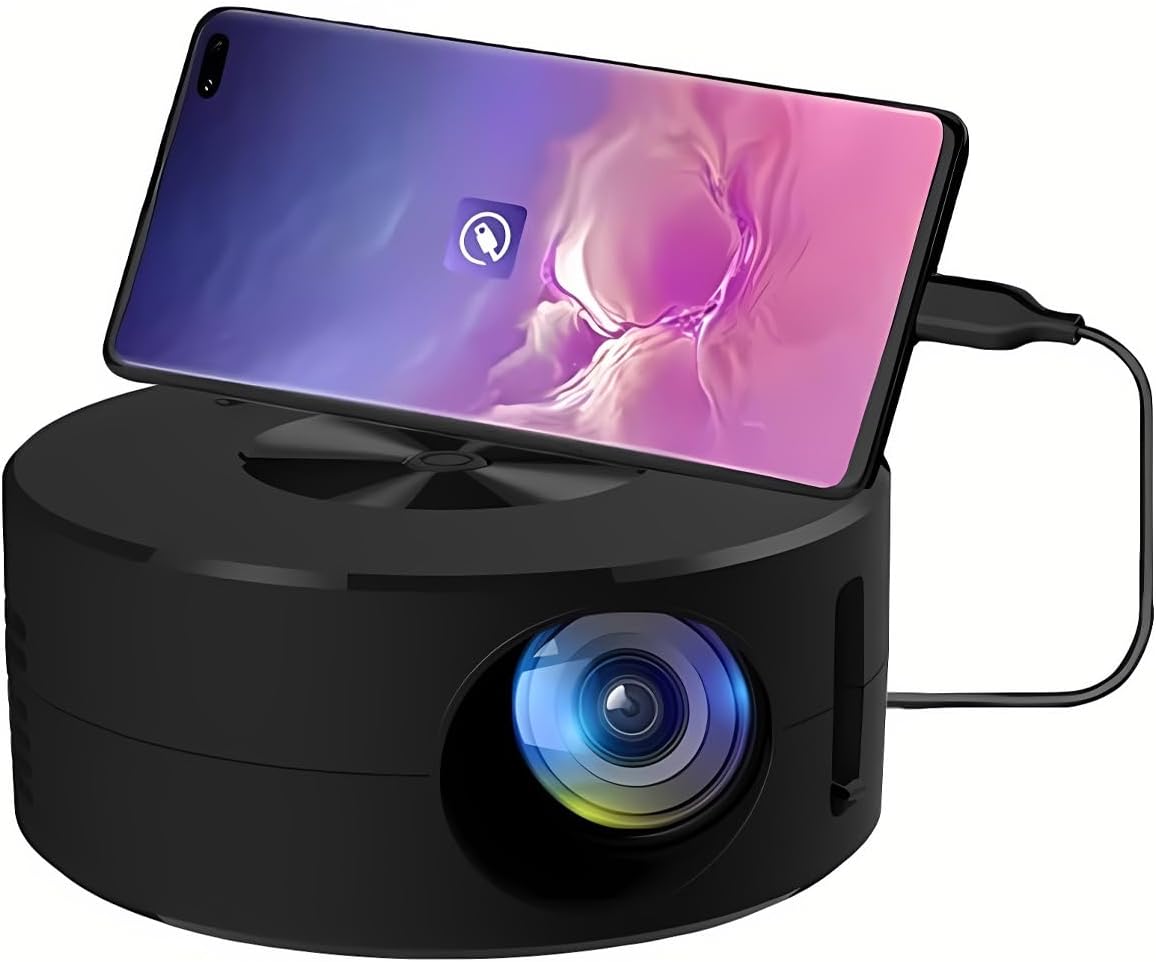
Image 1.1: Front view of the Wokyo Portable Mini Projector.
Key features of this projector include:
- Compact Design: Smaller than a typical smartphone, facilitating easy transport.
- Wired Screen Mirroring: Supports direct connection to mobile phones and tablets using their charging cables for screen display, eliminating the need for additional adapters.
- High Clarity Support: Capable of supporting resolutions up to 1920x1080p, providing clear image quality.
- Durable Construction: Manufactured from environmentally friendly ABS material.
- Efficient Light Source: Utilizes an LCD light source for lower energy consumption and extended lifespan.
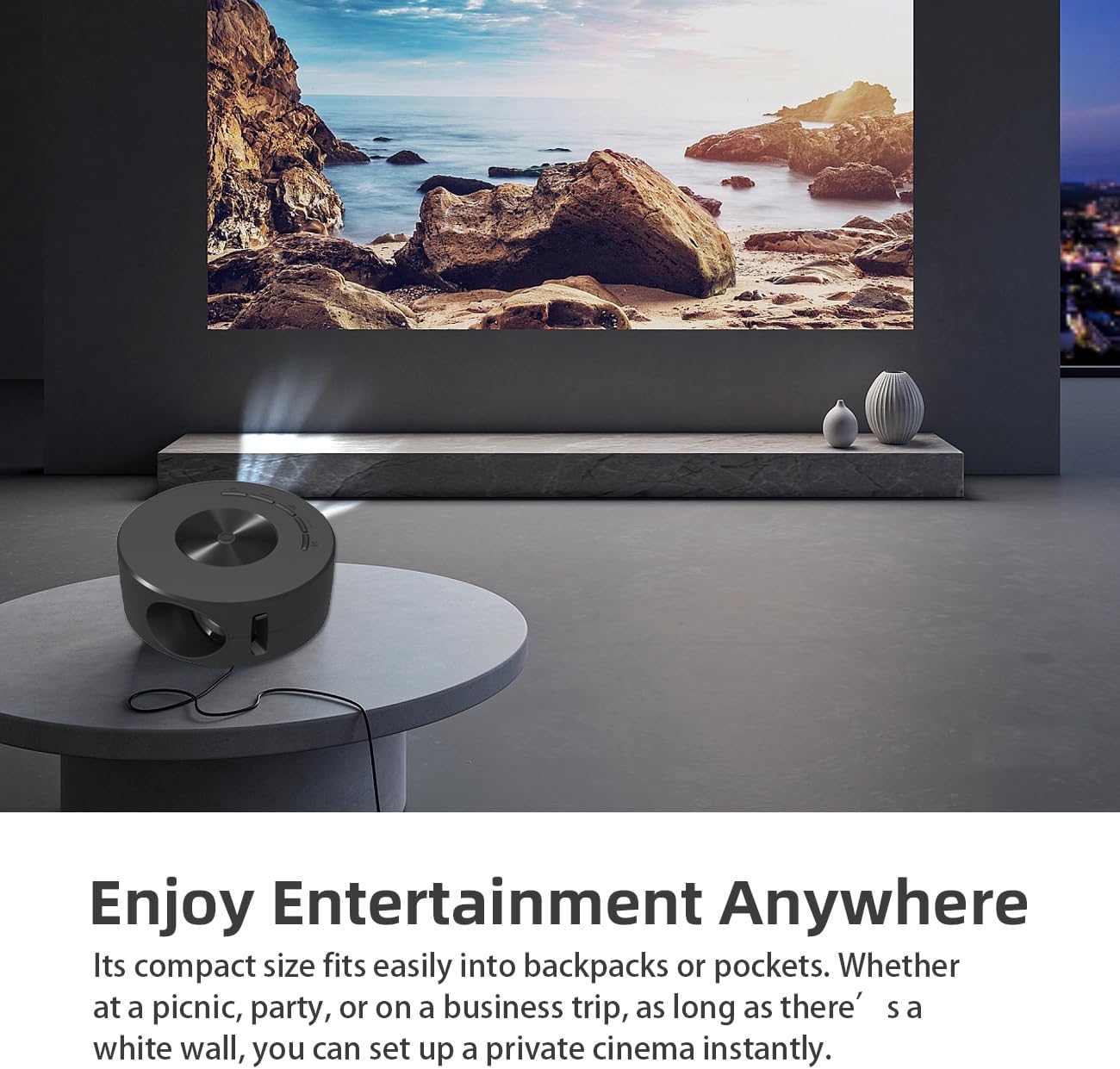
Image 1.2: Projector in use, demonstrating its compact size and projection capability.
2. Package Contents
Verify that all items listed below are included in your product package:

Image 2.1: All items included in the Wokyo Portable Mini Projector package.
- Wokyo Portable Mini Projector
- Remote Control
- USB Cable
- User Manual
- Color Box
- Foam Box
- Parcel Bag
3. Product Dimensions
The projector features a compact design for portability.

Image 3.1: Product dimensions of the Wokyo Portable Mini Projector.
- Diameter: Approximately 4.33 inches (110mm)
- Height: Approximately 1.85 inches (47mm)
- Weight: Approximately 10.6 ounces
4. Initial Setup
4.1 Power Connection
To power the projector, connect it to a suitable power source. The projector requires a 5V 2A power input.

Image 4.1: Power connection options for the projector.
- Ensure your power source (e.g., phone charger, power bank) provides at least 5V 2A output.
- Connect the provided USB cable to the projector's power input port.
- Connect the other end of the USB cable to your chosen power source.
- The projector will power on automatically or can be turned on using the power button.
4.2 Device Connection (Wired Screen Mirroring)
The projector supports wired screen mirroring from mobile phones and tablets using their standard charging cables.
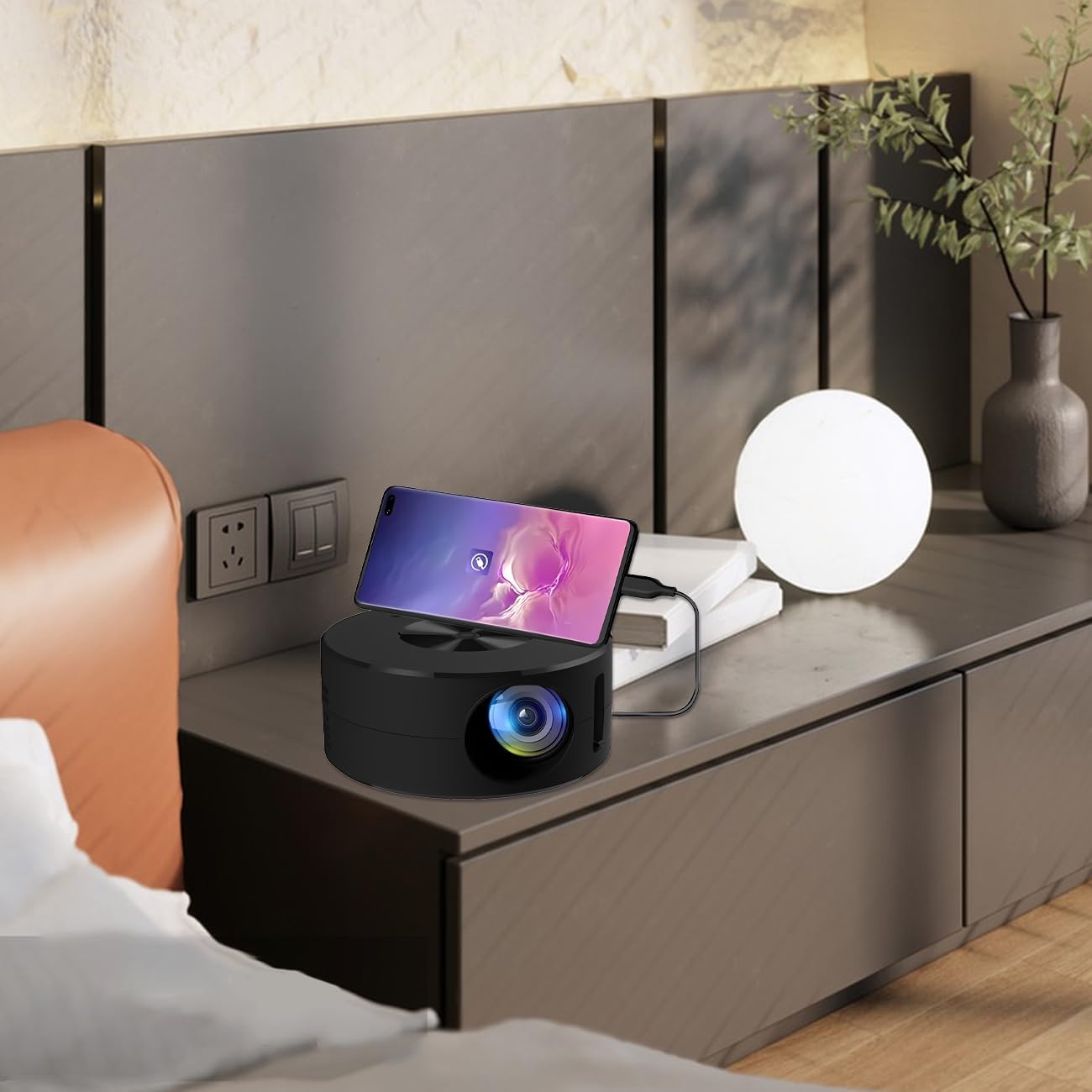
Image 4.2: Smartphone connected to the projector for wired screen mirroring.
- Connect your mobile phone or tablet to the projector using its original charging cable.
- The projector should automatically detect the connection and initiate screen mirroring.
- Follow any on-screen prompts on your device or the projector to confirm the connection.
5. Operating Instructions
5.1 Basic Controls and Ports
Familiarize yourself with the projector's control buttons and input/output ports.

Image 5.1: Overview of projector ports and controls.
- Power Button: Turns the projector on/off.
- Navigation Buttons (Up/Down/Left/Right/OK): Used to navigate menus and confirm selections.
- USB Port: For connecting USB storage devices.
- Headset Port: For connecting external audio devices.
- IR Input: For receiving signals from the remote control.
- 5V 2A Power Input: For connecting the power supply.
- Built-in Stereo Speaker: Provides audio output.
5.2 Adjusting Focus
To achieve a clear image, adjust the focus ring located around the projector lens. Rotate the ring until the projected image appears sharp.
5.3 Using the Remote Control
The included remote control allows for convenient operation of the projector from a distance. Ensure the remote has batteries installed and is pointed towards the projector's IR sensor.
6. Maintenance
Proper maintenance ensures the longevity and optimal performance of your projector.
- Cleaning the Lens: Use a soft, lint-free cloth specifically designed for optical lenses. Avoid abrasive materials or harsh chemicals. Gently wipe the lens to remove dust or smudges.
- Cleaning the Exterior: Wipe the projector's exterior with a soft, dry cloth. Do not use liquid cleaners directly on the device.
- Ventilation: Ensure the projector's ventilation openings are not blocked during operation to prevent overheating.
- Storage: When not in use, store the projector in a cool, dry place away from direct sunlight and excessive dust.
7. Troubleshooting
Refer to the following table for common issues and their solutions.
| Problem | Possible Cause | Solution |
|---|---|---|
| No image projected | Power not connected; Input source not selected; Device not connected properly. | Ensure power is connected (5V 2A). Check device connection. Verify screen mirroring is active on your device. |
| Image is blurry | Focus not adjusted. | Rotate the focus ring around the lens until the image is clear. |
| No sound | Volume too low; External audio device connected; Device audio output settings. | Increase projector volume. Disconnect external audio devices if using internal speaker. Check audio settings on the connected source device. |
| Remote control not working | Batteries low/dead; Obstruction between remote and projector; Remote not pointed at IR sensor. | Replace remote batteries. Ensure clear line of sight to the projector's IR sensor. |
8. Technical Specifications
Detailed specifications for the Wokyo Portable Mini Projector.
| Feature | Specification |
|---|---|
| Brand | Wokyo |
| Model Number | CA164965161 |
| Item Weight | 10.6 ounces |
| Product Dimensions | 4.33 x 4.33 x 1.97 inches |
| Color | Black |
| Special Feature | Portability |
| Connectivity Technology | Bluetooth |
| Display Resolution (Native) | 320 x 180 |
| Display Resolution (Maximum Supported) | 1920 x 1080 |
9. Warranty and Support
For warranty information or technical support, please refer to the contact details provided with your purchase documentation or visit the official Wokyo website. Keep your purchase receipt as proof of purchase for warranty claims.