
IWEGGO CP20 MAX
IWEGGO Android 15 Tablet User Manual
Model: CP20 MAX | Brand: IWEGGO
1. Introduction
This user manual provides detailed instructions for setting up, operating, maintaining, and troubleshooting your IWEGGO Android 15 Tablet. Please read this manual thoroughly before using your device to ensure optimal performance and longevity.
2. What's in the Box
Upon opening your IWEGGO Android 15 Tablet package, you should find the following items:
- 1 x 10.1 inch Tablet
- 1 x Bluetooth Keyboard
- 1 x Wireless Mouse
- 1 x Stylus
- 1 x Protective Case
- 1 x USB-C Cable

Image: The IWEGGO Android 15 Tablet displayed with its accompanying keyboard, mouse, stylus, protective case, and USB-C charging cable.
3. Product Features
The IWEGGO Android 15 Tablet is designed for versatile use, offering a blend of performance and portability.
3.1. Operating System
The tablet runs on the latest Android 15.0 operating system, providing a user-friendly interface and access to a wide range of applications from the Google Play Store, including popular streaming services and social media platforms.
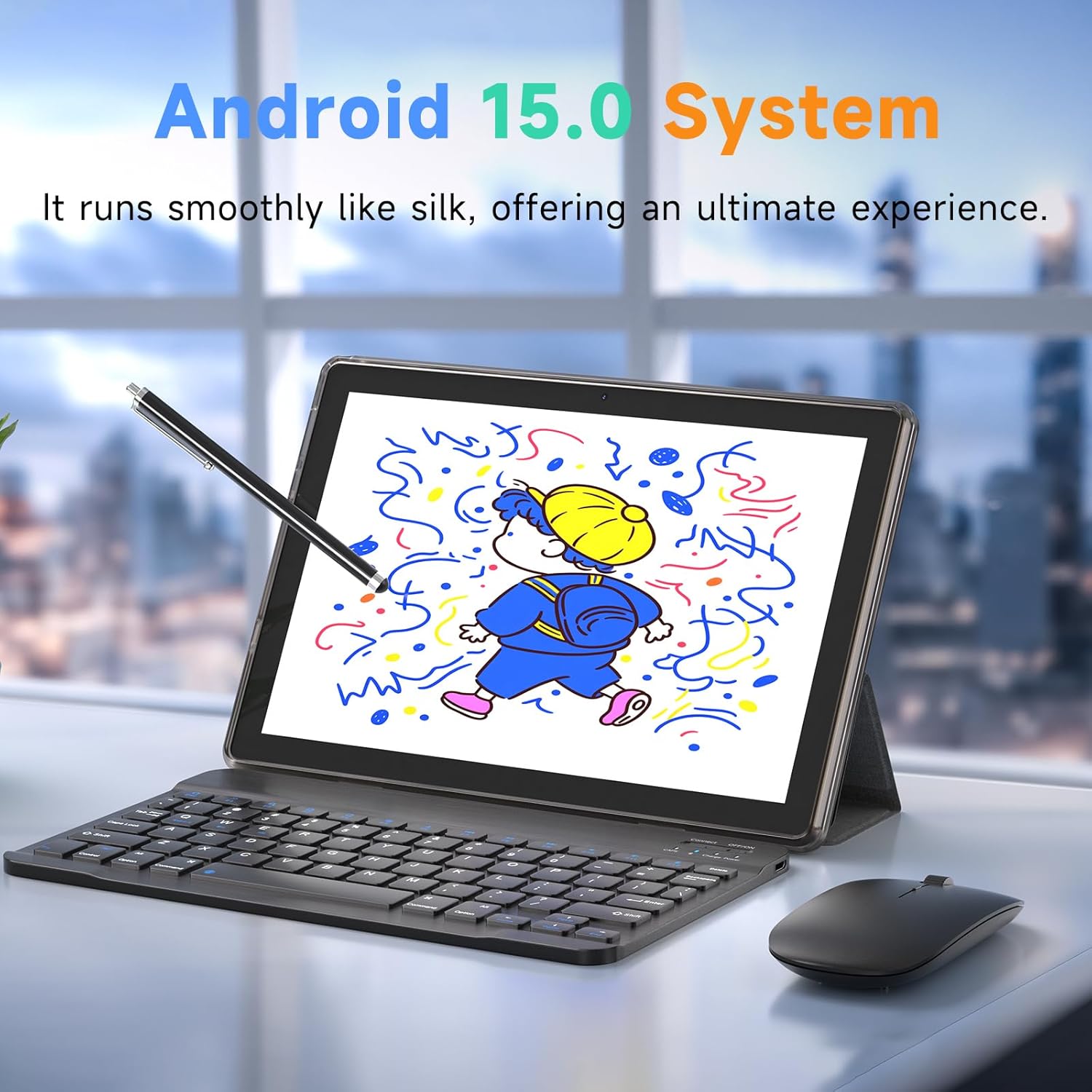
Image: The tablet displaying the Android 15.0 system interface, highlighting its smooth operation.
3.2. Performance and Storage
Equipped with 18GB RAM (including 14GB expanded memory) and 128GB ROM, this tablet ensures smooth multitasking and efficient performance. The Micro SD card slot allows for expandable memory up to 2TB, providing ample space for applications, files, and media.

Image: The tablet displaying multiple open applications, illustrating its large capacity memory for massive applications and photos and videos.
3.3. Connectivity and Battery
Enjoy lightning-fast internet speeds with 2.4G/5G WiFi 6 connectivity and Bluetooth 5.0 for seamless peripheral connections. The 6000mAh battery provides up to 10 hours of usage on a single charge, ideal for extended use.

Image: The tablet showing a YouTube interface, demonstrating stable and high-speed communication capabilities.

Image: A woman holding the tablet, with text indicating the 6000mAh battery capacity, suitable for online meetings, video, music, shopping, and reading.
3.4. 2-in-1 Portability
The tablet features a professional work mode, allowing seamless switching between tablet and laptop modes with the included keyboard and mouse. The protective case ensures device safety.

Image: A person interacting with the tablet in laptop mode, using the keyboard to play a racing game, demonstrating its versatility.
3.5. Cameras and Display
Capture moments with the 2MP front camera and 8MP rear camera. The 10.1-inch HD touch screen with 1280x800 resolution provides clear visuals and wide viewing angles.

Image: The tablet displaying a clear family photo, highlighting its 2MP front and 8MP rear camera capabilities and HD large screen.
3.6. Product Overview Video
Video: An official product video showcasing the IWEGGO Android 15 Tablet's design, display, camera, and overall features.
4. Setup
4.1. Initial Charging
Before first use, fully charge your tablet using the provided USB-C cable and a compatible power adapter. The charging indicator will show progress.
4.2. Power On/Off
- To Power On: Press and hold the Power button located on the side of the tablet until the screen lights up.
- To Power Off: Press and hold the Power button until a power menu appears. Select "Power off" and confirm.
4.3. Inserting a Micro SD Card
To expand storage, locate the TF card slot on the side of the tablet. Gently insert a Micro SD card (up to 2TB) into the slot until it clicks into place. Ensure the tablet is powered off before inserting or removing the card.

Image: The rear view of the tablet, showing the camera module and regulatory information, which helps in locating ports.
4.4. Connecting Accessories (Keyboard & Mouse)
The included keyboard and mouse connect via Bluetooth. Follow these steps to pair them:
- Ensure the keyboard and mouse are charged and powered on.
- On your tablet, go to Settings > Connected devices > Bluetooth.
- Turn on Bluetooth and scan for available devices.
- Select the keyboard and mouse from the list to pair. Follow any on-screen prompts.
5. Operating
5.1. Basic Navigation
The tablet features a responsive touch screen. Use gestures such as tap, swipe, pinch-to-zoom, and long-press for navigation and interaction with apps.
5.2. Connecting to Wi-Fi
- Go to Settings > Network & internet > Internet.
- Select your desired Wi-Fi network from the list.
- Enter the password if prompted and tap Connect.
5.3. Using the Cameras
Open the Camera app from the home screen or app drawer. You can switch between the front and rear cameras, select photo or video mode, and adjust settings as needed.

Image: A woman engaged in a video call on the tablet, demonstrating its capability for family communication.
5.4. Installing and Managing Apps
Download and install applications from the Google Play Store. To manage apps, go to Settings > Apps. From here, you can uninstall apps, clear cache/data, or manage permissions.
5.5. Switching Between Tablet and Laptop Mode
Attach the tablet to the protective case with the keyboard. The tablet will automatically detect the keyboard and mouse connection via Bluetooth, allowing you to use it as a mini-laptop for productivity tasks.
6. Maintenance
- Cleaning: Use a soft, lint-free cloth to clean the screen and body of the tablet. Avoid abrasive cleaners or solvents.
- Battery Care: To prolong battery life, avoid extreme temperatures. Do not let the battery completely drain frequently, and avoid overcharging for extended periods.
- Software Updates: Regularly check for system updates in Settings > System > System update to ensure your tablet has the latest features and security patches.
- Storage Management: Periodically clear unnecessary files and app caches to maintain optimal performance. Utilize the expandable storage for large media files.
7. Troubleshooting
If you encounter issues with your tablet, refer to the table below for common problems and solutions:
| Problem | Possible Solution |
|---|---|
| Tablet does not power on | Ensure the tablet is fully charged. Press and hold the Power button for at least 10-15 seconds to force a restart. |
| Wi-Fi connection issues | Restart your Wi-Fi router and the tablet. Forget the network in Wi-Fi settings and reconnect. Ensure you are within range. |
| Slow performance | Close unused apps. Clear app caches. Restart the tablet. Consider a factory reset if issues persist (backup data first). |
| Keyboard/Mouse not connecting | Ensure accessories are charged and in pairing mode. Re-pair them via Bluetooth settings. Restart the tablet. |
| Screen unresponsive | Restart the tablet. If the issue persists, contact customer support. |
8. Specifications
| Feature | Detail |
|---|---|
| Standing screen display size | 10.1 Inches |
| Screen Resolution | 1280x800 |
| Max Screen Resolution | 1280*800 |
| Processor | 2 GHz Quad-core |
| RAM | 8 GB (18GB with 14GB Expanded Memory) |
| Graphics Coprocessor | Mali-400 MP2 |
| Card Description | Integrated |
| Wireless Type | 802.11ax (Wi-Fi 6) |
| Operating System | Android 15 |
| Item Weight | 2.72 pounds |
| Product Dimensions | 9.5 x 6.5 x 0.3 inches |
| Color | Black |
| Rear Webcam Resolution | 8 MP |
| Flash Memory Size | 128 GB (Expandable up to 2TB) |
| Batteries | 1 Lithium Polymer battery (included) |
9. Warranty and Support
For warranty information and technical support, please refer to the documentation provided with your purchase or contact the manufacturer directly. Keep your proof of purchase for warranty claims.