
ADVANCED BATTLESTATIONS AAA137004060TI8G
ADVANCED BATTLESTATIONS ABS Aeolian-M Aqua Gaming PC User Manual
Model: AAA137004060TI8G
1. Introduction
This manual provides essential information for setting up, operating, maintaining, and troubleshooting your ADVANCED BATTLESTATIONS ABS Aeolian-M Aqua High Performance Gaming PC. Please read this manual thoroughly before using your new system to ensure optimal performance and longevity.
The ABS Aeolian-M Aqua is a high-performance gaming desktop featuring an Intel i7 13700F processor, NVIDIA GeForce RTX 4060 Ti graphics card, 32GB DDR5 RAM, and a 1TB M.2 NVMe SSD, running on Windows 11 Home.
2. Safety Information
- Always disconnect the power cable from the wall outlet before cleaning or performing any maintenance on the PC.
- Do not expose the PC to moisture, extreme temperatures, or direct sunlight.
- Ensure proper ventilation around the PC to prevent overheating. Do not block any ventilation openings.
- Use only the power supply unit provided with the system or a compatible replacement.
- Avoid placing heavy objects on the PC or its cables.
- If you encounter any issues not covered in this manual, contact customer support. Do not attempt to repair the system yourself unless specifically instructed.
3. Package Contents
Verify that all items are present in the packaging:
- ADVANCED BATTLESTATIONS ABS Aeolian-M Aqua Gaming PC
- Power Cable
- Documentation (Quick Start Guide, Warranty Information)
- Wi-Fi Antennae (if applicable)
- Additional accessories (e.g., SATA cables, screws for future upgrades)
4. System Overview
Familiarize yourself with the external components and ports of your gaming PC.
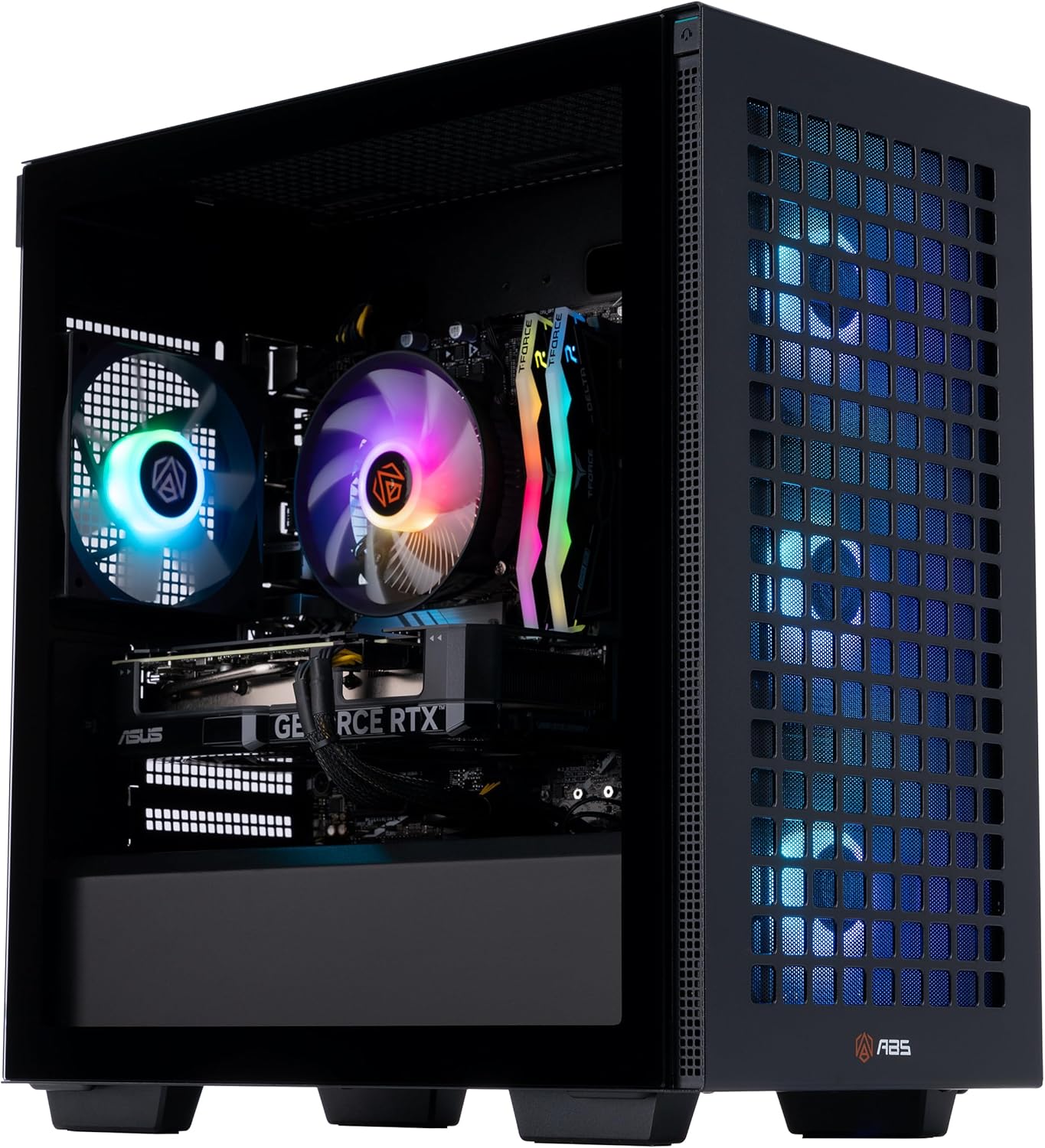
Internal view of the ABS Aeolian-M Aqua Gaming PC, showcasing the CPU cooler, RAM, and GPU.

Front view of the ABS Aeolian-M Aqua Gaming PC, highlighting the mesh panel and illuminated fans.

Top panel of the ABS Aeolian-M Aqua Gaming PC, featuring USB ports, audio jacks, power button, and reset button.
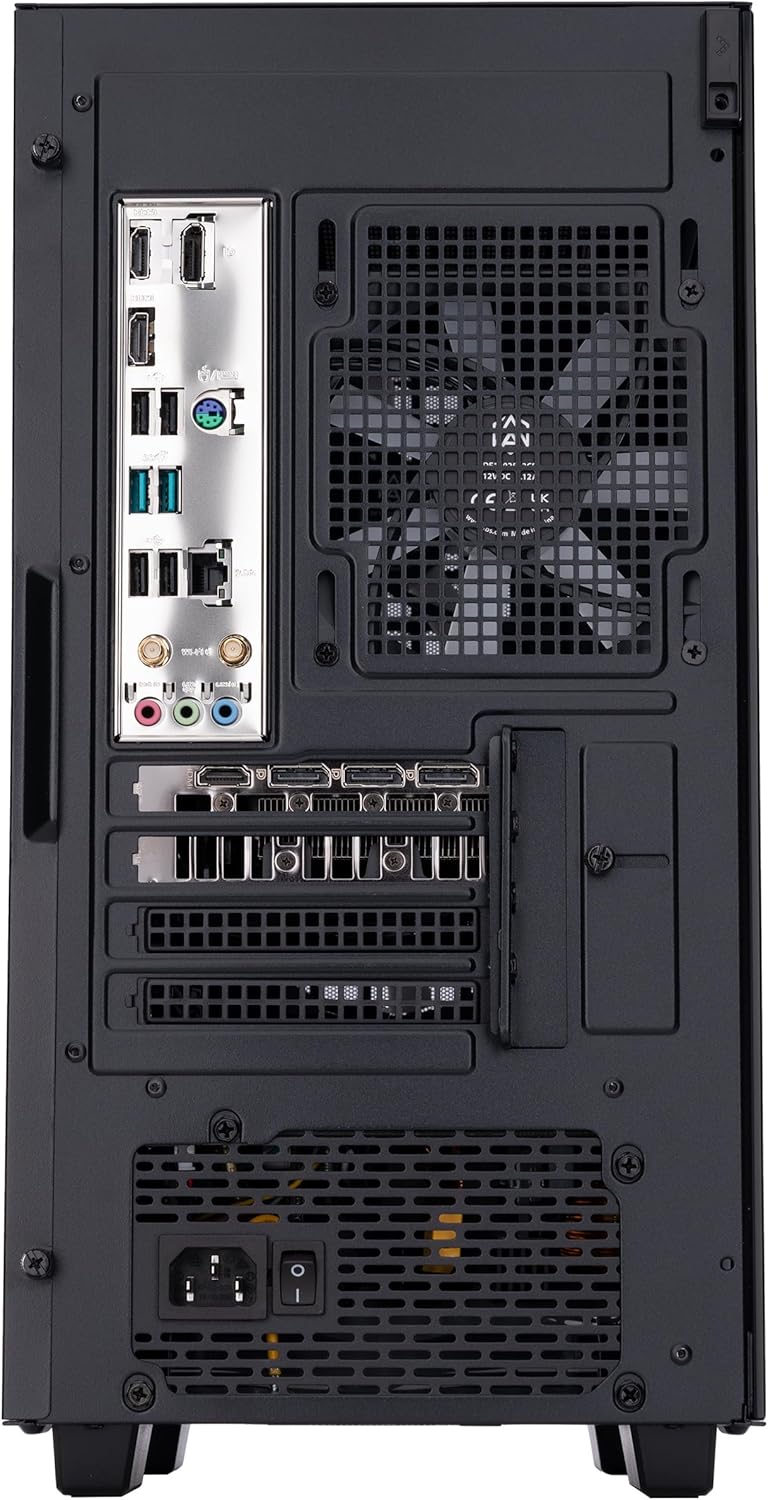
Rear panel of the ABS Aeolian-M Aqua Gaming PC, displaying various input/output ports including USB, audio, video outputs, and power input.
Front Panel Ports:
- Power Button: Turns the PC on or off.
- Reset Button: Initiates a system restart.
- USB Ports: For connecting USB devices.
- Headphone/Microphone Jacks: For audio input and output.
Rear Panel Ports:
- USB Ports: For connecting USB devices.
- Ethernet Port: For wired network connection.
- Audio Jacks: For connecting speakers or other audio devices.
- Video Output Ports (HDMI, DisplayPort): For connecting monitors.
- Power Input: For connecting the power cable.
5. Setup
5.1 Unpacking and Placement
- Carefully remove the PC from its packaging. Retain all packaging materials for future transport or service.
- Place the PC on a stable, flat surface with adequate space for ventilation. Ensure no vents are obstructed.
- Remove any internal packing materials or protective films from inside the PC case, if present.
5.2 Connecting Peripherals
- Monitor: Connect your monitor(s) to the video output ports on the graphics card (RTX 4060 Ti) located at the rear of the PC. Use HDMI or DisplayPort cables.
- Keyboard and Mouse: Connect your keyboard and mouse to the available USB ports.
- Network: For a wired connection, connect an Ethernet cable to the Ethernet port. For wireless, attach the provided Wi-Fi antennae to the designated ports on the rear panel.
- Audio: Connect speakers or headphones to the appropriate audio jacks.
- Power: Connect the power cable to the power input on the PC, then plug the other end into a grounded electrical outlet.
5.3 Initial Boot and Windows Setup
- Press the power button on the front panel of the PC.
- The system will boot into Windows 11 Home. Follow the on-screen instructions to complete the initial Windows setup, including language, region, network connection, and user account creation.
- Your PC comes with pre-installed drivers. However, it is recommended to check for the latest graphics card drivers from NVIDIA's official website and motherboard drivers from the motherboard manufacturer's website for optimal performance.
6. Operating
6.1 Powering On/Off
- Power On: Press the power button once.
- Shut Down: In Windows, click the Start button, then Power > Shut down.
- Restart: In Windows, click the Start button, then Power > Restart.
- Sleep: In Windows, click the Start button, then Power > Sleep.
6.2 Network Connectivity
- Wired (Ethernet): Once the Ethernet cable is connected, Windows should automatically detect and connect to the network.
- Wireless (Wi-Fi): Ensure Wi-Fi antennae are connected. In Windows, click the network icon in the taskbar, select your Wi-Fi network, and enter the password.
- Bluetooth: To enable Bluetooth, ensure the Wi-Fi antennae are properly connected as they often share the same module. In Windows, go to Settings > Bluetooth & devices, and toggle Bluetooth to 'On'.
7. Maintenance
7.1 Cleaning
- Regularly clean the exterior of the PC with a soft, dry cloth.
- Use compressed air to clear dust from ventilation grilles and internal components (fans, heatsinks) every few months. Ensure the PC is powered off and unplugged before cleaning.
- Do not use liquid cleaners directly on components.
7.2 Software Updates
- Keep your Windows operating system updated by regularly checking for updates in Settings > Windows Update.
- Update your graphics card drivers regularly from the NVIDIA website for optimal gaming performance and stability.
- Update motherboard drivers and BIOS from the motherboard manufacturer's website as needed.
7.3 Hardware Upgrades
The ABS Aeolian-M Aqua PC is designed with expandability in mind:
- RAM: The system supports up to 64GB DDR5 RAM. You can upgrade or add additional DDR5 RAM modules.
- Storage: The system includes a 1TB M.2 NVMe SSD and typically has additional slots for M.2 NVMe SSDs or SATA drives for expanded storage.
When performing hardware upgrades, ensure the PC is powered off and unplugged. Consult professional assistance if you are unsure about any upgrade procedures.
8. Troubleshooting
This section addresses common issues you might encounter.
Common Issues and Solutions:
- PC does not power on:
- Ensure the power cable is securely connected to both the PC and the wall outlet.
- Check the power switch on the back of the power supply unit (PSU) is in the 'On' position.
- Try a different power outlet.
- No display on monitor:
- Ensure the monitor is powered on and connected to the graphics card's video output ports, not the motherboard's integrated video ports.
- Check the monitor's input source setting.
- Try a different video cable or monitor if available.
- Bluetooth connectivity issues:
- Ensure the Wi-Fi antennae are securely attached to the rear panel, as they often house the Bluetooth module.
- Verify Bluetooth is enabled in Windows Settings.
- Restart the PC.
- System freezes or 'Critical Process Died' error:
- Ensure all internal components (RAM, GPU) are properly seated. (This may require opening the case; proceed with caution or seek professional help.)
- Update all drivers, especially graphics and chipset drivers.
- Run Windows memory diagnostics to check for RAM issues.
- Consider reinstalling Windows 11 if the issue persists after driver updates and hardware checks.
Contacting Support:
If you are unable to resolve an issue using the troubleshooting steps provided, please contact ADVANCED BATTLESTATIONS customer support for further assistance. Have your model number (AAA137004060TI8G) and purchase information ready.
9. Specifications
| Component | Specification |
|---|---|
| Operating System | Windows 11 Home |
| CPU | Intel Core i7 13700F (2.1GHz base, 5.2GHz Turbo Boost Max, 8 P-Core, 8 E-Core, 24-Thread) |
| GPU | NVIDIA GeForce RTX 4060 Ti 8GB GDDR6 |
| Motherboard | B760M-A AX |
| RAM | 32GB DDR5 6000MHz (2x16GB) |
| Storage | 1TB M.2 NVMe SSD |
| CPU Cooler | RGB Air cooler |
| PSU | 600W 80+ Gold |
| Wireless Standard | Bluetooth, Wi-Fi |
| USB 2.0 Ports | 3 (Number of USB 2.0 Ports) |
| Dimensions (Parcel) | 53.97 x 51.43 x 35.56 cm; 12.25 kg |
10. Warranty and Support
Your ADVANCED BATTLESTATIONS ABS Aeolian-M Aqua Gaming PC is covered by a manufacturer's warranty. Please refer to the warranty documentation included with your product for specific terms and conditions. For technical support, driver downloads, or service inquiries, visit the official ADVANCED BATTLESTATIONS website or contact their customer service department.
Ask a question about this manual
Ask about setup, troubleshooting, compatibility, parts, safety, or missing instructions. Manuals+ will review the question and use this page’s manual context to help answer it.