
1. Introduction
Thank you for choosing the Bisofice VTR-T58W 58mm USB/Bluetooth Thermal Receipt Printer. This compact and efficient printer is designed to meet the demands of various business environments, providing fast and clear receipt printing without the need for ink. This manual will guide you through the setup, operation, maintenance, and troubleshooting of your new printer.

The Bisofice VTR-T58W thermal receipt printer, shown with a printed receipt and an additional paper roll.
2. Package Contents
Please check the package contents to ensure all items are present and in good condition:
- Bisofice VTR-T58W Thermal Receipt Printer
- USB Cable
- Power Adapter
- Thermal Paper Roll (1 included)
- User Manual

A visual representation of all items included in the Bisofice VTR-T58W printer package.
3. Product Overview
3.1 Components
Familiarize yourself with the various parts of your Bisofice thermal printer:

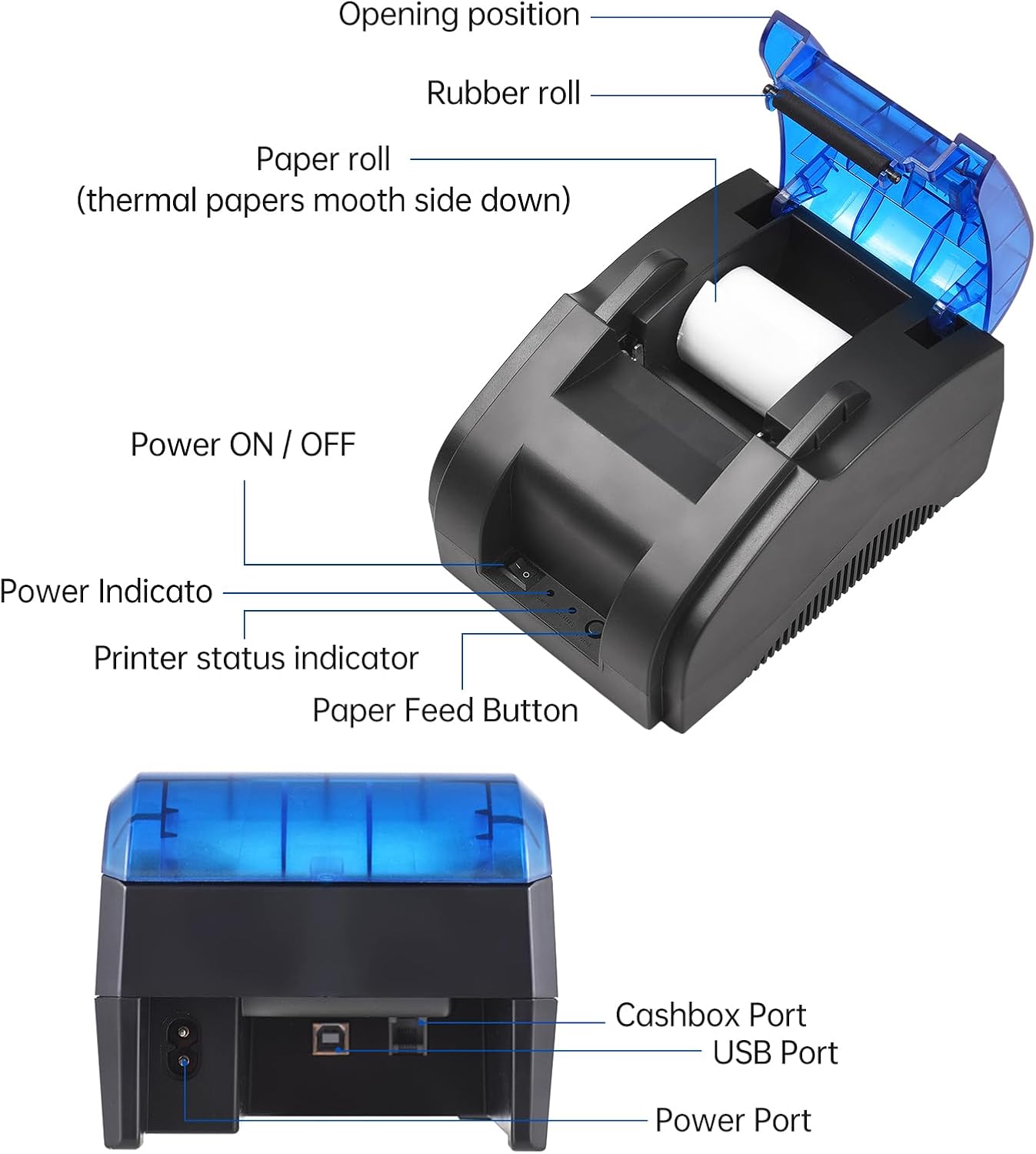
Detailed view of the Bisofice VTR-T58W printer highlighting its key components and ports, including the power switch, indicator lights, paper feed button, cashbox port, USB port, and power port.
- Power ON/OFF Switch: Turns the printer on or off.
- Power Indicator: Lights up when the printer is powered on.
- Printer Status Indicator: Indicates the printer's operational status (e.g., ready, error).
- Paper Feed Button: Manually feeds paper.
- Opening Position: Area to open the cover for paper loading.
- Rubber Roll: Helps feed the paper.
- Paper Roll Compartment: Holds the thermal paper roll.
- Cashbox Port: Connects to a cash drawer.
- USB Port: For connecting the printer to a computer.
- Power Port: For connecting the power adapter.
4. Setup
4.1 Paper Roll Installation
Follow these steps to install the thermal paper roll:
- Gently push the cover opening button or lever to open the printer cover.
- Insert the thermal paper roll into the compartment, ensuring the smooth side of the paper faces down (the side to be printed on).
- Pull a small length of paper out beyond the cutting edge.
- Close the printer cover firmly until it clicks into place.

Visual guide demonstrating the simple three-step process for loading a thermal paper roll into the printer.
4.2 Driver Installation
To use the printer with your computer or mobile device, you may need to install the appropriate drivers or applications.
- For Windows/Linux: Connect the printer via USB. Drivers can be downloaded from the official support page.
- For Android/iOS: Download compatible printing applications from your device's app store.
- Driver Download Link: For Windows and Mac drivers, please visit https://www.oadlu.com/support/driver/thermal-printer. Look for "T58W Driver-2" for Windows and "T58W Driver-3" for Mac.

An image illustrating the process of downloading the necessary printer drivers from the provided URL for computer connectivity.
5. Operating Instructions
5.1 Connecting to a Computer (USB)
To connect your printer to a computer via USB:
- Ensure the printer is powered off.
- Connect one end of the USB cable to the printer's USB port and the other end to an available USB port on your computer.
- Power on the printer.
- Install the appropriate drivers as described in Section 4.2.
- Once drivers are installed, the printer should be recognized by your computer and ready for use.
5.2 Connecting to a Mobile Device (Bluetooth)
To connect your printer to a mobile device via Bluetooth:
- Ensure the printer is powered on.
- On your mobile device (Android/iOS), go to Bluetooth settings and turn Bluetooth on.
- Search for available devices. The printer should appear as "VTR-T58W" or similar.
- Select the printer to pair. If prompted for a PIN, enter "0000" or "1234".
- Once paired, open your compatible printing application and select the Bisofice printer.
This image demonstrates the dual connectivity options of the printer: USB for computers (Windows, Linux, Mac) and Bluetooth for mobile devices (Android, iOS).

The printer connected wirelessly to a smartphone via Bluetooth, highlighting its compatibility with various retail and inventory management applications.
5.3 Printing
After successful connection and driver/app setup, you can initiate printing from your chosen software or application. The printer supports ESC/POS commands for various printing functions, including text, images, and 1D barcodes. Ensure your software is configured to use the Bisofice VTR-T58W printer.

Examples of the printer's versatile applications across different business environments, including retail, hospitality, and healthcare.
6. Maintenance
Proper maintenance ensures the longevity and optimal performance of your printer:
- Cleaning: Regularly clean the print head with a soft, lint-free cloth moistened with isopropyl alcohol. Ensure the printer is off and cooled down before cleaning.
- Paper Storage: Store thermal paper rolls in a cool, dry place away from direct sunlight and heat to prevent premature fading.
- Dust Removal: Use a soft brush or compressed air to remove dust from the printer's exterior and paper path.
- Avoid Liquids: Do not spill any liquids on the printer.
7. Troubleshooting
If you encounter issues with your printer, refer to the following table for common problems and solutions:
| Problem | Possible Cause | Solution |
|---|---|---|
| Printer does not power on. | No power, faulty power adapter, power switch off. | Check power cable connection. Ensure power adapter is working. Turn on the power switch. |
| No paper feed. | Paper jam, paper roll empty, paper incorrectly loaded. | Clear any paper jams. Replace paper roll. Re-load paper correctly (smooth side down). |
| Poor print quality (faint, blank). | Print head dirty, incorrect paper type, paper loaded upside down. | Clean the print head. Ensure you are using thermal paper. Re-load paper with the smooth side facing down. |
| Cannot connect via USB. | Driver not installed, faulty USB cable, incorrect port. | Install the correct printer drivers. Try a different USB cable or port. |
| Cannot connect via Bluetooth. | Bluetooth not enabled, printer not discoverable, incorrect pairing. | Ensure Bluetooth is on on your device. Make sure the printer is powered on. Re-pair the device, entering the correct PIN if prompted. |
| Printer not responding. | Printer error, software issue. | Restart the printer and your device. Check printer status indicator for error codes. Reinstall drivers/app if necessary. |
8. Specifications
Detailed technical specifications for the Bisofice VTR-T58W Thermal Receipt Printer:
| Feature | Specification |
|---|---|
| Model Number | VTR-T58W |
| Brand | Bisofice |
| Printing Technology | Thermal |
| Print Resolution | 203 dpi |
| Max. Print Speed (Monochrome) | 90 mm/s |
| Paper Width Supported | 58mm |
| Connectivity | USB, Bluetooth |
| Compatible Operating Systems | Windows (32-bit & 64-bit), Linux, Android, iOS |
| Product Dimensions (L x W x H) | 20 x 13 x 14 cm (7.9 x 5.1 x 5.5 inches) |
| Item Weight | 345 grams (0.76 lbs) |
| Power Supply | External Power Adapter |
| Command Set | ESC/POS compatible |
9. Warranty and Support
9.1 Limited Warranty
The Bisofice VTR-T58W Thermal Receipt Printer comes with a limited warranty. Please refer to the warranty card included in your package or contact Bisofice customer support for specific terms and conditions.
9.2 Customer Support
For technical assistance, troubleshooting, or any inquiries regarding your Bisofice printer, please contact our customer support team. Contact information can typically be found on the Bisofice official website or on the product packaging.
We are committed to providing reliable products and excellent customer service.


