
1. Introduction
This manual provides essential information for the safe and efficient operation of your Snomh Portable Power Bank (Model K20FC). Please read this manual thoroughly before using the product and retain it for future reference.

Image 1.1: The Snomh Portable Power Bank, showcasing its compact design, integrated charging cables, and digital LED display.
2. What's in the Box
Upon unpacking, please ensure all items listed below are present and in good condition:
- Snomh 20,000mAh Portable Power Bank (Model K20FC)
- USB-A to USB-C Charging Cable (0.3 m / 1 ft)
- User Manual (This document)
3. Product Overview and Features
The Snomh Portable Power Bank is designed for convenience and versatility, offering multiple charging options and additional functionalities.
3.1 Key Features
- High Capacity: 20,000mAh battery for extended device charging.
- Integrated Cables: Built-in iOS and USB-C cables for direct charging without extra accessories.
- Multiple Outputs: Features 2 integrated cables, 1 USB-A port, and 1 USB-C port, allowing simultaneous charging of up to 4 devices.
- Fast Charging: Supports fast charging protocols for compatible devices.
- Digital LED Display: Provides a precise real-time battery percentage display.
- LED Flashlight: Integrated 3W LED flashlight with High, Low, SOS, and Strobe modes for emergency use.
- Safety Protections: Includes short-circuit, over-current, over-voltage, and over-heat protection.
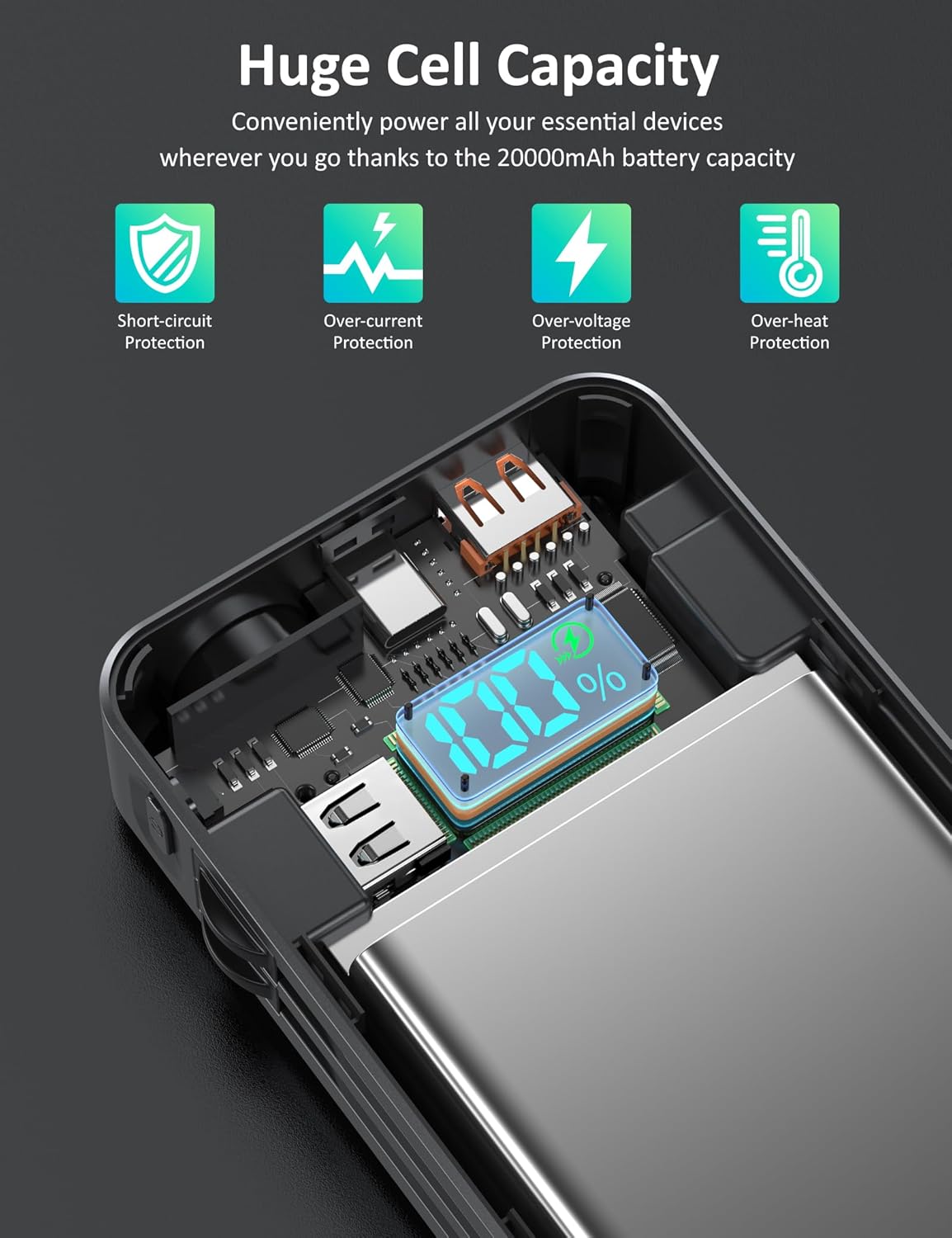
Image 3.1: Internal components illustrating the multiple safety protection features, including short-circuit, over-current, over-voltage, and over-heat protection.

Image 3.2: A detailed view of the integrated iOS and Type-C charging cables, designed for convenience and compatibility with various devices.

Image 3.3: Side profile of the power bank, highlighting the USB Output 1 (5V/4.5A), Type-C Input/Output (12V/1.66A), and USB Output 2 (5V/2.1A) ports, along with the integrated flashlight.
4. Setup
4.1 Initial Charging of the Power Bank
Before first use, it is recommended to fully charge your Snomh Power Bank. This ensures optimal battery performance and longevity.
- Connect the provided USB-A to USB-C cable to a compatible USB wall adapter (not included) or a computer's USB port.
- Insert the USB-C end of the cable into the Type-C Input/Output port on the power bank.
- The LED digital display will show the charging progress. The power bank is fully charged when the display shows "100%".
Alternatively, you can use the integrated USB-C cable to charge the power bank by connecting its USB-A end to a power source.

Image 4.1: The LED digital display indicating a full charge (100%), providing real-time battery status.
5. Operating Instructions
5.1 Charging Mobile Devices
The Snomh Power Bank offers multiple ways to charge your devices:
- Using Integrated Cables:
- For iOS devices, pull out the integrated iOS cable and connect it to your device.
- For USB-C devices, pull out the integrated USB-C cable and connect it to your device.
- Using USB-A Port: Connect your device's standard USB-A charging cable to the USB Output 1 port (5V/4.5A) or USB Output 2 port (5V/2.1A) on the power bank.
- Using USB-C Port: Connect your device's USB-C charging cable to the Type-C Input/Output port (12V/1.66A) on the power bank. This port supports both input and output.
The power bank can charge up to four devices simultaneously using a combination of its integrated cables and output ports.

Image 5.1: The power bank actively charging four different mobile devices concurrently, demonstrating its multi-device charging capability.

Image 5.2: An iPhone 13 being fast-charged by the power bank, reaching 50% charge in approximately 30 minutes using the USB-C port.

Image 5.3: A Huawei Mate 20 receiving fast charging from the power bank, achieving 65% charge in 30 minutes compared to a standard 10W charger.
5.2 Using the LED Flashlight
The power bank includes a built-in LED flashlight for convenience in low-light conditions.
- To Turn On/Off: Press and hold the power button for approximately 3 seconds.
- To Change Modes: Once the flashlight is on, short press the power button to cycle through High, Low, SOS, and Strobe modes.
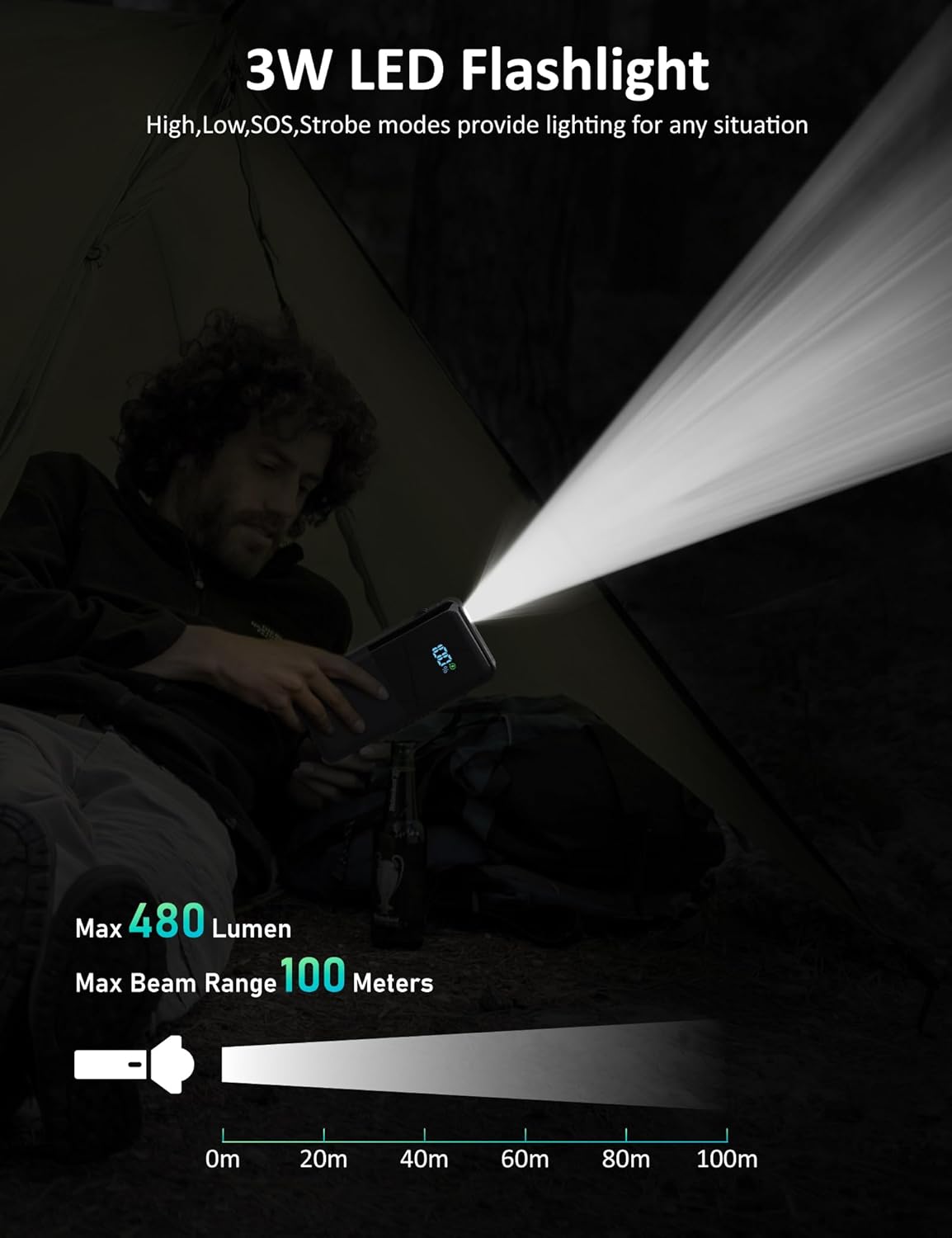
Image 5.4: A person utilizing the power bank's 3W LED flashlight inside a tent, demonstrating its utility in dark environments with a beam range of up to 100 meters.
6. Maintenance
Proper maintenance ensures the longevity and optimal performance of your power bank.
- Cleaning: Use a soft, dry cloth to clean the exterior of the power bank. Avoid using harsh chemicals or abrasive materials.
- Storage: Store the power bank in a cool, dry place away from direct sunlight and extreme temperatures.
- Charging Cycle: For optimal battery health, fully charge and discharge the power bank at least once every three months if not in regular use.
- Avoid Drops: Protect the device from drops and impacts, which can damage internal components.
7. Troubleshooting
If you encounter any issues with your Snomh Power Bank, please refer to the following common solutions:
| Problem | Possible Cause | Solution |
|---|---|---|
| Power bank not charging | Cable not properly connected; faulty cable/adapter; power bank battery depleted. | Ensure all connections are secure. Try a different charging cable or wall adapter. Allow the power bank to charge for a longer period. |
| Device not charging from power bank | Device cable not properly connected; power bank battery depleted; device not compatible; power bank in standby. | Ensure device cable is securely connected. Check power bank's charge level. Ensure your device is compatible with the output specifications. Press the power button on the power bank to activate output. |
| Flashlight not working | Power button not pressed correctly; power bank battery depleted. | Press and hold the power button for 3 seconds to turn on/off. Ensure the power bank has sufficient charge. |
| Slow charging | Using a non-fast charging port/cable; device not supporting fast charging; multiple devices charging simultaneously. | Ensure you are using a fast-charging compatible port and cable. Verify your device supports fast charging. Charging multiple devices may reduce individual charging speeds. |
8. Specifications
| Feature | Detail |
|---|---|
| Model Number | K20FC |
| Brand | Snomh |
| Battery Type | Lithium Polymer |
| Battery Capacity | 20,000mAh (74Wh) |
| Input (Type-C) | 5V/3A, 9V/2.22A, 12V/1.66A (PD20W Max) |
| Output 1 (USB-A) | 5V/4.5A (SCP22.5W Max) |
| Output 2 (USB-A) | 5V/2.1A |
| Output (Integrated iOS Cable) | 5V/2.1A |
| Output (Integrated USB-C Cable) | 5V/3A, 9V/2A, 12V/1.5A (SCP22.5W Max) |
| Total Output | Simultaneous charging of up to 4 devices |
| Flashlight Power | 3W LED (High, Low, SOS, Strobe modes) |
| Dimensions | 16.5 x 7.9 x 3 cm |
| Weight | 460 grams |
| Special Features | Integrated cables, Fast charging, LED display, Flashlight, Universal compatibility, Multiple safety protections |

Image 8.1: Diagram illustrating the dimensions of the Snomh Power Bank: 6.5 inches (length), 3.1 inches (width), and 1.5 inches (thickness).
9. Warranty and Support
Specific warranty information for the Snomh Portable Power Bank (Model K20FC) is typically provided with your purchase documentation or can be obtained by contacting the manufacturer directly.
For technical support, warranty claims, or further inquiries, please refer to the contact information provided by Snomh or your retailer at the time of purchase. Always retain your proof of purchase for warranty purposes.