
L-LINK AC-1200-2-1
L-Link AC1200 Dual Band WiFi Extender User Manual
Model: AC-1200-2-1
1. Introduction
This manual provides detailed instructions for the installation, operation, and maintenance of your L-Link AC1200 Dual Band WiFi Extender. Please read this manual carefully before using the device to ensure proper setup and optimal performance. Keep this manual for future reference.
2. Product Overview
The L-Link AC1200 Dual Band WiFi Extender is designed to expand your existing wireless network coverage, eliminating Wi-Fi dead zones and providing stable, high-speed internet access throughout your home or office. It supports both 2.4GHz and 5GHz bands, offering a combined speed of up to 1200Mbps.

Figure 2.1: Front view of the L-Link AC1200 Dual Band WiFi Extender, showing LED indicators and WPS button.
Key components include two external antennas for enhanced signal reception and an Ethernet port for wired connections.

Figure 2.2: Side view of the L-Link AC1200 WiFi Extender, highlighting its dimensions (6.1" x 3.3" x 1.1") and the Gigabit Ethernet Port.
3. Key Features
- Eliminate WiFi Dead Zones: Extends wireless signals to hard-to-reach areas, providing stable bandwidth for online gaming, video conferences, and 4K HD streaming.
- High-Speed AC1200 Performance: Supports dual-band 2.4GHz and 5GHz frequencies, delivering a combined speed of up to 1200Mbps for fast internet access.
- Dual External Antennas: Equipped with two 3dBi omnidirectional antennas to maximize signal coverage and stability.
- Easy Installation: Simple setup via WPS button or web browser interface (192.168.10.1), compatible with Windows, Android, and iOS devices.
- Universal Compatibility: Works with all WiFi-enabled devices, routers, and access points, supporting up to 35 connected devices.
- Secure Network Access: Enhances network security to protect data and prevent unauthorized access.
- Ethernet Port: Includes one Gigabit Ethernet port for wired connections to devices like PCs, game consoles, or smart TVs.
4. Package Contents
Please check the package for the following items:
- L-Link AC1200 Dual Band WiFi Extender
- User Manual
- (Note: An Ethernet cable may be included depending on the specific package version.)
5. Setup Instructions
The L-Link WiFi Extender offers two primary methods for setup: WPS (Wi-Fi Protected Setup) and Web Browser Configuration.
5.1. WPS (Wi-Fi Protected Setup) Method
This is the quickest way to set up your extender if your main router supports WPS.
- Plug the L-Link WiFi Extender into an electrical outlet near your main router.
- Wait for the Power LED on the extender to turn solid blue.
- Press the WPS button on your main router.
- Within two minutes, press the WPS button on the L-Link WiFi Extender.
- The WPS LED on the extender will blink and then turn solid blue, indicating a successful connection.
- You can now unplug the extender and move it to a suitable location between your router and the Wi-Fi dead zone. Ensure the signal strength is good (indicated by the SYS LED).

Figure 5.1: Illustration of the one-key WPS connection process between a main router and the L-Link WiFi Extender.
5.2. Web Browser Configuration Method
Use this method if your router does not have a WPS button or if the WPS method fails.
- Plug the L-Link WiFi Extender into an electrical outlet near your main router.
- On your computer or mobile device, connect to the extender's default Wi-Fi network (e.g., "L-Link_Extender" or similar, without a password).
- Open a web browser and enter
192.168.10.1in the address bar. - Follow the on-screen instructions to create an administrator password and select your main Wi-Fi network to extend.
- Enter the password for your main Wi-Fi network when prompted.
- The extender will restart. Once the SYS LED turns solid blue, the setup is complete.
- Relocate the extender to an optimal position.

Figure 5.2: Visual representation of how the L-Link WiFi Extender boosts existing router coverage, extending Wi-Fi up to 7000 sq.ft.
6. Operating Modes
The L-Link AC1200 WiFi Extender supports multiple operating modes to suit various networking needs.
6.1. Repeater Mode
In Repeater Mode, the extender wirelessly connects to your existing router and re-transmits the signal, extending its coverage. This mode is ideal for eliminating Wi-Fi dead zones.
- Wireless to Wireless: Extends your Wi-Fi signal to cover a larger area, allowing devices like phones, tablets, and laptops to connect wirelessly to the extended network.
- Wireless to Wired: The extender receives a wireless signal from your router and provides a wired connection via its Ethernet port to devices such as desktop computers or smart TVs that lack Wi-Fi capabilities.

Figure 6.1: Depiction of Repeater Mode, showing how the extender expands wireless coverage and provides wired connectivity.
6.2. Access Point (AP) Mode
In Access Point Mode, the extender connects to your router via an Ethernet cable and then broadcasts a new wireless network. This is useful for adding Wi-Fi capabilities to a wired network or creating a new Wi-Fi hotspot.
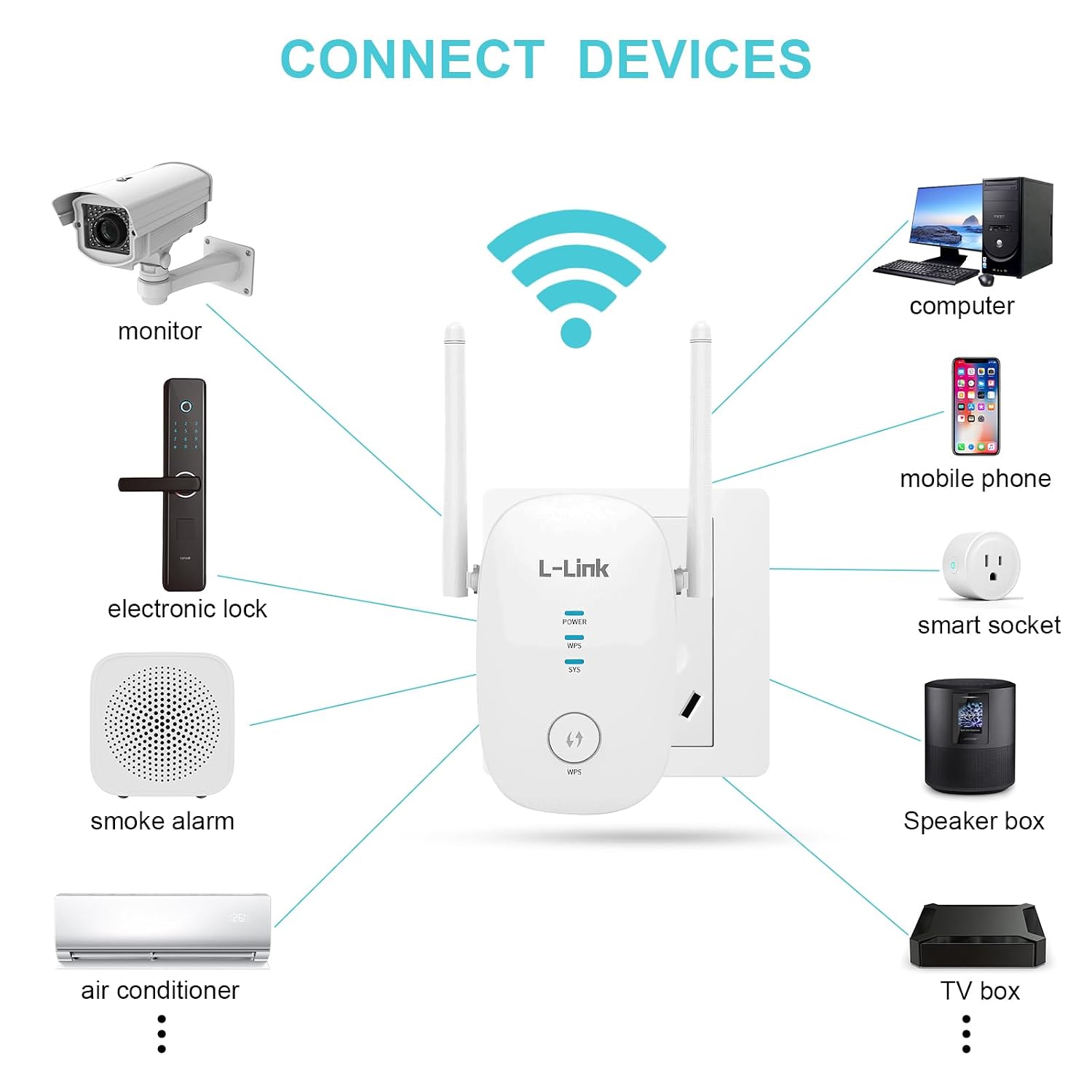
Figure 6.2: Examples of devices that can connect to the L-Link WiFi Extender, including monitors, electronic locks, smart sockets, and speaker boxes.
7. Specifications
| Brand | L-LINK |
| Model | AC-1200-2-1 |
| Data Transfer Rate | 1200 Megabits Per Second (Mbps) |
| Frequency Band Class | Dual-Band (2.4GHz / 5GHz) |
| Antennas | 2 x External Omnidirectional Antennas |
| Ethernet Port | 1 x Gigabit Ethernet Port |
| Special Features | Access Point Mode, Repeater Mode |
| Compatible Devices | Smartphones, Laptops, Tablets, Speakers, Web Cameras, IoT devices, Security Cameras |
| Maximum Connected Devices | Up to 35 devices |
| Coverage Area | Up to 7000 Sq.ft (approximate) |
| Dimensions (WxDxH) | 11.51 x 9.4 x 7.39 cm (approx. 6.1" x 3.3" x 1.1") |
| Item Weight | 109 g |
8. Troubleshooting
If you encounter issues with your L-Link WiFi Extender, please refer to the following common problems and solutions:
- Extender not powering on:
- Ensure the extender is securely plugged into a working electrical outlet.
- Try a different outlet.
- Cannot connect to the extender's Wi-Fi network during setup:
- Make sure you are connecting to the correct default network name (e.g., "L-Link_Extender").
- Ensure your device's Wi-Fi is enabled.
- Try restarting your device and the extender.
- WPS setup failed:
- Ensure your main router supports WPS and that you pressed its WPS button within the two-minute window.
- Try the Web Browser Configuration method instead.
- Ensure the extender is close enough to the router during WPS setup.
- No internet access after setup:
- Verify that your main router has an active internet connection.
- Check if the extender is successfully connected to your main router (SYS LED should be solid blue).
- Relocate the extender to an optimal position where it receives a strong signal from your main router.
- Restart both your main router and the extender.
- Slow speeds or intermittent connection:
- Relocate the extender to a position that is roughly halfway between your router and the desired coverage area, ensuring it receives a strong signal from the router.
- Avoid placing the extender near large metal objects, concrete walls, or other electronic devices that may cause interference.
- Ensure your devices are connecting to the extended network and not the original router's network if the signal is weak.
- Forgot administrator password for web interface:
- Perform a factory reset on the extender. This will revert all settings to default, and you will need to set it up again. (Refer to the reset procedure, usually a small button on the device).
9. Maintenance
To ensure the longevity and optimal performance of your L-Link WiFi Extender, follow these maintenance guidelines:
- Cleaning: Use a soft, dry cloth to clean the device. Do not use liquid cleaners or aerosols.
- Placement: Place the extender in a well-ventilated area, away from direct sunlight, heat sources, and moisture. Avoid placing it near strong electromagnetic fields.
- Firmware Updates: Periodically check the L-Link official website for any available firmware updates. Updating firmware can improve performance and security.
- Power Cycle: If the device experiences prolonged issues, try power cycling it (unplug from the outlet, wait 10 seconds, then plug back in).
10. Warranty and Support
For warranty information and technical support, please refer to the warranty card included with your product or visit the official L-Link website. Keep your purchase receipt as proof of purchase for warranty claims.
Related documentsAC-1200-2-1


Ask a question about this manual
Ask about setup, troubleshooting, compatibility, parts, safety, or missing instructions. Manuals+ will review the question and use this page’s manual context to help answer it.