
1. Introduction
This manual provides detailed instructions for the installation, operation, and maintenance of your Yoidesu H310 LGA 1151 Motherboard. Designed for 8th and 9th generation Intel Core CPUs, this Micro ATX motherboard offers robust performance with DDR4 memory support, NVMe M.2, and multiple display outputs. Please read this manual carefully before proceeding with installation to ensure proper setup and optimal performance.
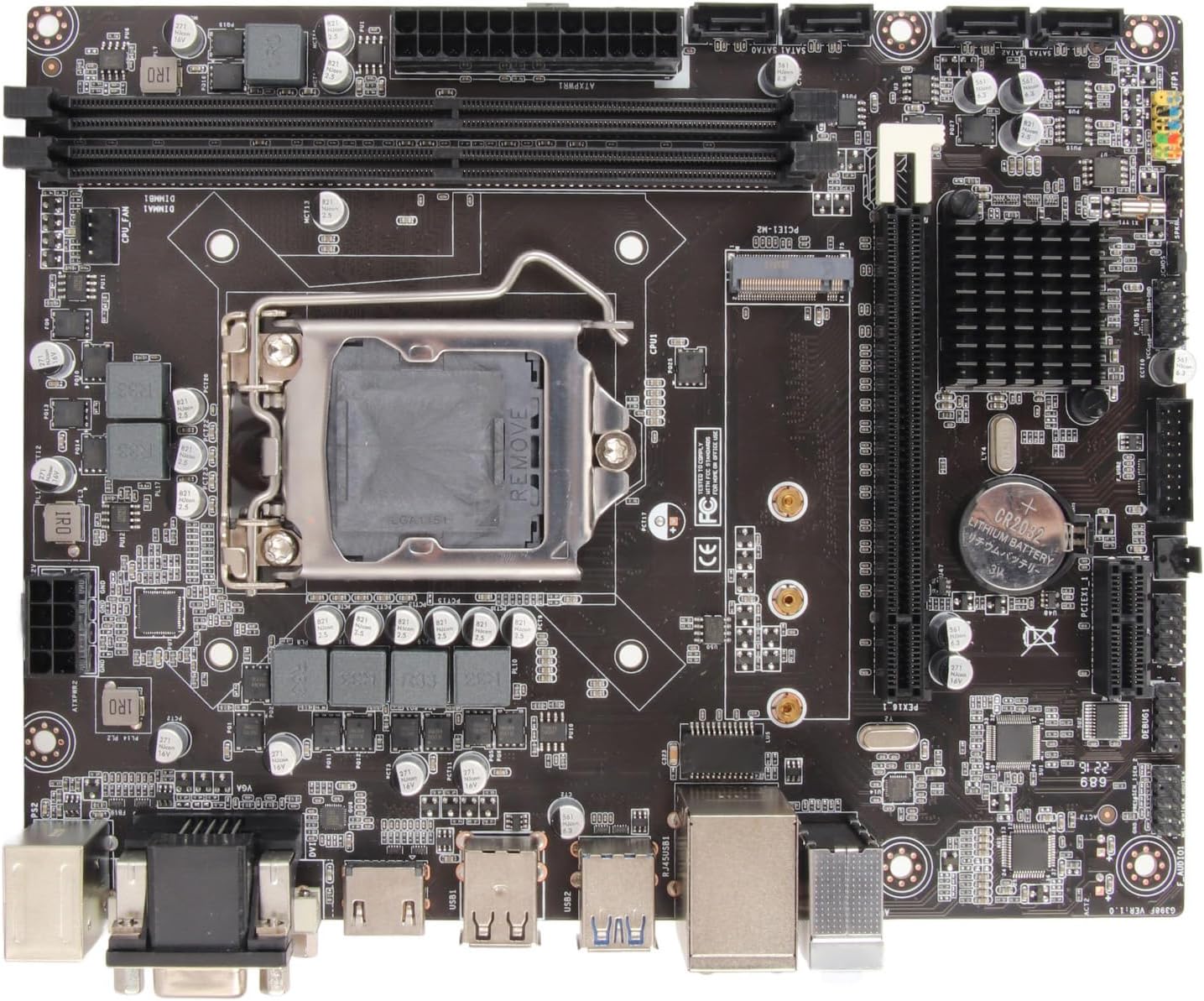
Figure 1.1: Top-down view of the Yoidesu H310 LGA 1151 Motherboard, showcasing its layout and various components.
2. Setup and Installation
Follow these steps for proper installation of your motherboard and its components.
2.1 Component Overview

Figure 2.1: Key components and connectors on the H310 motherboard, including CPU socket, RAM slots, PCIe slots, and I/O ports.
2.2 CPU Installation
- Carefully open the LGA 1151 CPU socket retention lever.
- Align the CPU (8th/9th Gen Intel Core) with the socket, ensuring the gold triangle on the CPU matches the triangle on the socket.
- Gently place the CPU into the socket without forcing it.
- Close the retention lever to secure the CPU in place.
2.3 Memory (RAM) Installation
The motherboard supports DDR4 memory. It has two DIMM slots, supporting up to 32GB (2 x 16GB) in dual-channel architecture.
- Open the clips at both ends of the DDR4 DIMM slots.
- Align the notch on the DDR4 memory module with the key in the DIMM slot.
- Press down firmly on both ends of the memory module until the clips snap into place.
2.4 Storage Device Installation
The motherboard supports both NVMe M.2 SSDs and SATA 6Gb/s drives.
- NVMe M.2 SSD: Locate the M.2 slot. Insert the M.2 SSD at an angle and then gently push it down, securing it with the provided screw.
- SATA Drives: Connect your SATA SSDs or HDDs to the 4 x SATA 6Gb/s connectors using SATA data cables. Connect power from your power supply unit (PSU) to the drives.
2.5 Power Connections
- Connect the 24-pin ATX power connector from your PSU to the corresponding slot on the motherboard.
- Connect the 4-pin or 8-pin CPU power connector (depending on your PSU) to the CPU power socket near the CPU.
2.6 Front Panel and I/O Connections
Connect the front panel headers (power button, reset button, HDD LED, power LED) and USB/audio headers from your PC case to the corresponding pins on the motherboard. Refer to your PC case manual for specific pin assignments.

Figure 2.2: Detailed view of the rear I/O panel, showing ports for PS/2, VGA, DVI, HDMI, USB 2.0, USB 3.0, LAN, and audio jacks.
3. Operating Instructions
Once all components are installed and connected, you can power on your system.
3.1 Initial Boot and BIOS Setup
- Connect a monitor to one of the display outputs (VGA, DVI, or HDMI).
- Power on your system.
- Press the designated key (usually DEL or F2) repeatedly during startup to enter the BIOS/UEFI setup utility.
- In the BIOS, you can configure boot order, system time, and other hardware settings. Save changes and exit to proceed with operating system installation.
3.2 Operating System Compatibility
This motherboard is compatible with Windows 10. Please note that it is not compatible with Windows 11.
3.3 Integrated Graphics and Multi-Display
The H310 motherboard features an integrated graphics processor. It supports multiple display outputs (DVI, HDMI, VGA), allowing you to connect and use multiple monitors simultaneously for enhanced productivity or entertainment.
4. Maintenance
Proper maintenance ensures the longevity and stable operation of your motherboard.
- Keep it Clean: Regularly clean dust from the motherboard and other PC components using compressed air. Dust can accumulate and lead to overheating.
- Ensure Proper Airflow: Make sure your PC case has adequate ventilation and fans are working correctly to prevent heat buildup.
- BIOS Updates: Check the manufacturer's website periodically for BIOS updates. Updates can improve compatibility, stability, and performance. Follow update instructions carefully.
- Driver Updates: Keep your device drivers (chipset, graphics, audio, LAN) updated to ensure optimal performance and compatibility with your operating system.
5. Troubleshooting
If you encounter issues, refer to the following common troubleshooting steps.
- No Power/No Boot:
- Check all power connections (24-pin ATX, CPU power) are securely seated.
- Ensure the PSU is switched on and functioning.
- Verify front panel power button connection.
- No Display:
- Ensure the monitor is connected to the correct display output on the motherboard or discrete graphics card.
- Reseat RAM modules. Try booting with only one RAM stick.
- Check CPU installation and cooler connection.
- System Instability/Crashes:
- Check CPU and GPU temperatures. Ensure adequate cooling.
- Run memory diagnostic tools to check for RAM errors.
- Ensure all drivers are up to date.
- Peripheral Not Detected:
- Try connecting the peripheral to a different USB port.
- Check device manager for driver issues.
- Ensure SATA cables are securely connected for storage devices.
If issues persist, consult the Yoidesu support website or contact customer service for further assistance.
6. Specifications
Detailed technical specifications for the Yoidesu H310 LGA 1151 Motherboard.

Figure 6.1: Dimensions of the Yoidesu H310 Motherboard (approx. 21.5cm x 17cm).
| Feature | Specification |
|---|---|
| Model | H310 |
| CPU Socket | LGA 1151 (Supports 8th/9th Gen Intel Core CPU) |
| Chipset | Intel H310 |
| Memory | 2 x DDR4 DIMM slots, Dual Channel, up to 32GB (2x16GB), 2133/2400/2666MHz |
| Graphics | Integrated Graphics Processor (DVI, HDMI, VGA ports) |
| Storage | 4 x SATA 6Gb/s connectors, 1 x NVMe M.2 connector |
| Expansion Slots | 1 x PCI Express X16 slot, 1 x PCI Express X1 slot |
| LAN | Realtek 100M/1000M LAN Controller |
| Audio | Realtek ALC662 6-Channel Sound Codec |
| USB Ports | 4 x USB 2.0/1.1 ports (rear), 2 x USB 3.0 ports (rear), 1 x USB 2.0/1.1 header (supports 2 USB 2.0), 1 x USB 3.0 header (supports 2 USB 3.0) |
| Rear I/O Ports | PS/2, VGA, DVI, HDMI, RJ45, Audio Jacks |
| Form Factor | Micro ATX (Approx. 21.5cm x 17cm / 8.5in x 6.7in) |
| Power Supply | 24-pin ATX, 4-pin/8-pin CPU power |
| Battery | CR2032 (Built-in) Capacity: 240 mAh |
| Compatible OS | Windows 10 (Not compatible with Windows 11) |
7. Warranty and Support
For warranty information and technical support, please refer to the documentation included with your purchase or visit the official Yoidesu website. If you require assistance, please contact Yoidesu customer service with your product model number and purchase details.