
1. Introduction
Thank you for choosing the AUSEK UltraHD 4K Action Camera. This manual provides essential information for setting up, operating, and maintaining your camera. Please read it thoroughly before use to ensure optimal performance and longevity of your device.

Image: The AUSEK UltraHD 4K Action Camera, shown with its transparent waterproof housing and a separate view of the camera itself, highlighting its compact design and 4K Ultra HD and Wi-Fi capabilities.
2. Key Features
- 4K 60FPS Video & 24MP Photos: Capture high-resolution videos and still images.
- EIS Stabilization: Advanced Electronic Image Stabilization for smooth footage.
- 170° Wide-Angle Lens: Broad field of view for immersive captures.
- 30M Waterproof: Durable waterproof case for underwater use up to 30 meters.
- Wi-Fi Connectivity: Connect to your smartphone or tablet for remote control and sharing.
- 2.4G Wireless Remote Control: Convenient control from a distance.
- Versatile Shooting Modes: Includes time-lapse, slow-motion, and burst photo modes.

Image: An illustration highlighting the key features of the AUSEK 4K Action Camera, including its 2-inch HD screen, 4K HD display, 30m diving depth, 1050mAh battery, remote controller, multi-language support, 170-degree wide angle, and built-in Wi-Fi.
3. Product Components and Parts Identification
3.1. What's in the Box
The standard package includes the following items:
- AUSEK 4K Action Camera
- Waterproof Case
- 2.4G Wireless Remote Control
- Bicycle Stand
- Multi-functional Mount Clip
- Helmet Mounts
- Bandages
- USB Cable
- AC Charger
- Lens Cloth
- Quick Reference Guide (User Manual)

Image: A comprehensive display of all accessories included with the AUSEK 4K Action Camera, such as various mounts, straps, cables, and the waterproof case, alongside the camera itself and the user manual.
3.2. Camera Parts Identification
Familiarize yourself with the camera's buttons and ports:

Image: A detailed diagram of the AUSEK 4K Action Camera, labeling its various components including the Power/Mode Button, Shutter/Select Button, Status Indicator Light, Microphone, Lens, Charging Status Light, Micro SD Slot, Micro USB Port, and Micro HD OUT Port.
- Power / Mode Button: Press to power on/off or switch between modes.
- Shutter / Select Button: Press to start/stop recording or take a photo. Also used to confirm selections in menus.
- Status Indicator Light: Indicates camera status (e.g., recording, charging).
- Microphone: Built-in microphone for audio recording.
- Lens: The camera's optical lens.
- Charging Status Light: Indicates charging status.
- Micro SD Slot: Insert your Micro SD card here.
- Micro USB Port: For charging and data transfer.
- Micro HD OUT Port: For connecting to an external display.
4. Setup
4.1. Charging the Battery
- Connect the camera to the AC charger using the provided USB cable.
- The Charging Status Light will indicate charging progress.
- Once fully charged, the light will change or turn off.
4.2. Inserting a Micro SD Card
A Micro SD card (not included) is required to store photos and videos. Use a Class 10 or higher Micro SD card, up to 64GB capacity.
- Locate the Micro SD Slot on the side of the camera.
- Insert the Micro SD card with the gold contacts facing the back of the camera until it clicks into place.
- To remove, gently push the card in until it springs out.
4.3. Using the Waterproof Case
The waterproof case allows the camera to be used underwater up to 30 meters and protects it from dust, dirt, and scratches.
- Ensure the camera is dry before placing it inside the waterproof case.
- Close the case securely, ensuring the latch is fully engaged and the rubber seal is clean and free of debris.
- Before first use underwater, perform a leak test with the case empty.
4.4. Attaching Mounts and Accessories
Various mounts are included to attach your camera to helmets, bicycles, and other surfaces.
- Refer to the specific mount's instructions for proper attachment.
- Ensure all connections are secure before engaging in activities.
5. Operating Instructions
5.1. Power On/Off
- To Power On: Press and hold the Power / Mode Button for a few seconds.
- To Power Off: Press and hold the Power / Mode Button for a few seconds until the screen turns off.
5.2. Switching Modes
Press the Power / Mode Button repeatedly to cycle through the different modes:
- Video Recording Mode: Indicated by a video camera icon.
- Photo Mode: Indicated by a camera icon.
- Playback Mode: Indicated by a play icon, for reviewing captured media.
- Settings Mode: Indicated by a gear icon, for adjusting camera settings.
5.3. Recording Video
- Switch to Video Recording Mode.
- Press the Shutter / Select Button to start recording. A red dot or recording indicator will appear on the screen.
- Press the Shutter / Select Button again to stop recording.
5.4. Taking Photos
- Switch to Photo Mode.
- Frame your shot.
- Press the Shutter / Select Button to take a photo.
5.5. Electronic Image Stabilization (EIS)
The camera features EIS technology to reduce blur and stabilize footage, especially during fast-action activities.

Image: A side-by-side comparison demonstrating the effect of Electronic Image Stabilization (EIS) on the AUSEK 4K Action Camera. The left side shows a clear, stable image with EIS ON, while the right side shows a blurred image with EIS OFF, both depicting a person riding a mountain bike.
EIS can be enabled or disabled in the camera's settings menu. For best results in high-vibration environments, ensure EIS is turned on.
5.6. Wi-Fi Connectivity and App Usage
Connect your camera to a smartphone or tablet via Wi-Fi for remote control, live preview, and easy sharing.
- Download the compatible app (check user manual for app name) from your device's app store.
- On the camera, enable Wi-Fi from the settings menu. The camera's Wi-Fi name and password will be displayed.
- On your smartphone/tablet, go to Wi-Fi settings and connect to the camera's Wi-Fi network.
- Open the app to control the camera, view live footage, and download files.

Image: An illustration showing the AUSEK 4K Action Camera's Wi-Fi sharing capability, allowing users to instantly review and share videos and photos on social media via a mobile phone. Examples of shared content include underwater footage, skateboarding, and skydiving.
5.7. Using the Wireless Remote Control
The included 2.4G wireless remote control allows you to operate the camera from a distance of up to 10 meters.

Image: A depiction of the AUSEK 4K Action Camera being controlled by its 2.4GHz wireless wrist remote control, illustrating the convenience of starting photo taking or video recording even when the camera is mounted in hard-to-reach places.
- Red Button: For taking photos.
- Gray Button: For starting/stopping video recording.
Ensure the remote control battery is charged and it is paired with the camera (refer to the quick reference guide for pairing instructions if needed).
5.8. Versatile Shooting Modes
Explore various creative shooting options:
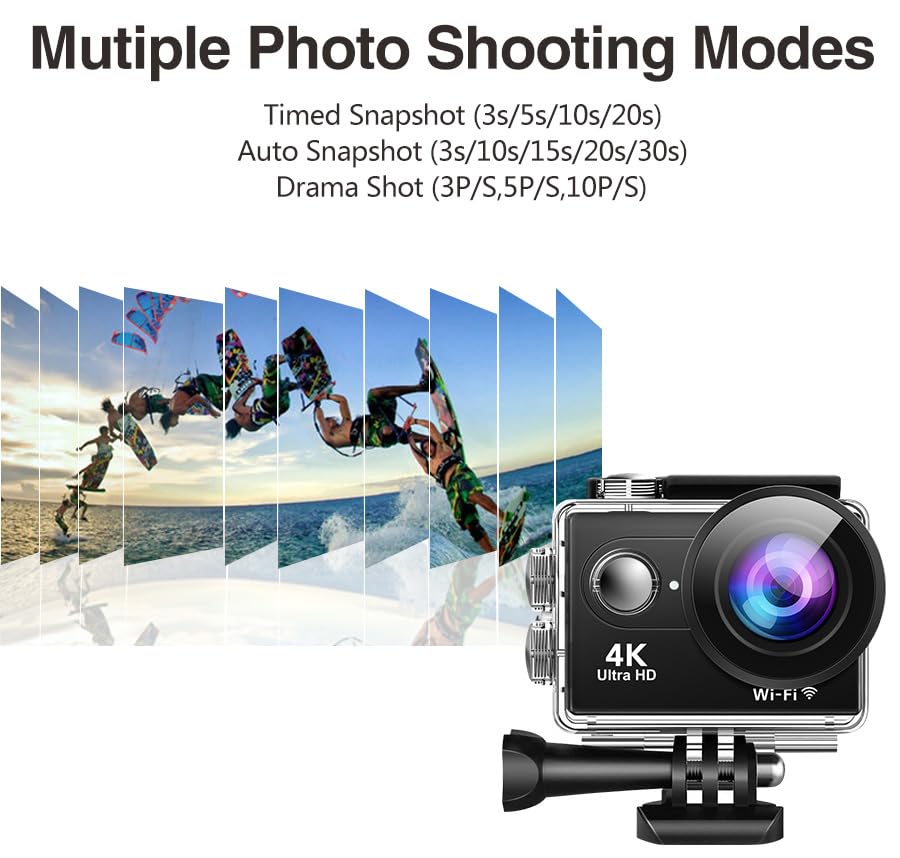
Image: An illustration showcasing the multiple photo shooting modes available on the AUSEK 4K Action Camera, including Timed Snapshot (3s/5s/10s/20s), Auto Snapshot (3s/10s/15s/20s/30s), and Drama Shot (3P/S, 5P/S, 10P/S), with a visual representation of burst photography.
- Time-Lapse Video: Captures frames at set intervals to create a sped-up video.
- Slow-Motion Recording: Records at a higher frame rate for smooth slow-motion playback.
- Burst Photos: Takes multiple photos in quick succession.
- Loop Recording: Overwrites the oldest footage when the memory card is full, ideal for dashcam use.
These modes can be selected and configured within the camera's settings menu.
6. Maintenance
6.1. Cleaning the Camera and Case
- Use the provided lens cloth or a soft, lint-free cloth to clean the camera lens and screen.
- For the waterproof case, rinse with fresh water after saltwater use and allow it to air dry. Ensure the rubber seal is clean and free of sand or debris.
- Do not use harsh chemicals or abrasive cleaners.
6.2. Storage
- Store the camera in a cool, dry place away from direct sunlight and extreme temperatures.
- Remove the battery if storing for extended periods to prevent damage.
7. Troubleshooting
| Problem | Possible Cause | Solution |
|---|---|---|
| Camera does not power on. | Low battery; Battery not inserted correctly. | Charge the battery; Reinsert battery correctly. |
| Cannot record video/take photos. | No Micro SD card; SD card full; SD card error. | Insert SD card; Delete files or use a new card; Format SD card (backup data first). |
| Footage is blurry/shaky. | EIS is off; Lens is dirty; Insufficient lighting. | Enable EIS in settings; Clean the lens; Ensure adequate lighting. |
| Wi-Fi connection issues. | Incorrect password; Too far from camera; App not updated. | Re-enter password; Move closer to camera; Update app. |
| Audio is muffled in waterproof case. | Waterproof case inherently reduces audio clarity. | This is normal. For clear audio, use the camera without the waterproof case in dry environments. |
8. Specifications
| Feature | Detail |
|---|---|
| Model | Rider Moto Vlogging Camera |
| Video Resolution | 4K/60FPS, 2.7K/30FPS, 1080P/120FPS, 720P/120FPS |
| Photo Resolution | 24 MP |
| Lens Angle | 170° Wide-Angle |
| Image Stabilization | EIS (Electronic Image Stabilization) |
| Waterproof Depth | Up to 30m (with waterproof case) |
| Display Screen | 2.0 Inches |
| Storage | Micro SD (up to 64GB, Class 10 or higher recommended) |
| Connectivity | Wi-Fi, Micro USB, Micro HD OUT |
| Remote Control | 2.4G Wireless Remote |
| Supported Audio Formats | AAC |
| Video Capture Format | MP4, AVI |
| Photo Sensor Technology | CMOS |
9. Warranty and Support
9.1. Warranty Information
This product comes with a 1-year warranty from the date of purchase. Please retain your purchase receipt as proof of warranty. The warranty covers manufacturing defects but does not cover damage caused by misuse, accidents, unauthorized repairs, or normal wear and tear.
9.2. Customer Support
For any questions, technical assistance, or warranty claims, please contact AUSEK customer support:
- Customer Support Phone: 08048977694
- Manufacturer: AUSHA EXPORTS P LTD- 140, Sector 27, Gurugram-122009
You can also visit the official AUSEK website for FAQs and additional resources.