
NEOBELLA S801AG
NEOBELLA Wireless Computer Keyboard and Mouse Combo User Manual
Model: S801AG
1. Introduction
This user manual provides comprehensive instructions for the NEOBELLA Wireless Computer Keyboard and Mouse Combo (Model S801AG). This set features a colorful typewriter-style design with floating round keycaps, offering a unique tactile typing experience. It connects wirelessly via a 2.4GHz USB receiver and is compatible with various devices including PCs, laptops, and tablets.
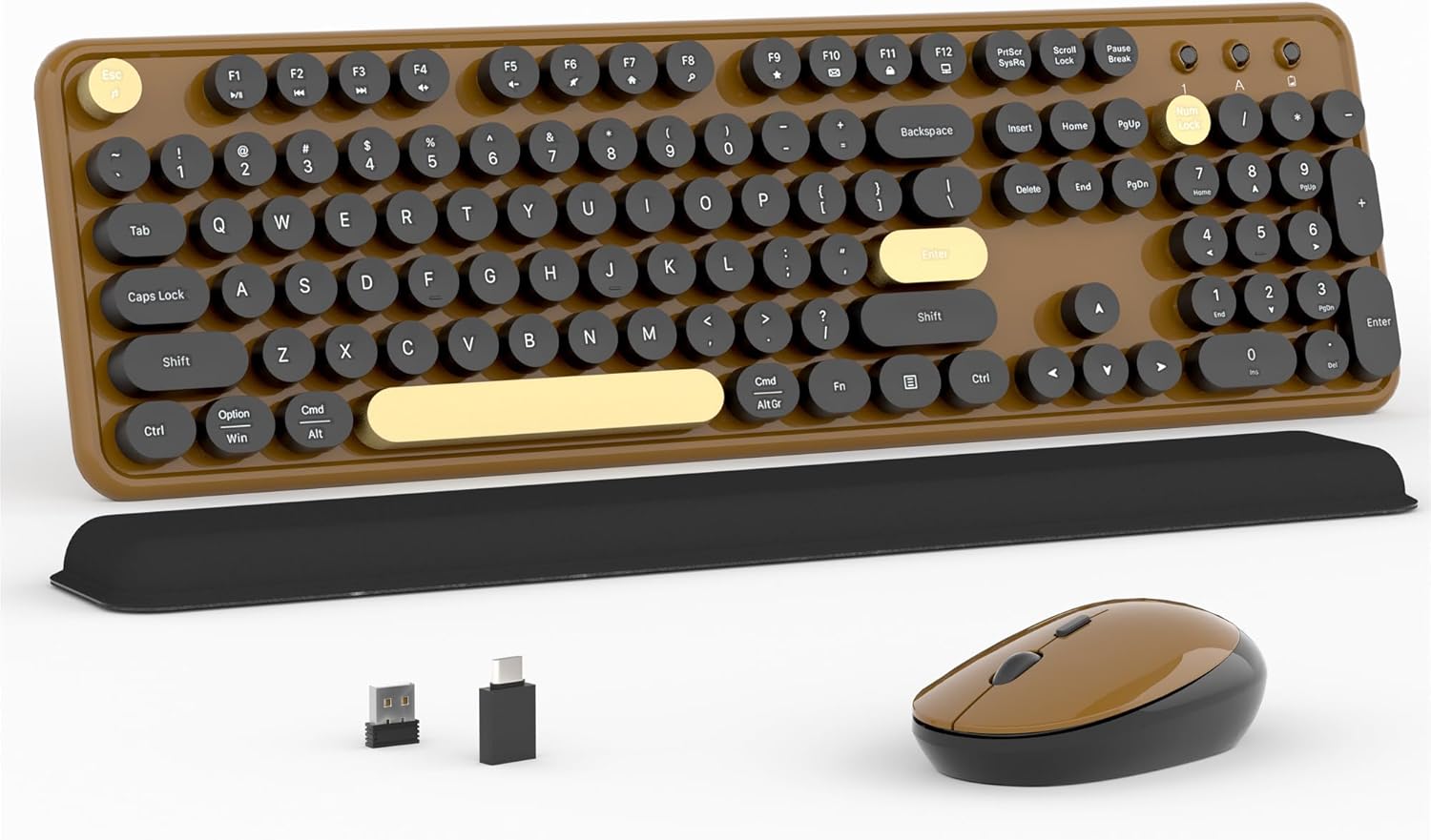
Image 1.1: The NEOBELLA Wireless Computer Keyboard and Mouse Combo, including the keyboard, mouse, wrist rest, and USB receiver.
2. Setup Guide
2.1 Battery Installation
The keyboard and mouse require batteries for operation. Ensure you have 2 AA batteries ready.
- Locate the battery compartments on the underside of both the keyboard and the mouse.
- Open the battery covers.
- Insert the AA batteries, ensuring correct polarity (+/-).
- Close the battery covers securely.

Image 2.1: Illustration of battery installation for both the keyboard and mouse, showing the battery compartments and AA battery placement.
2.2 Connecting the USB Receiver
The keyboard and mouse connect wirelessly via a single 2.4GHz USB nano receiver.
- The USB nano receiver is typically stored in the mouse's battery compartment or a dedicated slot on the mouse's bottom. Carefully remove it.
- Plug the USB nano receiver into an available USB 2.0 port on your computer, laptop, or tablet.
- The system should automatically detect and install the necessary drivers. No additional software is required.
- For devices with only a Type-C port, an adapter (not included) will be needed.

Image 2.2: Diagram showing the wireless connection of the keyboard and mouse to various devices via the USB receiver.
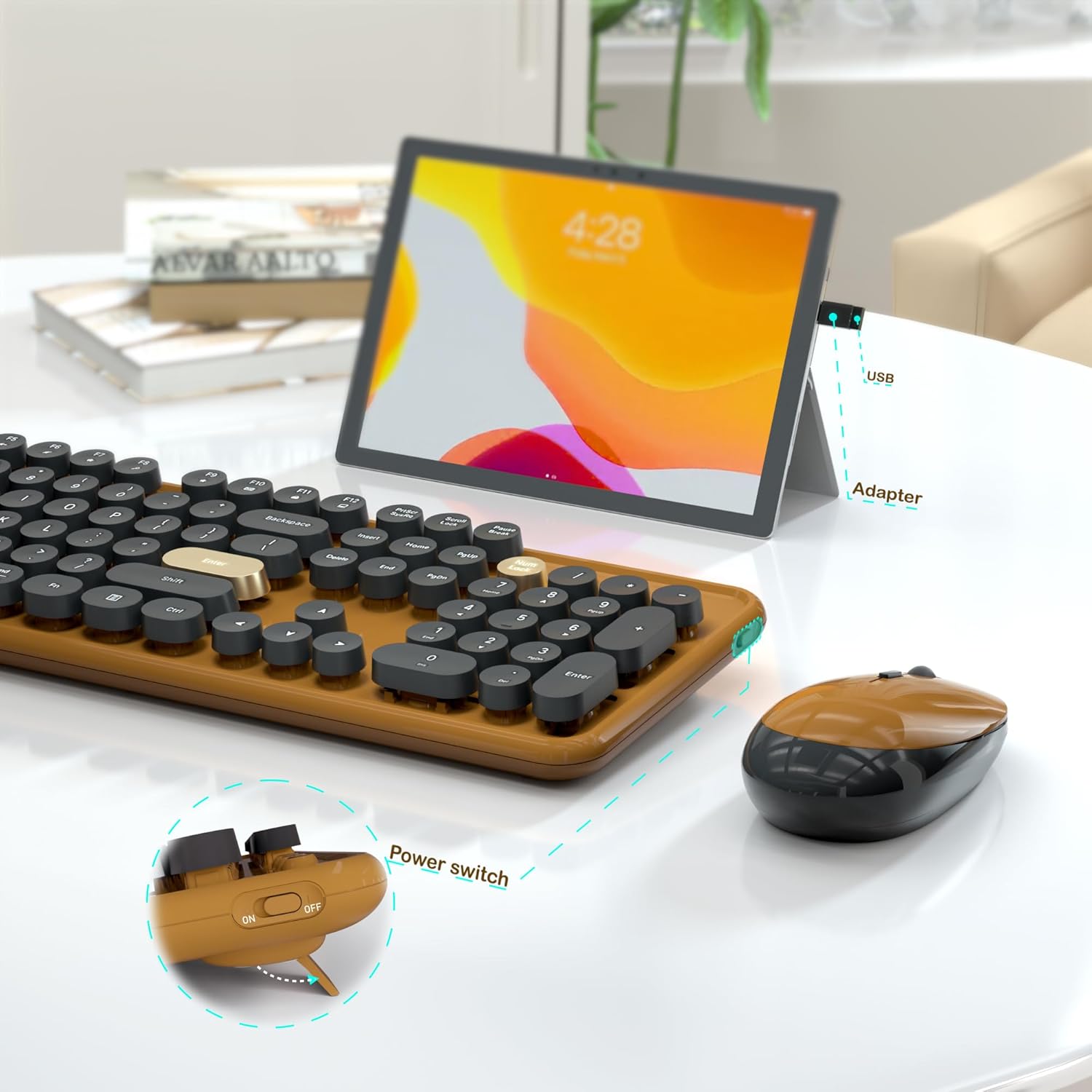
Image 2.3: Close-up view of the power switch on the mouse and the USB adapter for Type-C devices.
3. Operating Instructions
3.1 Powering On/Off
Both the keyboard and mouse are equipped with a power switch to conserve battery life. Locate the switch on the underside of each device and slide it to the "ON" position to begin use. Slide to "OFF" when not in use to save power. The devices also feature an auto-sleep function.
3.2 General Usage
Once connected, the keyboard and mouse are ready for immediate use. The full-size keyboard includes a numeric keypad and arrow keys for comprehensive input. The mouse provides precise cursor control.

Image 3.1: The keyboard and mouse combo being used with a laptop in a home office setting.

Image 3.2: The keyboard and mouse combo being used with a desktop computer setup.
3.3 Key Features
- Colorful Floating Round Keycaps: The unique design of the keycaps provides a distinctive aesthetic and comfortable typing experience.
- Typewriter Clicky Typing Feel: Experience a satisfying tactile and auditory feedback reminiscent of a classic typewriter.
- Durable Keycap Coloring: The keycaps are manufactured with advanced coloring technology to prevent fading or chipping over time.
4. Maintenance
4.1 Cleaning
To clean your keyboard and mouse, use a soft, dry cloth. For stubborn dirt, a slightly damp cloth with a mild cleaning solution can be used, ensuring no liquid enters the device. Avoid abrasive cleaners or solvents.
4.2 Battery Replacement
When the devices stop responding or exhibit intermittent connectivity, it may be time to replace the batteries. Follow the steps in Section 2.1 to replace the AA batteries in both the keyboard and mouse.
4.3 Keycap Removal (for cleaning or customization)
The round keycaps can be removed for thorough cleaning or customization. Gently pull the keycap straight up to detach it from the switch. To reattach, align the keycap with the switch and press down firmly until it clicks into place.
5. Troubleshooting
- No Response from Keyboard/Mouse:
- Ensure the power switches on both devices are in the "ON" position.
- Check battery levels and replace if necessary.
- Verify the USB nano receiver is securely plugged into a working USB port.
- Try plugging the USB receiver into a different USB port.
- Intermittent Connectivity:
- Ensure there are no large metallic objects or other wireless devices causing interference between the receiver and the keyboard/mouse.
- Move the devices closer to the USB receiver.
- Replace batteries.
- Keys Not Registering or Sticky Keys:
- Clean around and under the affected keycaps. Refer to Section 4.3 for keycap removal.
6. Product Specifications
| Feature | Detail |
|---|---|
| Model Number | S801AG |
| Brand | NEOBELLA |
| Connectivity Technology | 2.4GHz Wireless (USB Receiver) |
| Power Source | 2 AA Batteries (Keyboard & Mouse) |
| Compatible Devices | PC, Laptop, Tablet, Projector, Television |
| Special Feature | Round Keycaps, Power Switch, Auto-Sleep Function |
| Item Weight | 2.29 pounds |
| Package Dimensions | 17.63 x 5.79 x 3.03 inches |
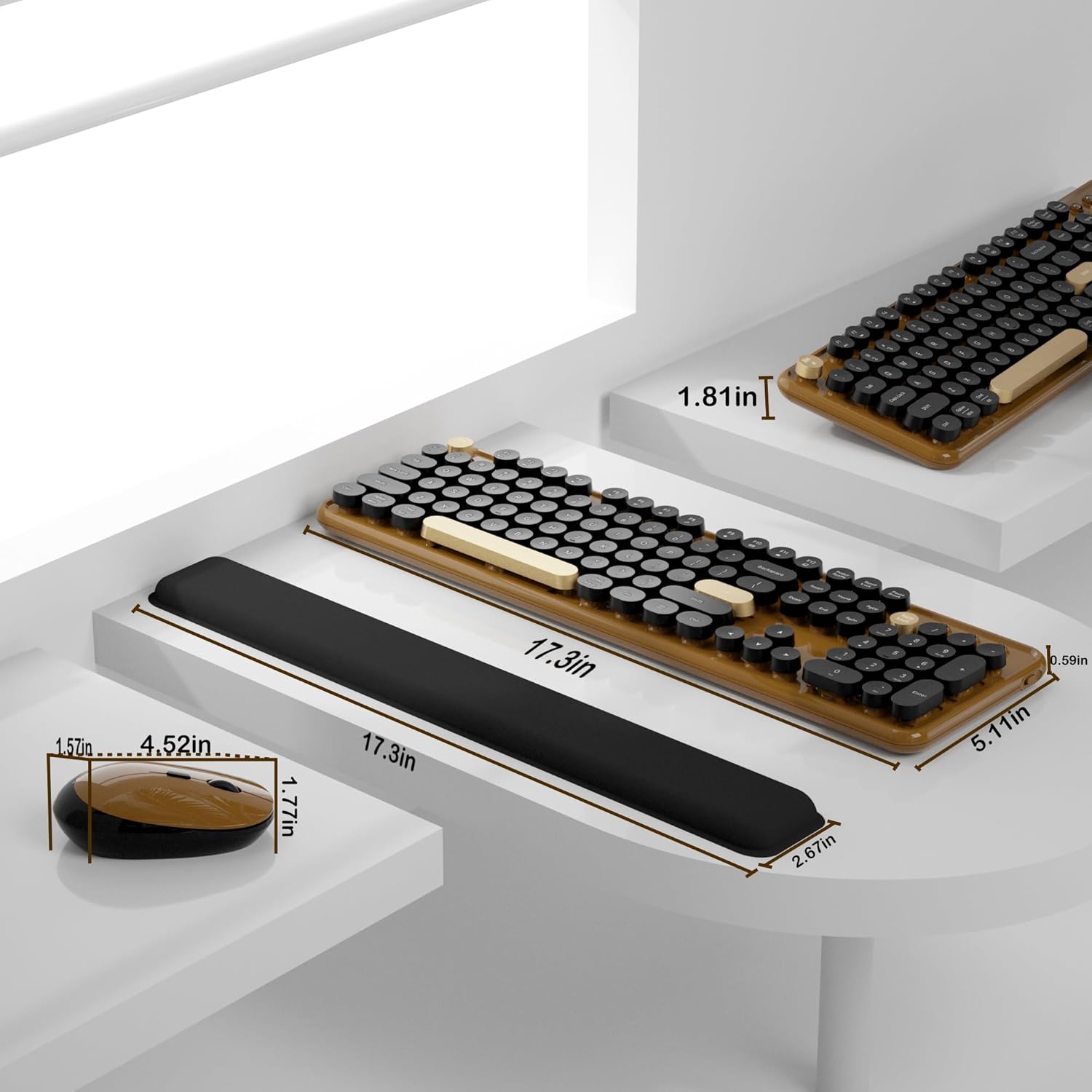
Image 6.1: Detailed dimensions of the keyboard and mouse for reference.
7. Warranty and Support
NEOBELLA provides one year of technical support for both the computer keyboard and mouse. For any issues or inquiries, please contact our customer support team. Refer to your product packaging or the retailer's website for specific contact information.
For the fastest assistance, please have your product model number (S801AG) and purchase details ready when contacting support.