
NEOBELLA
NEOBELLA Wireless Keyboard and Mouse Combo User Manual
Model: S801AG-C
Introduction
Thank you for choosing the NEOBELLA Wireless Computer Keyboard and Mouse Combo. This manual provides detailed instructions for setting up, operating, maintaining, and troubleshooting your new wireless peripheral set. Please read this manual thoroughly before use to ensure optimal performance and longevity of your product.
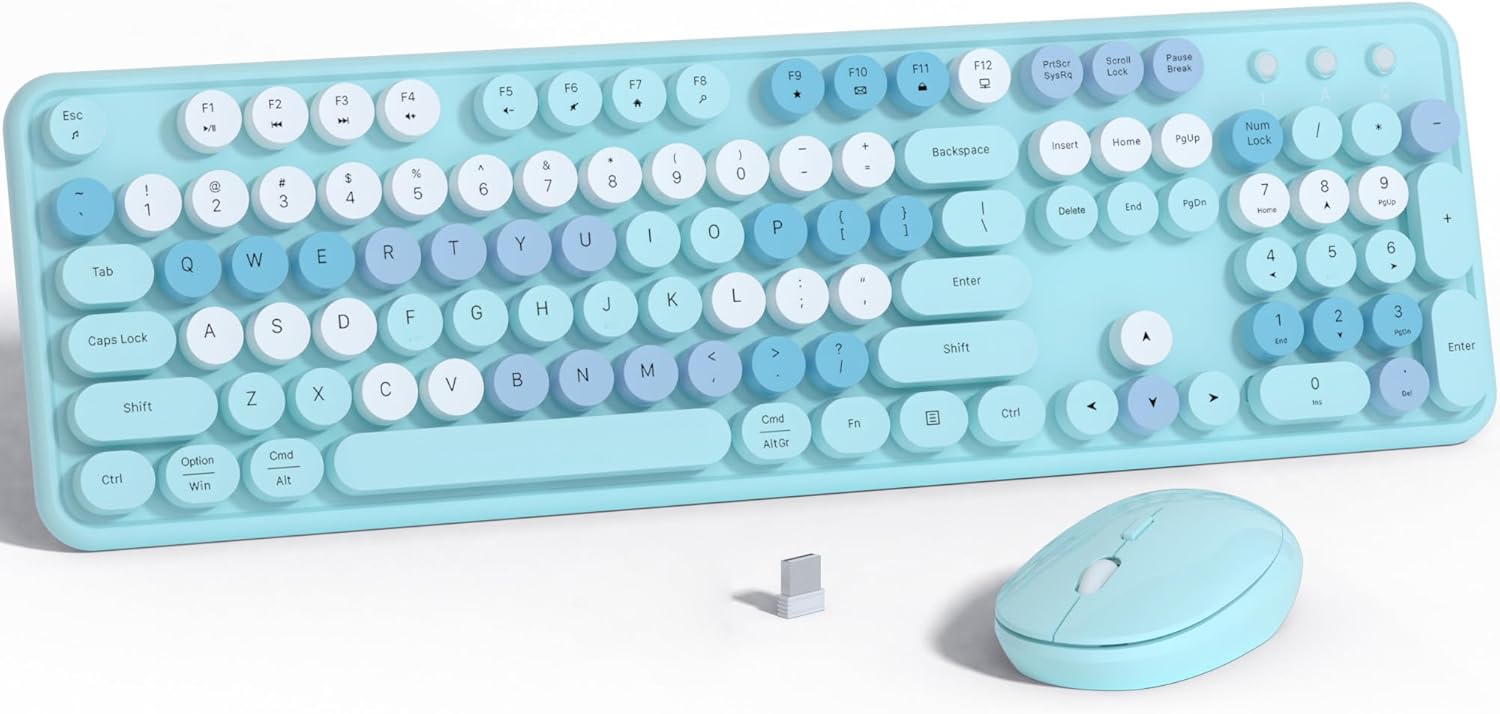
Image: The NEOBELLA Wireless Keyboard and Mouse Combo, showcasing its blue and colorful round keycaps and matching mouse.
Key Features
- Power Switch: Both keyboard and mouse are equipped with power switches to conserve battery life and feature an auto-sleep function.
- Colorful Floating Round Keycaps: Unique higher round keys with a mixed color design for a distinctive aesthetic and comfortable typing experience.
- Typewriter Clicky Typing Feel: Provides a satisfying tactile and auditory feedback reminiscent of a classic typewriter.
- RF USB 2.0 Receiver Connection: Simple plug-and-play setup with a durable and stable 2.4GHz USB nano receiver for reliable connection.
- Widely Compatible & Separately Usable: Can be used independently with PC, laptop, and tablet devices. An adapter may be required for devices with only Type-C ports.
- Durable Keycap Color: Utilizes advanced coloring technology to prevent color fading.
- Fast Response: Designed for quick and efficient input.
Package Contents
Please ensure all items are present in the package:
- Wireless Keyboard
- Wireless Mouse
- USB Nano Receiver (located inside the mouse battery compartment)
- User Manual

Image: Diagram illustrating the dimensions of the keyboard and mouse, and the location of the USB nano receiver inside the mouse.
Setup Guide
1. Battery Installation
- For the Keyboard: Open the battery compartment on the underside of the keyboard. Insert one (1) AA battery, ensuring correct polarity (+/-). Close the compartment.
- For the Mouse: Open the battery compartment on the underside of the mouse. Remove the USB nano receiver. Insert one (1) AA battery, ensuring correct polarity (+/-). Close the compartment.
2. Connecting the USB Receiver
- Locate an available USB 2.0 port on your computer, laptop, or tablet.
- Insert the USB nano receiver into the USB port.
- If your device only has a Type-C port, use a suitable USB-C to USB-A adapter (not included).
3. Powering On
- Locate the power switch on the top right side of the keyboard. Slide it to the "ON" position.
- Locate the power switch on the underside of the mouse. Slide it to the "ON" position.
- The keyboard and mouse should automatically connect to your device. No additional drivers are typically required for Windows, macOS, or Chrome OS.

Image: The wireless keyboard and mouse combo demonstrating connectivity to a laptop, desktop monitor, and tablet via the USB receiver.
Operating Instructions
Keyboard Usage
The keyboard features a standard QWERTY layout with a full numeric keypad and function keys. The round keycaps are designed for comfortable and precise typing.
- Function Keys (F1-F12): These keys may have secondary functions (e.g., media control, volume adjustment) accessible by pressing the Fn key simultaneously. Refer to your operating system's settings for specific key assignments.
- Numeric Keypad: Use the dedicated numeric keypad for efficient data entry. Ensure Num Lock is enabled if needed.
- Power Saving: The keyboard will enter an auto-sleep mode after a period of inactivity to save battery. Press any key to wake it up.
Mouse Usage
The wireless mouse provides smooth and accurate cursor control.
- Left Click: Primary action, selection.
- Right Click: Context menu.
- Scroll Wheel: Scroll up/down documents and web pages. Can also be pressed for middle-click functionality.
- Power Saving: The mouse will enter an auto-sleep mode after a period of inactivity. Click any button or move the mouse to wake it up.

Image: The NEOBELLA wireless keyboard and mouse combo positioned on a desk, ready for use with a computer monitor.
Maintenance and Care
Proper maintenance ensures the longevity and performance of your wireless keyboard and mouse combo.
- Cleaning:
- Disconnect the USB receiver before cleaning.
- Use a soft, dry, lint-free cloth to wipe down the surfaces of the keyboard and mouse.
- For stubborn dirt, slightly dampen the cloth with water or a mild, non-abrasive cleaner. Avoid excessive moisture.
- To clean between keycaps, you can use compressed air. The round keycaps are designed to be easily removable for deeper cleaning.
- Battery Replacement: Replace batteries when performance degrades or devices stop responding. Always use fresh AA batteries.
- Storage: When not in use for extended periods, turn off the power switches on both the keyboard and mouse to conserve battery life. Store in a cool, dry place.
- Avoid Extreme Conditions: Do not expose the devices to extreme temperatures, direct sunlight, or high humidity.
Troubleshooting
| Problem | Possible Solution |
|---|---|
| Keyboard or mouse not responding. |
|
| Lag or intermittent connection. |
|
| Keys are sticky or not registering properly. |
|
| Mouse cursor erratic or not moving smoothly. |
|
Product Specifications
| Feature | Detail |
|---|---|
| Brand | NEOBELLA |
| Model Number | S801AG-C |
| Connectivity Technology | 2.4GHz Wireless (USB Nano Receiver) |
| Keyboard Dimensions | Approx. 17.3 x 5.11 x 1.57 inches (44 x 13 x 4 cm) |
| Mouse Dimensions | Approx. 4.52 x 1.77 x 1.77 inches (11.5 x 4.5 x 4.5 cm) |
| Item Weight | 2.05 pounds (Keyboard and Mouse combined) |
| Power Source | 1 x AA Battery for Keyboard, 1 x AA Battery for Mouse (Batteries not included) |
| Compatible Devices | PC, Laptop, Tablet, Projector, Television (with USB port) |
| Keycap Style | Floating Round Keycaps |
| Special Features | Power Switch, Auto-Sleep Function, Typewriter Clicky Feel, Durable Color |
Warranty and Support
NEOBELLA provides a one-year technical support warranty for both the computer keyboard and mouse. For any technical issues, questions, or support needs, please contact NEOBELLA customer service through the platform where you purchased the product or visit the official NEOBELLA store for contact information.
Please retain your proof of purchase for warranty claims.
Ask a question about this manual
Ask about setup, troubleshooting, compatibility, parts, safety, or missing instructions. Manuals+ will review the question and use this page’s manual context to help answer it.