
Product Overview
The QianLi iCopy Plus 2.2 is a versatile multifunction device designed for transferring data on iPhone parts. It is equipped with four specialized PCB boards to facilitate various repair and data transfer operations, including LCD and Touch, Vibrating Motor, Baseband, Face ID, Battery Service, and Data Cable/Headset Authenticity testing.
This device simplifies complex repair processes, making it accessible for both experienced technicians and beginners. Its primary functions include:
- True Tone Display Restoration: Recover True Tone functionality after screen replacement.
- Light Sensor Recovery: Restore ambient light sensor functionality.
- Vibrator Data Transfer: Copy and write vibrator data.
- Battery Data Correction: Read, write, and correct battery health data.
- Face ID Repair: Address Face ID issues using dedicated boards.
- Data Cable/Headset Authenticity Testing: Verify genuine accessories.

Figure 1: The QianLi iCopy Plus 2.2 main unit shown with its accompanying specialized PCB boards for various iPhone repair functions.
Package Contents
The QianLi iCopy Plus 2.2 package includes the following components:
- iCopy Plus 2.2 Programmer Main Unit
- FaceID Board X-14PM
- Battery Service PCB 6-14PM
- LCD / Touch PCB 7-11PM
- Data Cable / Headset Authenticity Tester Board PCB
Setup
Before using the iCopy Plus 2.2, ensure the device is charged or connected to a power source. The main unit features a display and control buttons for navigation.
- Power On: Press and hold the power button on the iCopy Plus 2.2 main unit to turn it on.
- Language Selection: On the main screen, locate the language option (often indicated by a globe icon or text like "Switching English"). Use the navigation buttons to select your preferred language.
- Board Connection: Identify the appropriate PCB board for the repair task you intend to perform (e.g., FaceID, Battery, LCD/Touch, Data Cable). Carefully align and connect the chosen PCB board to the designated port on the iCopy Plus 2.2 main unit. Ensure a secure connection.
- PC Connection (Optional): For certain advanced functions, such as restoring True Tone Display without the original screen, the iCopy Plus 2.2 may need to be connected to a computer running the QianLi software assistant. Use a USB cable to connect the device to your PC.

Figure 2: The iCopy Plus 2.2 connected via USB to a computer, demonstrating its use with the QianLi software for advanced functions like True Tone restoration.
Operating Instructions
1. True Tone Display, Light Sensor, and Vibrator Recovery
This function allows for the restoration of True Tone display, light sensor, and vibrator functionality after replacing an iPhone screen or vibrator motor.
- Connect the LCD / Touch PCB 7-11PM board to the iCopy Plus 2.2.
- Connect the original iPhone screen to the appropriate port on the PCB board.
- Select the "Read" option on the iCopy Plus 2.2 to extract data from the original screen.
- Disconnect the original screen and connect the new replacement screen.
- Select the "Write" option to transfer the extracted data to the new screen. This will restore True Tone, light sensor, and vibrator functions.

Figure 3: Illustrates the difference in iPhone display settings before and after True Tone restoration using the iCopy Plus 2.2.
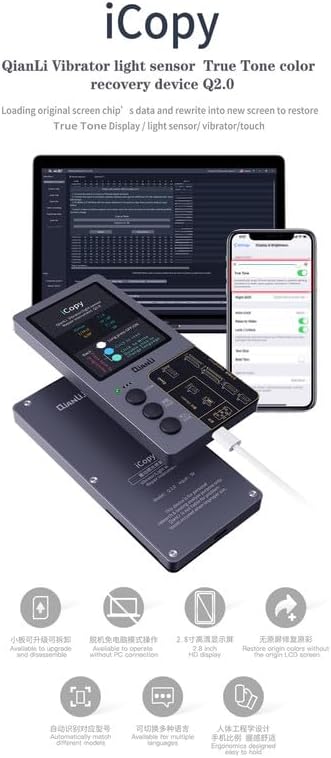
Figure 4: The iCopy Plus 2.2 interface showing options for True Tone, light sensor, and vibrator data recovery.
2. Battery Data Correction
The Battery Service PCB 6-14PM board allows for reading, writing, and correcting battery health data, which is useful after battery replacements.
- Connect the Battery Service PCB 6-14PM board to the iCopy Plus 2.2.
- Connect the iPhone battery to the designated port on the battery board.
- Use the iCopy Plus 2.2 to read the battery data. You can then modify parameters such as battery health, cycle count, and serial number as needed.
- Write the corrected data back to the battery.
3. Face ID Repair
The FaceID Board X-14PM is designed for repairing Face ID issues, particularly with the X-14 series iPhones. This board simplifies the process by eliminating the need for complex disassembly of the prism or chip replacement in many cases.
- Connect the FaceID Board X-14PM to the iCopy Plus 2.2.
- Connect the iPhone's Face ID module (dot projector flex cable) to the FaceID board.
- Follow the on-screen instructions on the iCopy Plus 2.2 to read and write Face ID data. The device will guide you through the necessary steps for recovery and activation.

Figure 5: The iCopy Plus 2.2 demonstrating the X-14 Series Face ID Recovery and Activation Board, highlighting its ease of use for beginners.

Figure 6: This image contrasts the complexity of traditional Face ID repair methods with the simplified "one machine for all" approach offered by the iCopy Plus 2.2.

Figure 7: A visual representation of the various dot projector and battery flex cables that are compatible with the iCopy Plus 2.2, indicating its broad support for different iPhone models.
4. Data Cable / Headset Authenticity Testing
The Data Cable / Headset Authenticity Tester Board PCB allows you to verify the authenticity of Lightning data cables and headsets.
- Connect the Data Cable / Headset Authenticity Tester Board PCB to the iCopy Plus 2.2.
- Plug the Lightning data cable or headset into the designated port on the board.
- The iCopy Plus 2.2 will display information regarding the authenticity and specifications of the connected accessory.
Maintenance
To ensure the longevity and optimal performance of your QianLi iCopy Plus 2.2, follow these maintenance guidelines:
- Cleaning: Use a soft, dry cloth to clean the main unit and PCB boards. Avoid using liquid cleaners or abrasive materials.
- Storage: Store the device and its boards in a dry, dust-free environment when not in use. Keep them away from extreme temperatures and direct sunlight.
- Handling: Handle the PCB boards and connectors with care to prevent damage to the delicate pins and components.
- Software Updates: Periodically check the official QianLi website for firmware updates for the iCopy Plus 2.2. Keeping the firmware updated ensures compatibility with new iPhone models and improved functionality.
Troubleshooting
| Problem | Possible Cause | Solution |
|---|---|---|
| Device does not power on. | Low battery or no power connection. | Ensure the device is fully charged or connected to a stable power source via USB. |
| Device not recognized by PC. | Driver issues, faulty USB cable, or incorrect software installation. |
|
| Incorrect language displayed. | Language setting needs adjustment. | On the main screen, press the bottom button to cycle through language options until English is selected. |
| Function (e.g., Face ID, True Tone) not working. | Incorrect board connected, faulty flex cable, or outdated firmware. |
|
Specifications
| Feature | Detail |
|---|---|
| Product Model | Qianli icopy 2.2 plus with 4 boards |
| Product Dimensions | 7.5 x 5 x 4 inches |
| Item Weight | 1.2 pounds |
| Manufacturer | Qianli |
| Compatible Devices | iPhone 7, 8, 8 Plus, X, XR, XS, XS Max, 11, 11 Pro, 11 Pro Max, 12, 12 Mini, 12 Pro, 12 Pro Max, 13, 13 Mini, 13 Pro, 13 Pro Max, 14, 14 Plus, 14 Pro, 14 Pro Max (with relevant boards) |
| Included Boards | FaceID Board X-14PM, Battery Service PCB 6-14PM, LCD / Touch PCB 7-11PM, Data Cable / Headset Authenticity Tester Board PCB |
| Special Features | True Tone Display restoration, Light Sensor recovery, Vibrator data transfer, Battery data correction, Face ID repair, Data Cable/Headset authenticity testing. |
Warranty and Support
Warranty information for the QianLi iCopy Plus 2.2 is typically provided by the retailer or manufacturer at the time of purchase. Please refer to your purchase documentation or contact the seller directly for details regarding warranty coverage and terms.
For technical support, software updates, or further assistance with your iCopy Plus 2.2, please visit the official QianLi website or contact their customer support channels. Keep your product model number and purchase details ready when seeking support.