Product Overview
The UGREEN USB-C to 2.5 Gigabit Ethernet Adapter provides a high-speed, stable wired network connection for your USB-C enabled devices. Designed for optimal performance and reliability, this adapter is an ideal solution for devices lacking an Ethernet port or experiencing unstable Wi-Fi.

Figure 1: UGREEN USB-C to 2.5 Gigabit Ethernet Adapter, showcasing its compact design and USB-C connector.
Key Features
- Ultra-Fast 2.5 Gigabit Speed: Experience network speeds up to 2500 Mbps (2.5 Gbps), which is 2.5 times faster than standard 1 Gbps connections. This ensures rapid data transfer, smooth streaming, and lag-free online gaming.

Figure 2: Visual representation of 2.5Gbps speed compared to 1Gbps and 100Mbps, highlighting faster data transfer.
- Enhanced Network Reliability: Provides a stable and secure wired internet connection, overcoming issues like weak Wi-Fi signals or damaged built-in Ethernet ports. Ideal for critical tasks requiring consistent connectivity.

Figure 3: Real-time data backup and download capabilities demonstrated with the adapter connected to a laptop and NAS.
- Wide Compatibility: Supports a broad range of USB-C enabled devices including laptops, tablets, and smartphones. Compatible with Windows 11, Mac OS (plug and play), and Windows 10/8.1/8/7/XP (driver installation required).
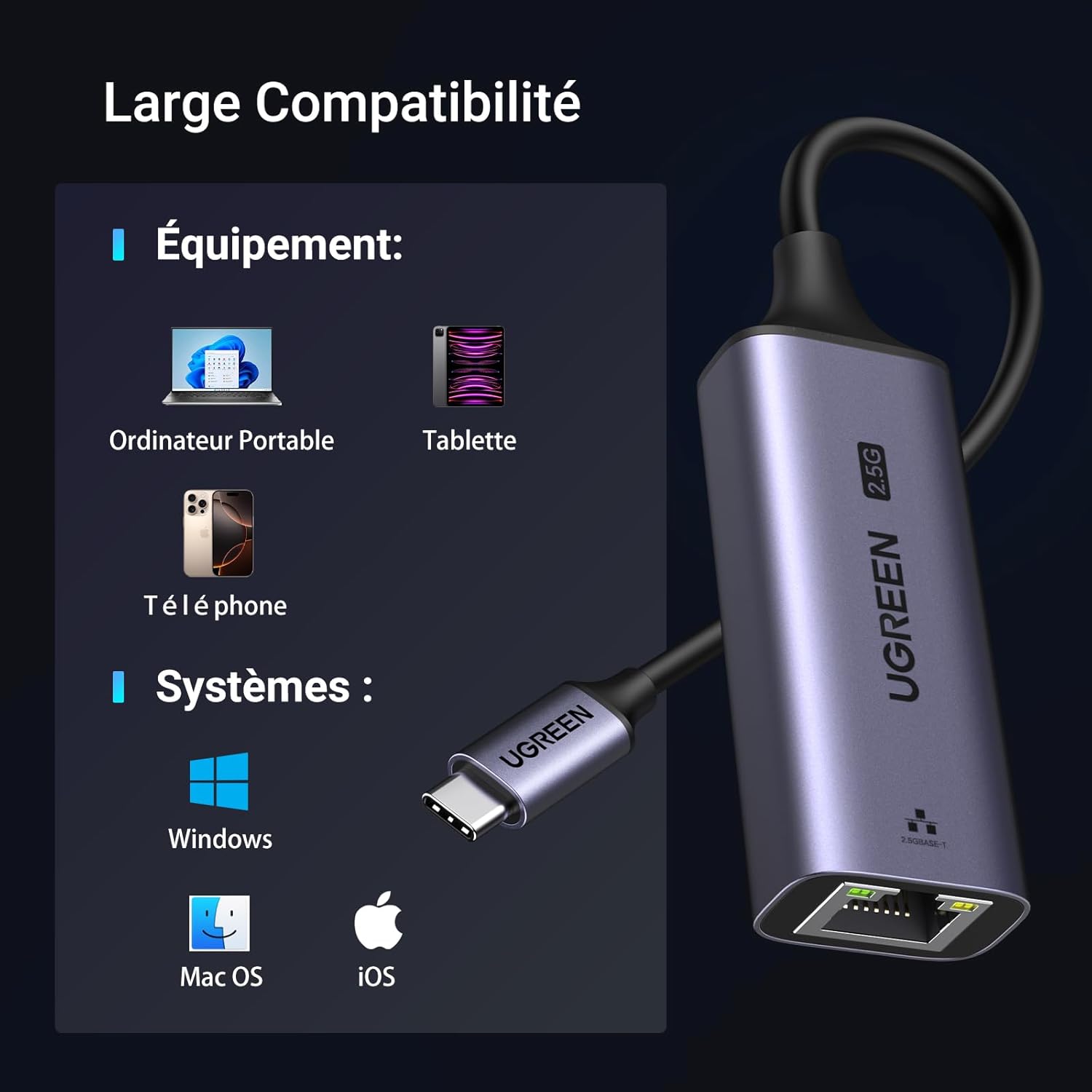
Figure 4: Overview of device and operating system compatibility for the adapter.
- Premium Performance & Durability: Equipped with the intelligent Realtek RTL8156BG chip for stable and efficient performance. The high-quality aluminum casing ensures excellent heat dissipation and a sleek, durable design.

Figure 5: The Realtek RTL8156BG chip, central to the adapter's high-speed performance.

Figure 6: Internal design highlighting the aluminum casing's role in effective heat dissipation.
- User-Friendly Design: Features an LED indicator for clear operational status (green for connection, yellow for data transfer). Its ultra-thin and lightweight profile makes it highly portable.

Figure 7: The adapter's LED indicator for power and data transfer, and its durable aluminum construction.
Specifications
| Attribute | Detail |
|---|---|
| Brand | UGREEN |
| Model Number | UG-USBC-25052 |
| Color | Silver |
| Interface | USB 3.0 Type-C to RJ45 Ethernet |
| Data Transfer Rate | Up to 2.5 Gigabits per second (2500 Mbps) |
| Data Link Protocol | Ethernet |
| Compatible Operating Systems | Windows 11, Windows 10, Windows 8.1, Windows 8, Windows 7, Windows XP, Mac OS, iOS (Note: Driver installation may be required for older Windows versions.) |
| Compatible Devices | iPhone 16/16 Plus/16 Pro/16 Pro Max/15/15 Plus/15 Pro/15 Pro Max, Galaxy S24/S24+/S24 Ultra/S23/S22/S21, MacBook Pro (M3/M2/M1, Max/Pro, 2023 - 2016), MacBook Air (M3/M2/M1, 2024 - 2018), iPad Pro (2024 - 2018), iPad Air (2024 - 2020), Dell XPS 17/15/13, Surface Pro 10/9/8/Go, and other USB-C enabled devices. |
| Dimensions (L x W x H) | 36 x 3.5 x 1.5 cm |
| Item Weight | 60 Grams |
Setup Guide
- Connect the Adapter: Insert the USB-C connector of the UGREEN adapter into an available USB-C port on your computer, tablet, or smartphone.
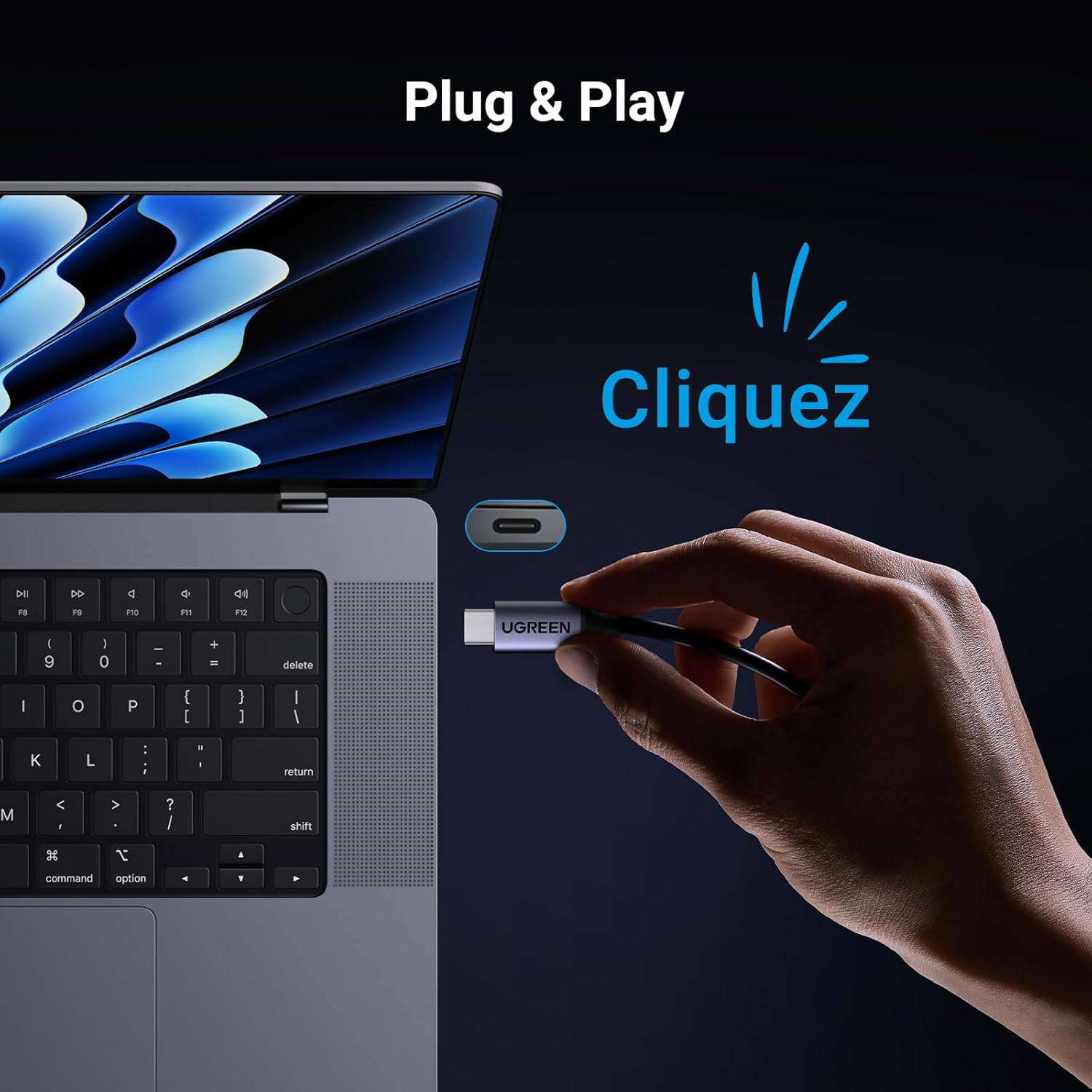
Figure 8: Connecting the adapter to a device's USB-C port.
- Connect Ethernet Cable: Plug a standard RJ45 Ethernet cable (Cat5e, Cat6, Cat7, or Cat8 recommended for optimal performance) from your router or modem into the RJ45 port on the UGREEN adapter.
- Driver Installation (if required):
- For Windows 11 and Mac OS: The adapter is typically plug-and-play, and drivers should install automatically.
- For Windows 10/8.1/8/7/XP: You may need to install a driver. Please visit the official UGREEN website or Realtek's website (for RTL8156BG chip) to download the appropriate driver for your operating system. Follow the on-screen instructions for installation.
- Verify Connection: Once connected, the green LED indicator on the adapter should illuminate, indicating a successful link. The yellow LED will blink during data transfer.
Operating Instructions
After successful setup, your device should automatically detect the wired network connection provided by the UGREEN adapter. You can now enjoy a stable and high-speed internet connection for various activities:
- High-Speed Data Transfer: Utilize the 2.5 Gigabit speed for quick file transfers to and from network-attached storage (NAS) devices, servers, or other computers on your local network.
- Seamless Streaming: Stream high-definition videos (4K/8K) and other media content without buffering or interruptions.
- Lag-Free Gaming: Experience a more responsive and stable online gaming experience compared to Wi-Fi, reducing latency and disconnections.
- Stable Video Conferencing: Ensure clear and uninterrupted video calls for work or personal use.
Video: Official UGREEN product video demonstrating the adapter's features, including high-speed data transfer, gaming, and overall performance. This video highlights the benefits of a stable 2.5 Gigabit Ethernet connection.
Maintenance
- Cleaning: Use a soft, dry cloth to clean the adapter. Avoid using liquid cleaners or aerosols, as they may damage the device.
- Storage: When not in use, store the adapter in a cool, dry place away from direct sunlight and extreme temperatures.
- Cable Management: Ensure the USB-C cable and Ethernet cable are not excessively bent or kinked to prevent internal damage.
- Firmware Updates: Periodically check the UGREEN official website for any available firmware updates for the adapter. While not common for simple adapters, updates can improve performance or compatibility.
Troubleshooting
- Problem: No network connection after plugging in the adapter.
- Solution 1: Ensure the USB-C connector is fully inserted into your device's port.
- Solution 2: Verify that the Ethernet cable is securely connected to both the adapter and your router/modem.
- Solution 3: Check the LED indicators on the adapter. If the green LED is not lit, there might be an issue with the connection or power.
- Solution 4: For Windows 10/8.1/8/7/XP, confirm that the correct driver is installed. If not, download and install it from the UGREEN or Realtek website.
- Solution 5: Try connecting the adapter to a different USB-C port on your device, or test it on another compatible device to rule out port issues.
- Solution 6: Restart your computer and network equipment (router/modem).
- Problem: Slow network speed.
- Solution 1: Ensure your Ethernet cable is rated for Gigabit or 2.5 Gigabit speeds (e.g., Cat5e, Cat6, Cat7, Cat8). Older cables might limit speed.
- Solution 2: Verify that your router/modem and internet service plan support speeds of 2.5 Gbps or higher. The adapter's speed is limited by the slowest component in your network chain.
- Solution 3: Check for any background applications or downloads consuming bandwidth on your device.
- Solution 4: Ensure your device's USB-C port supports USB 3.0 or higher for optimal performance.
- Problem: Adapter gets warm during use.
- Solution: It is normal for the adapter to become warm during operation, especially during high data transfer activities, due to its aluminum casing designed for heat dissipation. If it becomes excessively hot to touch or causes device instability, discontinue use and contact support.
Warranty and Support
UGREEN products come with a standard manufacturer's warranty. For specific warranty terms and conditions, please refer to the warranty card included with your product or visit the official UGREEN website.
If you encounter any issues or have questions regarding your UGREEN USB-C to 2.5 Gigabit Ethernet Adapter, please contact UGREEN customer support through their official website or the contact information provided in your product packaging. When contacting support, please have your product model number (UG-USBC-25052) and purchase details ready.
UGREEN Official Website: www.ugreen.com


