
1. Product Overview
The Quxas JK-402A is an inkless, portable thermal label printer designed for efficient and clear printing of various labels. It offers versatile connectivity options, supporting both Bluetooth and USB connections for a wide range of devices and operating systems.

Image: The Quxas JK-402A thermal label printer in operation, demonstrating its ability to print shipping labels quickly and efficiently. A smartphone screen displaying a label is also visible, highlighting Bluetooth connectivity.
Key Features:
- Versatile Connectivity: Supports Bluetooth for iOS & Android (via "Steprint" app) and Windows 7 or later. Also supports USB connections for all computer systems, including Mac OS (Mac OS only supports USB).
- Fast and Clear Printing: Achieves print speeds of up to 150mm/second, capable of printing 80 4x6 labels per minute with excellent print quality.
- Custom Label Creation: Accommodates label widths from 1.5 inches to 4.25 inches (38-108mm), suitable for shipping labels, barcodes, product labels, thank-you stickers, QR codes, and more.
- Automatic Paper Positioning: Features intelligent label recognition and calibration for accurate printing.
- Wide Platform Compatibility: Integrates seamlessly with major shipping platforms (Fedex, UPS, USPS, ShipStation, etc.) and online marketplaces (Amazon, Shopify, Etsy, eBay).
2. Setup Guide
2.1. What's in the Box
- Quxas JK-402A Thermal Label Printer
- 1 Power Adapter
- 1 Power Cord
- U-Disk (containing printer drivers, instruction videos, and troubleshooting videos)
2.2. Connecting the Printer
The Quxas JK-402A printer offers both USB and Bluetooth connectivity. Choose the method that best suits your device.

Image: Illustration of the two primary connection methods: USB for Windows and Mac computers, and Bluetooth for Android, iOS, and iPad devices.
2.2.1. USB Connection (Windows & Mac)
- Connect the power adapter to the printer and plug it into a power outlet.
- Connect the USB cable from the printer to your computer.
- Insert the provided U-Disk into your computer.
- Install the printer driver from the U-Disk. Follow the on-screen instructions.
- Once the driver is installed, set your printer preferences as needed.
- You can now open your file and print.

Image: A visual guide detailing the setup process, including downloading the "Steprint" app for mobile devices and installing printer drivers from the U-Disk for computers.
Note: Mac OS only supports USB connection; Bluetooth printing is not supported for Mac.
2.2.2. Bluetooth Connection (iOS & Android, Windows 7 or later)
- Connect the power adapter to the printer and plug it into a power outlet.
- Download the "Steprint" app from Google Play Store (for Android) or Apple App Store (for iOS).
- Open the "Steprint" app and enable Bluetooth on your mobile device.
- Within the app, connect to the Quxas printer via Bluetooth.
- You can now import your label file and print directly from the app.
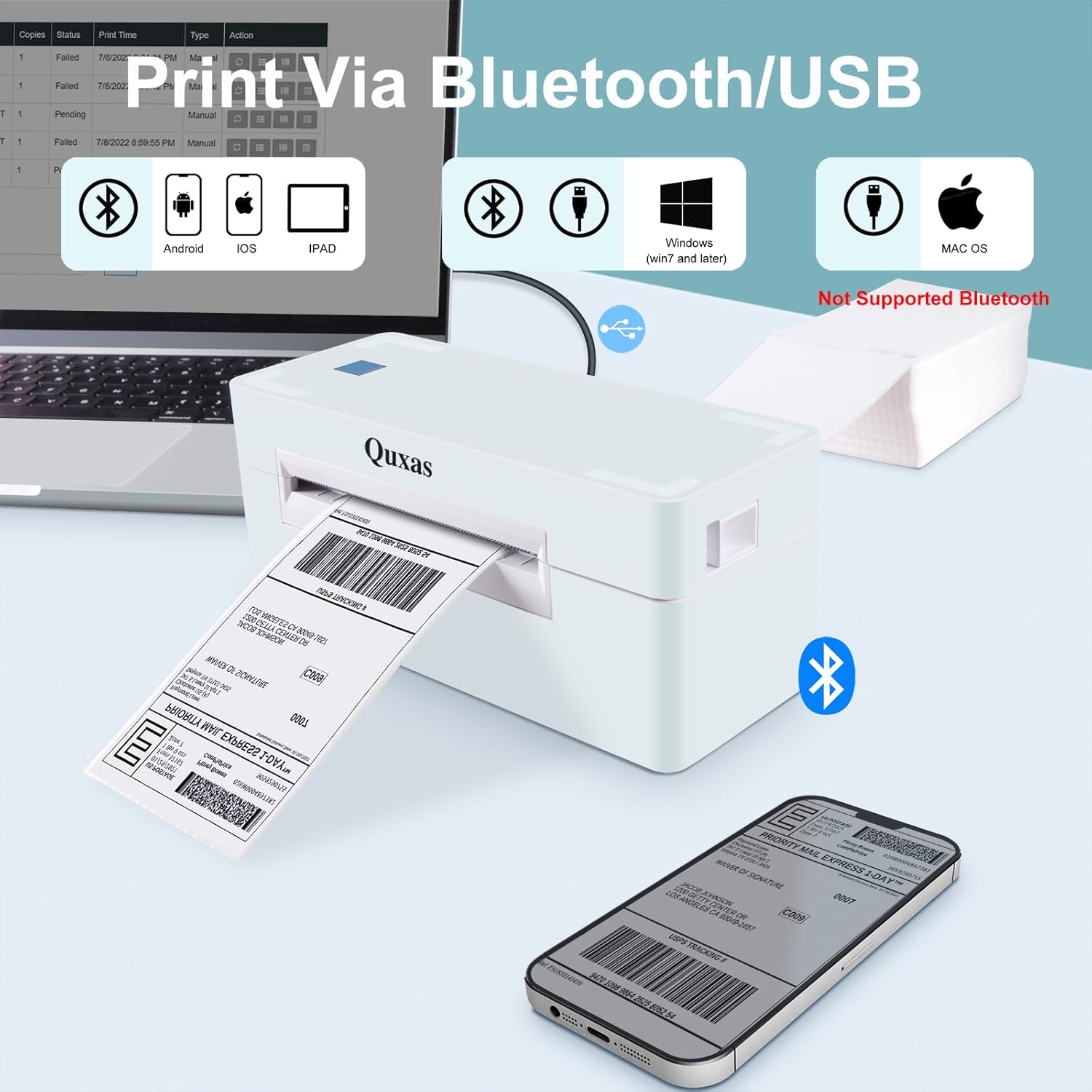
Image: The printer connected to a laptop and a smartphone, illustrating its compatibility with Windows, Android, iOS, and iPad via Bluetooth and USB. Mac OS is noted as USB-only.
2.3. Loading Labels
The printer features automatic label recognition and calibration. Ensure labels are properly aligned for optimal performance.
- Open the printer cover.
- Insert the thermal labels into the paper slot, ensuring the print side is facing up.
- Adjust the paper guides to fit the label width snugly.
- Close the printer cover. The printer will automatically detect and calibrate the label size.
3. Operating Instructions
3.1. Printing Labels
Once connected and labels are loaded, you can begin printing. The printer supports various label types and sizes.

Image: The printer in action, highlighting its high-speed printing capability of 150mm/s and output of 80 labels per minute, with clear label output.
- Print Speed: Up to 150mm/second (approximately 80 4x6 labels per minute).
- Print Resolution: 203 DPI (dots per inch) for clear output.
- Label Width: Supports widths from 1.5 inches (38mm) to 4.25 inches (108mm).

Image: A display of different label sizes and shapes that the printer can accommodate, ranging from 4x6 inches to smaller 3x1 inch labels, demonstrating its versatility.
3.2. Compatible Label Types and Platforms
This thermal printer is versatile and can be used for various labeling needs and integrates with many popular platforms.
- Label Applications: Shipping labels, barcode labels, QR code labels, product labels, thank-you stickers, business tags, name tags.
- Supported Shipping Platforms: Fedex, UPS, USPS, Rollo Ship Manager, ShipStation, ShippingEasy, Shippo, ShipWorks.
- Supported Online Marketplaces: Amazon, Shopify, Etsy, eBay.

Image: The printer shown alongside logos of numerous shipping carriers and e-commerce platforms, indicating its broad compatibility for printing labels across different services.
4. Maintenance
The Quxas JK-402A is a thermal printer, meaning it does not require ink or toner cartridges. This simplifies maintenance significantly.
- Cleaning: Periodically wipe the exterior of the printer with a soft, dry cloth. For the print head, refer to the detailed cleaning instructions provided in the U-Disk.
- Label Handling: Use only high-quality thermal labels to ensure optimal print quality and to prevent damage to the print head.
5. Troubleshooting
For detailed troubleshooting steps and video guides, please refer to the U-Disk provided with your printer. Below are some common issues and general advice.
Common Issues:
- Printer Not Responding:
- Ensure the power adapter is securely connected and the printer is turned on.
- Verify USB cable connection to both printer and computer, or Bluetooth connection status in the "Steprint" app.
- Restart the printer and your device.
- Check if the correct printer driver is installed and selected on your computer.
- Poor Print Quality:
- Ensure you are using thermal labels.
- Check if the print head is clean (refer to U-Disk for cleaning instructions).
- Adjust print density settings in your printer preferences.
- Labels Not Feeding Correctly:
- Ensure labels are loaded correctly and the paper guides are adjusted to the label width.
- Verify that the labels are not jammed or creased.
- Allow the printer to perform its automatic label recognition and calibration.
6. Specifications
| Feature | Detail |
|---|---|
| Model Name | Thermal Label Printer |
| Model Number | JK-402A(USB+BT) |
| Brand | Quxas |
| Printing Technology | Thermal (Inkless) |
| Connectivity Technology | Bluetooth, USB |
| Compatible Devices | Smartphones (iOS, Android), PC (Windows 7+, Mac OS via USB) |
| Print Resolution | 203 DPI (203 x 203) |
| Max Print Speed (Monochrome) | 150 mm/s (80 4x6 labels/min) |
| Supported Label Width | 1.5 inches to 4.25 inches (38-108mm) |
| Maximum Media Size | 4.1 x 9.5 inch |
| Max Input Sheet Capacity | 50 |
| Printer Output | Monochrome (Black Ink Color) |
| Product Dimensions | 3.2 x 7.87 x 3.38 inches (80 x 200 x 86 mm) |
| Item Weight | 3.2 pounds |
| Color | White |
| Special Feature | Portable |
| Included Components | Power Adapter, Power Cord |
| Country of Origin | China |

Image: The compact dimensions of the Quxas printer are displayed, emphasizing its small and lightweight design for easy portability and desk placement.
7. Warranty and Support
The Quxas JK-402A Thermal Label Printer comes with a Limited Warranty. For specific terms and conditions, please refer to the documentation included with your product or contact Quxas customer support.
For additional support, including printer drivers, instruction videos, and detailed troubleshooting guides, please utilize the U-Disk provided in the product packaging.