
1. Introduction
This manual provides instructions for the Qzanyee Life RMF-TX800U Voice Remote Control, designed as a replacement for various Sony Bravia Smart TV models. This remote offers voice control capabilities and dedicated app buttons for enhanced user experience.
1.1 Compatible TV Models
The RMF-TX800U remote control is compatible with a wide range of Sony Bravia 4K and 8K LED Ultra HD Smart TVs, including 2022 models and specific series:
- Sony BRAVIA XR 4K Full Array Smart TV Series: XR-42A90K, XR-48A90K, XR-50X90S, XR-50X92K, XR-50X94S, XR-55A75K, XR-55A80K, XR-55A80CK, XR-55A83K, XR-55A84K, XR-55A95K, XR-55X90K, XR-55X90CK, XR-55X92K, XR-55X93K, XR-55X94K, XR-65A75K, XR-65A80K, XR-65A80CK, XR-65A83K, XR-65A84K, XR-65A95K, XR-65X90K, XR-65X90CK, XR-65X92K, XR-65X93K, XR-65X94K, XR-65X95K, XR-75X90K, XR-75X90CK, XR-75X92K, XR-75X93K, XR-75X94K, XR-75X95K, XR-77A80K, XR-77A80CK, XR-77A83K, XR-77A84K, XR-85X90K, XR-85X90CK, XR-85X95K, XR-75Z9K, XR-85Z9K.
- Sony LED 4K Smart TV 2022 Models: KD-43X72K, KD-43X73K, KD-43X80K, KD-43X81K, KD-43X82K, KD-43X85K, KD-43X89K, KD-50X72K, KD-50X73K, KD-50X80K, KD-50X81K, KD-50X82K, KD-50X85K, KD-50X89K, KD-55X80K, KD-55X80CK, KD-55X81K, KD-55X82K, KD-55X85K, KD-55X89K, KD-65X80K, KD-65X80CK, KD-65X81K, KD-65X82K, KD-65X85K, KD-65X89K, KD-75X80K, KD-75X80CK, KD-75X81K, KD-75X82K, KD-75X85K, KD-75X89K, KD-85X85K, KD-85X89K, KD-43X85TK, KD-50X85TK, KD-55X85TK, KD-65X85TK, KD-75X85TK, KD-85X85TK.
This remote is also suitable for Sony 4K UHD Crystal HDR TVs, Sony OLED Ultra HD TVs, and other Sony Bravia Series TVs.

Image 1.1: The RMF-TX800U remote control, highlighting its compatibility with numerous Sony Smart TV models.
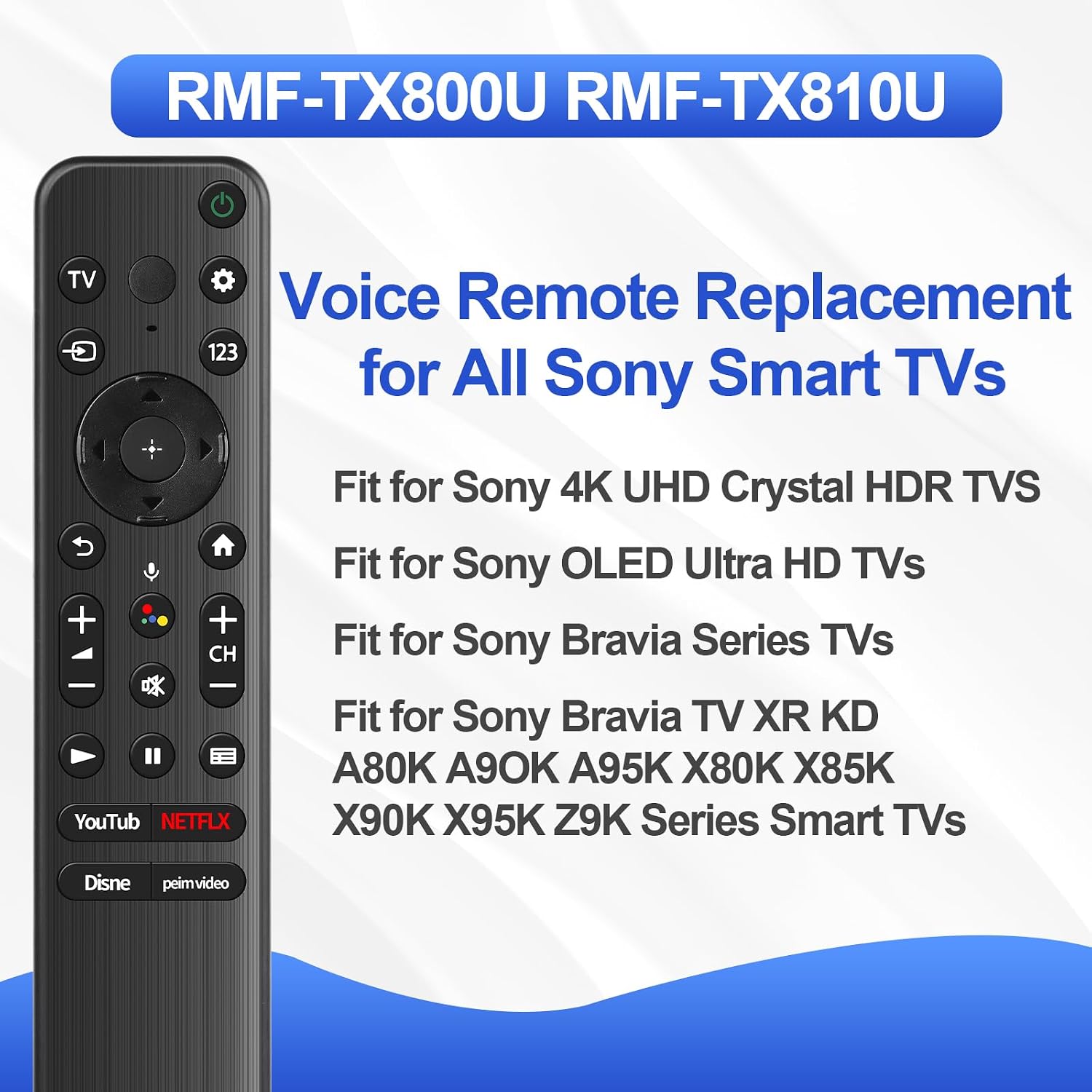
Image 1.2: A visual representation of the remote control and a list of compatible Sony TV series, including 4K UHD, OLED Ultra HD, and Bravia XR models.
2. Setup
2.1 Battery Installation
The RMF-TX800U remote control requires two (2) new 1.5V AAA alkaline batteries for operation. Ensure correct polarity when inserting the batteries.
Video 2.1: This video demonstrates how to open the battery compartment and correctly install AAA batteries into the RMF-TX800U remote control.
2.2 Pairing Instructions
To enable voice control and full functionality, the remote must be paired with your Sony Smart TV. Follow these steps for proper pairing:
- Step 1: On your TV's homepage, navigate to Settings.
- Step 2: Select Remote & Accessories from the Settings menu.
- Step 3: Choose Connect a new remote.
- Step 4: On the RMF-TX800U remote, press and hold the Volume Down (-) button and the Microphone (Google Assistant) button simultaneously for 3 seconds to initiate pairing.
- Step 5: The TV display will show "Connecting..." indicating the pairing process is in progress.
- Step 6: Once connected, a confirmation message will appear. Press the OK button on the remote to finalize pairing.

Image 2.2: A visual guide detailing the six steps required to pair the RMF-TX800U remote with your television, including screenshots of the TV interface.

Image 2.3: This image illustrates the specific buttons (Volume Down and Google Assistant/Microphone) on the remote that need to be pressed simultaneously for 3 seconds to begin the pairing process.
Video 2.2: This video demonstrates the pairing process of the remote control with a Sony TV, showing the button presses and on-screen prompts.
3. Operating Instructions
3.1 Button Functions
Familiarize yourself with the functions of each button on your RMF-TX800U remote control:
- Power (Green Button): Turns the TV on or off, or sets it to standby/networked standby mode.
- TV: Switches to a TV channel or input, and displays the TV menu.
- Microphone (MIC): Activates the voice input feature. An LED above the microphone indicates activity.
- Quick Settings (Gear Icon): Displays Quick Settings for quick adjustments.
- Input (Arrow into Box): Displays and selects the input source.
- 123 (Control Menu): Displays a menu on the TV to use functions not present on the remote.
- Navigation D-Pad (Up/Down/Left/Right/Enter): Navigates on-screen menus and selections.
- BACK (Curved Arrow): Returns to the previous screen.
- HOME (House Icon): Displays the TV Home Menu.
- Volume (+/-): Adjusts the volume level.
- Google Assistant (Microphone Icon): Accesses Google Assistant for voice commands and searches. Note: Google Assistant availability may vary by country/region.
- Mute (Muted Speaker Icon): Mutes the sound. Press again to restore sound.
- CH+/- (Channel): Selects the next or previous channel.
- Play/Pause (Triangle/Two Vertical Bars): Operates media content on the TV and connected BRAVIA Sync-compatible devices.
- Guide (Three Horizontal Lines): Displays the digital program guide for TV or cable/satellite box.

Image 3.1: A comprehensive diagram illustrating all buttons on the RMF-TX800U remote control and their corresponding functions.
3.2 Dedicated App Buttons
The remote features dedicated shortcut buttons for popular streaming applications, allowing quick access to your desired services:
- YouTube: Direct access to the YouTube application.
- Netflix: Direct access to the Netflix application.
- Disney+: Direct access to the Disney+ application.
- Prime Video: Direct access to the Amazon Prime Video application.

Image 3.2: The remote control highlighting its four dedicated application buttons for quick access to YouTube, Netflix, Disney+, and Prime Video.
3.3 Voice Control Usage
After successful pairing, you can use the voice control feature by pressing the Google Assistant (Microphone) button and speaking your command. Examples include:
- "Search [movie/show name]"
- "How's the weather today?"
- "Watch sports channels"
- "Play next episode"

Image 3.3: This image illustrates the voice control feature, showing the remote and a TV screen with example voice commands like "Search Harry Potter movies" and "How's the weather today?".
4. Specifications
| Feature | Detail |
|---|---|
| Model Number | RMF-TX800U |
| Brand | Qzanyee Life |
| Connectivity Technology | Infrared |
| Compatible Devices | Television (Sony Bravia Smart TVs) |
| Max Number of Supported Devices | 1 |
| Special Feature | Ergonomic, Voice Control |
| Item Weight | 2.28 ounces |
| Package Dimensions | 7.68 x 2.52 x 0.71 inches |
5. Troubleshooting
If you encounter issues with your RMF-TX800U remote control, please refer to the following common solutions:
- Remote not responding:
- Ensure batteries are correctly installed and not depleted. Replace with new AAA alkaline batteries if necessary.
- Verify that there are no obstructions between the remote and the TV's infrared receiver.
- Re-attempt the pairing process as described in Section 2.2.
- Voice control not working:
- Confirm the remote is successfully paired with the TV (refer to Section 2.2).
- Ensure your TV's internet connection is stable, as voice commands often require online processing.
- Check TV settings to ensure Google Assistant or voice input is enabled.
- Specific buttons unresponsive:
- Clean the remote control surface, especially around the unresponsive button, to remove any debris.
- If only certain app buttons are not working, ensure the corresponding apps are installed and updated on your TV.
6. Warranty and Support
For warranty information or technical support regarding your Qzanyee Life RMF-TX800U Voice Remote Control, please refer to the product packaging or contact the manufacturer directly. Keep your purchase receipt for warranty claims.