1. Introduction
Thank you for choosing the CHAKEYAKE P80 Kids Instant Print Digital Camera. This camera is designed to provide children with an engaging and creative way to capture memories and instantly print photos. Please read this manual carefully to understand the camera's features and ensure proper use and maintenance.
2. Package Contents
Please verify that all items listed below are included in your package:
- CHAKEYAKE P80 Instant Print Camera
- 32GB TF Card (pre-installed or separate)
- Print Paper Rolls (quantity may vary, typically 3 rolls)
- USB Charging Cable
- Lanyard
- Coloring Pens (set of 5)
- User Manual (this document)

Image 2.1: Contents of the CHAKEYAKE P80 Kids Instant Print Camera package, including the pink camera, a 32GB memory card, three rolls of thermal print paper, a USB charging cable, a pink lanyard, and a set of five coloring pens.
3. Product Overview
The CHAKEYAKE P80 camera features a user-friendly design with various functions to enhance the photography experience for children.
3.1 Key Features
- High-Resolution Imaging: Capture photos up to 12 Megapixels.
- Full HD Video Recording: Record videos in 1080P resolution.
- Instant Thermal Printing: Print black and white photos directly from the camera without ink.
- 2.4-inch IPS Screen: Clear display for viewing photos and videos.
- 10x Digital Zoom: Magnify subjects for closer shots.
- Creative Modes: Includes various frames, filters, and mirror effects.
- Fun Activities: Built-in puzzle games and music playback.
- Time-Lapse and Burst Shooting: Advanced photography options.
- Expandable Storage: Supports TF cards up to 32GB (included).

Image 3.1: An illustrative diagram highlighting the key features of the CHAKEYAKE P80 camera, including its 2.4-inch IPS screen, 12MP photo capability, 1080P video recording, burst shooting, time-lapse, puzzle games, 10x digital zoom, playback, and music functions.
3.2 Camera Components
Familiarize yourself with the camera's physical components:
- Front Lens: For capturing photos and videos.
- Print Output Slot: Where printed photos emerge.
- Display Screen: 2.4-inch IPS screen for viewing.
- Navigation Buttons: Up, Down, Left, Right for menu navigation.
- OK/Shutter Button: Confirms selections and takes photos.
- Power Button: Turns the camera on/off.
- Menu Button: Accesses camera settings and modes.
- MicroSD/TF Card Slot: For memory card insertion.
- USB Charging Port: For charging and data transfer.
- Lanyard Hole: For attaching the wrist strap.
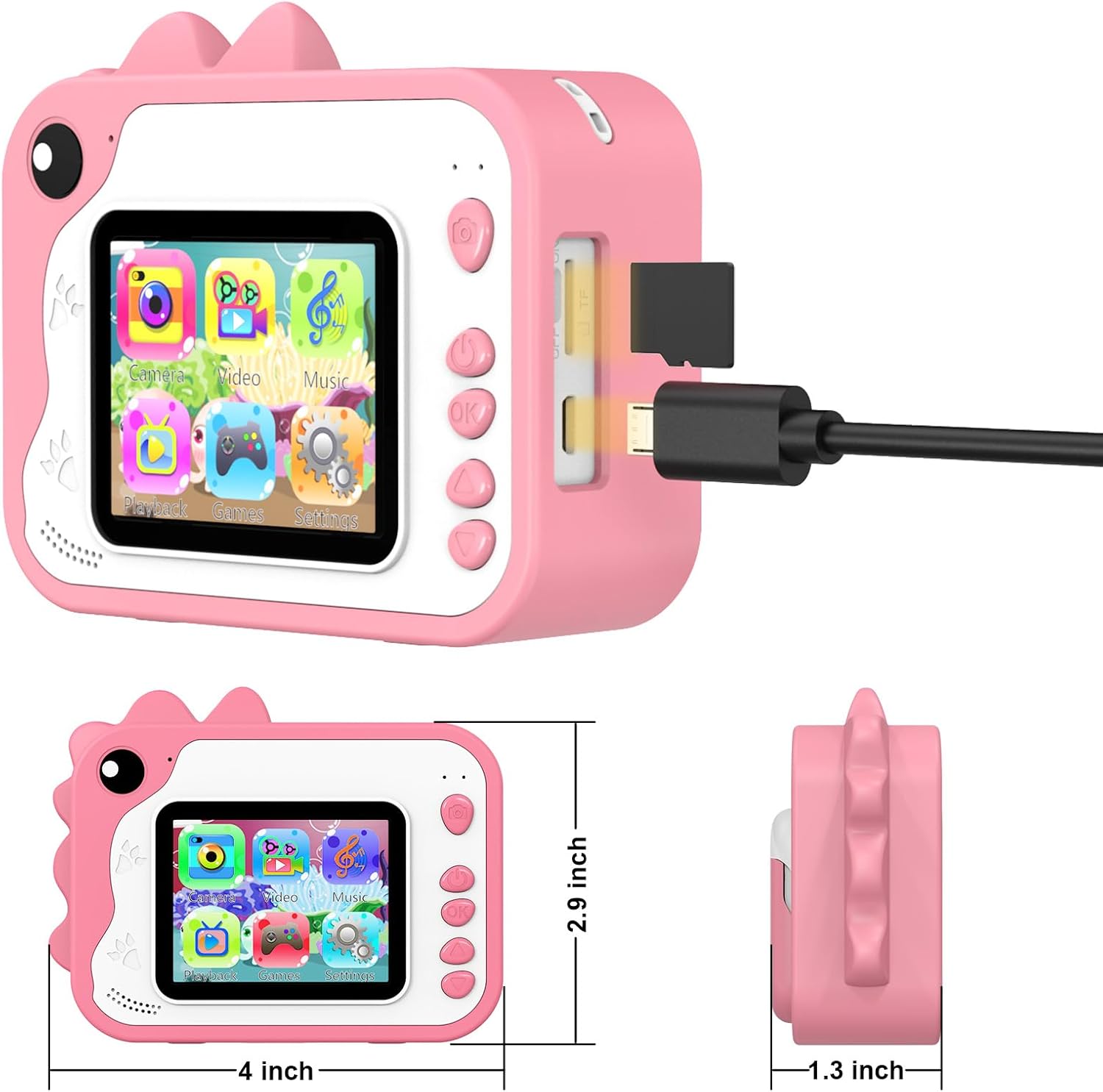
Image 3.2: A side view of the CHAKEYAKE P80 camera, illustrating the location of the TF card slot and the USB charging port.
4. Setup
4.1 Charging the Camera
- Connect the included USB charging cable to the camera's USB port.
- Plug the other end of the USB cable into a standard USB power adapter (not included) or a computer's USB port.
- The charging indicator light will illuminate. Once fully charged, the light may change color or turn off.
- A full charge typically takes 2-3 hours. Ensure the camera is fully charged before first use.
4.2 Inserting the TF Card
The camera requires a TF (MicroSD) card to save photos and videos. A 32GB TF card is typically included.
- Locate the TF card slot on the side of the camera (refer to Image 3.2).
- Gently insert the TF card into the slot with the metal contacts facing down, until it clicks into place.
- To remove the TF card, gently push it in again until it clicks and springs out.
4.3 Loading Print Paper
The camera uses thermal paper for instant printing. No ink cartridges are required.
- Locate the paper compartment cover on the top of the camera.
- Gently slide or open the cover to reveal the paper compartment.
- Insert a new roll of thermal paper, ensuring the paper feeds out from the top of the roll and is positioned correctly.
- Pull a small length of paper out of the compartment and close the cover securely.
- Trim any excess paper if necessary.
5. Operating Instructions
5.1 Power On/Off
- To Power On: Press and hold the Power button for a few seconds until the screen illuminates.
- To Power Off: Press and hold the Power button again until the screen turns off.
5.2 Taking Photos and Instant Printing
- Turn on the camera. It will typically start in photo mode.
- Frame your shot using the display screen.
- Press the OK/Shutter button to take a photo.
- The camera will automatically print the photo immediately after capture.

Image 5.1: A child holding the CHAKEYAKE P80 camera, with a printed photo emerging from the device, demonstrating the one-click print function.
5.3 Recording Videos
- From the main menu, navigate to the video recording icon using the navigation buttons and press OK.
- Press the OK/Shutter button once to start recording. A red "REC" indicator will appear on the screen.
- Press the OK/Shutter button again to stop recording. The video will be saved to the TF card.

Image 5.2: A representation of the CHAKEYAKE P80 camera screen displaying the 1080P HD video recording interface, with a child and cat as the subject.
5.4 Using Frames, Filters, and Mirror Effects
Enhance your photos with various creative options:
- In photo mode, use the navigation buttons (Left/Right) to cycle through available frames, filters, or mirror effects.
- Select your desired effect before taking a photo.
- Press the OK/Shutter button to capture the image with the applied effect.

Image 5.3: A visual demonstration of the 20 cute frames, 6 filter effects (including black and white, sepia, vibrant colors), and 8 mirror effects available on the CHAKEYAKE P80 camera.
5.5 Digital Zoom
The camera supports up to 10x digital zoom.
- In photo or video mode, use the Up/Down navigation buttons to adjust the zoom level.
- "Up" typically zooms in, and "Down" zooms out.

Image 5.4: A visual representation of the 10x digital zoom capability of the CHAKEYAKE P80 camera, showing progressive magnification from 2x to 10x.
5.6 Time-Lapse Photography
Capture a series of photos over time to create a time-lapse sequence.
- Access the time-lapse setting from the camera's menu.
- Select the desired interval (e.g., 3s, 5s, 10s).
- Press OK/Shutter button to start the time-lapse sequence.

Image 5.5: A demonstration of the time-lapse feature on the CHAKEYAKE P80 camera, showing options for 3-second, 5-second, and 10-second intervals.
5.7 Playing Games
The camera includes several built-in puzzle games for entertainment.
- From the main menu, navigate to the "Games" icon and press OK.
- Select the desired game using the navigation buttons and press OK to start.
- Follow the on-screen instructions to play.

Image 5.6: Two children interacting with the CHAKEYAKE P80 camera, which displays a puzzle game on its screen, illustrating the "4 Puzzle Game" feature.
5.8 Playback and Menu Navigation
- Playback: From the main menu, select the "Playback" icon to view saved photos and videos. Use navigation buttons to browse and OK to view.
- Menu: Press the Menu button to access settings such as resolution, date/time, language, and formatting the TF card. Use navigation buttons to select options and OK to confirm.
6. Maintenance
6.1 Cleaning
- Use a soft, dry cloth to clean the camera body.
- For the lens and screen, use a specialized lens cleaning cloth to avoid scratches.
- Do not use liquid cleaners or abrasive materials.
6.2 Storage
- Store the camera in a cool, dry place away from direct sunlight and extreme temperatures.
- Remove the TF card if the camera will not be used for an extended period.
6.3 Battery Care
- Charge the camera regularly, even if not in use, to maintain battery health.
- Avoid fully discharging the battery frequently.
- Do not expose the camera to high temperatures, as this can damage the battery.
7. Troubleshooting
| Problem | Possible Cause | Solution |
|---|---|---|
| Camera does not turn on. | Low battery; Power button not pressed long enough. | Charge the camera for at least 30 minutes. Press and hold the Power button for 3-5 seconds. |
| Photos are not printing. | No print paper; Paper incorrectly loaded; Print head issue. | Check and reload print paper. Ensure paper is inserted correctly. Contact customer support if issue persists. |
| Cannot save photos/videos. | No TF card inserted; TF card full; TF card error. | Insert a TF card. Delete unnecessary files or format the TF card (backup important data first). Try a different TF card. |
| Screen is frozen or unresponsive. | Software glitch. | Press and hold the Power button for 10 seconds to force a restart. |
| Poor print quality. | Low battery; Old or incorrect thermal paper; Dirty print head. | Ensure camera is charged. Use fresh, compatible thermal paper. Gently clean the print head with a soft, dry cloth. |
8. Specifications
| Feature | Detail |
|---|---|
| Brand | CHAKEYAKE |
| Model | P80 |
| Effective Still Resolution | 12 Megapixels |
| Video Resolution | 1080P HD |
| Screen Size | 2.4 inches LCD |
| Optical Zoom | 10x |
| Aperture | 4 Millimeters |
| Supported Formats | Images and videos |
| Burst Mode Speed | 30 FPS |
| ISO Range | 100-3200 |
| Minimum Shutter Speed | 3 seconds |
| Maximum Shutter Speed | 0.033 seconds |
| Item Weight | 167 Grams |
| Battery | 1 Lithium-ion (included) |
9. Warranty and Support
The CHAKEYAKE P80 Kids Instant Print Digital Camera comes with a standard manufacturer's warranty. Please refer to the product packaging or the seller's information for specific warranty terms and duration.
For technical support, troubleshooting assistance, or warranty claims, please contact CHAKEYAKE customer service through the platform where you purchased the product or visit the official CHAKEYAKE website for contact information.
Please retain your proof of purchase for warranty purposes.


