
1. Introduction
This manual provides comprehensive instructions for the setup, operation, and maintenance of your viangs E10 Stylus Pen. Designed for seamless integration with compatible iPad models, this stylus offers magnetic wireless charging, tilt sensitivity, and palm rejection for a natural writing and drawing experience.
2. Compatibility
The viangs E10 Stylus Pen is compatible only with the following iPad models:
- iPad mini: 6th Generation
- iPad Air: 4th Generation, 5th Generation
- iPad Pro 12.9-inch: 3rd Generation, 4th Generation, 5th Generation, 6th Generation
- iPad Pro 11-inch: 1st Generation, 2nd Generation, 3rd Generation, 4th Generation
Important: Please verify your iPad model number before use to ensure compatibility. This stylus is not compatible with other iPad models or non-iPad devices.

Figure 1: Visual guide to compatible iPad models.
3. Package Contents
Upon opening the package, please ensure all items are present:
- viangs E10 Stylus Pen
- Replacement Pen Tips (2)
- User Manual (this document)

Figure 2: Contents of the viangs E10 Stylus Pen package.
4. Setup
4.1 Initial Charging
The stylus pen features magnetic wireless charging. Attach the stylus to the magnetic connector on the side of your compatible iPad. The stylus will begin charging automatically. A full charge takes approximately 90 minutes and provides up to 10 hours of continuous use.
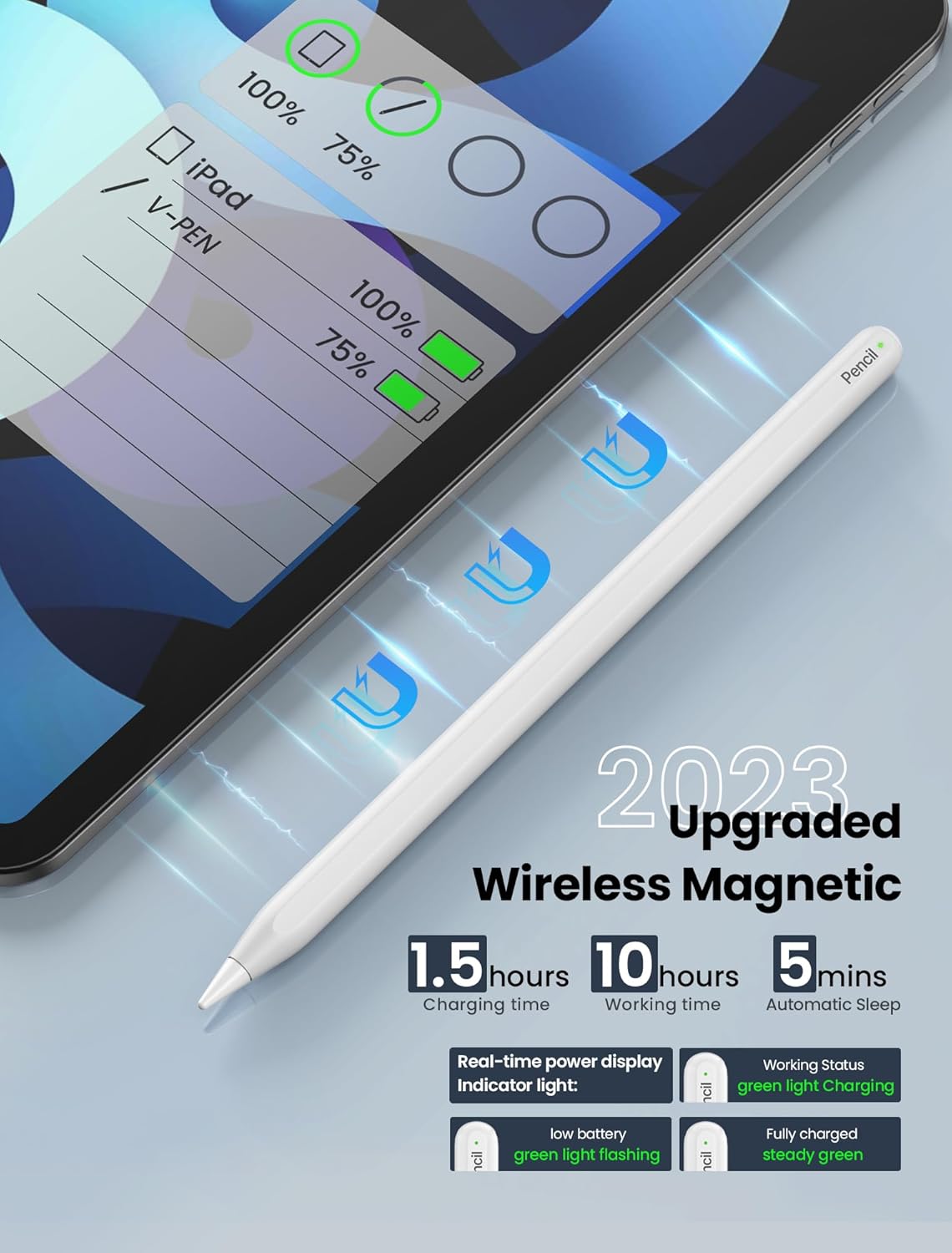
Figure 3: Magnetic wireless charging and battery status display.
4.2 Bluetooth Pairing
To enable advanced features like the shortcut key function and real-time battery display on your iPad, connect the stylus via Bluetooth:
- Ensure your iPad's Bluetooth is enabled.
- Attach the stylus to the magnetic side of your iPad.
- Go to your iPad's Bluetooth settings and select the "Pencil" or "viangs Stylus" device to pair.
- Once paired, the battery level can be monitored via the iPad's battery widget.
5. Operating Instructions
5.1 Basic Usage
Simply touch the stylus tip to your iPad screen to begin writing, drawing, or navigating. The 1.2mm tip provides precise and smooth interaction.

Figure 4: Stylus precision and responsiveness.
5.2 Shortcut Key Functions
After Bluetooth pairing, utilize the following shortcut functions:
- Power On/Off: Double-click the top button of the stylus to turn it on or off. This prevents accidental touches.
- Screenshot: Swipe the stylus from the lower left corner to the upper right corner of your iPad screen to capture an instant screenshot.
5.3 Tilt Sensitivity
The stylus supports tilt sensitivity, allowing you to vary line thickness by changing the angle at which you hold the pen. This feature is ideal for sketching, drawing, and shading.
5.4 Palm Rejection
With palm rejection technology, you can comfortably rest your hand on the iPad screen while writing or drawing without causing unintended marks or interference.

Figure 5: Tilt sensitivity and palm rejection in action.
5.5 Automatic Sleep Mode
To conserve battery, the stylus will automatically enter sleep mode if inactive for 5 minutes. To reactivate, simply double-click the top button or attach it to the iPad for a moment.
6. Maintenance
6.1 Replacing Pen Tips
The stylus comes with two bonus replacement tips. To replace a tip:
- Gently twist the old tip counter-clockwise to remove it.
- Align the new tip and twist it clockwise until securely fastened. Do not overtighten.
These tips are compatible with both 1st and 2nd generation iPad Pencils.
6.2 Cleaning
Wipe the stylus body with a soft, dry, lint-free cloth. Avoid using harsh chemicals or abrasive materials.
7. Troubleshooting
- Stylus not charging:
Ensure the stylus is correctly aligned and firmly attached to the magnetic charging area of your iPad. Verify that your iPad's battery is sufficiently charged. Try detaching and reattaching the stylus.
- Stylus not connecting via Bluetooth:
Check if Bluetooth is enabled on your iPad. Forget the device in your iPad's Bluetooth settings and attempt to re-pair. Ensure the stylus is charged.
- Palm rejection or tilt sensitivity not working:
Ensure the stylus is properly paired via Bluetooth. Some applications may require specific settings to fully utilize these features. Check the app's settings.
- Stylus unresponsive:
Double-click the top button to ensure the stylus is powered on. Check the battery level. If the issue persists, try restarting your iPad.
8. Specifications
| Brand | viangs |
| Model | E10 |
| Compatible Devices | iPad mini 6th Gen, iPad Air 4th/5th Gen, iPad Pro 11-inch (1st-4th Gen), iPad Pro 12.9-inch (3rd-6th Gen) |
| Charging Method | Magnetic Wireless Charging |
| Charging Time | Approx. 1.5 hours (90 minutes) |
| Working Time | Up to 10 hours |
| Automatic Sleep | After 5 minutes of inactivity |
| Tip Size | 1.2mm |
| Item Weight | 59 g |
| Package Dimensions | 19.2 x 6.3 x 1.9 cm |
9. Warranty and Support
For warranty information, technical support, or any inquiries regarding your viangs E10 Stylus Pen, please refer to the contact information provided with your purchase or visit the official viangs website.