
Funovation 3MP Indoor Security Camera User Manual
Model: DomeCam (B0CCRGQ5J8)
Your comprehensive guide to setup, operation, and maintenance.
Product Overview
The Funovation DomeCam is a 3MP indoor security camera designed for home security, baby monitoring, and pet surveillance. It features 360° pan-tilt-zoom capabilities, two-way audio, night vision, and motion tracking, providing comprehensive coverage and real-time alerts.

Figure 1: Overview of the Funovation 3MP Indoor Security Camera and its main features.
This camera operates exclusively on 2.4G WiFi networks and requires a continuous power supply. It supports local storage via Micro SD card (up to 128GB, not included) and offers optional cloud storage services.
Setup Guide
Follow these steps to set up your Funovation DomeCam:
- Unboxing and Initial Inspection: Carefully remove all components from the packaging. Ensure all parts are present: the camera unit, power adapter, mounting accessories, and user manual.
- Power Connection: Connect the camera to a power source using the provided USB cable and power adapter. The camera requires continuous power to operate.
- SD Card Insertion (Optional): If you plan to use local storage, gently insert a FAT32 formatted Micro SD card (up to 128GB, Class 10 recommended) into the designated slot. The slot is typically located by tilting the camera lens upwards to reveal the hidden compartment.
- App Download: Download the "CloudEdge" app from your device's app store (App Store for iOS or Google Play for Android). You can scan the QR codes provided in the physical user manual or on the product packaging for direct download.
- Account Registration: Open the CloudEdge app and register a new account or log in if you already have one.
- Device Pairing:
- In the app, tap the "+" icon to add a new device.
- Select "Power Plug Camera" then "Smart Camera (2.4G Wi-Fi)".
- Ensure your phone is connected to a 2.4Ghz WiFi network. This camera does not support 5Ghz WiFi.
- Reset the Camera: Locate the reset button (usually near the SD card slot, accessible by tilting the lens up). Press and hold the reset button for 3-5 seconds until you hear a beep or the indicator light flashes red.
- Follow the app's instructions to generate a QR code on your phone screen.
- Hold your phone's screen 5-8 inches (15-25cm) in front of the camera lens. The camera will scan the QR code to connect to your WiFi network. You will hear a confirmation sound once connected.
- Mounting (Optional): The camera can be placed on a flat surface or mounted to a wall or ceiling using the included mounting bracket and screws. Ensure the camera is within range of your 2.4Ghz WiFi signal (signal strength above 75% is recommended for stable performance).

Figure 2: The camera can be easily set up on a surface or mounted to a wall or ceiling.
Operating Instructions
Live View and PTZ Control
Once connected, tap on the camera feed in the CloudEdge app to access the live view. Use the on-screen controls to remotely pan (355° horizontal) and tilt (45° vertical) the camera, allowing you to monitor every corner of your home.

Figure 3: The camera offers a 360° view to cover every corner of your home.
Two-Way Talk
The built-in microphone and speaker enable real-time two-way audio communication. Tap the microphone icon in the app to speak through the camera, and hear responses from the camera's location.
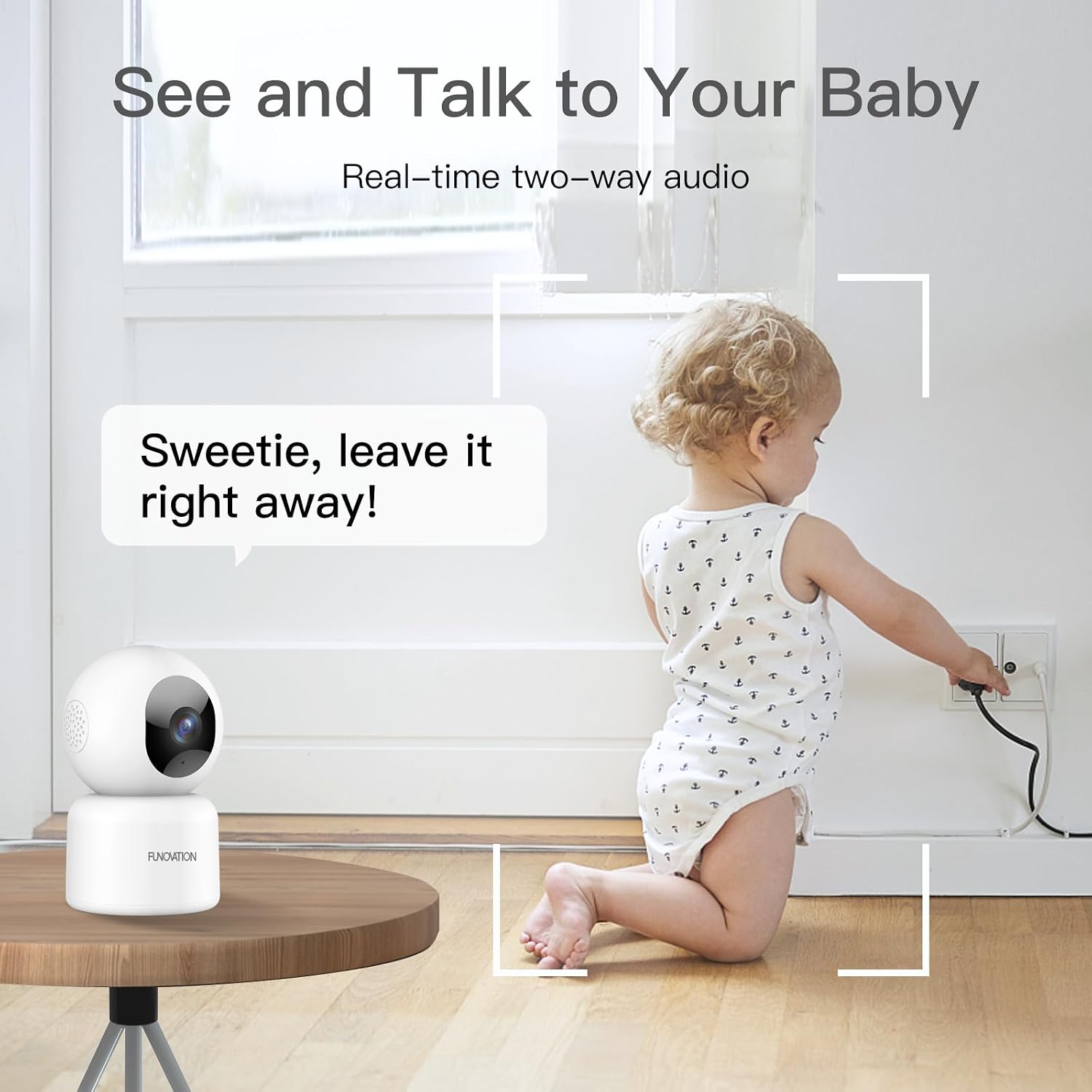
Figure 4: Engage in real-time two-way audio with your baby or pets.
Motion/Sound Detection & Auto Tracking
The camera sends real-time alerts to your app when motion or sound is detected. You can customize sensitivity, define motion detection zones, and apply human motion filters to reduce false alarms. With auto-tracking enabled, the camera will automatically follow moving objects or persons.

Figure 5: Motion tracking and instant alerts keep you informed of activity.
Night Vision
Equipped with 4 infrared lights, the camera provides clear night vision up to 33 feet (10 meters), allowing you to monitor your space even in low-light conditions.

Figure 6: Clear sight day and night with enhanced night vision up to 32 feet.
Recording and Playback
The camera supports 24/7 continuous recording to a Micro SD card. You can also opt for event-based recording or utilize cloud storage plans. Recorded footage can be accessed and played back anytime through the app's "History" or "Cloud" sections.

Figure 7: Playback recorded footage anytime from SD card or cloud storage.
Multi-Camera Use & Sharing
Add multiple Funovation cameras to the same app and monitor up to 4 live video feeds simultaneously using the "quad screen" feature. You can also securely share camera access with family members (up to 5 users).
Privacy Protection
For enhanced privacy, you can turn off the camera lens directly from the app by clicking "Lens Switch". A privacy schedule can also be set to automatically turn off the lens during specific times.
Maintenance
- Cleaning: Use a soft, dry cloth to clean the camera lens and body. Avoid using liquid cleaners or aerosols that may damage the device.
- Firmware Updates: Regularly check for and install firmware updates via the CloudEdge app to ensure optimal performance and security.
- SD Card Management: If using an SD card, periodically back up important data and format the card to maintain recording efficiency.
Troubleshooting
- Connection Issues:
- Ensure your WiFi is 2.4Ghz. The camera does not support 5Ghz networks. If you have a dual-band router, temporarily disable the 5Ghz band during setup.
- Verify WiFi signal strength (aim for above 75% in the app). Low signal can cause video lag or freezes.
- If the camera stops working, delete it from the app and re-add it following the setup instructions.
- Detection Issues:
- If the camera is not detecting pets or vehicles, check the "Alarm management" -> "Custom Mode" -> "Only Human Motion" setting in the app. Turn this function off if you want to detect all motion types.
- Cloud Service Subscription: Cloud subscription is optional. You can use a Micro SD card for recording without a subscription.
- Power Requirement: The camera requires a continuous power supply and must be plugged into a socket to function. "Wireless" refers to its WiFi connectivity, not battery operation.
Specifications
| Feature | Detail |
|---|---|
| Model | DomeCam |
| Video Capture Resolution | 3 MP (2K Ultra HD / 2304*1296P) |
| Connectivity Protocol | Wi-Fi (2.4Ghz Only) |
| Power Source | Corded Electric (5 Volts, 5 Watts) |
| PTZ Angles | 355° Horizontal, 45° Vertical |
| Night Vision Range | Up to 33 Feet |
| Storage | Micro SD Card (up to 128GB, FAT32), Cloud Storage (optional) |
| Two-Way Audio | Yes (Built-in microphone & speaker) |
| Motion/Sound Detection | Yes (with customizable sensitivity and zones) |
| Auto Tracking | Yes |
| Material | ABS Plastic |
| Item Weight | 10.5 ounces |
| Dimensions | 4.88 x 3.86 x 3.43 inches |
| UPC | 792105851228 |
Warranty and Support
Funovation offers a 3-year warranty for this product. For any inquiries, technical assistance, or warranty claims, please contact Funovation customer service. We provide lifetime customer service to ensure your satisfaction.
For further assistance, please refer to the official user manual (PDF) available on the product's Amazon page or contact Funovation support directly.

