
1. Introduction
This manual provides essential information for setting up, operating, and maintaining your Westinghouse 43-Inch 4K UHD Roku Smart TV. Please read these instructions carefully before using your television and retain them for future reference.
2. Important Safety Information
Always follow basic safety precautions when using this television to reduce the risk of fire, electric shock, and injury. Ensure proper ventilation, avoid blocking vents, and do not expose the TV to rain or moisture. Refer to the separate safety sheet included in the packaging for detailed warnings.
3. What's in the Box
Verify that all components are present:
- Westinghouse Roku TV (43-Inch)
- TV Stands (2 pieces)
- Power Cable
- Roku Remote with Batteries (2 AAA batteries included)
- Quick Start Guide
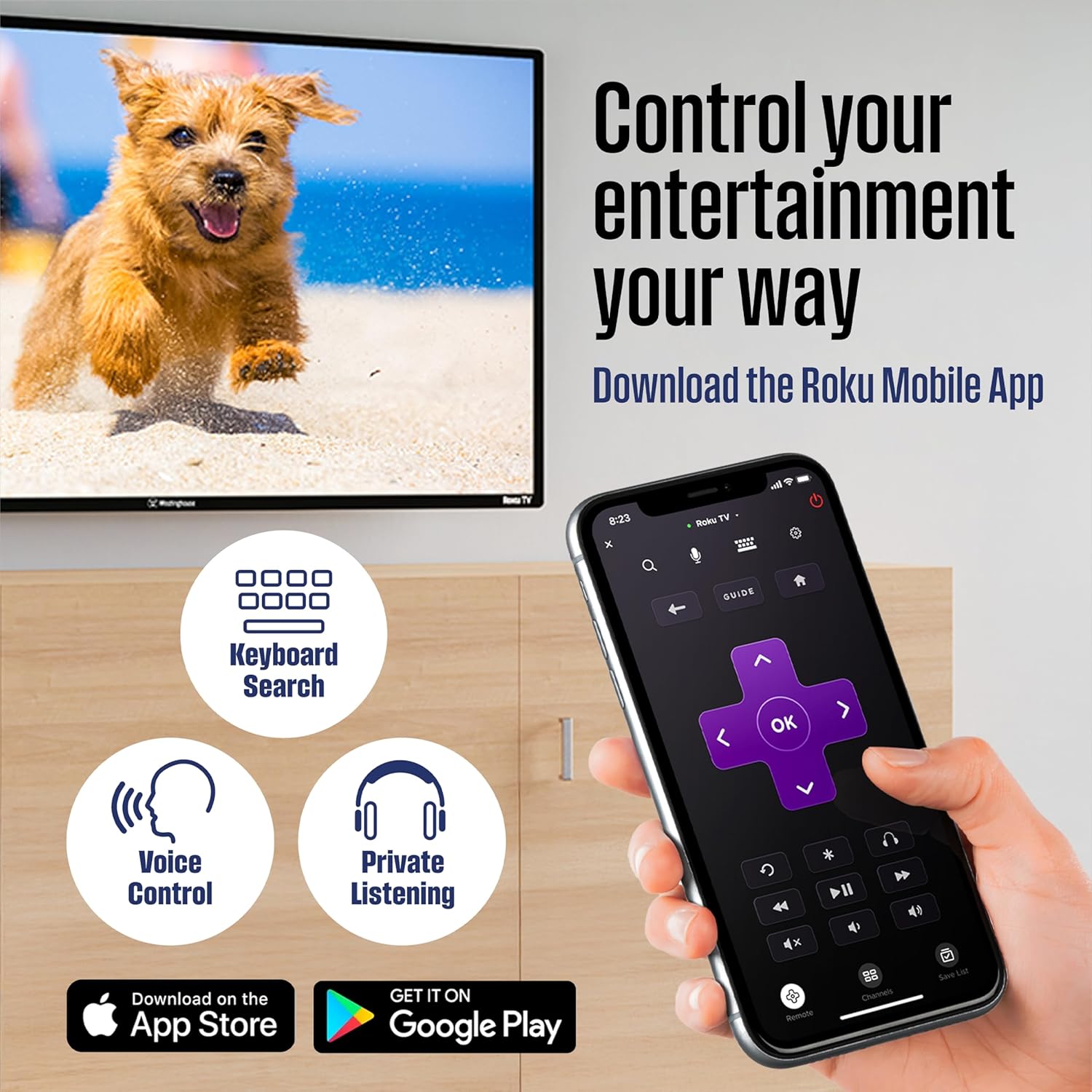
Image: The television, remote control, power cable, and two stand feet are shown, along with a diagram illustrating the TV's dimensions with and without the stand.
4. Setup
4.1 Attaching the TV Stands
- Carefully place the TV screen-down on a soft, clean surface to prevent scratches.
- Align each stand with the corresponding screw holes on the bottom of the TV.
- Secure the stands using a Phillips head screwdriver and the provided screws. Ensure they are firmly attached.
4.2 Wall Mounting (Optional)
If you choose to wall mount your TV, ensure you use a VESA-compatible wall mount kit (not included) that supports the TV's weight and VESA pattern. The VESA mounting pattern for this model is 200mm x 200mm, and the recommended screw size is M6.

Image: The back of the television is shown with a diagram indicating the VESA mounting holes, measuring 200mm by 200mm, and specifying M6 screw size. A note states that the wall mount is not included.
4.3 Connecting Devices
Your Westinghouse Roku TV offers various input and output options:
- HDMI (x4): For connecting cable boxes, game consoles, streaming sticks, and Blu-ray players.
- USB 5V (x2): For media playback from USB drives.
- Composite Audio & Video (CVBS): For older devices using red, white, and yellow RCA cables.
- LAN (Ethernet): For a wired internet connection.
- Antenna/Cable (RF IN): For connecting an antenna for over-the-air channels or a cable TV connection.
- Optical Audio (Digital Audio Out): For connecting to soundbars or home theater systems.
- Headphone Output: For private listening.

Image: A detailed view of the television's rear panel, highlighting the various input and output ports including HDMI, USB, LAN, Optical Audio, Composite Audio & Video, and Antenna/Cable connections.
4.4 Initial Power On and Network Setup
- Plug the power cable into the TV and then into a wall outlet.
- Press the power button on the remote control or the TV.
- Follow the on-screen instructions to select your language and country.
- Connect to your home network: Choose your Wi-Fi network and enter the password, or connect an Ethernet cable to the LAN port.
- Roku Account Setup: The TV will guide you through creating or logging into a Roku account. This step is required to access streaming features. If you wish to use the TV solely for local devices without internet access, you may need to avoid connecting to Wi-Fi during initial setup to bypass this requirement.
5. Operating Your TV
5.1 Remote Control
The included Roku remote provides intuitive control over your TV. It features dedicated buttons for popular streaming services and navigation controls.
5.2 Roku Interface
The Roku operating system provides access to thousands of streaming channels, live TV, and your connected devices. Navigate using the directional pad on your remote. The home screen displays your installed apps and recommended content.
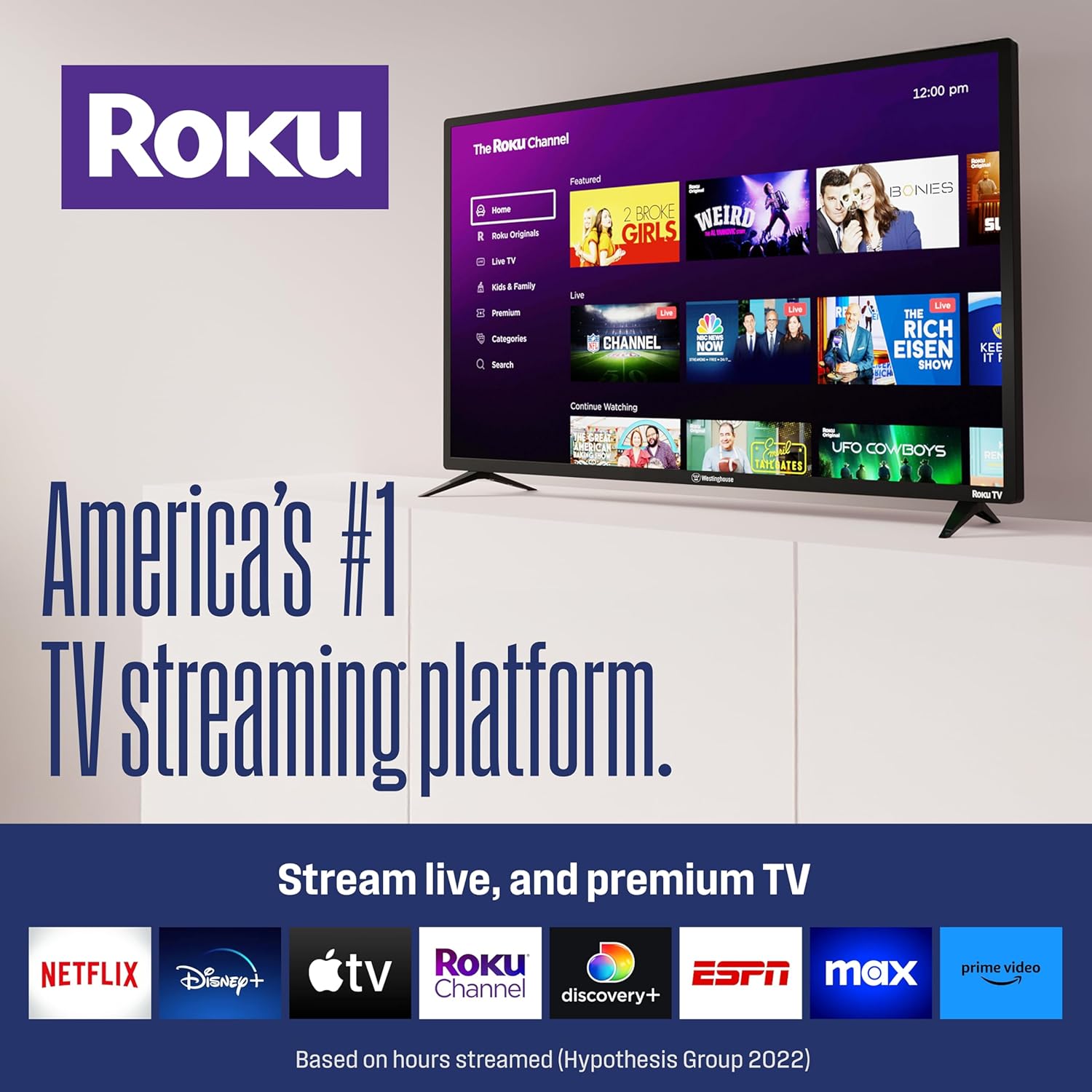
Image: The Roku TV home screen is displayed, featuring a grid of streaming applications such as Netflix, Prime Video, MAX, Apple TV+, Disney+, ESPN+, Hulu, and Pluto TV, alongside live TV options.
5.3 Streaming and Casting
Access a wide range of streaming services directly from your TV. You can also cast content from your mobile devices:
- Roku Mobile App: Download the free Roku Mobile App for iOS or Android to use your smartphone as a remote, perform keyboard searches, use voice control, and enable private listening through headphones.
- Apple AirPlay2 & Google Cast: Share videos, music, or photos from compatible Apple or Android devices directly to your TV.

Image: A person is shown holding a smartphone displaying photos, with the same images appearing on the television screen, illustrating the casting feature. Logos for Apple AirPlay and Google Cast are visible.
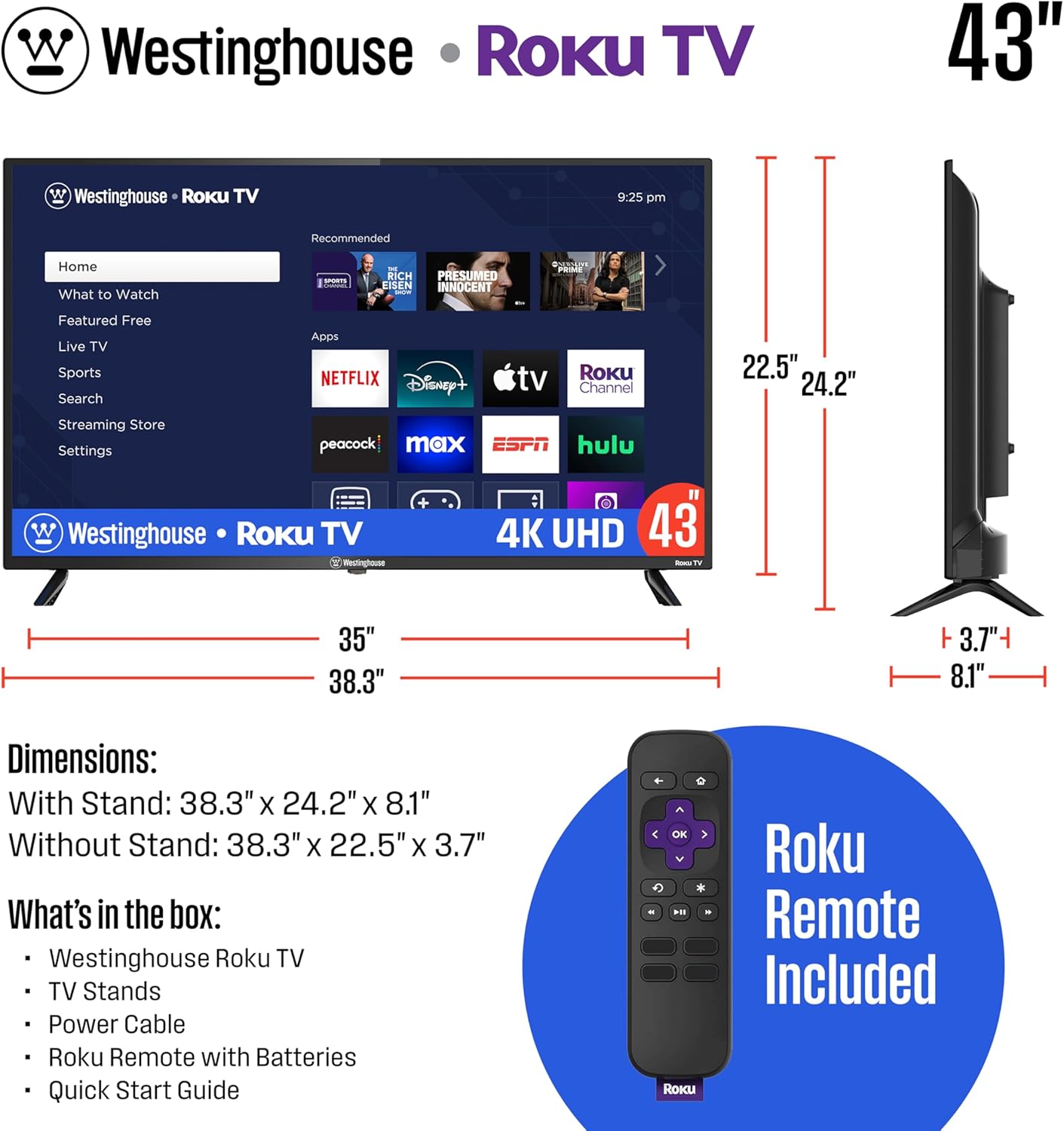
Image: A smartphone displays the Roku mobile app interface, highlighting features like keyboard search, voice control, and private listening, with a television screen showing a dog running in the background.
5.4 Voice Control
Your TV is compatible with Amazon Alexa, Google Assistant, and Apple HomeKit devices. Pair your Roku TV to these smart home systems to control playback, search for content, and power on/off using voice commands.
5.5 Picture and Sound Settings
To optimize your viewing experience, you can adjust picture and sound settings. Access these options through the TV's settings menu. For advanced calibration, consulting online resources or professional advice can be beneficial.
6. Maintenance
6.1 Cleaning Your TV
- Always unplug the TV before cleaning.
- Use a soft, dry cloth to wipe the screen and cabinet.
- For stubborn marks, lightly dampen the cloth with water or a specialized screen cleaner. Never spray cleaner directly onto the screen.
- Avoid using abrasive cleaners, waxes, or solvents.
6.2 Software Updates
Your Roku TV automatically checks for and installs software updates when connected to the internet. Ensure your TV remains connected to receive the latest features and performance improvements.
7. Troubleshooting
If you encounter issues with your TV, try the following steps:
- No Power: Ensure the power cable is securely plugged into both the TV and a working electrical outlet.
- No Picture/Sound: Check all cable connections to external devices. Ensure the correct input source is selected on the TV.
- Network Connectivity Issues: Verify your Wi-Fi password. Restart your router and modem. If using a wired connection, ensure the Ethernet cable is properly connected.
- Roku Setup Lockout: If the TV becomes unresponsive during Roku account setup, a factory reset may be necessary. To avoid this, ensure you complete the Roku account setup or consider skipping network connection if you intend to use local inputs only.
- Remote Not Working: Replace the AAA batteries in the remote. Ensure there are no obstructions between the remote and the TV.
- Poor Picture Quality: Adjust picture settings in the TV menu. Ensure your content source is high-quality (e.g., 4K content for 4K display).
For further assistance, refer to the support section.
8. Specifications
| Feature | Detail |
|---|---|
| Model Number | WR43UX4210-SL |
| Screen Size | 43 Inches (110 cm diagonal) |
| Display Technology | LED |
| Resolution | 4K UHD (3840 x 2160) |
| Refresh Rate | 60 Hz |
| HDR Support | Yes |
| Connectivity | Wi-Fi, Bluetooth, Ethernet (LAN) |
| Input Ports | 4 x HDMI, 2 x USB, 1 x Composite Video, 1 x Optical Digital Audio, 1 x Antenna/Cable (RF IN) |
| Output Ports | 1 x Headphone Output |
| Operating System | Roku TV |
| Smart Features | Apple AirPlay, Google Cast, Voice Control (Alexa, Google Assistant, Siri compatible) |
| Dimensions (with stand) | 38.3" W x 24.2" H x 8.1" D |
| Dimensions (without stand) | 38.3" W x 22.5" H x 3.7" D |
| Item Weight | 20.3 Pounds |
| VESA Mount Pattern | 200mm x 200mm (M6 screws) |
9. Warranty Information
Your Westinghouse Roku TV is covered by a limited warranty. Please refer to the warranty card included with your product or visit the official Westinghouse website for detailed terms and conditions regarding warranty coverage, duration, and service procedures.
10. Customer Support
For technical support, troubleshooting assistance, or service inquiries, please visit the official Westinghouse support website or contact their customer service department. Contact information can typically be found on the Westinghouse website or in the Quick Start Guide.
Online Resources: