
1. Introduction
This manual provides comprehensive instructions for the ZOWEE TECHNOLOGY 5G CPE5 Router, model H155-381. It covers product features, setup procedures, operational guidelines, maintenance tips, and troubleshooting steps to ensure optimal performance and user experience. This device is designed to provide high-speed 5G and Wi-Fi 6 connectivity.
2. Safety Information
- Always use the original power adapter provided with the device.
- Do not expose the router to water, moisture, or extreme temperatures.
- Avoid placing the device near heat sources or in direct sunlight.
- Ensure proper ventilation around the router to prevent overheating.
- Do not attempt to open or repair the device yourself. Contact qualified service personnel for assistance.
- Keep the device out of reach of children and pets.
3. Package Contents
Please check the package contents upon unboxing. If any item is missing or damaged, contact your retailer.
- ZOWEE TECHNOLOGY 5G CPE5 Router (Model H155-381)
- Power Adapter
- Ethernet Cable
- Quick Start Guide (this manual)
4. Product Overview
4.1 Front Panel
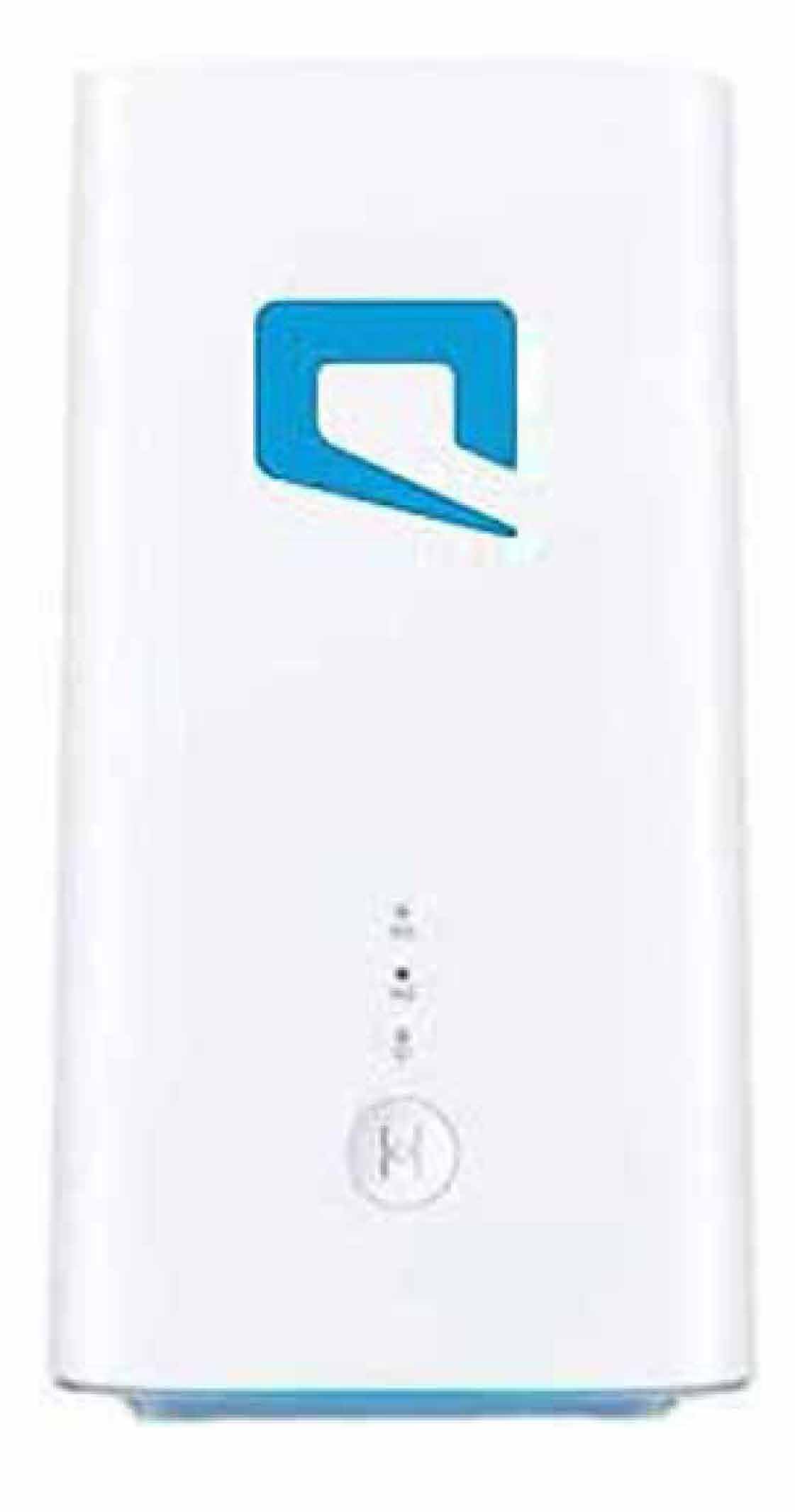
Figure 4.1: Front view of the H155-381 Router
The front panel features LED indicators for network status and a WPS button for easy Wi-Fi connection.
- 5G LED: Indicates 5G network status.
- 4G LED: Indicates 4G network status.
- STATUS LED: Indicates device operational status.
- WPS Button: Press to activate Wi-Fi Protected Setup for quick device pairing.
4.2 Rear Panel

Figure 4.2: Rear view of the H155-381 Router
The rear panel provides connectivity ports for wired devices and power input.
- LAN Ports: Two Ethernet ports for connecting wired devices.
- Power Input: Connect the provided power adapter here.
4.3 Bottom Panel
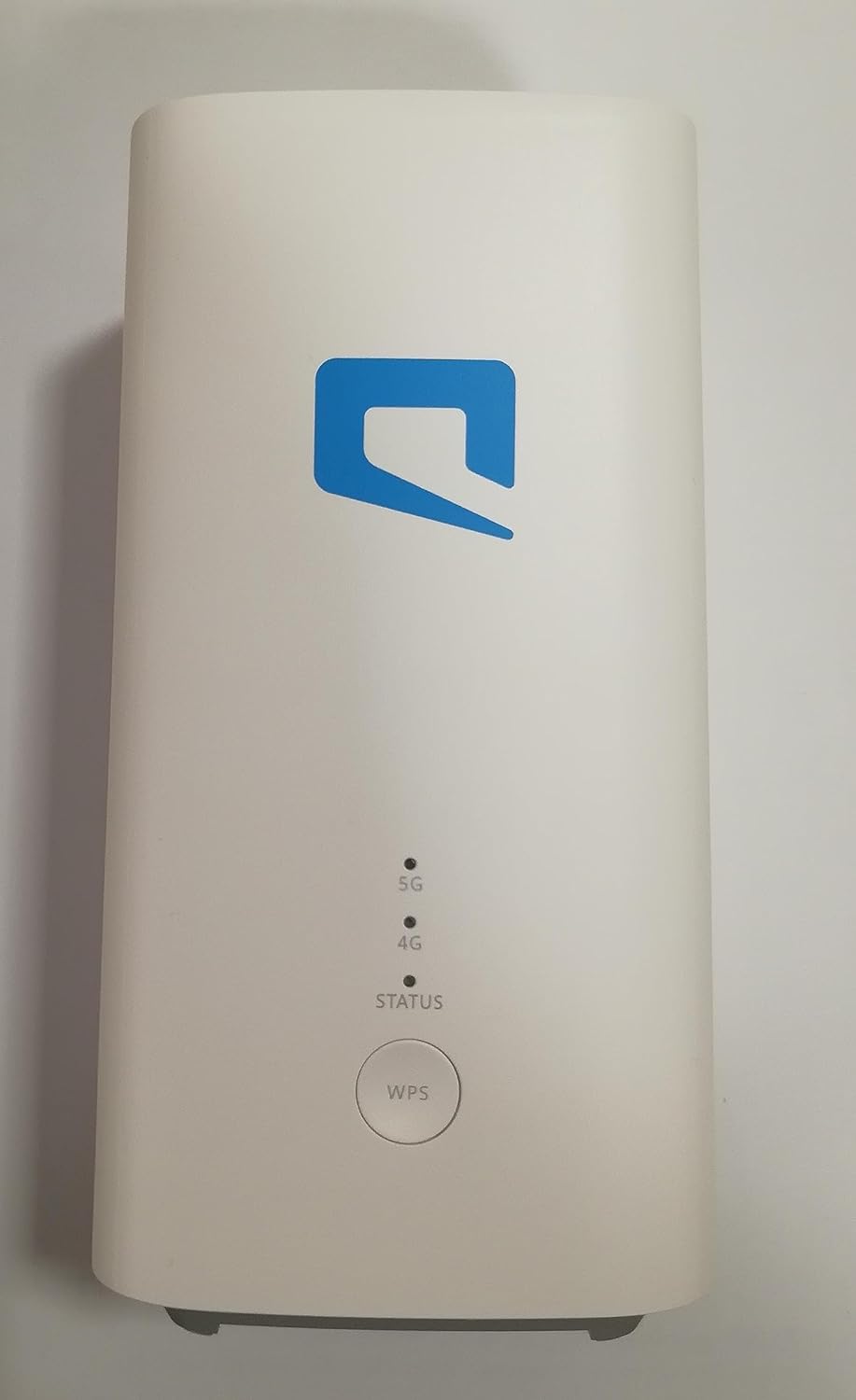
Figure 4.3: Bottom view of the H155-381 Router
The bottom panel contains important product information and the SIM card slot.
- Nano SIM Card Slot: Insert your Nano SIM card here.
- Model: H155-381
- Default Wi-Fi Name (SSID): H155-381_89DE (2.4GHz) / H155-381_89DE_5G (5GHz)
- Default Wi-Fi Password: d3F9HRLDTg2
- Default IP Address: 192.168.8.1
- WPS PIN: 71282046
- IMEI: 860756060877897
- Serial Number (S/N): 6MQ7S23206007829
- Input: 12V – 2A
5. Setup
5.1 SIM Card Installation
- Ensure the router is powered off.
- Locate the Nano SIM card slot on the bottom panel of the router.
- Insert your Nano SIM card into the slot with the gold contacts facing down and the notched corner aligned correctly. Push until it clicks into place.
- To remove, gently push the SIM card in again until it springs out.
5.2 Power Connection
- Connect one end of the power adapter to the power input port on the rear panel of the router.
- Plug the other end of the power adapter into a power outlet.
- The router will power on automatically. Wait for the STATUS LED to stabilize.
5.3 Initial Configuration
The router is designed for plug-and-play operation. Once powered on with a valid SIM card, it should automatically connect to the Mobily 5G/4G network.
- Wi-Fi Connection: Find the default Wi-Fi network names (SSIDs) and password on the bottom label of the router. Connect your devices using these credentials.
- Wired Connection: Connect an Ethernet cable from one of the LAN ports on the router to your computer or other wired device.
- Web Interface Access: To access advanced settings, open a web browser and enter the default IP address 192.168.8.1. You will be prompted for a username and password (refer to the router's label or quick start guide for default credentials).
6. Operating the Router
6.1 LED Indicators
| LED | Status | Description |
|---|---|---|
| 5G | Solid Blue | Connected to 5G network. |
| 5G | Blinking Blue | Connecting to 5G network. |
| 4G | Solid Green | Connected to 4G network. |
| 4G | Blinking Green | Connecting to 4G network. |
| STATUS | Solid White | Device is powered on and operating normally. |
| STATUS | Blinking White | Device is starting up or performing an action. |
| STATUS | Solid Red | No SIM card, SIM error, or no network. |
6.2 Connecting Devices
- Wi-Fi: On your device (smartphone, laptop, tablet), search for available Wi-Fi networks. Select the SSID matching your router's label (e.g., H155-381_89DE) and enter the Wi-Fi password.
- WPS: Press the WPS button on the front of the router. Within two minutes, activate WPS on your Wi-Fi device. The devices will connect automatically without needing to enter the password.
- Ethernet: For a stable wired connection, plug an Ethernet cable from your device into one of the LAN ports on the router's rear panel.
7. Maintenance
7.1 Cleaning
To clean the router, gently wipe it with a soft, dry cloth. Do not use liquid cleaners or abrasive materials.
7.2 Firmware Updates
Periodically check the router's web interface for available firmware updates. Keeping your firmware up-to-date ensures optimal performance, security, and access to new features.
7.3 Resetting the Device
If you encounter persistent issues or forget your login credentials, you can reset the router to its factory default settings. Locate the reset button (usually a small pinhole) on the bottom panel. Use a paperclip or similar pointed object to press and hold the button for approximately 5-10 seconds until the LEDs flash. The router will restart with factory settings.
8. Troubleshooting
- No Internet Connection: Check the 5G/4G LED status. If it's red or off, ensure the SIM card is correctly inserted and active. Verify network coverage in your area. Restart the router.
- Slow Internet Speed: Ensure the router is placed in an open area, away from obstructions and other electronic devices that might cause interference. Check for firmware updates.
- Cannot Connect to Wi-Fi: Verify that Wi-Fi is enabled on your device. Double-check the Wi-Fi password. Try using the WPS function. If issues persist, reset the router to factory settings.
- Web Interface Inaccessible: Ensure your device is connected to the router (via Wi-Fi or Ethernet). Verify you are using the correct IP address (192.168.8.1). Clear your browser's cache or try a different browser.
9. Specifications
| Feature | Description |
|---|---|
| Manufacturer | ZOWEE TECHNOLOGY |
| Model Number | H155-381 |
| 5G Download Speed | Up to 3600 Mbps |
| 5G Upload Speed | Up to 500 Mbps |
| Wireless Standard | 802.11ax (Wi-Fi 6) |
| Frequency Band Class | Dual-Band (2.4GHz & 5GHz) |
| Antenna Gain | Up to 11dBi (5G NR High Gain Antenna) |
| Special Feature | Access Point Mode |
| Connectivity Technology | Wi-Fi |
| Compatible Devices | Smartphones, Laptops, Tablets, other Wi-Fi enabled devices |
| Included Components | Router |
| Color | White |
| Package Dimensions | 28 x 18.5 x 10.5 cm |
| Weight | 930 grams |
| Input Power | 12V – 2A |
10. Warranty and Support
This product comes with a standard manufacturer's warranty. For specific warranty terms and conditions, please refer to the warranty card included in your package or contact your point of purchase.
For technical support, troubleshooting assistance, or service inquiries, please contact ZOWEE TECHNOLOGY customer support or your local retailer. Keep your purchase receipt and product serial number (6MQ7S23206007897) handy when contacting support.


