
1. Introduction
This manual provides detailed instructions for the Honghao PS4 Wireless Controller. It covers setup, operation, customization, and troubleshooting to ensure optimal performance and user experience. Please read this manual thoroughly before using the controller.
2. Product Features
- Hall 3D Joysticks: Provides precise control and eliminates stick drift.
- Dual Shock Vibration: Offers immersive haptic feedback with stable and fast response.
- RGB LED Lighting: Customizable lighting with 6 distinct color options.
- Programmable Back Buttons: Two customizable ML/MR buttons for macro functions.
- 6-Axis Gyro Sensors: Enhances motion control for compatible games.
- Ergonomic Design: Comfortable grip for extended gaming sessions.
- High-Quality Triggers: Designed for precise aiming and responsive input.
- Long Battery Life: Built-in 800mAh battery for extended playtime.
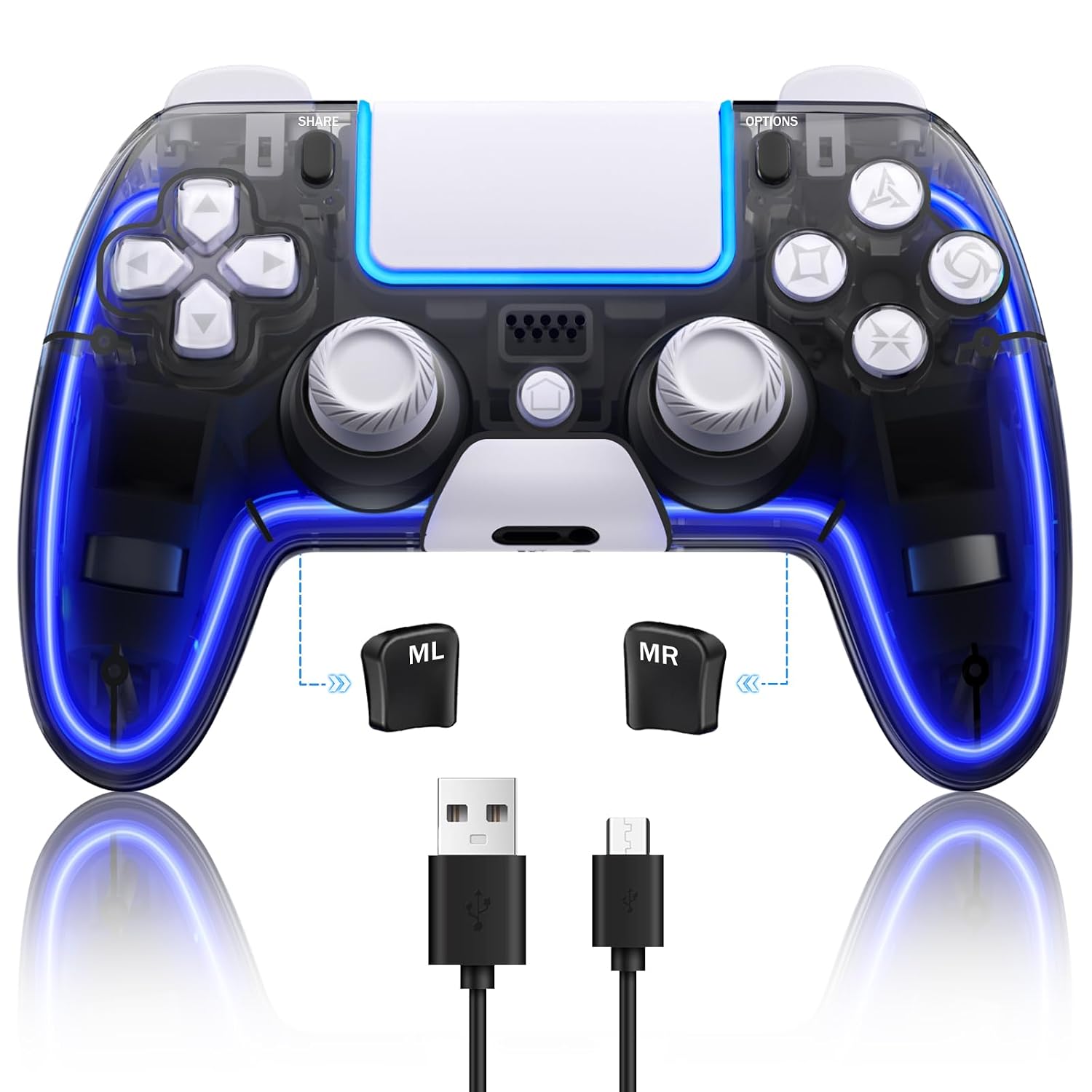
Image: The Honghao PS4 Wireless Controller, showcasing its transparent design, illuminated light bar, detachable back paddles (ML and MR), and the included USB-A to Micro-USB charging cable.

Image: A detailed view of the Hall 3D Joystick mechanism, highlighting its advanced design for zero delay and enhanced precision.

Image: The controller illuminated with various RGB light colors, demonstrating the 6 available lighting options.
3. Package Contents
- Honghao PS4 Wireless Controller
- USB Charging Cable
- User Manual
4. Setup Instructions
4.1 Initial Pairing with PlayStation 4
- Ensure your PS4 console is powered on.
- Connect the controller to the PS4 console using the included USB charging cable.
- Press the PS button (Home button) on the controller. The light bar will flash and then glow steadily, indicating successful pairing.
- Once paired, you can disconnect the USB cable for wireless play.
4.2 Connecting to PC
The controller can be used with a PC via a USB cable. For wireless PC connection, a Bluetooth adapter may be required (not included). Driver installation may be necessary depending on your operating system.
5. Operating Instructions
5.1 Basic Functions
- PS Button: Powers on the controller, accesses the PS4 home screen, or switches users.
- SHARE Button: Used for sharing gameplay screenshots and video clips.
- OPTIONS Button: Accesses in-game menus or system options.
- Directional Buttons (D-pad): For menu navigation and specific game controls.
- Action Buttons (Triangle, Circle, Cross, Square): Primary game input buttons.
- Left/Right Sticks (L3/R3): For movement and camera control. Pressing them down activates L3/R3 functions.
- L1/R1 Buttons: Shoulder buttons for various in-game actions.
- L2/R2 Triggers: Analog triggers for precise input, such as acceleration or aiming.
- Touchpad: Functions as a clickable button and multi-touch surface for specific game interactions.
- EXT Port: For connecting accessories.
- Headset Jack: 3.5mm stereo headset jack for audio output and microphone input.
5.2 Power On/Off
- To Power On: Press the PS button once.
- To Power Off: Press and hold the PS button for approximately 10 seconds until the light bar turns off. The controller will also power off automatically after a period of inactivity.
6. Customization
6.1 Programmable Back Buttons (ML/MR)
The ML and MR buttons on the back of the controller can be programmed to replicate other button inputs or sequences.
- Enter Programming Mode: Press and hold the SET button (small button near the back paddles) for 3 seconds until the controller's light bar flashes.
- Select Back Button: Press either the ML or MR button you wish to program. The light bar will flash rapidly.
- Input Desired Sequence: Press the button(s) or sequence of buttons you want to assign to the selected back button. For example, to assign 'X' to ML, press 'X'. To assign 'R1+R2', press 'R1' then 'R2'.
- Exit Programming Mode: Press the SET button again. The light bar will return to its normal state, indicating the programming is complete.
To clear a programmed button, repeat the steps and do not input any buttons after selecting ML or MR, then press SET again.

Image: A close-up of the controller's underside, showing the ML and MR programmable back buttons and their macro assignment capabilities.
6.2 RGB Light Colors
The controller features 6 RGB light colors. Refer to the product packaging or specific instructions for changing light modes, as this functionality can vary.
6.3 Vibration Levels
The controller supports adjustable vibration levels. Consult the product's quick start guide or manufacturer's website for specific button combinations to adjust vibration intensity.
7. Charging and Battery
The controller is equipped with an 800mAh rechargeable battery.
- Charging Time: Approximately 3-4 hours for a full charge.
- Playing Time: Up to 6-16 hours on a full charge, depending on usage and vibration settings.
- Charging Method: Connect the controller to your PS4 console or a USB power adapter (5V/1A recommended) using the provided USB cable. The light bar will slowly pulse during charging and turn off when fully charged.

Image: An illustration highlighting the controller's 800mAh battery and indicating approximately 6 hours of playing time for PS4/PS4 Pro/PS4 Slim/PC.
8. Maintenance
- Keep the controller away from extreme temperatures, direct sunlight, and moisture.
- Clean the controller with a soft, dry cloth. Do not use harsh chemicals or abrasive materials.
- Avoid dropping the controller or subjecting it to strong impacts.
- Store the controller in a safe place when not in use.
9. Troubleshooting
| Issue | Possible Solution |
|---|---|
| Controller does not power on. | Ensure the controller is charged. Connect it to a power source using the USB cable. |
| Controller does not connect to PS4. | Connect the controller to the PS4 with the USB cable and press the PS button to re-pair. Ensure the PS4 is updated to the latest system software. |
| Input lag or unresponsive buttons. | Ensure the controller is fully charged. Move closer to the PS4 console to reduce wireless interference. Reset the controller (see below). |
| Stick drift or inaccurate joystick input. | This controller features Hall 3D joysticks designed to prevent drift. If issues occur, try resetting the controller. If the problem persists, contact support. |
| Controller disconnects frequently. | Ensure no other wireless devices are causing interference. Re-pair the controller. Check battery level. |
9.1 How to Reset the Controller
If the controller is unresponsive or experiencing issues, a reset may resolve the problem:
- Turn off the PS4 console.
- Locate the small reset button on the back of the controller, usually near the L2 shoulder button.
- Use a small, pointed object (like a straightened paper clip) to press and hold the reset button for 3-5 seconds.
- Release the button.
- Reconnect the controller to the PS4 with the USB cable and press the PS button to re-pair.
10. Specifications
- Model: B0CCP49QKD
- Connectivity: Wireless (Bluetooth), Wired (USB)
- Battery: 800mAh Lithium-ion
- Charging Port: Micro-USB
- Dimensions: Approximately 6.57 x 5 x 2.68 inches
- Weight: Approximately 11.1 ounces
- Compatibility: PlayStation 4 (PS4, PS4 Pro, PS4 Slim), PC
- Special Features: Hall 3D Joysticks, Dual Shock Vibration, RGB LED Lighting, Programmable Back Buttons, 6-Axis Gyro Sensor
11. Warranty and Support
For warranty information and technical support, please refer to the contact details provided on the product packaging or visit the official Honghao website. Keep your purchase receipt for warranty claims.