
1. Introduction
This manual provides essential instructions for the setup, operation, and maintenance of your AISPEECH M4 Bluetooth Conference Speakerphone. Designed for clear and efficient communication, the M4 features advanced AI noise reduction, full-duplex audio, and 360° omnidirectional voice pickup, making it suitable for various professional and personal communication needs.

Figure 1: AISPEECH M4 Bluetooth Conference Speakerphone and its portable case.
2. What's in the Box
- AISPEECH M4 Speakerphone
- Portable case
- USB cable
- User Manual
3. Product Overview
3.1. Controls and Indicators
The AISPEECH M4 features intuitive touch controls on its top surface and physical buttons on its side for power and Bluetooth pairing.
- Call Button: Initiate or end calls.
- Volume Up (+): Increase speaker volume.
- Volume Down (-): Decrease speaker volume.
- Mute Button: Mute or unmute the microphone. An indicator light will show the mute status.
- Power Button: Turn the device on or off.
- Bluetooth Pairing Button: Activate Bluetooth pairing mode.
- NFC Area: For quick pairing with NFC-enabled devices.
3.2. Ports
- USB-C Port: For charging and wired connection to a computer.
4. Getting Started
4.1. Powering On/Off
Press and hold the Power button on the side of the device to turn it on or off. Indicator lights on the top surface will illuminate upon power-on.
4.2. Charging the Device
Connect the provided USB-C cable to the speakerphone's USB-C port and the other end to a USB power source. The device has a 2000 mAh battery, providing approximately 10 hours of working time on a full charge.
5. Connectivity
5.1. Bluetooth Connection
- Turn on the AISPEECH M4 Speakerphone.
- Press and hold the Bluetooth pairing button on the side until the Bluetooth indicator light flashes blue.
- On your device (smartphone, laptop), go to Bluetooth settings and select "AIMIC-M4" from the list of available devices.
- Once connected, the Bluetooth indicator light will turn solid blue.
5.2. USB Wired Connection
Connect the AISPEECH M4 Speakerphone to your computer using the provided USB-C cable. The device is plug-and-play and should be automatically recognized by your operating system (Mac OS, Android, Windows).
5.3. NFC Connection
For NFC-enabled devices, simply tap your device against the NFC area on the speakerphone to initiate a quick connection.

Figure 2: The AISPEECH M4 offers versatile connectivity options including USB, Bluetooth, and NFC, compatible with various operating systems and conferencing platforms.
6. Operating the Speakerphone
6.1. Basic Controls
- Volume Adjustment: Tap the '+' or '-' buttons on the top surface to adjust the speaker volume.
- Microphone Mute: Tap the Mute button to toggle the microphone on/off. The indicator will change color to show mute status.
- Call Management: Tap the Call button to answer or end a call.
6.2. Key Features
AI Noise Reduction
The M4 utilizes an advanced AI noise-canceling algorithm to filter out over 100 types of background noises, ensuring crystal-clear communication. This includes common distractions like air conditioning, keyboard clicks, and mouse clicks.

Figure 3: The speakerphone's patented intelligent noise reduction algorithm effectively suppresses background sounds for enhanced clarity.
360° Omnidirectional Voice Pickup
Equipped with a 4-mic array, the speakerphone captures voices from all directions within a 16-foot range, ensuring everyone in a meeting is heard clearly, whether near or far.
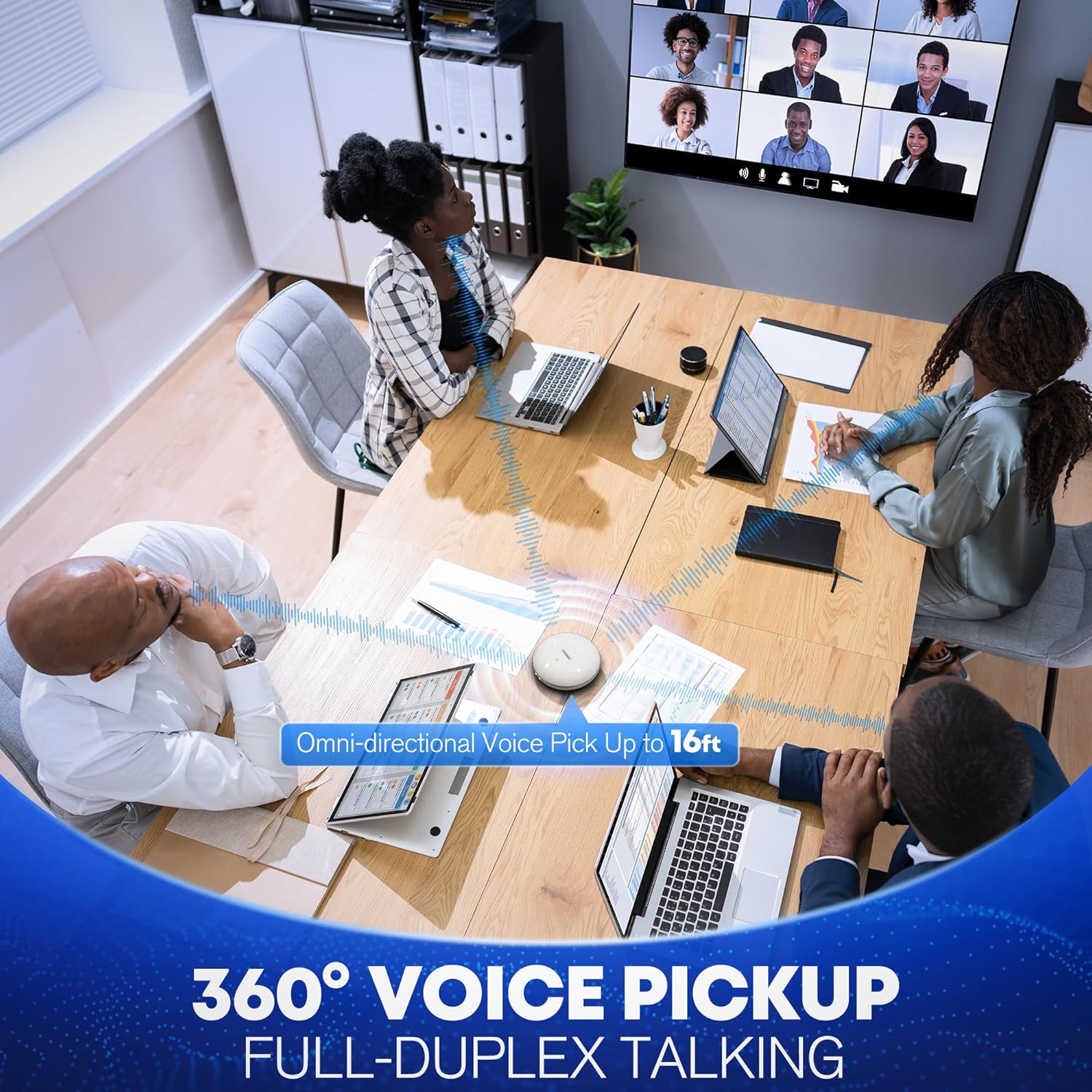
Figure 4: The 360° omnidirectional voice pickup ensures comprehensive audio capture in meeting environments.
Full-Duplex Audio
The full-duplex functionality allows multiple participants to speak and be heard simultaneously without audio cut-offs, facilitating natural, uninterrupted conversations.
AI Transcription
The AISPEECH M4 supports AI transcription services, allowing you to convert spoken conversations into text. This feature is particularly useful for meeting minutes or documentation. Refer to the Notta app for detailed transcription functionalities.
Video 1: An overview of the AISPEECH M4 Conference Speaker and Microphone, highlighting its features and benefits for clear communication.
Video 2: Demonstrates the AISPEECH M4 Bluetooth Conference Speakerphone's capabilities, including its sound quality and ease of use.
7. Care and Maintenance
- Keep the device dry and clean.
- Avoid exposing the device to extreme temperatures or direct sunlight.
- Use a soft, dry cloth to clean the surface. Do not use harsh chemicals or abrasive materials.
- Store the speakerphone in its portable case when not in use to protect it from dust and damage.
8. Troubleshooting
- Device not powering on: Ensure the device is charged. Connect it to a power source using the USB-C cable.
- Bluetooth pairing issues: Make sure the speakerphone is in pairing mode (flashing blue light). Check your device's Bluetooth settings and ensure it's discoverable. Try restarting both devices.
- No audio output: Verify the volume levels on both the speakerphone and your connected device. Check that the correct audio output device is selected in your computer's sound settings.
- Microphone not working: Ensure the microphone is not muted (check the mute indicator light). Verify that the correct microphone input device is selected in your computer's sound settings or conferencing software.
- Poor audio quality/background noise: Ensure the AI noise reduction feature is active. Try repositioning the speakerphone closer to the speakers or away from noise sources.
9. Technical Specifications
| Feature | Specification |
|---|---|
| Model Name | AIMIC-M4 |
| Brand | AISPEECH |
| Connectivity Technology | Bluetooth, NFC, USB |
| Wireless Communication Technology | Bluetooth, NFC |
| Special Feature | AI Transcription and Noise Reduction |
| Speaker Type | Speaker Systems |
| Audio Output Mode | Stereo |
| Power Source | Battery Powered |
| Item Weight | 0.42 Kilograms (14.9 ounces) |
| Product Dimensions | 5.4"D x 11"W x 3"H |
| Maximum Range | 16 Feet (Bluetooth Range: 10 Meters) |
| Frequency Response | 20 KHz |
| Control Method | Touch |
| Compatible Devices | Smartphone, Laptop, Desktop |
10. Warranty Information
The AISPEECH M4 Conference Speakerphone comes with a limited warranty. Please refer to the product packaging or contact AISPEECH customer support for specific warranty terms and conditions.
11. Support
For further assistance, technical support, or inquiries, please visit the official AISPEECH website or contact their customer service department. Contact details can typically be found on the product packaging or the brand's official online store.