
LU23030-V2
High-Performance Dual-Band GNSS Receiver User Manual
Model: LU23030-V2 | Brand: Generic
Introduction
This manual provides comprehensive instructions for the setup, operation, maintenance, and troubleshooting of the Generic LU23030-V2 High-Performance Dual-Band GNSS Receiver. Please read this manual thoroughly before using the device to ensure optimal performance and longevity.
The LU23030-V2 is a sophisticated GNSS receiver capable of tracking multiple global civil navigation systems, including GPS, GLONASS, BeiDou, Galileo, and QZSS. It supports both L1 and L5 signals for enhanced position accuracy, offering fast Time-To-First-Fix, superior sensitivity, and low power consumption. Its design is suitable for various location-based applications, including car and marine navigation.
Package Contents
Upon opening the package, verify that all components are present and undamaged.
- LU23030-V2 Dual-Band GNSS Receiver
- Driver (Download-Link provided)
Setup
1. Hardware Connection
The LU23030-V2 GNSS receiver connects via a USB Type-A connector. Ensure the USB port on your device (computer, laptop, etc.) is compatible.

Figure 1: The LU23030-V2 GNSS receiver with its integrated USB cable. The device features indicator lights for status feedback.
- Locate an available USB Type-A port on your host device.
- Carefully insert the USB connector of the LU23030-V2 into the USB port.
- Observe the indicator lights on the receiver. These lights provide visual feedback on the device's status, such as power and satellite acquisition.
2. Driver Installation
The receiver requires specific drivers for proper communication with your operating system. A download link for these drivers is provided with the product. Supported operating systems include Windows, Mac, and Linux.
- Access the provided download link for the drivers.
- Download the appropriate driver package for your operating system (Windows, Mac, or Linux).
- Follow the on-screen instructions to install the drivers. Administrator privileges may be required.
- After installation, it is recommended to restart your computer to ensure the drivers are fully loaded.
Operating Instructions
1. Initializing the Receiver
Once connected and drivers are installed, the receiver should be recognized by your system. For optimal performance, place the receiver in an area with a clear view of the sky to facilitate satellite acquisition.
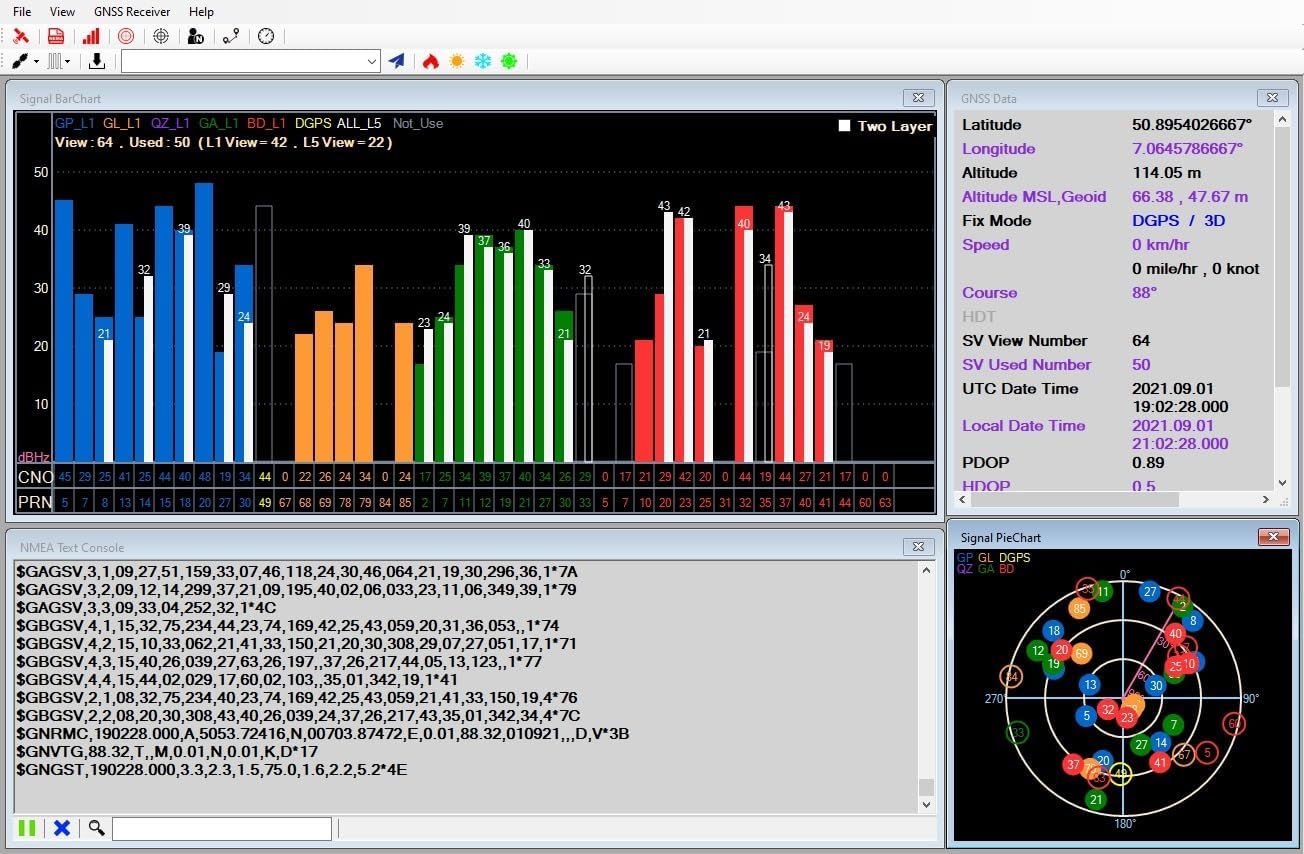
Figure 2: Example of a GNSS receiver software interface displaying signal bar charts, GNSS data (latitude, longitude, altitude, fix mode), and a skyplot of visible satellites.
- Launch your preferred navigation software (e.g., OpenCPN) or the provided utility application.
- Configure the software to connect to the serial port associated with the GNSS receiver.
- Allow a few moments for the receiver to acquire satellite signals. The Time-To-First-Fix (TTFF) is typically fast, especially with hybrid ephemeris prediction.
2. Adjusting Update Rate
The LU23030-V2 supports an adjustable update rate from 1Hz to 10Hz. This can be configured via software.

Figure 3: A software interface demonstrating how to adjust the position fix interval (update rate). Options include 1000ms (1Hz), 500ms (2Hz), 250ms (4Hz), 200ms (5Hz), and 100ms (10Hz).
- Within the GNSS receiver utility software, navigate to the "Command Table" or "Settings" section.
- Locate the option for "Set Position Fix Interval" or "Update Rate".
- Select your desired update rate (e.g., 100ms for 10Hz, 1000ms for 1Hz).
- Apply the changes. The receiver will adjust its data output frequency accordingly.
3. Using with Navigation Software
The LU23030-V2 is compatible with most navigation software that supports NMEA 0183 protocol, such as OpenCPN.

Figure 4: A navigation software interface showing a map with the current position indicated by the GNSS receiver. Signal strength and satellite data are also visible.

Figure 5: A detailed map view within navigation software, demonstrating features like changing scale, centering the map on the current position, and displaying coordinates.
- Ensure your navigation software is configured to receive NMEA data from the correct serial port.
- The software will display your current position, speed, course, and other relevant navigation data based on the receiver's output.
- Utilize the software's features for route planning, tracking, and point-of-interest management.
4. Android Application Usage
An Android application is available for use with the LU23030-V2, allowing for mobile device integration.
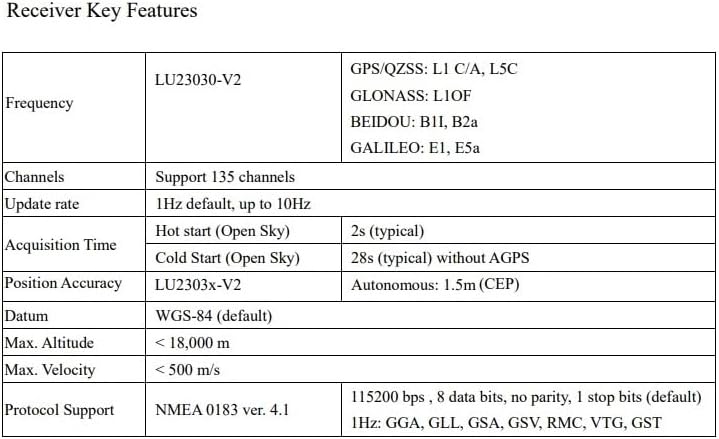
Figure 6: Screenshot of the LOCOSYS GPS Mouse v1.0.2 Android application, showing current time, speed, course, latitude, longitude, altitude, fix mode, and NMEA sentences. It also includes options to disconnect, view on Google Map, log start, and pause NMEA.
- Download and install the LOCOSYS GPS Mouse application from the appropriate app store or provided link.
- Connect the LU23030-V2 to your Android device using a compatible USB On-The-Go (OTG) adapter, if necessary.
- Launch the application. It should automatically detect and connect to the receiver, displaying real-time GNSS data.
Maintenance
The LU23030-V2 is designed for durability and requires minimal maintenance. Following these guidelines will help ensure its longevity:
- Cleaning: Use a soft, dry cloth to clean the exterior of the receiver. Avoid using harsh chemicals or abrasive materials.
- Storage: When not in use, store the receiver in a cool, dry place, away from direct sunlight and extreme temperatures.
- Cable Care: Do not bend or crimp the USB cable excessively. Always grasp the connector, not the cable, when plugging or unplugging.
- Water Resistance: The device is waterproof. However, avoid prolonged submersion or exposure to high-pressure water jets. Ensure the USB connection is dry before plugging into a device.
Troubleshooting
If you encounter issues with your LU23030-V2 GNSS receiver, refer to the following common problems and solutions:
| Problem | Possible Cause | Solution |
|---|---|---|
| Device not recognized by computer. |
|
|
| No satellite fix or poor accuracy. |
|
|
| Software not receiving data. |
|
|
Specifications
Detailed technical specifications for the LU23030-V2 Dual-Band GNSS Receiver:
Figure 7: A table summarizing key technical specifications of the LU23030-V2 GNSS receiver.
| Feature | Specification |
|---|---|
| Model Number | LU23030-V2 |
| Dimensions (L x W x H) | 1.97 x 0.59 x 1.97 inches |
| Weight | 2.82 ounces |
| GNSS Support | GPS, GLONASS, BeiDou, Galileo, QZSS (Dual-band L1 and L5) |
| Channels | 135 channels |
| Update Rate | 1-10Hz (adjustable) |
| Position Accuracy | 1.5m CEP (Autonomous) |
| Cold Start Time (Open Sky) | 28s (typical) without AGPS |
| Hot Start Time (Open Sky) | 2s (typical) |
| Max. Altitude | < 18,000 m |
| Max. Velocity | < 500 m/s |
| Protocol Support | NMEA 0183 ver. 4.1 |
| Baud Rate | 115200 bps (default) |
| Connectivity | USB (Type-A) |
| Operating Systems | Windows, Mac, Linux, Android |
| Special Feature | Waterproof |
Warranty Information
The LU23030-V2 GNSS Receiver comes with a 1-year warranty from the date of purchase. This warranty covers defects in materials and workmanship under normal use.
The warranty does not cover:
- Damage caused by accident, abuse, misuse, flood, fire, earthquake, or other external causes.
- Damage caused by operating the product outside the permitted or intended uses described by the manufacturer.
- Damage caused by service (including upgrades and expansions) performed by anyone who is not an authorized representative of the manufacturer.
- Products or parts that have been modified to alter functionality or capability without the written permission of the manufacturer.
For warranty service, please retain your proof of purchase. Contact customer support for assistance.
Support
For technical support, driver downloads, or further inquiries, please refer to the manufacturer's official website or contact their customer service department. Ensure you have your product model number (LU23030-V2) and purchase details ready when seeking support.
Ask a question about this manual
Ask about setup, troubleshooting, compatibility, parts, safety, or missing instructions. Manuals+ will review the question and use this page’s manual context to help answer it.