
1. Introduction
This manual provides detailed instructions for the setup, operation, and maintenance of your GOOFY TURTLE MAG 540W3 4K Streaming Media Player. Please read this manual thoroughly before using the device to ensure proper functionality and to prevent damage.
The MAG 540W3 is a high-performance 4K streaming media player featuring built-in dual-band 2.4G/5G WiFi, designed to deliver a superior entertainment experience.
2. Package Contents
Verify that all items listed below are included in your package. If any items are missing or damaged, please contact customer support.
- MAG 540W3 Streaming Media Player
- Remote Control
- HDMI Cable
- Power Adapter
- User Manual (this document)
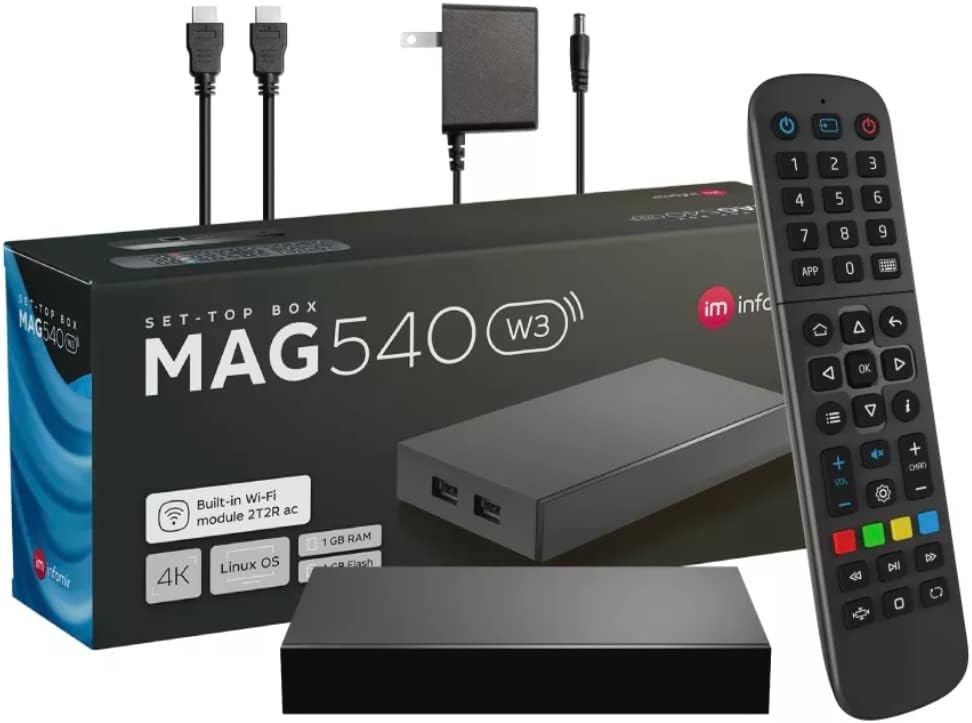
Figure 2.1: The MAG 540W3 package contents, showing the streaming box, remote control, HDMI cable, and power adapter.
3. Device Overview
3.1. Front Panel

Figure 3.1: Front view of the MAG 540W3, highlighting the two USB ports for external storage or peripherals.
The front panel features two USB ports, which can be used for connecting external storage devices or other compatible USB peripherals.
3.2. Rear Panel

Figure 3.2: Rear view of the MAG 540W3, showing the power input, HDMI output, and LAN (Ethernet) port.
The rear panel includes the following connections:
- DC 5V/2A Power Input: Connect the provided power adapter here.
- HDMI Output: Connect to your TV or display using the HDMI cable.
- LAN (Ethernet) Port: For wired network connection.
3.3. Remote Control

Figure 3.3: The MAG 540W3 remote control, featuring power, navigation, volume, channel, and media playback buttons.
The remote control allows you to navigate the device's interface and control media playback. Familiarize yourself with the button layout for optimal use.
4. Setup Guide
4.1. Connecting the Device
- Connect HDMI: Insert one end of the HDMI cable into the HDMI port on the MAG 540W3 and the other end into an available HDMI input on your TV or display.
- Connect Power: Plug the power adapter into the DC 5V/2A input on the MAG 540W3, then plug the adapter into a wall outlet.
- (Optional) Connect Ethernet: If using a wired network connection, connect an Ethernet cable from your router to the LAN port on the MAG 540W3.
4.2. Initial Power On
- Turn on your TV and select the correct HDMI input source corresponding to where you connected the MAG 540W3.
- The device should power on automatically. If not, press the power button on the remote control.
- Follow the on-screen instructions for initial setup, which may include language selection and network configuration.
4.3. Network Configuration
The MAG 540W3 supports both wired (Ethernet) and wireless (Wi-Fi) network connections.
4.3.1. Wi-Fi Connection
- From the main menu, navigate to Settings.
- Select Network or Wi-Fi Settings.
- Choose your Wi-Fi network from the list of available networks.
- Enter your Wi-Fi password using the on-screen keyboard and the remote control.
- Select Connect. Once connected, the device will indicate a successful connection.
4.3.2. Ethernet Connection
If you connected an Ethernet cable as described in Section 4.1, the device should automatically detect and connect to the wired network. No further configuration is typically required.
5. Operating Instructions
5.1. Remote Control Functions
The remote control is your primary interface for the MAG 540W3. Key functions include:
- Power Button: Turns the device on or off.
- Navigation Buttons (Up, Down, Left, Right): Move cursor or selection.
- OK Button: Confirms selection or opens an item.
- Back Button: Returns to the previous screen.
- Home Button: Returns to the main menu.
- Volume Up/Down: Adjusts audio volume.
- Channel Up/Down: Navigates through channels (if applicable).
- Media Playback Buttons (Play, Pause, Stop, Fast Forward, Rewind): Controls media playback.
- Number Buttons: For direct input or channel selection.
5.2. Navigating the Interface
The MAG 540W3 features a user-friendly interface. Use the navigation buttons on your remote to browse through applications, settings, and content. Press the OK button to select an item.
5.3. Streaming Content
Once connected to the internet, you can access various streaming applications. Launch your desired application from the main menu and follow its specific instructions for browsing and playing content.
The device supports popular services such as Netflix, Hulu, and Amazon Prime Video, among others, depending on pre-installed applications and user installations.
6. Maintenance
6.1. Cleaning
To clean the device, disconnect it from the power source. Use a soft, dry cloth to wipe the exterior. Do not use liquid cleaners or abrasive materials, as they may damage the finish or internal components.
6.2. Software Updates
Periodically check for software updates to ensure optimal performance and access to the latest features. Updates can usually be found in the Settings menu under System or About Device.
- Ensure a stable internet connection during updates.
- Do not power off the device during an update process.
7. Troubleshooting
If you encounter issues with your MAG 540W3, refer to the following common problems and solutions:
| Problem | Possible Cause | Solution |
|---|---|---|
| No power | Power adapter not connected or faulty outlet. | Ensure power adapter is securely connected to the device and a working power outlet. Try a different outlet. |
| No picture on TV | Incorrect HDMI input selected or loose HDMI cable. | Verify your TV is on the correct HDMI input. Check HDMI cable connections at both the device and the TV. Try a different HDMI cable or port. |
| No internet connection | Wi-Fi password incorrect, router issue, or Ethernet cable disconnected. | For Wi-Fi, re-enter password. Restart your router. For Ethernet, ensure cable is securely connected. Check network settings on the device. |
| Remote control not responding | Low batteries or obstructed signal. | Replace batteries in the remote. Ensure no obstructions between the remote and the device. |
| Device freezes or crashes | Software glitch or overheating. | Unplug the power adapter, wait 10 seconds, then plug it back in to restart. Ensure adequate ventilation around the device. Check for software updates. |
8. Specifications
The following are the technical specifications for the GOOFY TURTLE MAG 540W3 Streaming Media Player:
- Model: 540W3
- Resolution: 4K
- Connectivity: Built-in Dual Band 2.4G/5G WiFi, Ethernet
- RAM: 1 GB
- Supported Internet Services: Netflix, Hulu, Amazon Prime Video (and others via app installation)
- Controller Type: Remote Control
- Dimensions: Approximately 1 x 2 x 2.2 inches
- Weight: Approximately 15.8 ounces
- Color: Black
9. Warranty and Support
For warranty information and technical support, please refer to the documentation provided with your purchase or visit the official GOOFY TURTLE website. Keep your proof of purchase for warranty claims.
If you require further assistance, please contact GOOFY TURTLE customer service.