
1. Introduction
Thank you for purchasing the KIWIHOME PS5 Vertical Stand. This multi-functional accessory is designed to enhance your PlayStation 5 gaming experience by providing efficient cooling, convenient controller charging, expanded USB connectivity, and organized game storage. Please read this manual carefully before use to ensure proper installation and operation.
2. Package Contents
- KIWIHOME PS5 Vertical Stand
- Magnetic Charging Dongles (2 for controllers)
- USB Cable
- Safety Screw
- Instruction Manual

Figure 2.1: Exploded view of the stand components.
3. Compatibility
This stand is designed for specific PlayStation 5 models. Please verify your console's model before installation.
- Compatible Models: PS5 Disc Edition (2020), PS5 Digital Edition (2020)
- Not Compatible With: PS5 Slim Disc, PS5 Slim Digital, PS5 Pro Digital, PS5 Pro Disc
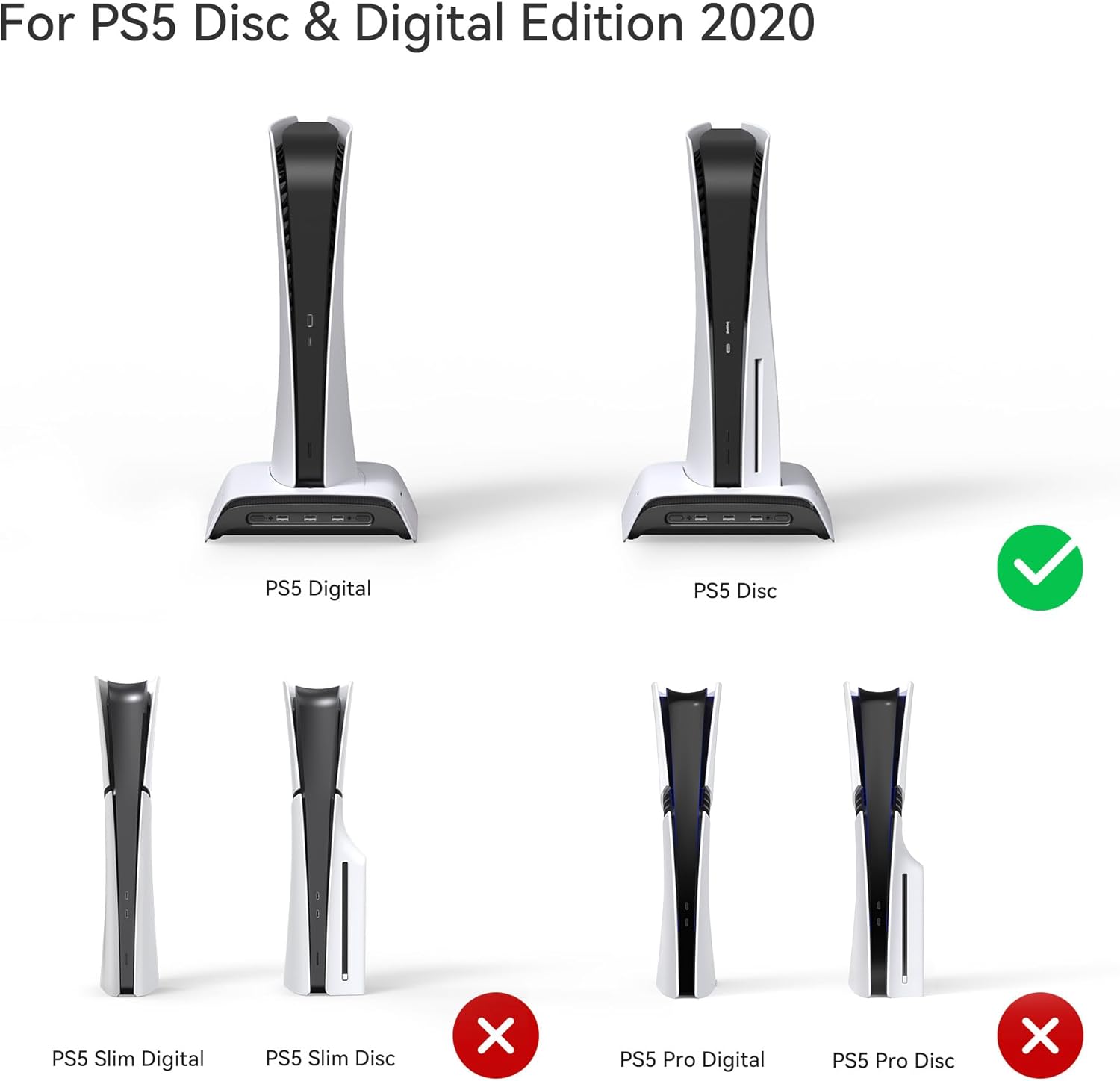
Figure 3.1: PS5 model compatibility overview.
4. Setup Instructions
- Place the Stand: Position the vertical stand on a stable, flat surface with adequate ventilation.
- Install PS5 Console: Carefully place your PS5 console onto the stand. Ensure it is seated correctly in the designated slot.
- Secure with Safety Screw: Locate the safety screw at the bottom of the stand. Insert and tighten the screw into the PS5's screw hole to secure the console firmly to the stand. This prevents accidental tipping.
- Connect USB Cable: Connect the integrated USB cable from the stand to a USB port on your PS5 console. This provides power for the cooling fan, charging ports, and RGB lighting.
- Attach Magnetic Dongles (for controllers): Insert the magnetic charging dongles into the USB-C ports of your DualSense controllers.
- Place Controllers for Charging: Gently place the controllers onto the charging slots on the stand. The magnetic connection will secure them, and the LED indicators will show charging status.
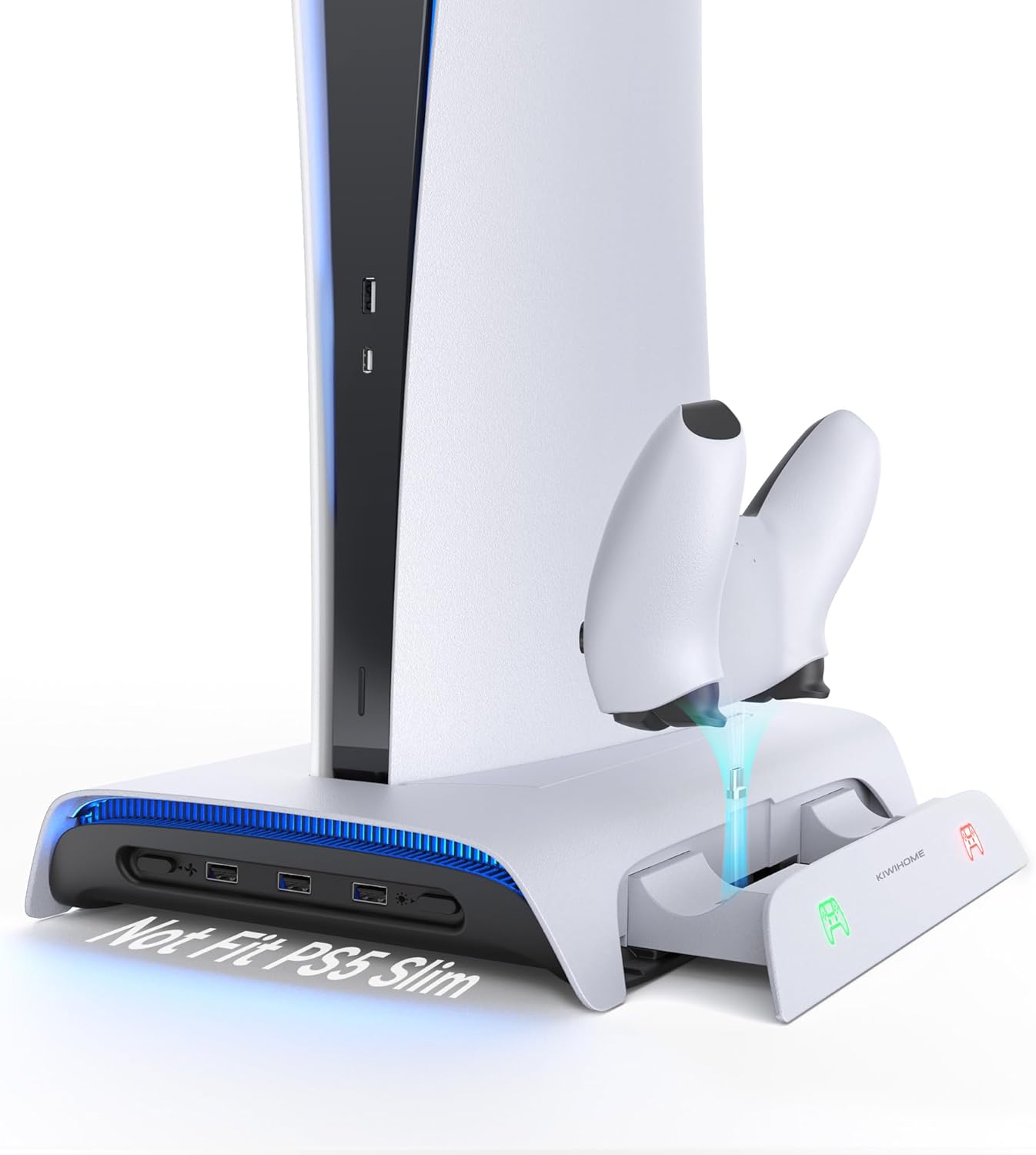
Figure 4.1: PS5 console and controllers installed on the stand.

Figure 4.2: Securing the console with the safety screw.
5. Operating Instructions
5.1 Controller Charging
The stand features two magnetic charging slots for DualSense controllers. Simply place your controllers with the magnetic dongles attached into the slots. Charging status is indicated by the LED lights:
- Orange Light: Charging in progress.
- Green Light: Fully charged or standby.
A full charge for two controllers takes approximately 3 hours.

Figure 5.1: High-speed controller charging.

Figure 5.2: Dual controller charging status indicators.
5.2 Cooling Fan Operation
The integrated cooling fan helps dissipate heat from your PS5 console, preventing overheating during extended gaming sessions. The fan has three adjustable speeds:
- High: Maximum cooling (up to 3500 RPM).
- Low: Moderate cooling (2500 RPM).
- Auto: Automatically adjusts fan speed between 2500-3500 RPM based on console temperature.
Press the dedicated fan speed button to cycle through the modes. The fan operates quietly to minimize disturbance.

Figure 5.3: Cooling fan speed indicators.
5.3 RGB Lighting Effects
The stand features 8 different RGB lighting modes to customize your gaming setup's ambiance. These include 7 breathing modes (Red, Orange, Yellow, Green, Cyan, Blue, Purple) and 1 multi-color cycle mode.
Press the dedicated RGB lighting button to switch between modes. The stand has a memory function that remembers your last selected lighting mode even after being powered off.
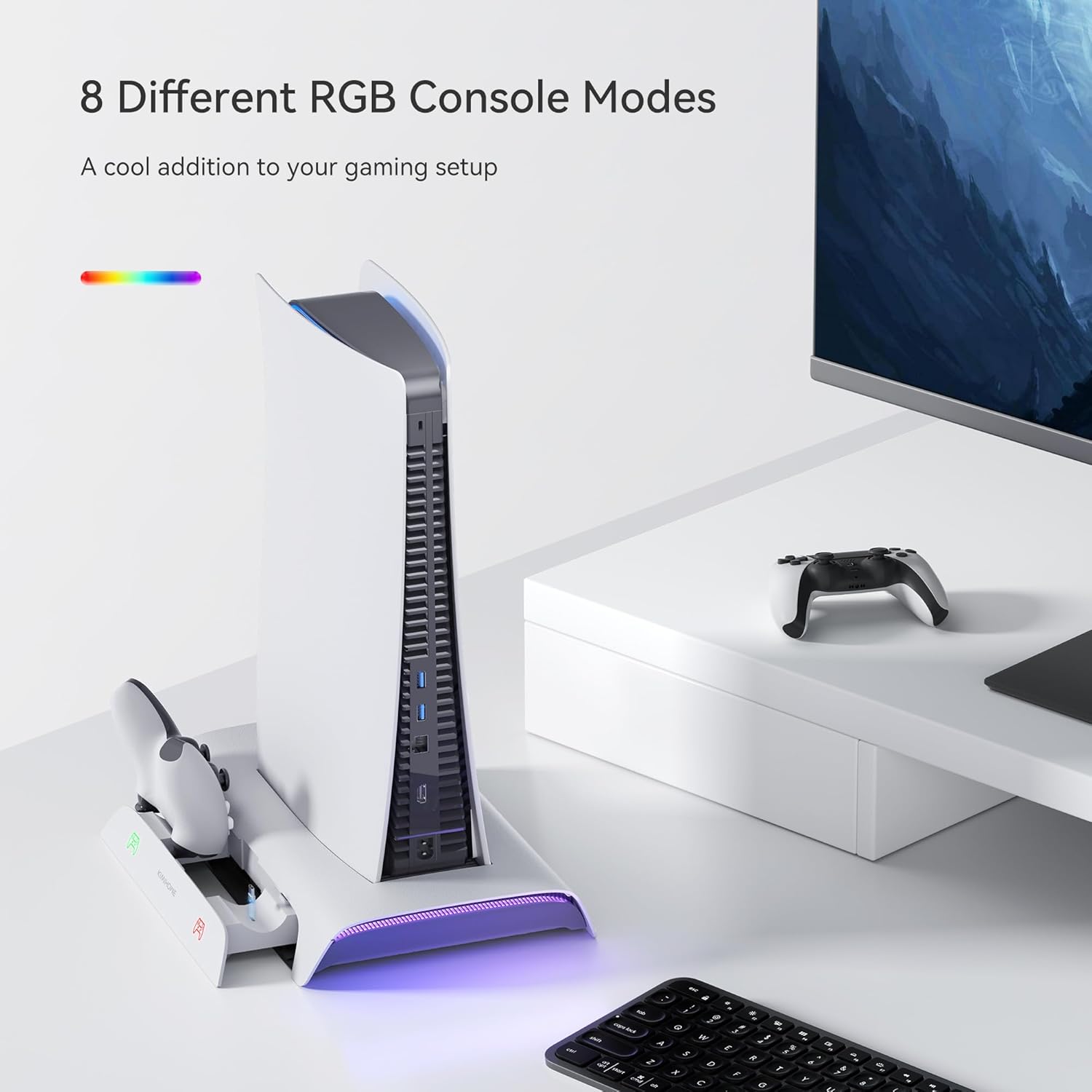
Figure 5.4: RGB lighting effects.
5.4 USB Ports
The stand includes three USB 2.0 ports, allowing you to connect additional peripherals such as wired controllers, headsets, mice, or tablets.
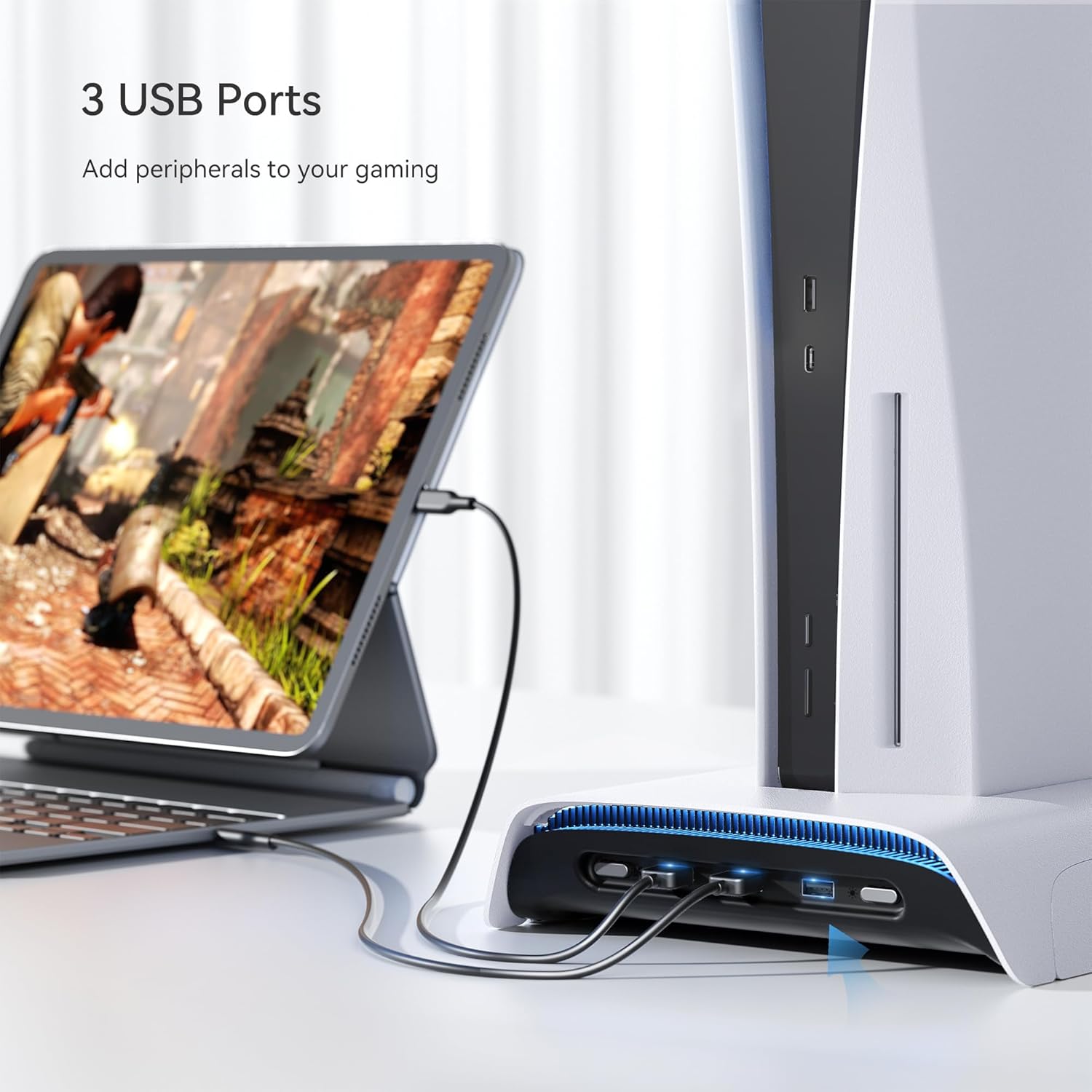
Figure 5.5: Connecting peripherals via USB ports.

Figure 5.6: Additional USB hub functionality.
5.5 Game Storage
The stand features a game slot holder that can store up to 10 game discs, keeping your gaming area tidy and organized.

Figure 5.7: Game disc storage.
6. Maintenance
- Cleaning: Use a soft, dry cloth to wipe down the stand. Do not use abrasive cleaners or solvents.
- Airflow: Ensure the fan vents are clear of dust and debris to maintain optimal cooling performance.
- Storage: When not in use for extended periods, disconnect the stand from power and store it in a cool, dry place.
7. Troubleshooting
| Problem | Possible Cause | Solution |
|---|---|---|
| Controllers not charging. | Magnetic dongles not properly inserted; stand not powered; faulty cable. | Ensure dongles are fully inserted into controllers. Verify stand's USB cable is connected to PS5. Try a different USB port on the PS5. |
| Cooling fan not operating. | Stand not powered; fan speed set to 'Off' or 'Auto' when not needed. | Check USB power connection. Press the fan speed button to cycle through modes (High/Low/Auto). |
| RGB lighting not changing. | Stand not powered; button not pressed correctly. | Ensure USB power connection. Press the RGB button firmly to cycle through modes. |
| PS5 still feels hot. | Fan speed too low; obstructed airflow; prolonged intense gaming. | Increase fan speed to 'High'. Ensure no obstructions around PS5 vents or stand's fan. Allow console to rest if playing for very long periods. |
8. Specifications
- Product Dimensions: 37 x 22.9 x 5.7 cm
- Product Weight: 1.37 kg
- Model Number: PB01
- Fan Speed: Max 3500 RPM (High/Low/Auto modes)
- Controller Charging Time: Approximately 3 hours for two controllers
- USB Ports: 3 x USB 2.0
- RGB Modes: 8 (7 breathing colors + 1 multi-color cycle)
9. Warranty and Support
KIWIHOME products are manufactured to high-quality standards. For any issues or support inquiries, please contact KIWIHOME customer service through the retailer's platform or the official KIWIHOME website. Please retain your proof of purchase for warranty claims.


